
When your OPPO Find X8 Pro starts closing apps unexpectedly or freezing up, it pulls you right out of whatever you were doing. This can be especially annoying on a powerful phone like this, which runs on Android 15 with ColorOS 15. I've found that most of the time, the fix is pretty straightforward and doesn't require any drastic measures.
Let's jump straight into the most common fix. If a single app is misbehaving, head to your Settings, then tap on Apps. Find the troublesome app in the list and select it. Inside the app's info page, tap on Storage usage. Here, you'll see options to Clear cache and Clear data.
Start by tapping Clear cache. This wipes temporary files that might have become corrupted without touching your personal settings or login info. If the app still crashes, you can go back and tap Clear data. Just be aware this will reset the app completely, so you'll need to log back in and set any preferences again.
Force Stop and Restart the App
Sometimes an app just gets stuck in a bad state. You can give it a hard reset without restarting your whole phone. Go back to that same app info page in Settings > Apps. Instead of storage, look for the Force stop button near the bottom and tap it.
This completely shuts down the app's process. Wait a few seconds, then open the app again from your home screen. It should launch fresh. If you're dealing with multiple apps acting up, or if the phone itself feels sluggish, a full device restart is a great next step.
Just press and hold the power button for about ten seconds until you feel a vibration and see the OPPO logo. This force restart can clear out minor system glitches that might be affecting app performance.
Check for App and System Updates
Developers are constantly pushing updates to squash bugs. Open the Google Play Store, tap your profile icon in the top right, and go to Manage apps & device. Under the "Updates available" section, tap Update all to get the latest versions of everything.
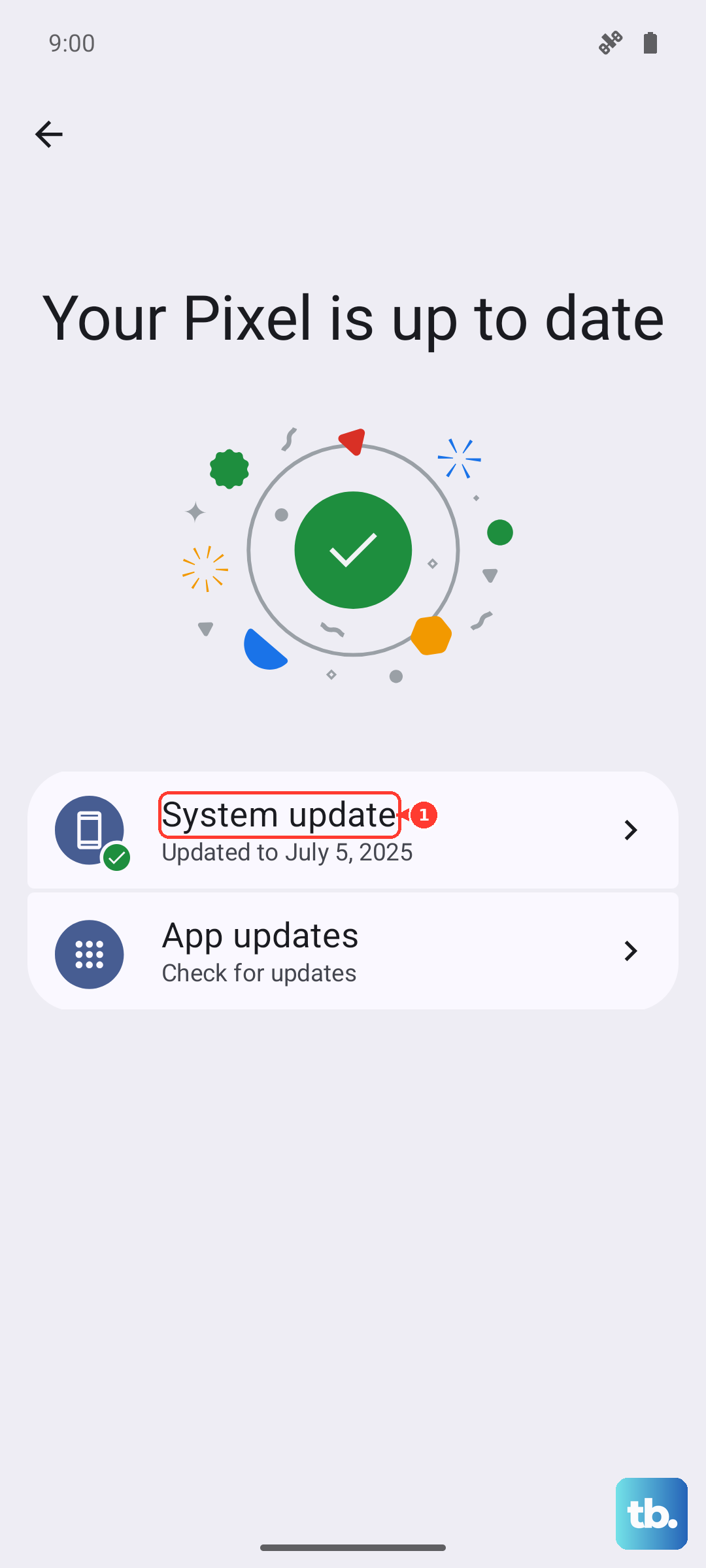
It's also crucial to keep ColorOS itself updated. OPPO releases system updates that improve stability and compatibility. Go to Settings > About device and tap on ColorOS version. The phone will check for an update. If one is available, make sure you're connected to Wi-Fi and have at least a 30% charge, then follow the prompts to install it.
Free Up Storage Space on Your Find X8 Pro
Modern apps need room to breathe and store temporary data. If your phone's storage is nearly full, apps can start crashing. The Find X8 Pro doesn't have expandable storage, so managing space is key.
Head to Settings > About device > Storage to see what's taking up room. The usual suspects are photos, videos, and downloaded files. You can use the built-in Phone Manager app to quickly clean junk files and cache from all apps at once. Also, consider offloading large videos to cloud storage or a computer.
Examine Your Network Connection
Apps that rely heavily on the internet, like social media or streaming services, can freeze or crash if your connection is unstable. Try toggling Airplane mode on and off from the quick settings panel to reset your cellular and Wi-Fi radios.
If you're on Wi-Fi, try forgetting the network and reconnecting. Go to Settings > Wi-Fi, tap on your network name, and select Forget. Then reconnect by entering the password again. For mobile data, ensure you have a strong signal. The Dimensity 9400 chip is great, but it can't fix a weak network.
Reinstall the Problematic App
When an app is consistently broken and clearing data didn't help, a fresh install is the way to go. Press and hold the app icon on your home screen until a menu pops up, then tap Uninstall. Confirm the action.
Don't just reinstall it immediately from your library. Instead, open the Play Store, search for the app by name, and install it fresh from the store page. This ensures you're getting a clean copy of the latest version, free from any corrupted installation files.
Review App Permissions and Battery Settings
ColorOS has aggressive battery optimization features to extend battery life, which can sometimes interfere with apps running in the background. Go to Settings > Battery > More settings (or App battery management).
Find the app that's crashing and tap on it. Change its battery optimization setting to "Allow background activity" or "Auto-launch" to give it more leeway to run. Also, check the app's permissions in Settings > Apps to make sure it has access to what it needs, like location or storage.
Boot into Safe Mode
This is a useful diagnostic step to see if a third-party app you installed is causing system-wide issues. To boot your Find X8 Pro into Safe Mode, press and hold the power button until the power off menu appears.
Then, press and hold the "Power off" text on the screen. A prompt will ask if you want to reboot to Safe Mode. Tap OK. In Safe Mode, all downloaded apps are temporarily disabled. If the crashes stop, you know one of your installed apps is the culprit. You'll need to restart normally to exit Safe Mode.
Perform a Factory Reset
If you've tried everything and apps are still unstable, a factory reset is the final option. This will erase all data on your phone, so this is a last resort. Back up everything important first using Google Drive, OPPO's Cloud service, or by transferring files to a computer.
Once backed up, go to Settings > Additional settings > Back up and reset. Tap on Erase all data (factory reset). You may need to enter your lock screen password. The process only takes a few minutes and will return the phone to its out-of-the-box state, which often resolves persistent software conflicts.