
When the volume buttons on your OnePlus Open stop responding, it can feel like you're stuck in a silent movie you didn't want to watch. You press the rocker, but nothing happens, no volume change, no haptic feedback. The good news is that most of the time, this is a software hiccup or a simple obstruction that you can fix yourself without a trip to the service center.
Let's start with the most common and effective fix, which often resolves the issue in under a minute.
Perform a Force Restart
This is the go-to first step for any unresponsive behavior on Android phones. A force restart clears temporary software glitches that can cause the system to ignore hardware inputs like the volume buttons. It won't delete any of your apps or data.
For the OnePlus Open, press and hold the Power button for about 10 to 15 seconds. Keep holding it until you see the OnePlus logo appear on the screen, then release. The phone will boot up normally. Once it's back on, test the volume buttons immediately.
Remove Your Phone Case
It sounds obvious, but cases are a frequent culprit. A case that's slightly misaligned, has a thick rim, or has worn down over time can physically block the volume rocker from being fully depressed.
Take the case off completely and press the volume buttons directly. Feel for the distinct click. If they work without the case, you've found your issue. I'd try a different case or go without one for a bit to confirm.
Clean the Volume Rocker
The OnePlus Open's folding design, with its prominent hinge, can be a magnet for pocket lint and dust. This debris can easily work its way into the small gap around the volume button, preventing it from moving properly.
Grab a can of compressed air and give short, controlled bursts around the button. For any sticky residue, a cotton swab dipped in a tiny amount of isopropyl alcohol (90% or higher) can help. Be gentle and avoid pushing moisture into the device.
Check for Software Updates
OxygenOS updates frequently include bug fixes for hardware interaction issues. A recent app or system update might have introduced a conflict that's making the buttons unresponsive.
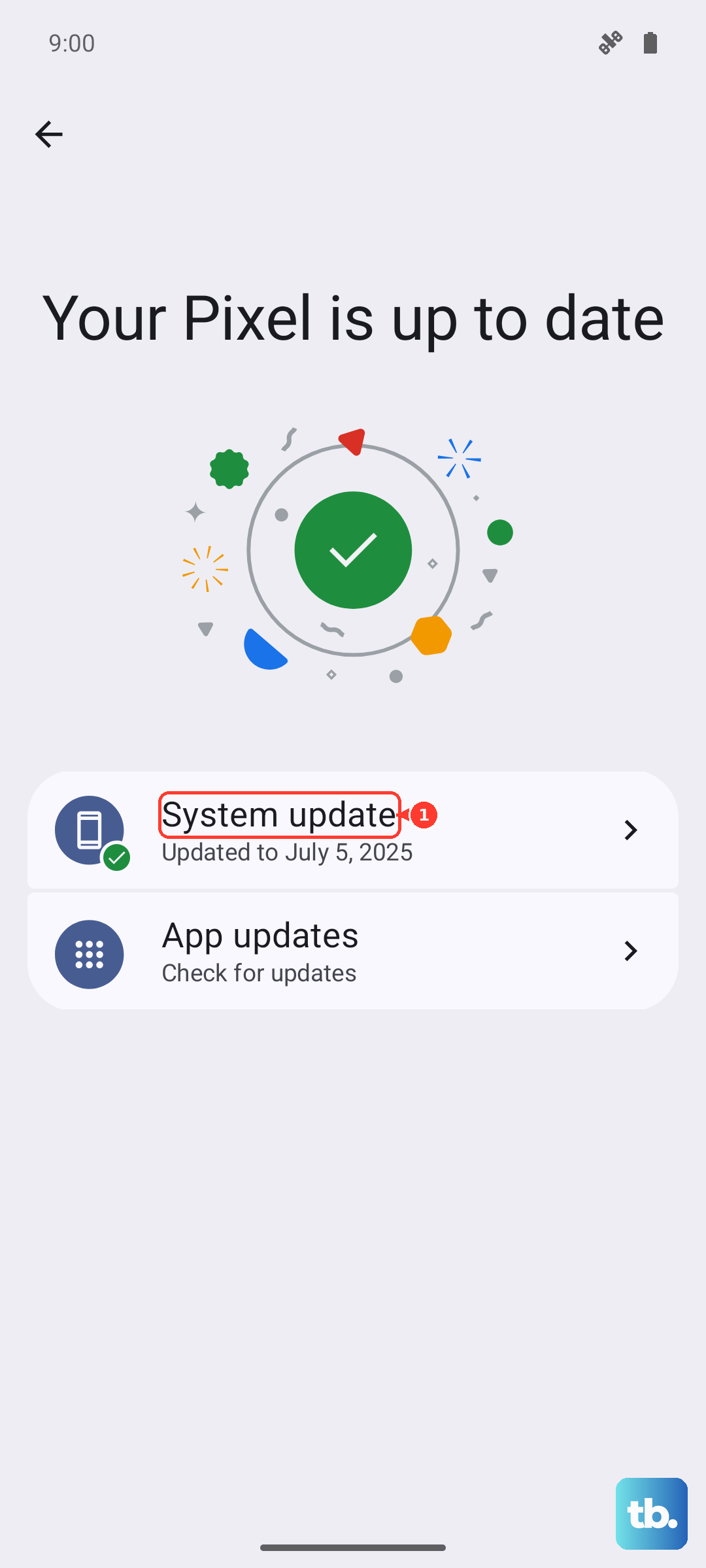
Go to Settings > About device > OxygenOS version and tap on the icon at the top to check for updates. If an update is available, install it. Make sure your phone is connected to Wi-Fi and has at least 50% battery, or plug in your 67W SUPERVOOC charger for a speedy update.
Test in Safe Mode
Safe Mode boots your phone with all third-party apps disabled. If the volume buttons work perfectly in Safe Mode, you know a recently installed app is causing the conflict.
To boot into Safe Mode on the OnePlus Open, press and hold the Power button until the power menu appears. Then, press and hold the "Power off" option on the screen. A prompt will ask if you want to reboot to Safe Mode. Tap "OK." Test the buttons. To exit, just restart your phone normally.
Use On-Screen Volume Controls
While you're troubleshooting, you're not stuck with one volume level. You can adjust volume directly from the settings panel. Swipe down from the top of the screen twice to open the full Quick Settings panel, and use the volume slider there.
You can also go to Settings > Sound & vibration to adjust media, call, alarm, and notification volumes individually with sliders.
Inspect for Physical Damage
Take a close look at the volume rocker and the area around it. With a foldable, the sides of the device can experience different pressures. Check if the button feels loose, stuck in one position, or if there are any visible dents or cracks from a drop.
Also, be mindful of the inner screen. While not directly related to the buttons, pressing the crease area with fingernails or sharp objects can cause broader issues. The hinge mechanism itself is robust, but physical damage there could affect the frame where the buttons are mounted.
Check Accessibility Settings
Some accessibility features can remap or alter how hardware buttons function. It's worth a quick look to make sure nothing was accidentally enabled.
Head to Settings > Additional settings > Accessibility. Look through options like "Volume key shortcut" or any talkback services that might be active. Temporarily disable any accessibility services you don't actively use and test the buttons again.
Reset App Preferences
This is a lighter reset that won't delete your app data. It resets permissions, background restrictions, and default app assignments, which can sometimes resolve conflicts affecting system controls.
Go to Settings > Apps > App management. Tap the three-dot menu in the top right and select "Reset app preferences." Confirm the action. Your phone will behave as if you just set it up app-wise, but your data is safe.
Consider a Factory Reset
If every other step has failed and the buttons are still dead, a deep software issue might be the cause. A factory reset will wipe your phone back to its original state. This is a last resort.
Crucial: Back up everything important first. Use Google One backup or manually transfer photos and files to a computer. To reset, go to Settings > Additional settings > Back up and reset > Erase all data (factory reset). Follow the prompts. After the reset, set up the phone as new first (don't restore a backup immediately) to see if the buttons work on a clean system.