
When the predictive text on your OnePlus Open stops working, it can turn simple typing into a real chore. You might find it's not suggesting the next word, autocorrect is making bizarre changes, or the whole feature just seems to have given up. The good news is, this is almost always a software hiccup that you can fix yourself.
I'd start with a quick restart of the phone. It sounds simple, but it clears out temporary glitches in OxygenOS that can affect the keyboard. Just press and hold the power button for about ten seconds until you see the OnePlus logo appear on screen.
Clear the Gboard App Cache and Data
Since the OnePlus Open uses Google's Gboard as its default keyboard, the fix involves that app. Go into your phone's settings and tap on Apps. Find and select Gboard from the list. Tap on Storage & cache and then hit Clear cache first.
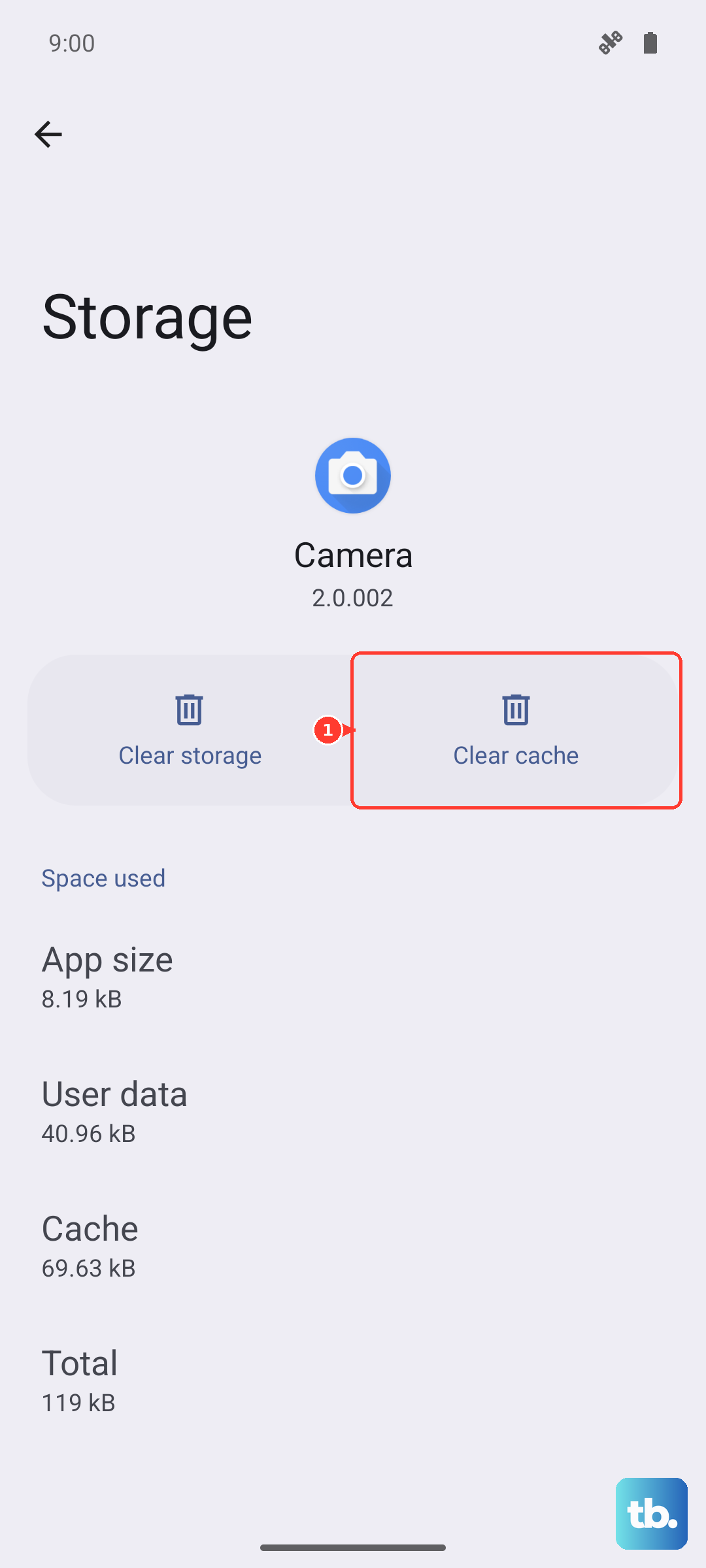
This wipes temporary files without touching your personal dictionary. If the problem sticks around, go back to the same storage menu. This time, tap Clear storage or Clear data. Be aware, this will reset Gboard to its default settings and erase any custom words you've saved.
Check Your Gboard Settings
Sometimes a setting just gets flipped off. Open any app that lets you type, like Messages or Notes, and bring up the keyboard. Tap the gear icon at the top of Gboard to go straight to its settings.
Navigate to Text correction. Here, make sure the toggle for Show suggestion strip and Next-word suggestions are both turned on. You can also scroll down to Personalized suggestions and ensure it's enabled, as this helps the AI learn how you type.
Update Gboard and Your System Language
An outdated app can cause all sorts of strange behavior. Open the Google Play Store, search for "Gboard," and see if an update is available. Tap update if there is one.
Also, check that your system language packs are current. Go to Settings > Additional settings > Languages & region. Tap on your primary language (like English) and select Update if the option appears. This ensures the language model Gboard uses is up to date.
Reset Gboard's Dictionary
If the suggestions are just plain wrong, the learned dictionary might be corrupted. Go back into Gboard's settings via the gear icon on the keyboard. Tap on Dictionary and then Delete learned words.
This clears out all the quirky words and names your phone has learned from your typing. It starts you fresh, so it might take a day or two of normal use for predictions to feel smart again, but it often fixes persistent suggestion problems.
Try a Different Keyboard Temporarily
This is a great way to figure out if the issue is with Gboard itself or something deeper in the system. Install another keyboard from the Play Store, like Microsoft SwiftKey, and set it as your default in Settings > Additional settings > Keyboard & input method.
Use the new keyboard for a bit. If predictive text works perfectly, then the problem is isolated to Gboard, and a full reinstall might be the final fix. If the new keyboard also has issues, it points to a broader system setting or permission.