
Slow WiFi or mobile data on your OnePlus 13 Pro can really put a damper on streaming, browsing, or gaming. The connection might feel sluggish, videos could buffer, or web pages might take forever to load. I'd start with the quickest fixes first, as they often solve the problem in under a minute.
Before diving into settings, try the simplest step: a force restart. Press and hold the Volume Down button and the Power button together for about 10 seconds until you feel the device vibrate and the OnePlus logo appears. This clears temporary software glitches that can affect network performance.
Toggle Airplane Mode and Check Your Signal
Sometimes the radio just needs a quick reset. Swipe down from the top of your screen to open the Quick Settings panel and tap the Airplane mode icon. Wait about 10 seconds, then tap it again to turn it off. This forces your phone to re-establish connections with both cellular towers and WiFi networks.
While you're at it, check your status bar. If you're on mobile data, look for the "5G" or "4G" icon. If you only see "H+" or "E", you're on a much slower network. For WiFi, make sure you're connected to the correct network and that the signal strength indicator looks strong.
Forget and Reconnect to Your WiFi Network
If your WiFi is slow but other devices are fine, the saved network profile on your phone might be the issue. Go to Settings > Wi-Fi & network. Tap on the network you're connected to, then select "Forget".
After forgetting the network, search for it again in the list, tap on it, and re-enter the password to reconnect. This creates a fresh connection and can often resolve speed issues caused by a corrupted network cache.
Switch Between 2.4GHz and 5GHz WiFi Bands
Many modern routers broadcast two networks. The 5GHz band is faster but has a shorter range, while 2.4GHz is slower but travels farther through walls. If you're far from your router, you might have connected to the faster 5GHz band, but the signal is too weak.
Check your router's settings or app to see if you can give the two bands different names (like "HomeWiFi_5G" and "HomeWiFi_2.4G"). Connect your OnePlus 13 Pro to the 2.4GHz network when you're farther away for a more stable, albeit slower, connection. Use the 5GHz network when you're in the same room for maximum speed.
Disable OxygenOS Smart Features Temporarily
OnePlus includes intelligent features to optimize your experience, but they can sometimes interfere. Go to Settings > Wi-Fi & network > Wi-Fi. Tap the three-dot menu in the top right and select "Intelligent Wi-Fi".
Here, you can temporarily turn off options like "Auto-switch to mobile data" or "Auto-connect to high-quality Wi-Fi". These features are designed to help, but disabling them can tell you if they're causing unstable connections or unexpected data switches that feel like slowdowns.
Clear the Cache for Google Play Services and Your Browser
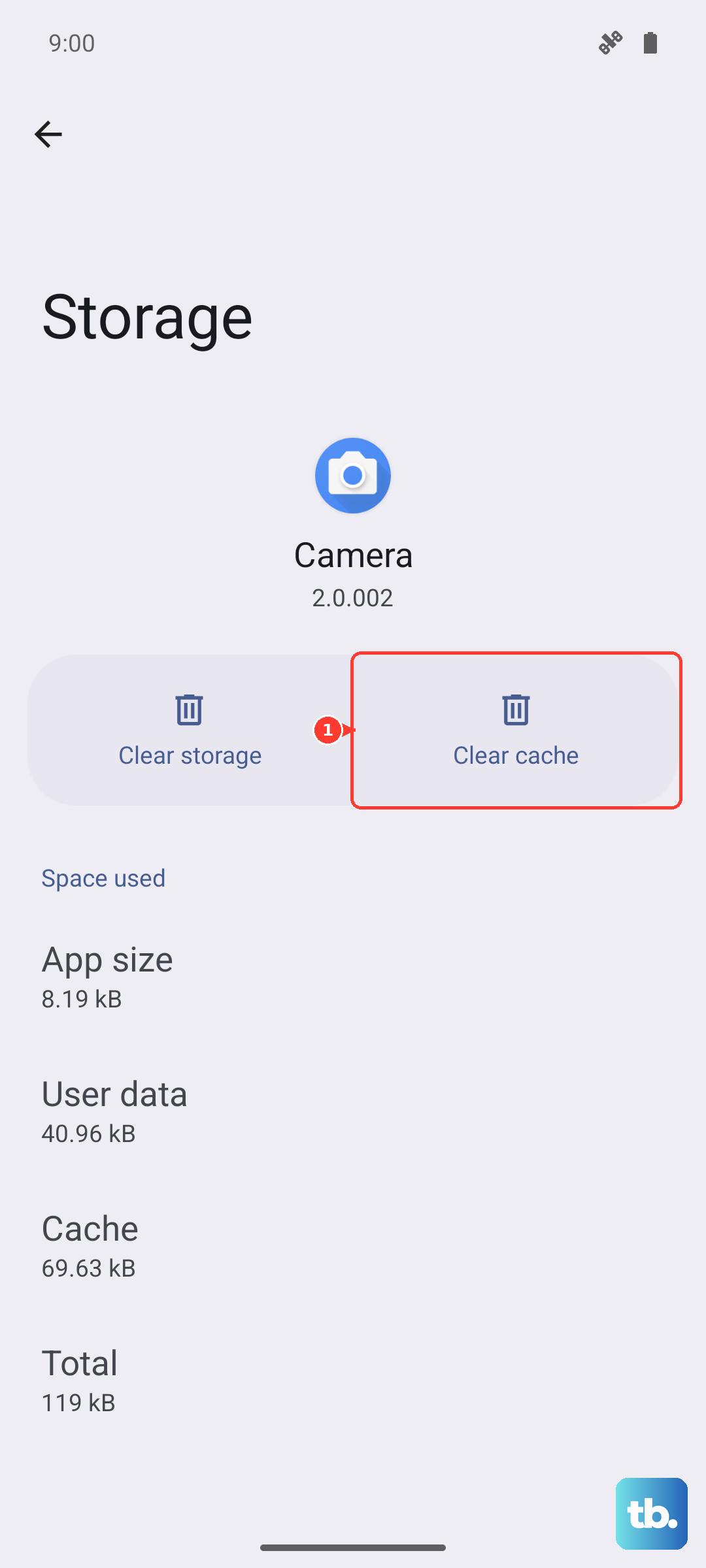
Corrupted cache data in system services or your web browser can lead to network problems. For Google Play Services, go to Settings > Apps > See all apps. Find "Google Play Services" in the list and tap it.
Select Storage & cache and then tap "Clear cache". Do not tap "Clear storage" or "Manage space", as that can delete important data. For Chrome or your preferred browser, open the app, go to its settings, find the privacy or history section, and clear the browsing cache and cookies.
Check for and Install System Updates
OnePlus regularly releases OxygenOS updates that include performance improvements and bug fixes for connectivity. Make sure your OnePlus 13 Pro is running the latest software. Go to Settings > About device > OxygenOS version.
Tap on the top banner where it says "OxygenOS" to check for updates. If an update is available, connect to a stable WiFi network and install it. These updates often contain crucial radio firmware patches that directly affect WiFi and cellular data speed and stability.
Configure Your Mobile Network Preferences
You can choose which type of network your phone prefers. Go to Settings > Wi-Fi & network > SIM & network. Select your active SIM card and look for "Preferred network type".
If you're in an area with strong 5G, select "5G/LTE/3G/2G". If you find 5G is inconsistent and your phone is frequently switching, which can drain battery and feel slow, try selecting "LTE/3G/2G" for a more stable connection. You can always switch it back later.
Enable Data Saver and Restrict Background Data
If mobile data feels slow, it might be because apps are using it in the background. Go to Settings > Wi-Fi & network > Data usage. Here, you can toggle on "Data Saver". This restricts background data for all apps.
For more control, tap on "Data usage" again and then "App data usage". Select any app that's using a lot of data and tap "Background data". You can set it to "Restrict" to prevent it from using mobile data in the background, freeing up bandwidth for the app you're actively using.
Reset Your Network Settings
This is a more comprehensive step if nothing else has worked. Resetting network settings will erase all saved WiFi passwords, Bluetooth pairings, and cellular network preferences. Go to Settings > Additional settings > Backup & reset.
Tap on "Reset phone" and then select "Reset Wi-Fi, mobile & Bluetooth". Confirm the action. Your phone will reboot. Afterward, you'll need to reconnect to your WiFi networks and re-pair Bluetooth devices, but this often resolves deep-seated network configuration errors.
If you're still experiencing significant slowdowns after trying these steps, the issue could be with your internet service provider, your cellular carrier's network congestion, or your router itself. Testing your speed on another device can help pinpoint where the problem is.