
When the predictive text on your OnePlus 12 stops working, it can turn simple typing into a chore. You might find it's not suggesting words, the autocorrect is making bizarre changes, or the whole feature has just vanished. The good news is this is almost always a software hiccup you can fix yourself.
I'd start with a quick restart. Press and hold the Power button for about 10 seconds until you see the OnePlus logo appear. This clears out any temporary glitches in the system and is the fastest way to see if the problem resolves itself.
Check Your Keyboard Settings
First, let's make sure predictive text is actually turned on. Open any app where you can type, like Messages or Notes, and bring up the keyboard. Look for a settings icon (it often looks like a gear) on the top row of the keyboard itself and tap it.
From there, tap on "Text correction." You'll see a list of options. Make sure the toggle for "Show suggestion strip" is switched on. This is the master control for predictive text on the OnePlus keyboard.
While you're in that menu, also check the settings for "Next-word suggestions" and "Auto-correction." Sometimes one of these being off can make it feel like the whole system is broken.
Clear the Gboard App Cache and Data
If the settings look right, the next step is to clear out the keyboard's temporary files. Since the OnePlus 12 uses Gboard by default, you'll need to go into your app settings. Open Settings and tap on Apps.
Find and select Gboard from your list of apps. Tap on Storage & cache. Here, tap the "Clear cache" button first. This removes temporary data without affecting your personal dictionary or settings.
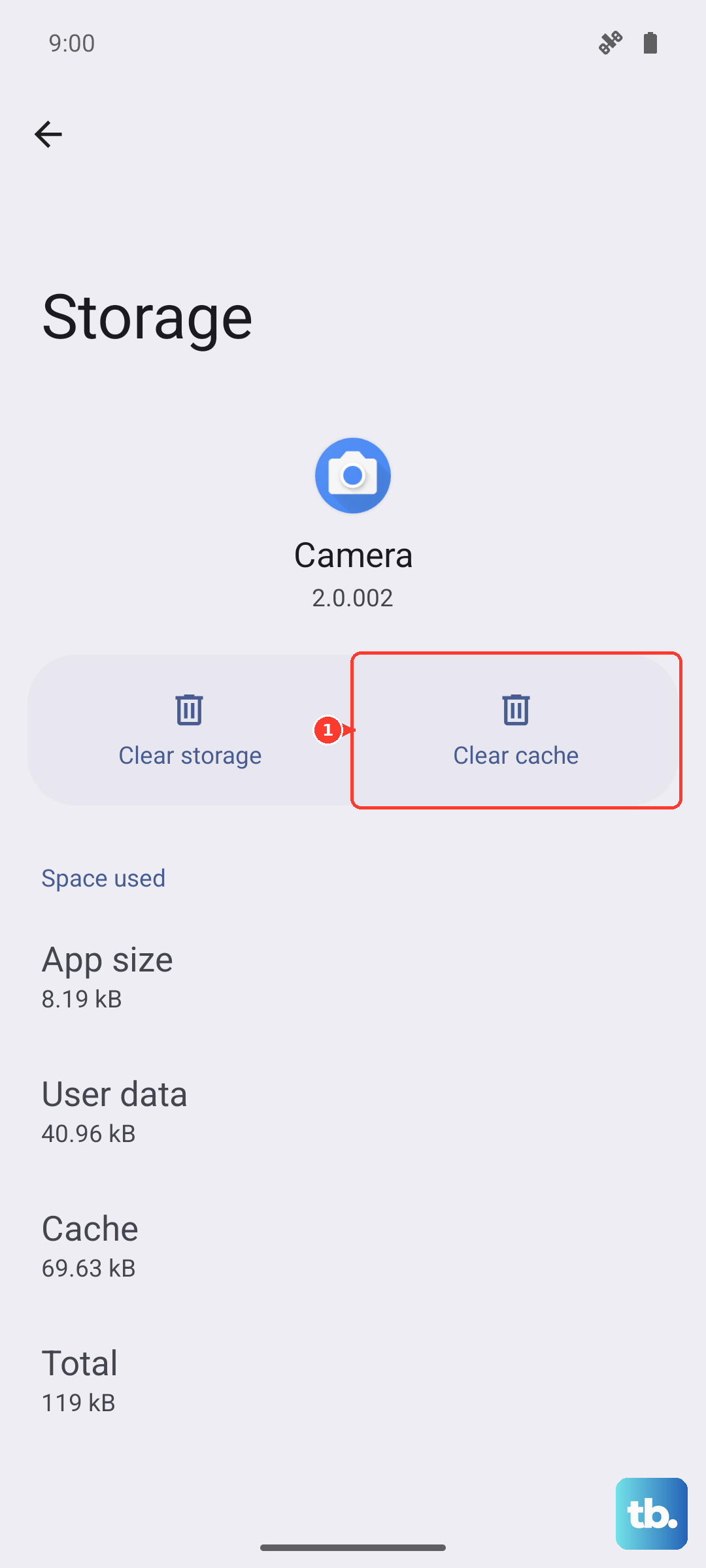
If clearing the cache doesn't bring predictive text back, you can go a step further. Tap "Clear storage" or "Clear data." This will reset Gboard to its default state, so you'll lose any custom words you've added and have to reconfigure your preferences, but it often clears up deeper corruption.
Update Gboard and System Software
An outdated app can cause all sorts of strange behavior. Open the Google Play Store, search for "Gboard," and see if an update is available. Tap "Update" if there is one. It's also worth checking for a full system update.
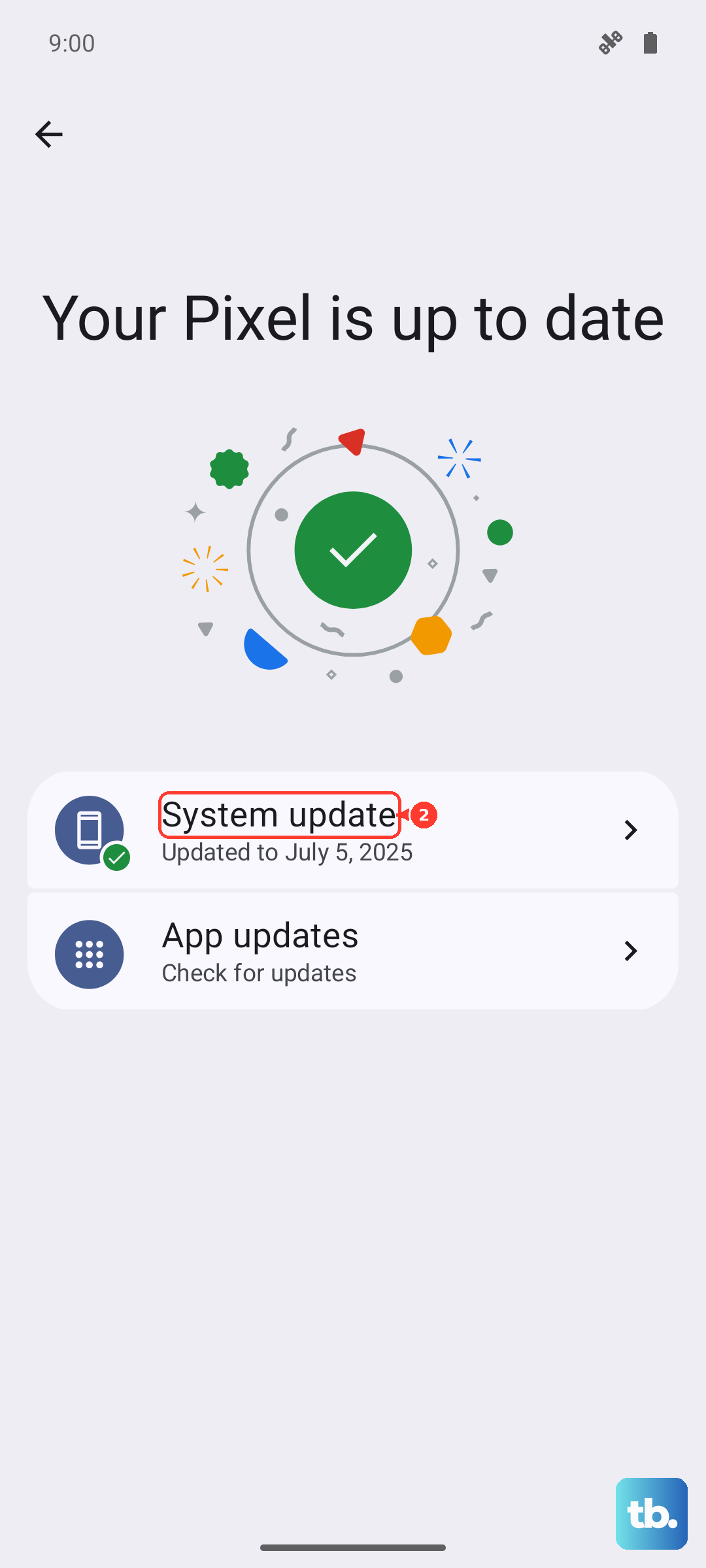
Go to Settings > About device > OxygenOS version. Your phone will check for updates. Installing the latest OxygenOS update can include important fixes for the keyboard and system intelligence services that power predictions.
Try a Different Keyboard App
To rule out a problem with Gboard itself, try switching to a different keyboard temporarily. You can download something like SwiftKey or Grammarly from the Play Store. After installing, go to Settings > System > Languages & input > Virtual keyboard.
Tap on "Manage keyboards" and enable your newly installed keyboard. Then, when you go to type somewhere, tap the keyboard icon in your navigation bar or tap and hold the spacebar to switch to the new one. If predictive text works perfectly on the other app, the issue is isolated to Gboard.
Check Your Language and Region Settings
Predictive text needs to know what language you're typing in to work properly. Go to Settings > System > Languages & input. Under "Languages," make sure your primary language is correctly set.
Also, tap on "Region" and ensure it matches where you are. A mismatch here can confuse the language models. If you use multiple languages, go back into Gboard settings via the keyboard gear icon, select "Languages," and verify all the ones you need are added and active.
Reset App Preferences as a Last Resort
If nothing else has worked, you can reset all your app preferences. This won't delete any personal data like photos or messages, but it will reset notification permissions, default apps, and background data restrictions for all applications.
Go to Settings > Apps > See all apps. Tap the three-dot menu in the top right and select "Reset app preferences." Confirm your choice. After your phone restarts, you'll need to set your default keyboard back to Gboard and re-grant any permissions it asks for, but this can resolve conflicts causing the predictive text failure.