
When your OnePlus 13 Pro's Settings app won't open, it can feel like you're locked out of your own phone. This usually happens due to a temporary software glitch or a conflict with a recent update. The good news is, you can almost always fix it yourself without losing any data.
Start With a Simple Restart
It sounds basic, but a restart clears out the phone's temporary memory and stops any background processes that might be interfering. Just press and hold the power button, then tap "Restart" on the screen.
If the Settings app is completely frozen and you can't access the power menu, you'll need to force restart. Press and hold the Volume Down button and the Power button together for about 10 seconds. Keep holding until you feel the device vibrate and the OnePlus logo appears.
Clear the Settings App Cache
Your phone stores temporary data to help apps like Settings load faster. Sometimes this cache gets corrupted. Clearing it forces the app to rebuild these files from scratch, which often solves the crash.
Since you can't open the main Settings app, you'll need to access this menu a different way. Pull down the notification shade and tap the gear icon in the top right. If that doesn't work, try opening the Settings search bar from your app drawer or home screen and type "Apps".
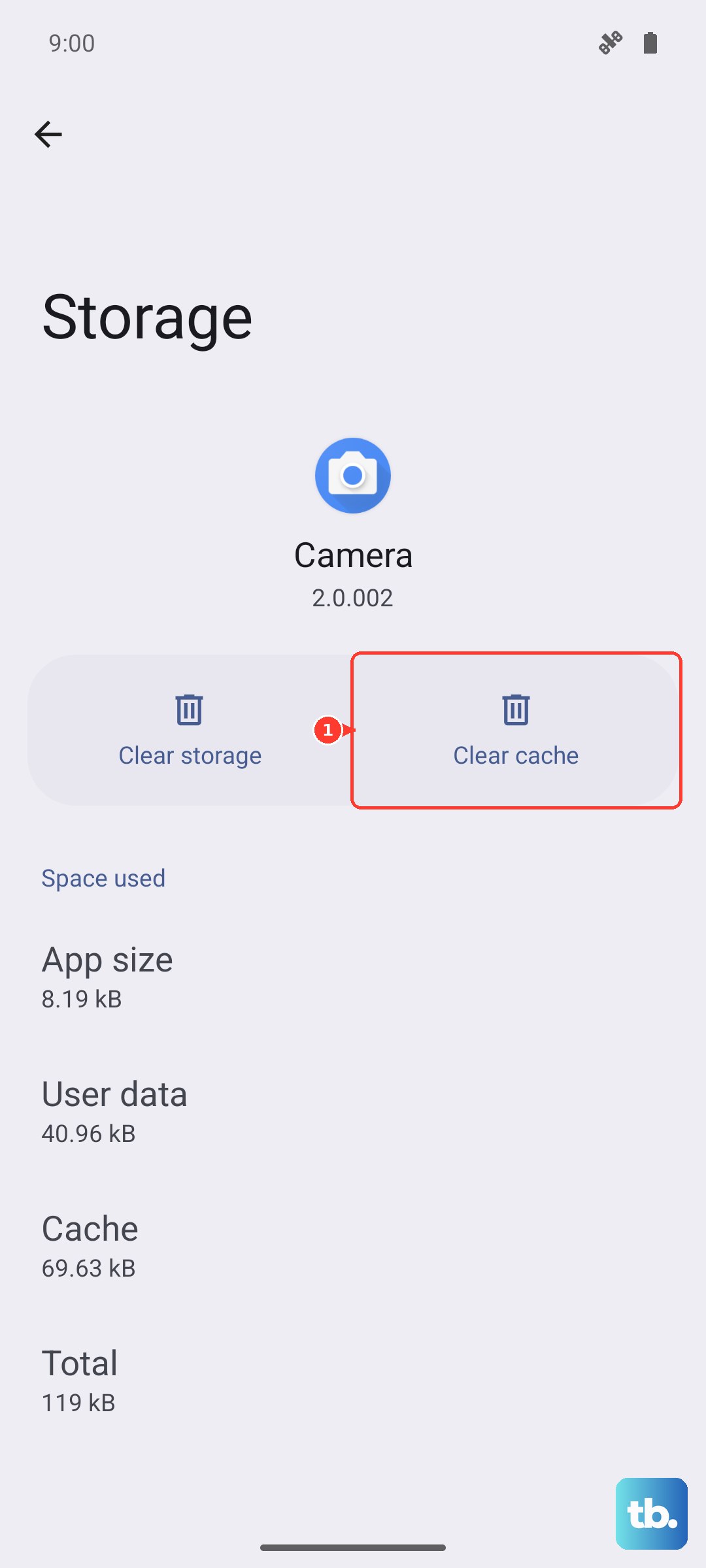
Navigate to Apps > See all apps. Find and tap on "Settings" in the list. Go to Storage & cache and tap "Clear cache". Don't clear the data here unless you've tried everything else, as it will reset your preferences.
Check for a System Update
OnePlus frequently releases OxygenOS updates that fix bugs. An outdated system can have conflicts that cause core apps to fail. You can check for updates even if the main Settings app is broken.
Use the search method again. Swipe down on your home screen to bring up the global search, type "Software update", and select the result. Tap "Check for updates" and install anything that's available. I've seen minor updates specifically target app stability issues like this.
After the update installs, your phone will restart. Give it a minute to settle, then try opening Settings again.
Boot Into Safe Mode
If the problem started after installing a new app, that app could be causing the conflict. Booting into Safe Mode temporarily disables all third-party apps, letting you see if one of them is the culprit.
First, press and hold the power button until the power menu appears. Then, press and hold the "Power off" option on your screen. A prompt will ask if you want to reboot to Safe Mode. Tap "OK".
Once your OnePlus 13 Pro restarts, you'll see "Safe Mode" in the bottom corner. Try opening the Settings app now. If it works perfectly in Safe Mode, you know a downloaded app is to blame. Restart your phone normally to exit Safe Mode, then try uninstalling apps you recently added one by one.
Reset App Preferences
This is a useful middle-ground step. It won't delete any of your personal data or app logins, but it will reset all your default apps, background restrictions, and permission settings. It can clear up a conflict that's stopping Settings from launching.
Access the Apps menu like before: through the notification shade gear icon or the global search. Go to Apps > See all apps, then tap the three-dot menu in the top right and select "Reset app preferences". Confirm your choice.
Your phone will apply the reset and you might need to re-grant permissions to some apps later. Immediately try opening the Settings app afterward.
Consider a Factory Reset
If none of the software fixes work, a deeper system issue might be at play. A factory reset will wipe your phone back to its original out-of-the-box state. This is a last resort because you will lose all data that isn't backed up.
Make absolutely sure your photos, contacts, and important files are backed up to Google Drive or your computer first. Since Settings might not be accessible, use Google Photos for pictures and check your sync settings in your Google account through another method.
To initiate the reset, you can use the hardware key method. Power off your OnePlus 13 Pro completely. Then, press and hold the Volume Down and Power buttons together. When the OnePlus logo appears, release the Power button but keep holding Volume Down until you see the recovery menu.
Use the volume keys to navigate to "Wipe data and cache" and select it with the power button. Then choose "Erase everything". After the process finishes, select "Reboot". This will take some time and will resolve any persistent software corruption.