
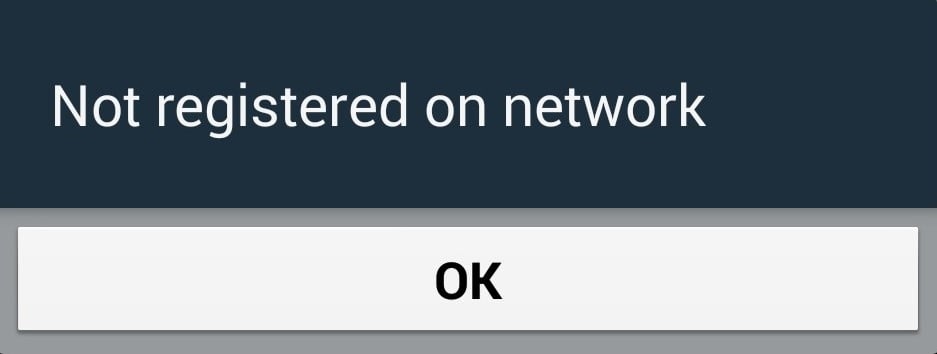
If your OnePlus Open shows a "Not registered on network" error or has no signal, you can't make calls, send texts, or use mobile data. This usually means your phone is having trouble authenticating with your carrier's towers. Before you assume the worst, there are several things you can try to get back online.
I'd start with the simplest fix. Swipe down from the top of your screen to open the Quick Settings panel and tap the Airplane Mode icon. Wait about 10 seconds, then tap it again to turn it off. This forces your phone's modem to completely re-scan for and connect to your network, which often clears up a temporary glitch.
Perform a Force Restart
If toggling Airplane Mode didn't help, give your OnePlus Open a full reboot. Sometimes, background processes related to the modem can get stuck. Press and hold the Power button for about 10 seconds, or until you feel a vibration and see the phone restart. This is a bit more thorough than a standard restart and can clear deeper software hiccups.
Check Your SIM Card
A loose or dirty SIM card is a surprisingly common culprit. Power off your phone first. Then, use the SIM eject tool (or a small paperclip) to pop out the SIM tray. Carefully remove the SIM card and give both the gold contacts on the card and inside the tray a gentle wipe with a dry, lint-free cloth. Reinsert the SIM, making sure it's seated correctly in the tray, and push the tray back in firmly. Power your phone back on.
Verify Your Carrier Account Status
Your phone can't register if your account isn't active. An unpaid bill, an expired prepaid plan, or a carrier-side provisioning error will cause this. Try logging into your carrier's app or website from another device to check your account status. If everything looks fine there, it's worth giving them a quick call from another phone to make sure there are no outages or issues specific to your line.
Reset Your Network Settings
This is a powerful step that wipes all your saved network information. It clears out corrupted cellular, Wi-Fi, and Bluetooth configurations without touching your personal data. On your OnePlus Open, go to Settings > Additional settings > Backup & reset > Reset phone > Reset network settings. Tap to confirm, and your phone will restart. You'll need to reconnect to Wi-Fi networks and re-pair Bluetooth devices afterward.
Manually Select Your Network Operator
Your phone might be trying to latch onto a weak or incompatible tower. You can tell it to search for all available networks and pick yours manually. Go to Settings > Mobile network > Network operators. Turn off "Select automatically," let it search, then choose your carrier's name from the list. If your carrier appears and you can select it, that's a good sign. If it fails to register even when selected manually, the issue is more specific.
Change Your Preferred Network Type
In some areas, 5G coverage can be spotty, and your phone might struggle to register while trying to connect to it. Switching down to LTE can provide a more stable connection for registration. Head to Settings > Mobile network > Preferred network type. Try selecting "4G/3G/2G (auto)" instead of a 5G option. See if your signal returns on the more reliable LTE network.
Update Your Phone's Software
OnePlus regularly releases updates that fix bugs, including ones related to network connectivity. An outdated version of OxygenOS could have a known issue that's already been patched. Connect to Wi-Fi and go to Settings > About device > OxygenOS version > Check for update. If an update is available, install it. The phone will restart, and it's a good idea to check your signal immediately after it boots up.
Try a Different SIM Card
This test tells you if the problem is with your SIM or the phone itself. If you can borrow a working SIM card from a friend (even from a different carrier), pop it into your OnePlus Open. If that other SIM card gets a signal and registers on a network, then your original SIM card is likely faulty or deactivated. You'll need to contact your carrier for a replacement. If the borrowed SIM also shows "Not registered," the issue is with your phone.
Clear the Phone Services Cache
The Android system services that manage your connection can accumulate corrupted temporary data. Clearing this cache is safe and doesn't delete any personal info. Go to Settings > Apps > See all apps. Tap the three-dot menu in the top right and select "Show system." Find and tap "Phone Services" (it might also be called "com.android.phone"). Go to Storage & cache > Clear cache. Restart your phone after doing this.
Perform a Factory Reset
Consider this your last resort before seeking hardware repair. A factory reset will erase all data on your phone, so you must back up everything important first. Once backed up, go to Settings > Additional settings > Backup & reset > Erase all data (factory reset). Follow the prompts to reset the phone. After it restarts, go through the minimal setup just to see if the network error is gone before you restore your data. If the problem persists after a clean factory reset, the issue is likely a hardware fault with the phone's internal antenna or modem.