
When the microphone on your OnePlus Open stops picking up your voice, it can turn a simple phone call or video chat into a frustrating game of charades. The issue could be anything from a blocked mic port to a software setting that got flipped. Let's start with a quick test to pinpoint the problem before we jump into the fixes.
If you are not sure whether the mic is dead or just misconfigured, open a quick mic test first. A moving level meter means the hardware is healthy, which rules out the worst case before you touch any settings.
Test Your OnePlus Open Microphone
Open the Voice Recorder app that came pre-installed on your phone. Tap the red record button, speak clearly for about ten seconds, and then play it back. If your voice sounds muffled, distant, or isn't there at all, you've confirmed the issue.
You can also make a quick test call to your voicemail or a friend. Ask them if they can hear you clearly. If the problem is only in one app, like WhatsApp or Google Meet, that points to an app-specific permission or bug.
1. Check for Physical Blockages
The OnePlus Open has microphone openings along the bottom edge and near the rear camera module. These tiny holes are magnets for pocket lint, dust, and debris. Grab a can of compressed air and give the bottom edge and camera area a few short, gentle bursts to clear anything out.
You can also use a dry, soft-bristled brush, like a clean paintbrush or a dedicated electronics brush. Avoid using anything sharp like a pin or toothpick, as you could easily damage the microphone membrane inside.
2. Remove Your Phone Case
Some cases, especially bulky or poorly designed ones, can partially cover the microphone ports. Take your OnePlus Open out of its case completely and test the microphone again with a quick recording. I've seen this solve the issue more times than you'd think.
3. Restart Your Phone
A simple reboot clears out temporary software glitches that can affect hardware like the microphone. Press and hold the Power button for about ten seconds until you feel a vibration and see the OnePlus logo, then release. This force restart is often more effective than a standard shutdown.
4. Disconnect Bluetooth Accessories
If you have wireless earbuds, a headset, or a car stereo connected via Bluetooth, your phone might be routing all audio through them. Go to Settings > Bluetooth and tap the settings icon next to any connected audio device, then select "Disconnect."
You can also just turn Bluetooth off entirely from the Quick Settings panel to test. Swipe down from the top of your screen and tap the Bluetooth icon to disable it, then try your microphone again.
5. Check App Permissions
Android requires apps to ask for permission to use your microphone. If you accidentally denied it, or a recent app update reset it, the app won't be able to hear you. Go to Settings > Privacy > Permission manager.
Tap on "Microphone" here. You'll see a list of all apps that have requested access. Find the app giving you trouble (like Zoom, Discord, or your camera app) and make sure the permission is set to "Allow" and not "Deny."
6. Force Stop and Update the Problem App
If a specific app is the culprit, force stopping it can clear its cached data and reset its state. Go to Settings > Apps, find the app, and tap "Force stop." Then, open the Google Play Store, search for the app, and see if an update is available. Developers often release patches for audio bugs.
7. Update OxygenOS
System updates from OnePlus frequently include bug fixes and improvements for hardware performance. Go to Settings > About device > OxygenOS version and tap on the top banner to check for updates.
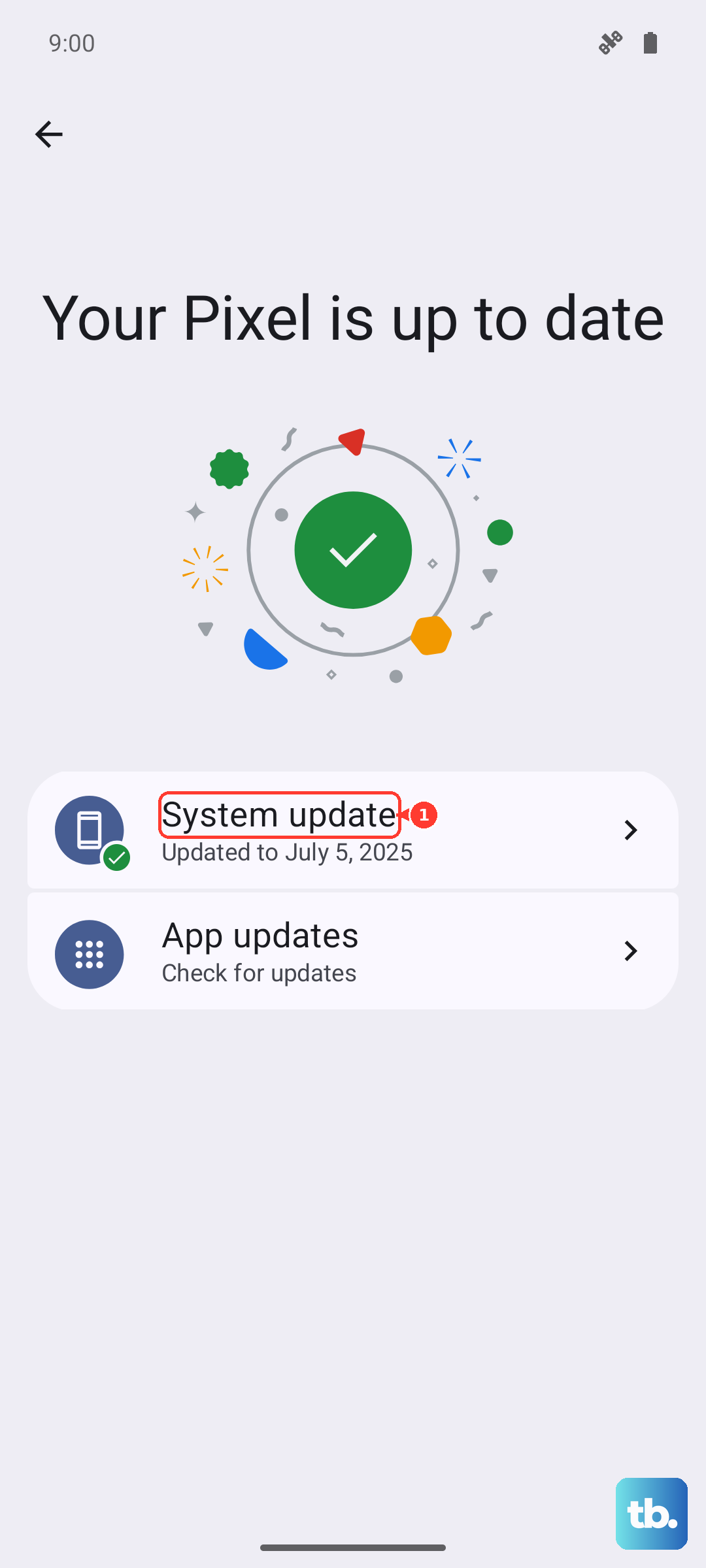
If an update is available, make sure your phone is connected to Wi-Fi and has at least a 30% charge, or better yet, plug in your 67W SUPERVOOC charger. Download and install the update, as it may contain a direct fix for microphone issues.
8. Clear the Cache Partition
This clears temporary system files that can sometimes become corrupted. First, power off your OnePlus Open completely. Press and hold the Power and Volume Down buttons together until the phone vibrates and the OnePlus logo appears, then release.
You'll boot into recovery mode. Use the volume buttons to navigate to "Wipe data and cache" and press the power button to select. Then, choose "Wipe cache" and confirm. This won't delete any personal data. Once it's done, select "Reboot."
9. Reset App Preferences
This resets all your app permissions, notification settings, and default apps back to their original state without deleting any app data. It's a good middle-ground step. Go to Settings > Apps > Reset app preferences at the top right (three-dot menu).
Tap "Reset apps" on the confirmation pop-up. After your phone restarts, you'll need to re-grant microphone access to apps when you use them for the first time, which can often resolve conflicting permissions.
10. Perform a Factory Reset
This is your last resort software fix. It will erase everything on your phone, so a full backup is absolutely essential. Use Google One backup or the OnePlus Switch app to save your data. Once backed up, go to Settings > Additional settings > Back up and reset > Erase all data (factory reset).
Follow the prompts to confirm. After the reset, set up your phone as new initially to test the microphone. If it works, you know it was a software problem. If the microphone is still not working after a clean factory reset, the issue is likely hardware-related.