
When your OnePlus Open starts restarting on its own, it can be incredibly disruptive, especially when you're trying to use the large inner display. This is often a software hiccup, but with a foldable, there are a few extra things to consider. I'd start with the simplest fix first.
Before you begin, it's a good idea to ensure your important data is backed up. You can use Google's backup service or manually transfer files to a computer or cloud storage. This protects your photos, documents, and app data just in case.
Perform a Force Restart
The absolute first thing to try is a force restart. This clears the phone's temporary memory and can stop a minor software glitch in its tracks. For the OnePlus Open, it's straightforward.
Just press and hold the power button on the right side for about 10 to 15 seconds. Keep holding it until you see the OnePlus logo appear on the screen, then release. The phone will boot up normally. This takes about 30 seconds total and doesn't delete any data.
Check for App Conflicts
Third-party apps are a common cause of random restarts on any Android phone. Start by checking which apps you installed or updated right before the problem began. You can try booting into Safe Mode to see if the issue stops.
To enter Safe Mode, press and hold the power button until the power menu appears. Then, tap and hold the "Power off" option on your screen. A prompt will ask if you want to reboot to Safe Mode. Tap "OK".
If your OnePlus Open is stable in Safe Mode, a downloaded app is likely the culprit. Restart normally and begin uninstalling recent apps one by one to find the offender. Pay special attention to apps that might interact with the dual-screen functionality.
Update Your Software and Apps
Running outdated software can lead to instability. OnePlus frequently releases OxygenOS updates that include bug fixes and performance improvements. Check for a system update by going to Settings > About device > OxygenOS version and tap "Check for update".
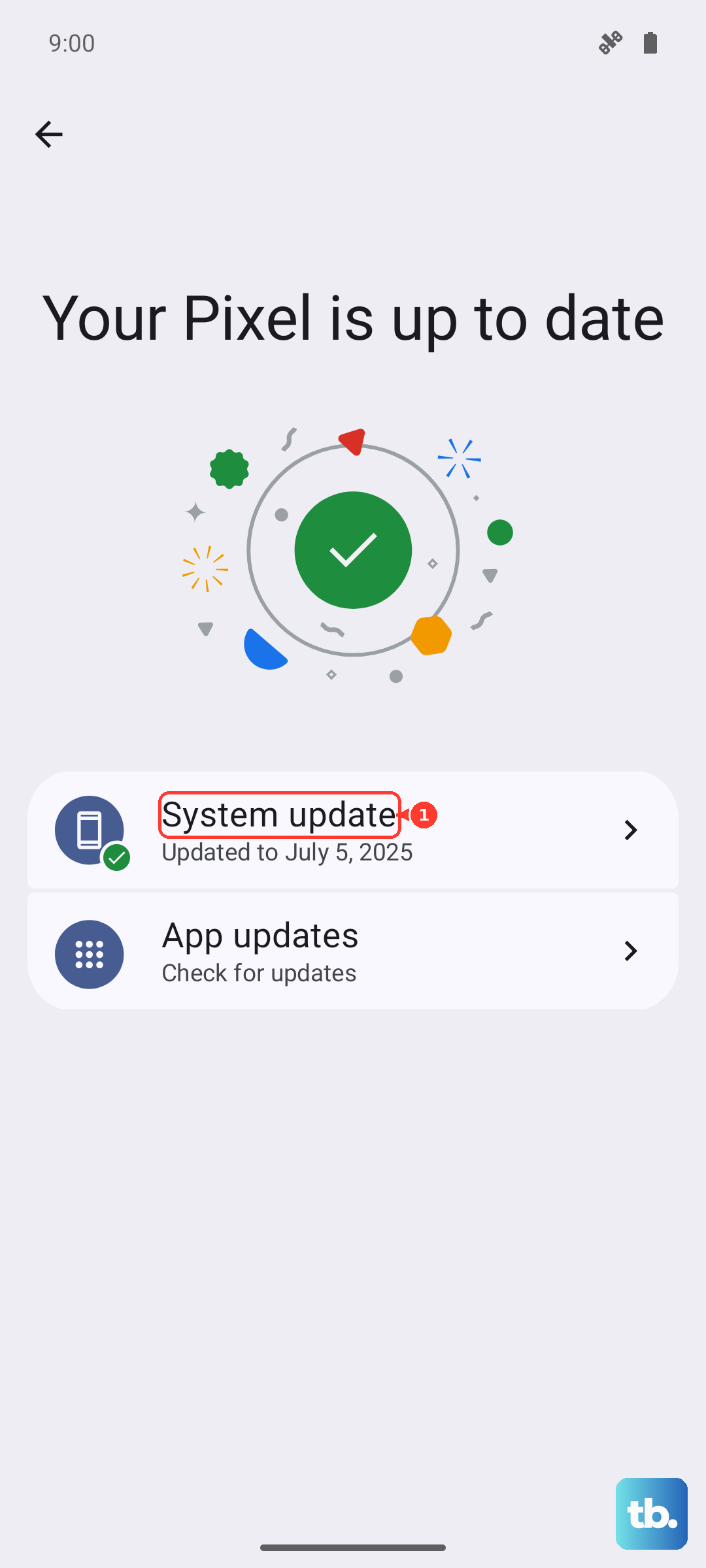
Also, make sure all your apps are updated through the Google Play Store. Open the Play Store, tap your profile icon, and go to Manage apps & device. Under "Updates available," tap "Update all".
Free Up Storage Space
If your phone's storage is critically full, the system can become unstable and trigger restarts. The OnePlus Open has plenty of space, but it's worth checking. Go to Settings > Storage to see how much space is free.
If you're below 10% free space, consider offloading large videos, clearing app caches, or moving files to Google Drive. The "Free up space" tool in the Storage settings can help identify junk files quickly.
Examine Battery and Charging
While the 67W SUPERVOOC charger is incredibly fast, using a damaged or unofficial charger can cause power delivery issues. Always try using the original white brick and cable that came in the box.
Also, check the USB-C port on the bottom of the phone for any lint or debris. A compressed air can or a dry toothpick can gently clean it out. A poor connection here can interrupt power and cause the phone to reboot.
Reset All Settings
If the problem persists, you can reset all your system settings to their defaults without touching your personal data. This will wipe your Wi-Fi passwords, Bluetooth pairings, and custom preferences, but your photos and apps will remain.
To do this, navigate to Settings > Additional settings > Back up and reset > Reset phone. Then, select Reset all settings. Enter your lock screen PIN or password and confirm. Your phone will reboot.
Consider the Hinge and Display
As a foldable, the OnePlus Open has more complex hardware. While rare, a sensor issue related to the hinge or the transition between displays could cause a system error. Try using the phone exclusively in its unfolded or folded state for a while to see if the restarts stop.
Also, ensure the hinge area is clean. Dust accumulation over time, which is a known consideration for this device, could potentially interfere with internal components. Gently brush the area with a soft, dry brush.
Perform a Factory Reset
If you've tried everything else, a factory reset is the final software step. This will erase everything on your phone and return it to its out-of-the-box state. Please ensure your data is fully backed up before proceeding.
Go to Settings > Additional settings > Back up and reset > Reset phone. This time, select Erase all data (factory reset). Follow the prompts, enter your credentials, and confirm. The process will take several minutes.
Check for Hardware Issues
If the random restarts continue even after a factory reset, the problem may be physical. Start with the SIM tray, as a loose or faulty SIM card can sometimes cause instability. Use the ejector tool to remove the tray, take out the SIM card, and reinsert it firmly.
Persistent issues at this point could point to a deeper hardware fault, such as a problem with the motherboard, memory, or battery. Since the OnePlus Open is a sophisticated piece of hardware, contacting OnePlus Support for diagnostics would be the next logical step.