
When you plug in your headphones or connect them wirelessly to your OnePlus Open and get no sound, it's a real buzzkill. The audio might be stuck on the speaker, sound might be crackly, or the phone might not even recognize the headphones are there. Let's get it sorted.
Before working through the fixes, run a quick online headphone test in your browser. It plays the left and right sides separately, so you can tell right away whether one channel is actually dead.
Restart Your OnePlus Open
This is the quickest fix for a lot of weird glitches, including audio problems. Just press and hold the Power button on the right side for about 10 seconds until you feel a vibration and see the phone restart. It clears out any temporary software hiccups that could be messing with the sound output.
Check the Physical Connection and Volume
For wired headphones, make sure the USB-C plug is pushed all the way in. It should click securely. Then, press the volume up button on the side of the phone to make sure the volume isn't muted or set too low. Also, check that you haven't accidentally enabled Silent Mode by flicking the Alert Slider above the power button to the top position.
Clean the USB-C Port
Lint and pocket debris love to get packed into the charging port, and that can block the headphone adapter from making a good connection. I'd start by shining a flashlight in there. If you see gunk, gently use a wooden toothpick or a soft-bristled brush to clean it out. Avoid using anything metal.
Forget and Re-Pair Your Bluetooth Headphones
If you're using wireless headphones, a corrupted connection profile is a common culprit. Open Settings and tap on Bluetooth. Find your headphones in the list, tap the gear icon next to them, and select Forget. Then, put your headphones back into pairing mode and reconnect them fresh from the Bluetooth menu.
Check the Audio Output Selection
Your Open might be sending sound somewhere else. Pull down the Quick Settings panel and look at the media player widget. Tap the device name next to the song title, it might say "Phone speaker" or another Bluetooth device. A menu will pop up letting you select your headphones as the output.
Toggle Bluetooth Off and On
Sometimes the Bluetooth radio itself just needs a quick refresh. Swipe down from the top of your screen twice to open the full Quick Settings panel, then tap the Bluetooth icon to turn it off. Wait about 10 seconds, then tap it again to turn it back on. This can re-establish a clean connection with your wireless headphones.
Check for App-Specific Sound Issues
Is the sound missing only in one app, like YouTube or Spotify? Try playing a video from your gallery or a ringtone. If those work, the problem is likely with that specific app. Try force-closing the app and reopening it, or check the app's own audio settings for any mute options.
Update Your Phone's Software
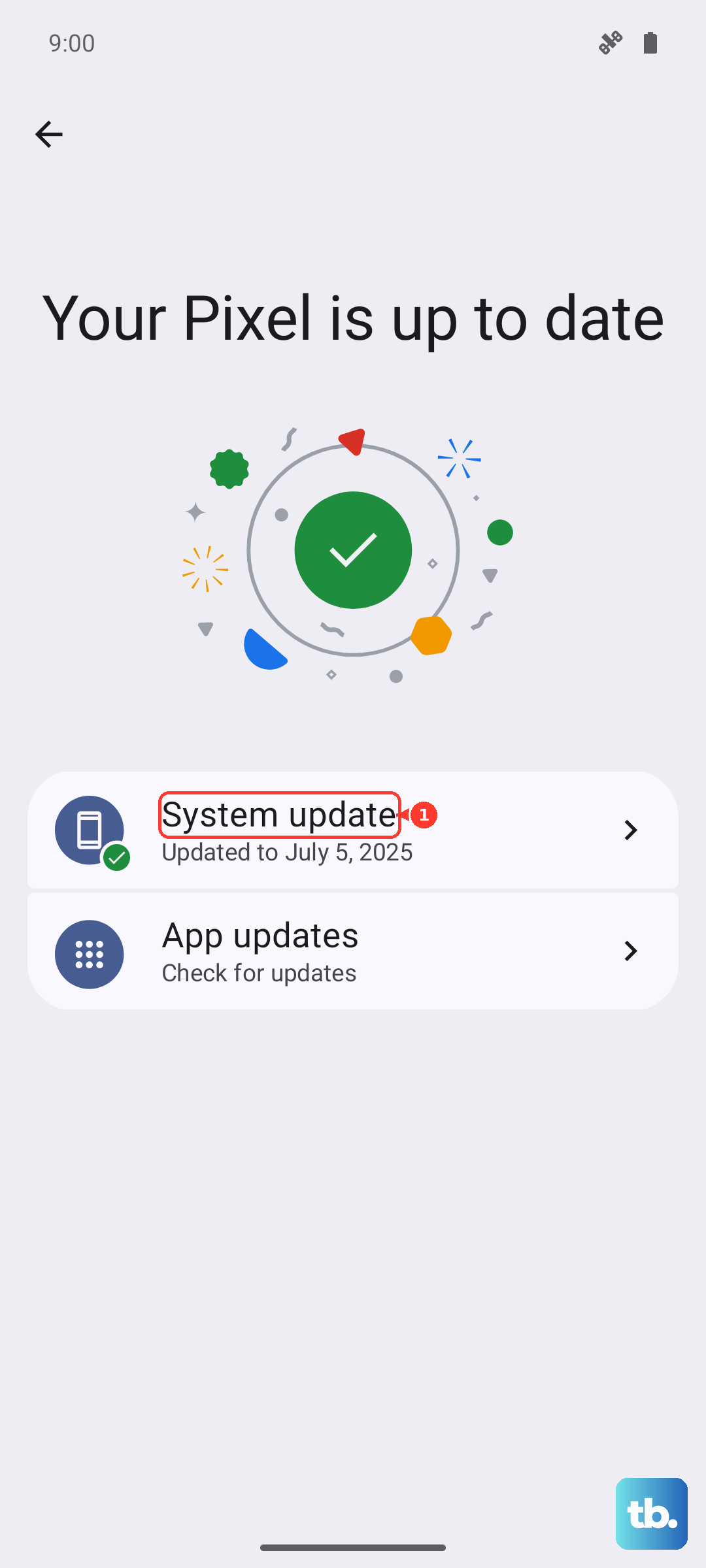
Audio bugs are often fixed in system updates. Go to Settings > About device > OxygenOS version and tap on the top banner to check for updates. If an update is available, install it. This is especially important for Bluetooth stability and compatibility with newer headphones.
Reset App Preferences or Network Settings
If Bluetooth is being particularly stubborn, resetting network settings can help. Go to Settings > Additional settings > Backup & reset > Reset phone > Reset network settings. This will wipe all saved Wi-Fi networks and Bluetooth pairings, so you'll have to reconnect everything, but it often clears deep-seated connection errors.
Test with Different Headphones or Adapter
This helps pinpoint the problem. Try a different pair of wired headphones or a USB-C to 3.5mm adapter if you're using one. If the new pair works, the issue is with your original headphones or adapter. If no headphones work, the problem is almost certainly with the phone's software or USB-C port.