
When your OnePlus Open can't get a GPS lock, it's more than just an inconvenience. You might be trying to navigate with the large inner display open, only to find your location jumping around or stuck. This can happen for a few reasons, from a simple software hiccup in OxygenOS 14 to an app that's misbehaving.
I'd start with the quick refresh methods first. They solve the majority of location problems on Android devices like the Open.
Refresh Your Location Connection
The fastest way to reset things is to toggle your GPS off and back on. Swipe down from the top of your screen twice to open the full Quick Settings panel. Find the Location tile and tap it to turn it off. Wait about ten seconds, then tap it again to turn it back on. This forces the GPS radio to reconnect from scratch.
If that doesn't help, try a force restart. Press and hold the power button on the right side of the phone for about ten seconds, until you feel it vibrate and the screen goes black. Keep holding until the OnePlus logo appears. This clears out any temporary glitches in the system.
Check Your Location Settings and Permissions
Sometimes the issue isn't the GPS itself, but how apps are allowed to use it. Open your Settings app and go to Location. First, make sure the main switch at the top is turned on.
Next, tap on App location permissions. Look for your navigation apps, like Google Maps or Waze. Each one should be set to "Allow all the time" or "Allow only while in use" for the best results. If an app is set to "Deny," it won't be able to see your location at all.
Switch to High Accuracy Mode
Your OnePlus Open has a few different location modes to balance precision with battery life. For the best GPS performance, you'll want High Accuracy enabled. Go back to Settings > Location and look for an option called Location services or Google Location Accuracy.
Make sure the switch for "Improve location accuracy" or "Use precise location" is turned on. This mode uses GPS satellites, nearby Wi-Fi networks, and cell towers together to pin down your location much faster and more reliably, which is perfect when you're navigating.
Disable Battery Optimization for Navigation Apps
OxygenOS is good at saving battery, but sometimes it can be a little too aggressive. If an app is being optimized or put to sleep, its background location access can get interrupted. Go to Settings > Battery > Battery optimization.
Tap the dropdown menu at the top and select "All apps." Find your maps app in the list. If it says "Optimizing," tap on it and change the setting to "Don't optimize." This tells your phone to leave that app alone so it can maintain a steady GPS connection.
Update Your Apps and OxygenOS
An outdated version of Google Maps or your system software can sometimes cause conflicts with the GPS hardware. Open the Google Play Store, tap your profile icon, and go to Manage apps & device. Check if there are updates available for your navigation apps.
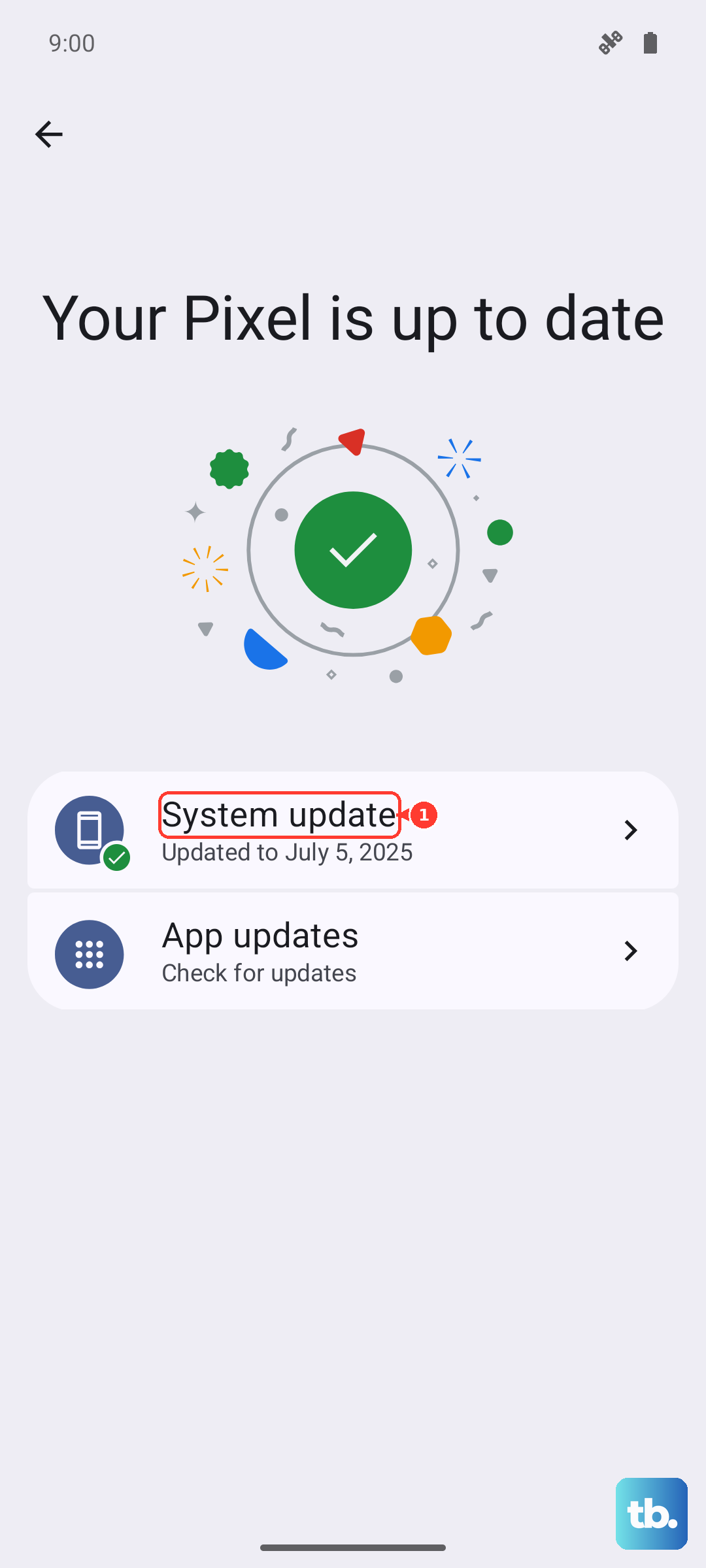
For system updates, go to Settings > About device > OxygenOS version and tap on the icon at the top to check for updates. Installing the latest software can include important fixes for connectivity issues.
Clear the App Cache and Data
Corrupted temporary files in your maps app can lead to strange behavior. This won't delete your saved places, but it will reset the app's settings. Go to Settings > Apps > See all apps and find Google Maps (or whichever app is having trouble).
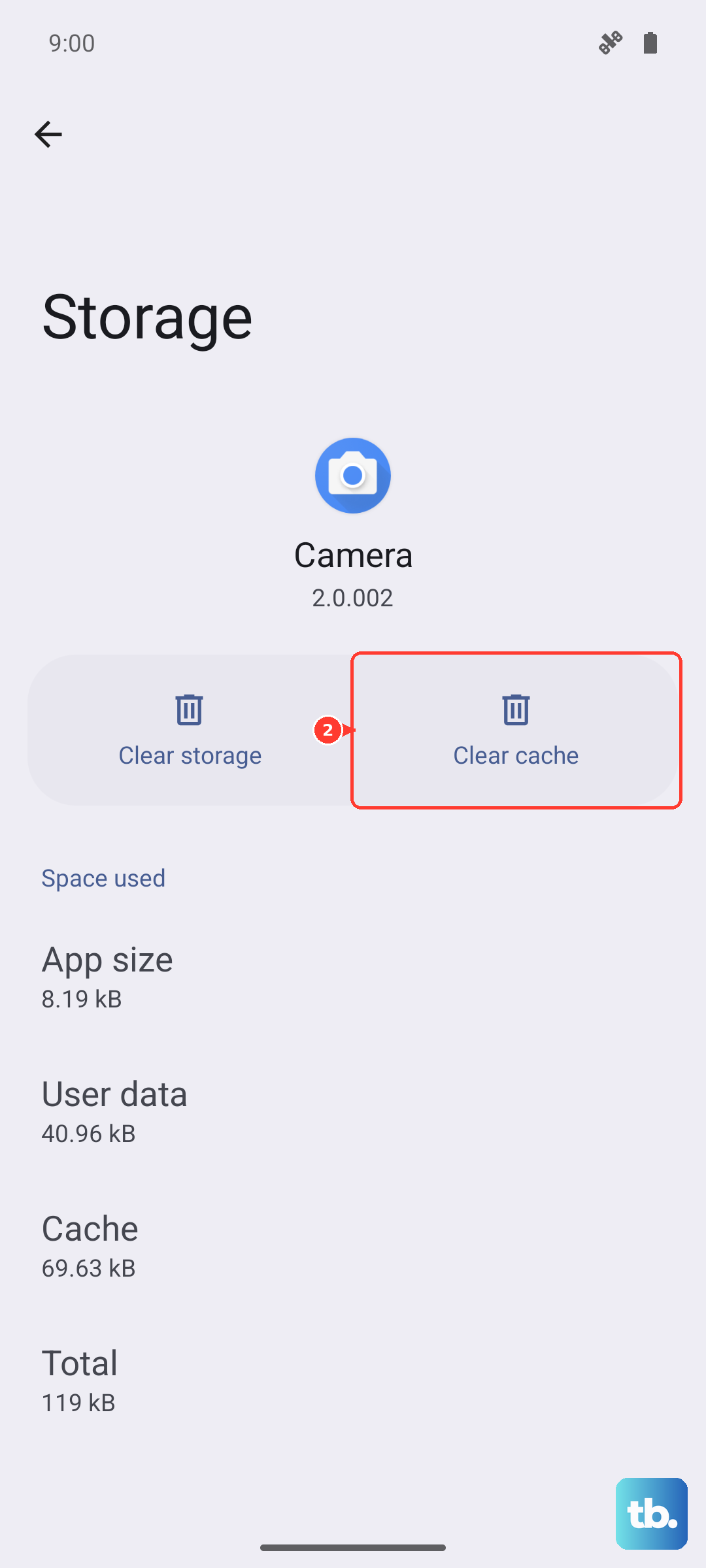
Tap on it, then go to Storage & cache. Tap "Clear cache" first. If the GPS is still acting up, you can try "Clear storage" or "Clear data." Just be aware this will sign you out and erase any offline maps you've downloaded.
Test in a Different Location and Position
GPS signals are line-of-sight and can be blocked by all sorts of things. If you're indoors, in a dense urban area with tall buildings, or under heavy tree cover, your accuracy will suffer. Try stepping outside to an open area and holding the phone still for a minute to let it acquire satellites.
Also, consider your phone's unique design. While the hinge is robust, holding the phone in a way that completely cups the top and bottom in your palm might partially block the antenna bands. Try adjusting your grip, especially when using the phone unfolded.
Use Airplane Mode to Reset All Radios
This trick resets every wireless component in your phone at once, which can clear up conflicts between them. Swipe down for Quick Settings and tap the Airplane Mode icon. Wait for 15-20 seconds to let everything fully power down, then tap the icon again to turn it off. Your phone will reconnect to mobile data, Wi-Fi, and GPS fresh.
Boot Into Safe Mode
Safe Mode temporarily disables all third-party apps you've installed. If your GPS works perfectly in Safe Mode, you know one of your downloaded apps is causing the problem. To enter Safe Mode on the OnePlus Open, press and hold the power button until the power menu appears.
Then, tap and hold the "Power off" option on your screen. A prompt will appear asking if you want to reboot to Safe Mode. Tap "OK." Test your GPS with a built-in app like Google Maps. To exit, just restart your phone normally.
Check for Physical Interference
Take a look at your phone case. A very thick or metallic case, particularly one that wraps around the edges, can potentially interfere with the GPS antenna signals. Try removing the case temporarily and see if your location accuracy improves.
It's also a good habit to occasionally check the hinge area for dust buildup. While it's designed to be durable, excessive debris in the hinge mechanism over time is a known consideration for foldable phones. Gently cleaning it with a soft, dry brush can help maintain overall device health.
Use a GPS Diagnostic Tool
If you've tried everything and the GPS is still dead, an app can help you figure out if it's a software or hardware issue. Download a free app like "GPS Test" or "GPS Status" from the Play Store. Open it and go to the satellite view.
Take the phone outside with a clear view of the sky. If the app shows multiple satellites in view but your phone can't connect to any of them (the bars stay hollow or grey), that points toward a potential hardware problem with the GPS antenna. If it connects to satellites but apps still can't get a fix, the issue is likely in the software layer.