
When your OnePlus Open's email stops syncing or sending, it can throw a wrench in your whole day, especially if you rely on it for work. The problem could be with the app itself, your account settings, or even a quirk with the foldable's dual-screen setup. I'd start with the quick network reset, as that solves a lot of connection-based email glitches on OxygenOS.
Toggle Airplane Mode
This is often the fastest way to reset all your radio connections. Swipe down from the top of your screen to open the Quick Settings panel. Tap the airplane icon to turn it on, wait about 15 seconds, then tap it again to turn it off. This forces your phone to re-establish connections to your mobile network and Wi-Fi, which can clear up temporary email fetching issues.
Force Close and Restart the Email App
Whether you're using Gmail, Outlook, or the built-in OnePlus Email app, a frozen process could be the culprit. Swipe up from the bottom and hold to enter the recent apps view. Find your email app and swipe it all the way up to close it. Wait a moment, then tap the app icon again to reopen it. This gives the app a fresh start.
Check Your Internet Connection
Email needs an active data connection. Try opening a webpage in Chrome to see if you're truly online. If you're on Wi-Fi, try switching to mobile data, or vice versa. Sometimes, a specific network might have a firewall or configuration that's blocking email ports. You can also try forgetting and re-adding your Wi-Fi network in Settings > Wi-Fi & internet.
Verify Background Data and Battery Optimization
Android's battery saving features can sometimes be too aggressive. Go to Settings > Apps > [Your Email App]. Tap on Mobile data & Wi-Fi. Make sure "Background data" is turned on. Next, go back and tap Battery. Set the battery optimization to "Don't optimize" for that specific app to ensure it can always sync in the background.
Review Your Account Sync Settings
Your email account might have accidentally been set to sync manually. Open the Settings app and go to Accounts & sync. Tap on your email account and make sure the sync toggle for "Email" or "Mail" is enabled. You can also tap "Sync now" to force an immediate check for new messages.
Check for App and System Updates
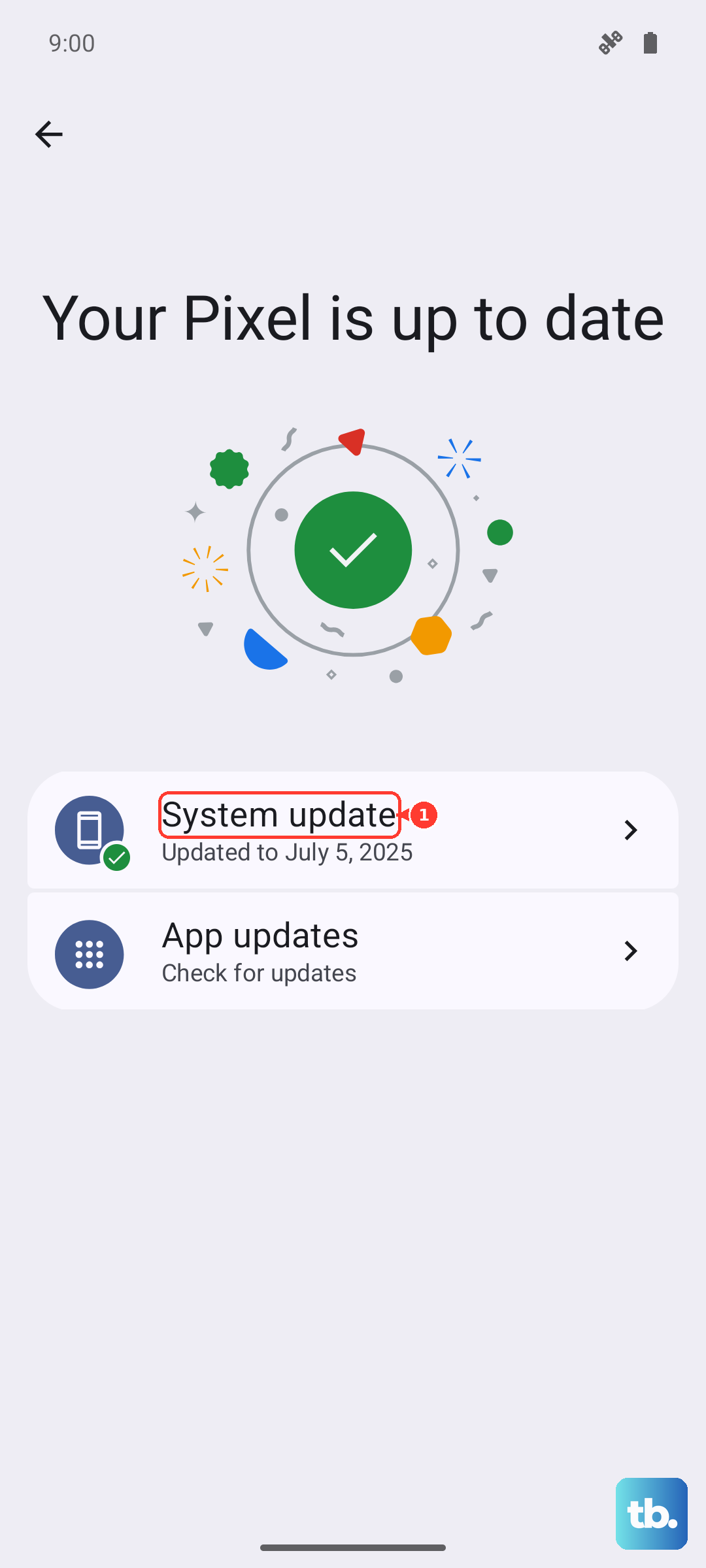
An outdated app or system software can have bugs that break email functionality. Open the Google Play Store, tap your profile icon, and go to Manage apps & device > Updates available. Update your email app from there. For system updates, go to Settings > About device > OxygenOS version and check for an update.
Clear the Email App's Cache and Data
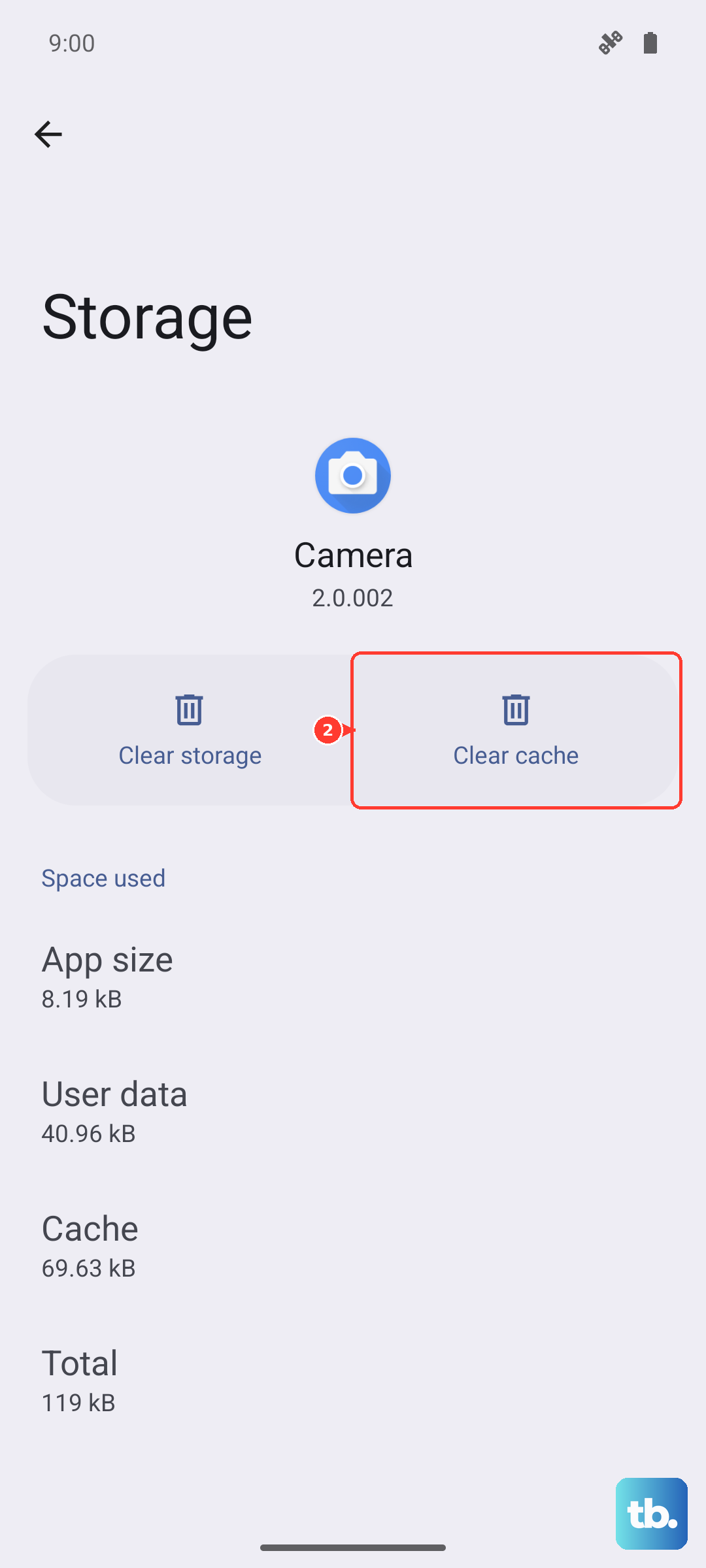
Corrupted cache files can cause all sorts of strange behavior. This won't delete your account, but it will reset the app's preferences. Go to Settings > Apps > [Your Email App] > Storage & cache. Tap "Clear cache" first and test. If the problem persists, tap "Clear storage" or "Manage storage > Clear all data". You'll need to sign back into the app afterward.
Remove and Re-add Your Email Account
This refreshes the connection between your phone and your email provider's servers. The path varies by app. In Gmail, tap your profile picture, then "Manage accounts on this device" to remove it. For other apps, look in the app's settings under "Accounts" or "Account settings". After removing it, go through the setup process again carefully, double-checking your password and server settings.
Disable Any Active VPN
A VPN can sometimes interfere with the specific ports used for sending and receiving email. If you're using a VPN app, open it and disconnect. You can also check in Settings > Wi-Fi & internet > VPN to see if a system-level VPN profile is active and turn it off. Try sending or receiving an email without the VPN connected.
Ensure Correct Date and Time
An incorrect system time can cause security certificate errors that prevent your phone from connecting to email servers. Go to Settings > Additional settings > Date & time. Make sure "Use network-provided time" and "Use network-provided time zone" are both turned on. This ensures your phone's clock is always accurate.
Check Your Storage Space
If your OnePlus Open's internal storage is completely full, apps can malfunction and fail to sync data. Go to Settings > About device > Storage to see how much space you have left. If you're critically low, try deleting some old downloads, cached files, or unused apps to free up a few gigabytes.
Try a Different Email App
This is a great way to figure out if the problem is with your specific app or with your account/phone setup. Download a different email client like Outlook or Spark from the Play Store and try adding your account there. If it works perfectly in the new app, the issue is likely with your original app's installation or settings.
Restart Your OnePlus Open
A full system reboot can clear out temporary software glitches affecting multiple services. Press and hold the power button for about 10 seconds until you feel a vibration and see the phone restart. With the foldable design, it's a good idea to do this while the phone is open to ensure both displays initialize correctly.
Reset Network Settings
This is a more thorough step that will erase all your saved Wi-Fi networks, Bluetooth pairings, and mobile data settings. Go to Settings > Additional settings > Backup & reset > Reset phone > Reset network settings. Confirm and enter your PIN if prompted. After the phone reboots, you'll need to reconnect to your Wi-Fi and re-pair Bluetooth devices, but it can fix deep-seated connection issues.