
If your OnePlus Open camera app is crashing, freezing, or just showing a black screen, the quickest thing to try is a force restart. Press and hold the power button and the volume up button together for about 10 seconds until the screen goes black, then wait for the phone to restart on its own or press the power button to turn it back on. Wait for the OnePlus logo to appear and let the phone boot up completely.
Before digging into settings, open a quick webcam test in your browser. If the preview shows a live picture, the camera hardware works and the issue is with app permissions or configuration.
Key Points
- Restart the Camera App: Force close the app and clear its temporary data.
- Check for Software Updates: Install the latest OxygenOS update to fix known bugs.
- Inspect the Camera Hardware: Clean the lenses and check for physical damage, especially around the hinge.
- Boot Into Safe Mode: See if a third-party app is interfering with the camera.
- Reset App Preferences: Restore all app permissions and defaults without losing data.
- Perform a Factory Reset: A last resort to clear deep software conflicts.
This simple reboot clears the phone's memory and can fix temporary software glitches that lock up the camera. I'd start with this one every time.
Restart the Camera App
Sometimes the camera app itself gets stuck. Swipe up from the bottom of your screen and hold to enter the recent apps view. Find the camera app and swipe it all the way up to close it. Then, reopen it from your home screen or app drawer.
If that doesn't help, you can clear the app's cached data. Go to Settings > Apps > Manage apps. Find and tap on "Camera" in the list. Then, tap on Storage usage and select Clear cache.
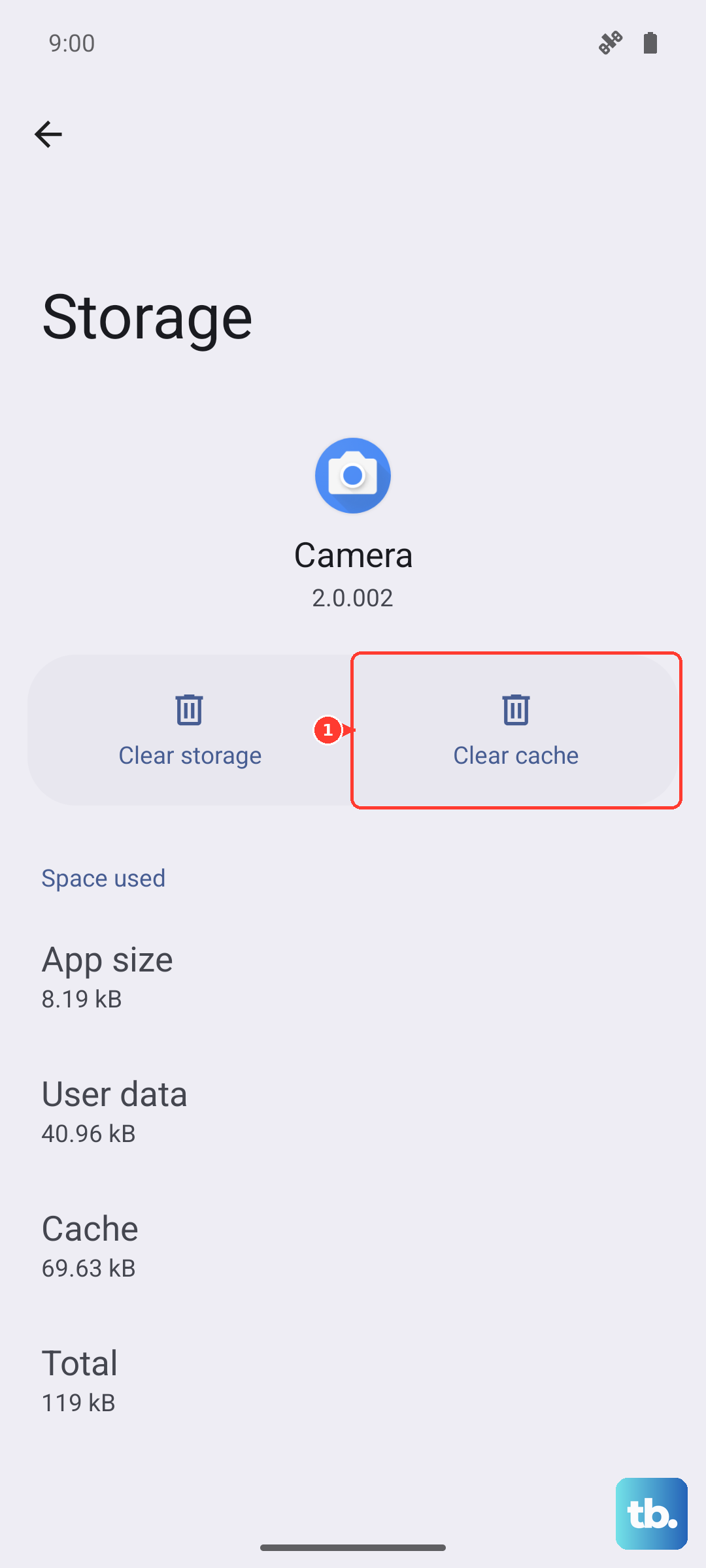
This deletes temporary files that might be corrupted. It won't delete any of your photos or videos. After clearing the cache, open the camera again to see if it's working.
Check for Software Updates
Camera issues are often fixed in system updates. OnePlus regularly releases OxygenOS updates that patch bugs and improve camera stability. To check, open Settings > About device > OxygenOS version and tap on the icon to check for updates.
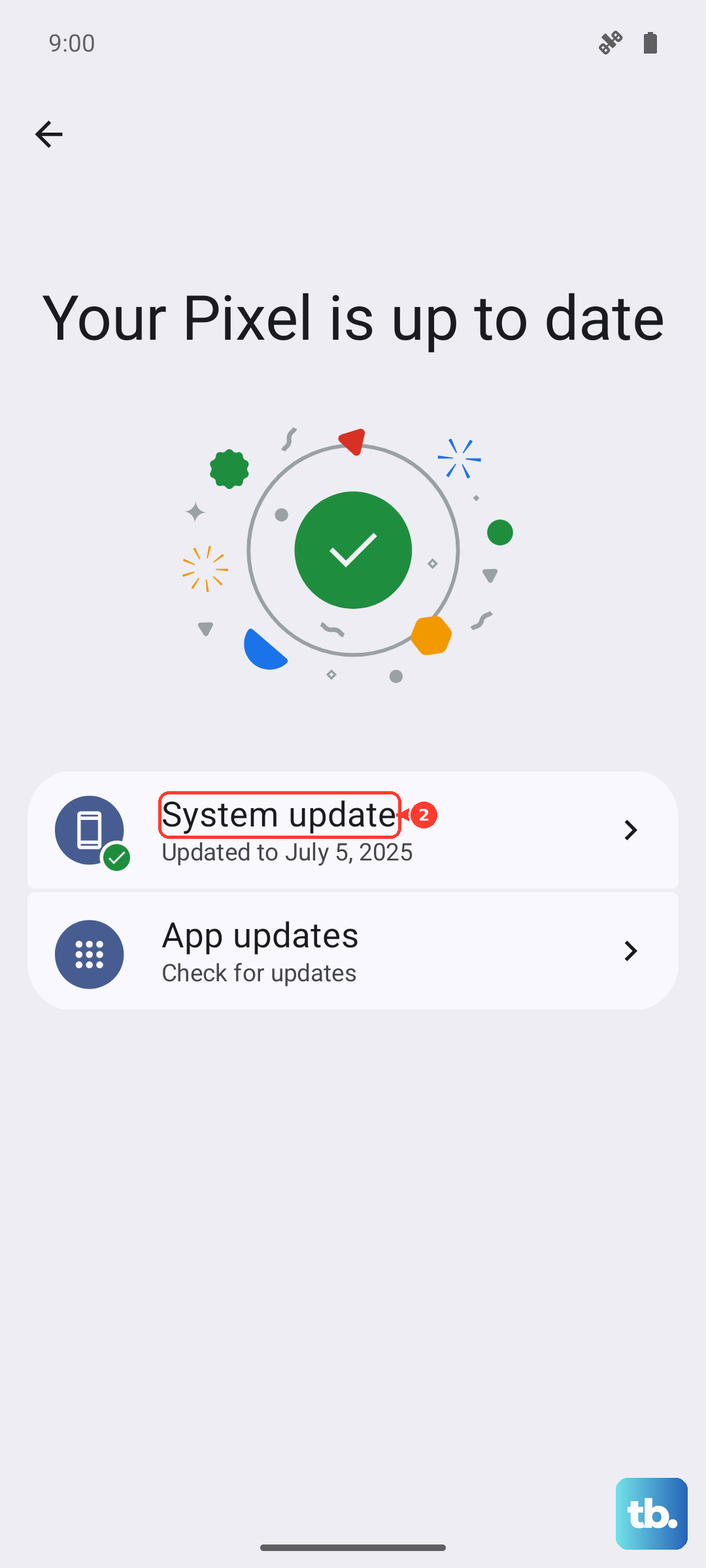
If an update is available, make sure your phone is connected to Wi-Fi and has at least a 30% charge. Download and install it, then restart your phone. I've seen updates resolve problems where the camera would fail to switch between the inner and outer displays.
Inspect the Camera Hardware
Take a close look at your camera lenses. Smudges, fingerprints, or dust can cause blurry photos or make the camera struggle to focus. Gently clean all the lenses with a soft, dry microfiber cloth.
With a foldable like the Open, also check for any debris around the hinge. Dust accumulation over time can potentially interfere with the sensors or the mechanism that switches between the rear and cover screen cameras. Give the hinge area a gentle clean with compressed air.
Finally, check for any physical damage. A cracked lens or a deep scratch will obviously affect image quality and may require a repair.
Boot Into Safe Mode
If the camera works fine in Safe Mode, you know a downloaded app is causing the conflict. To boot into Safe Mode, press and hold the power and Volume Up buttons until the power off menu appears. Then, press and hold the "Power off" option on your screen.
A prompt will ask if you want to reboot to Safe Mode. Tap OK. Your phone will restart, and you'll see "Safe Mode" in the bottom corner. Try opening the camera app now.
If the camera works normally here, restart your phone to exit Safe Mode. Then, start uninstalling recently downloaded apps one by one, testing the camera after each one, until you find the culprit.
Reset App Preferences
This is a useful step that resets all your app permissions, default apps, and background restrictions without deleting any personal data. It can fix issues where the camera app lost a necessary permission.
Go to Settings > Apps > Manage apps. Tap the three-dot menu in the top right and select Reset app preferences. Confirm your choice.
After the reset, you'll need to grant permissions again the next time you use apps. Open your camera and see if it prompts for permissions and starts working.
Check Camera Permissions
It sounds simple, but sometimes the camera app loses access. Go to Settings > Apps > Manage apps and find the Camera app. Tap on it, then go to Permissions.
Make sure the "Camera" permission is set to "Allow." While you're there, also check the "Microphone" permission if you're having trouble with video recording audio.
If the permissions were already on, try turning them off and back on again. This can refresh the connection between the app and the hardware.
Wipe the Cache Partition
This clears temporary system files that can become corrupted and affect multiple functions, including the camera. First, power off your OnePlus Open completely.
Press and hold the volume down button and the power button together until the phone vibrates and the OnePlus logo appears. Release the buttons. You'll enter Recovery Mode. Use the volume buttons to navigate to "Wipe data and cache" and press the power button to select it.
Then, choose "Wipe cache" and confirm. Once it's done, select "Reboot" to restart your phone. This process takes about a minute and won't touch your personal data.
Perform a Factory Reset
This is your last resort before seeking hardware repair. A factory reset will erase everything on your phone, so you must back up your photos, videos, and important data first. Use Google's backup service or copy files to a computer.
Once backed up, go to Settings > Additional settings > Back up and reset > Erase all data (factory reset). Follow the prompts to reset your phone.
After the phone restarts and goes through the setup process, test the camera immediately before restoring your apps. If the camera works on a fresh system, the problem was a software conflict. If it still fails, the issue is likely with the camera hardware itself.