
Missing notifications on your OnePlus Nord 4 can mean missing important messages, calls, or app alerts. The issue often comes down to a setting that got changed, a software hiccup, or an app misbehaving. I'd start with the quick fixes at the top, as they resolve the majority of cases.
First, check your phone's physical alert slider on the right side. Make sure it's not set to the top "Silent" position, which mutes all sounds and vibrations. The middle "Vibrate" position allows vibrations, and the bottom position is for normal ring mode.
Check Do Not Disturb and Focus Modes
Open your Quick Settings panel by swiping down from the top of the screen twice. Look for the "Do Not Disturb" icon (a circle with a line through it) and make sure it's not enabled. If it is, tap it to turn it off.
Also, go to Settings > Sound & vibration > Do Not Disturb. Check if any schedules are active or if the mode is turned on for specific events. In OxygenOS 14, also look for "Focus modes" in your settings, which can silence notifications from selected apps.
Restart Your OnePlus Nord 4
A simple restart clears out temporary system glitches that can stop notifications from coming through. Just press and hold the power button, then tap "Restart" on the screen. If your screen is unresponsive, you can force a restart by holding the power button down for about 10 seconds until the phone vibrates and reboots.
Verify App Notification Permissions
This is a very common culprit. Each app needs explicit permission to send you alerts. Go to Settings > Notifications & status bar > App notifications. Here, you'll see a list of all your apps.
Find the app that's not alerting you (like Messages, Gmail, or WhatsApp) and tap on it. Make sure the toggle at the top for "Allow notifications" is turned on. Also, check that the categories below (like "General" or "Conversations") are enabled and not set to silent.
Disable Battery Optimization for Key Apps
Android's battery optimization can sometimes be too aggressive and stop apps from running in the background to fetch new alerts. For your critical messaging apps, it's a good idea to exempt them.
Go to Settings > Apps, select the app, and open its battery usage settings to manage battery optimization. Tap the dropdown menu at the top and select "All apps." Find the problematic app, tap it, and choose "Don't optimize." This tells the system to let that app work freely in the background.
Clear the Cache for the Problem App
Corrupted temporary data in an app's cache can break its notification function. Clearing it is safe and won't delete your login info or personal data within the app.
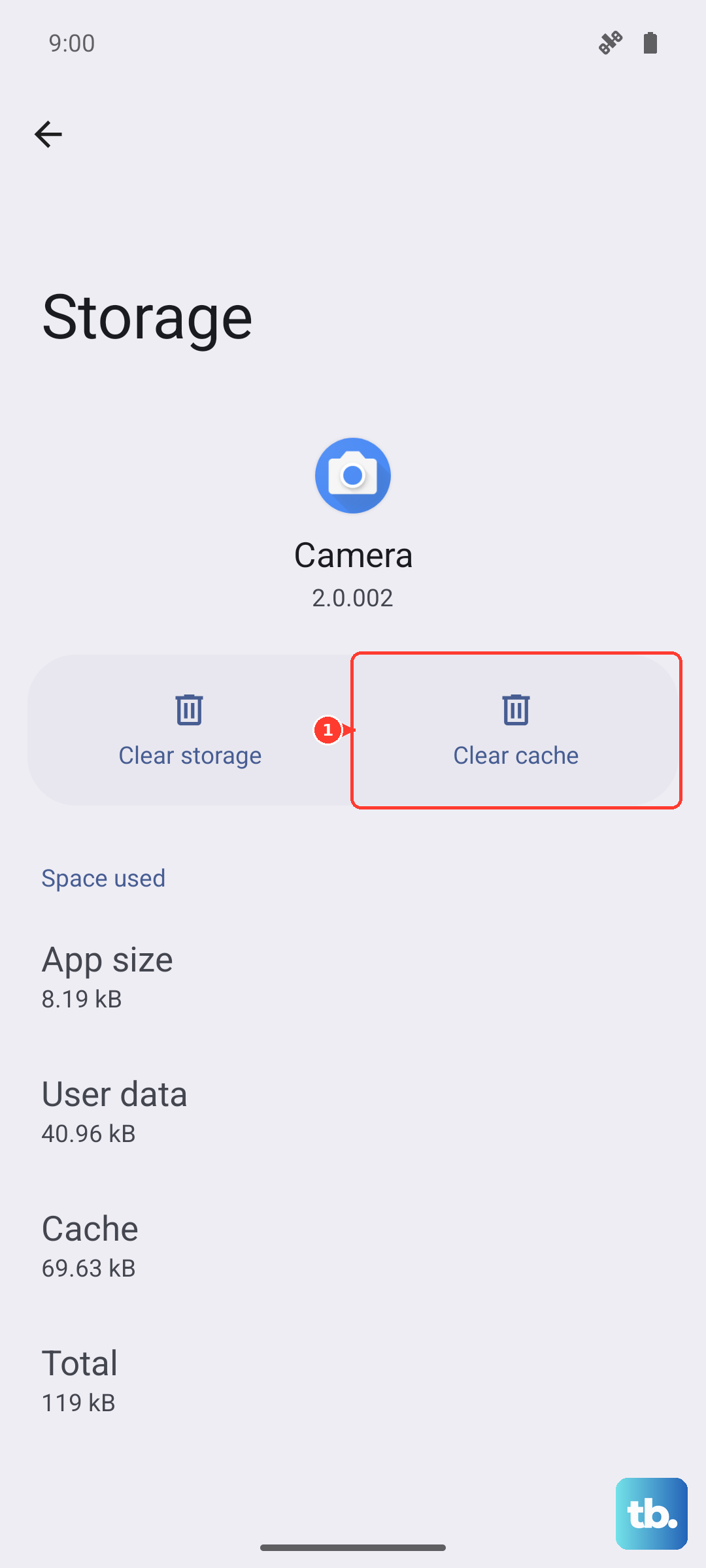
Head to Settings > Apps > See all apps. Select the app giving you trouble. Tap on Storage & cache > Clear cache. After doing this, force close the app from the same menu and then reopen it to see if notifications return.
Check for Pending Software Updates
Software updates frequently include bug fixes for notification delivery. OnePlus pushes updates through OxygenOS, so it's worth checking. Go to Settings > About device > OxygenOS version and tap on the icon at the top right to check for updates.
If an update is available, I'd recommend installing it. Make sure your phone is connected to Wi-Fi and has at least a 50% charge, or better yet, plug in the included 100W SuperVOOC charger for a speedy top-up.
Review Notification Channels and Sounds
Sometimes, a specific type of notification for an app is turned off or set to silent. Go back to Settings > Notifications & status bar > App notifications and select your app. Tap on a notification category (like "General").
Ensure "Allow notification" is on. Also, verify that "Sound" and "Vibrate" are enabled if you want them. You can tap "Sound" to choose a specific alert tone.
Reset App Preferences
This is a broader fix that resets all your app-related permissions, notifications, and default actions back to their factory state. It won't delete any app data, but you will need to re-grant permissions when you use apps again.
Navigate to Settings > Apps > See all apps. Tap the three-dot menu in the top right and select "Reset app preferences." Confirm the action. This can clear up conflicts where system-level notification settings have become corrupted.
Examine Data Saver and Background Data Settings
If you have Data Saver enabled, it restricts background data usage, which can prevent apps from receiving new notifications unless you're actively using them. Check this by going to Settings > SIM & network > Data Saver and turning it off.
You can also check data settings per app. Go to the app's info page in Settings (Settings > Apps > [App Name]), then tap "Mobile data & Wi-Fi." Make sure "Allow background data usage" is enabled.
Clear the System UI Cache
The System UI is responsible for managing your notification shade and status bar. Its cache can sometimes cause display issues. You'll need to enable developer options first.
Go to Settings > About device and tap "Version" 7 times until you see a message saying you're a developer. Then, go back to Settings and enter "Developer options." Find "Running services" and tap it. Locate "System UI" in the list, tap it, and then tap "Stop." It will restart automatically, which can clear a temporary hang-up.
Perform a Network Settings Reset
If your notifications are only failing on mobile data, a network settings refresh can help. This will reset your Wi-Fi, Bluetooth, and mobile data settings. You'll need to reconnect to Wi-Fi networks and re-pair Bluetooth devices afterward.
Go to Settings > Additional settings > Back up and reset > Reset phone > Reset Wi-Fi, mobile & Bluetooth. Confirm the reset. This is a safe step that doesn't touch your personal files or apps.