
When your OnePlus Nord 4 stops ringing for incoming calls, it can leave you feeling disconnected. This problem on Android, especially with OxygenOS 14, can stem from a handful of settings or a temporary network hiccup. I'd start with the quick fixes below, as they resolve the majority of these issues.
Check Do Not Disturb and Focus Modes
This is the most common culprit. OxygenOS has several modes that can silence calls. Swipe down from the top of your screen twice to open the full Quick Settings panel. Look for icons like a crescent moon for Do Not Disturb or other focus modes and make sure they are turned off. You can also go to Settings > Sound & vibration > Do Not Disturb to check the schedule and rules.
Sometimes, a scheduled Do Not Disturb period you forgot about is still active. Toggle it off completely to see if calls come through immediately.
Perform a Force Restart
A simple software glitch can sometimes freeze the phone's radio or calling services. For the OnePlus Nord 4, press and hold the Power button on the right side for about 10 seconds. Keep holding it until you feel a vibration and see the OnePlus logo appear on the screen.
This forces a full reboot and clears any temporary RAM issues that might be preventing the Phone app from working correctly. It takes less than a minute and is a great first step.
Verify Your SIM Card and Network
Pop out the SIM tray on the bottom edge of your Nord 4 using the included tool or a paperclip. Give the gold contacts on the SIM card a quick wipe with a dry, soft cloth and reinsert it firmly. A loose or dirty SIM is a classic cause of call problems.
While you're at it, check your signal strength. The metal unibody is great for build quality, but in areas with very weak signal, it can sometimes slightly impact reception compared to plastic phones. Try moving near a window or to a different room.
If you see "Emergency calls only" or no signal bars, the issue is likely with your carrier's network in your immediate area. Try toggling Airplane mode on and off from the Quick Settings to force the phone to re-register on the network.
Review Call Blocking and Spam Settings
OnePlus's Phone app has built-in spam protection that can be a bit overzealous. Open your Phone app, tap the three-dot menu in the top right, and go to Settings > Call blocking & filter.
Look at the "Blocked numbers" list to make sure an important contact hasn't been accidentally added. Also, check the settings for "Harassment filter" or "Smart call block"; you may want to temporarily disable these features to test if they are blocking legitimate calls.
Disable Call Forwarding
Call forwarding could be silently sending all your calls to another number or voicemail. To check, open the Phone app, tap the three-dot menu, and go to Settings > Calling accounts > [Your Carrier].
Look for "Call forwarding" or "Supplementary services" in the menu. Tap it and ensure all forwarding options (like always forward, when busy, when unanswered) are set to "Turn off" or your carrier's default setting.
Reset Your Network Settings
If you've been traveling, switching SIMs, or just have persistent network issues, this can help. Go to Settings > Additional settings > Back up and reset > Reset phone > Reset network settings.
This will erase all saved Wi-Fi passwords, Bluetooth pairings, and mobile network configurations, setting them back to factory defaults. It often resolves deep-seated connection glitches that affect calling. Your personal data like photos and messages will remain safe.
Update Your Phone's Software
Outdated system software can contain bugs that break calling functionality. OnePlus regularly releases updates for the Nord 4 to fix such issues. Connect to Wi-Fi and go to Settings > About device > OxygenOS version > Check for update.
If an update is available, download and install it. The 100W SuperVOOC charger is perfect here, as you can top up the battery incredibly fast before a large update. Make sure your phone has at least a 50% charge before starting.
Clear the Phone App's Cache and Data
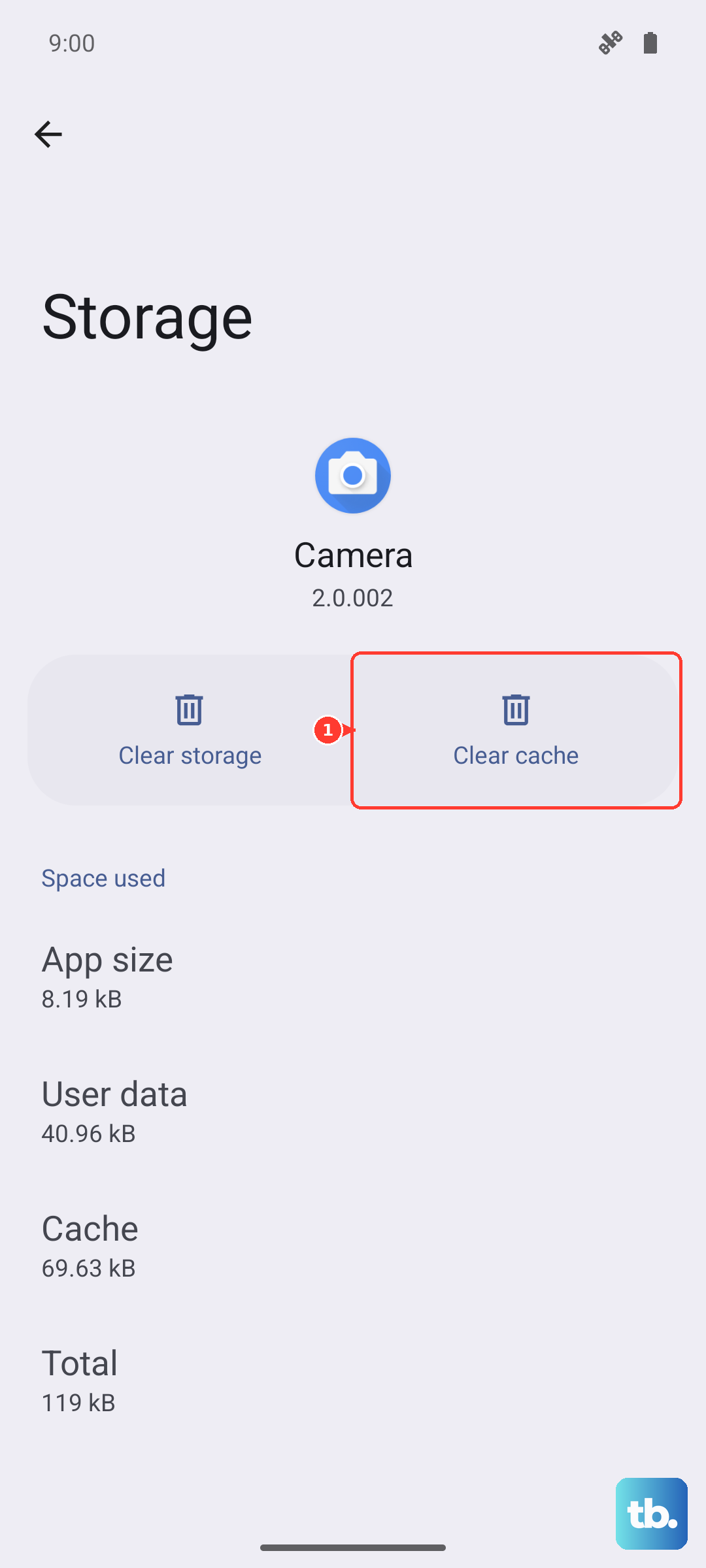
Corrupted data within the Phone app itself can cause it to malfunction. Go to Settings > Apps > See all apps. Find and tap on "Phone" in the list.
Tap Storage & cache > Clear cache. Try a test call first. If the problem persists, go back and tap "Clear storage" or "Clear data". This will reset the app to its default state, so you may lose your call log and any custom settings within the dialer.
Check for Problematic Third-Party Apps
Sometimes, an app you've recently installed can interfere with telephony services. Think about any call recorder apps, heavy-duty battery savers, or advanced firewall applications. Try booting your Nord 4 into Safe Mode to test.
Press and hold the Power button until the power menu appears. Then, press and hold the "Power off" option on the screen until you see a prompt to reboot to Safe Mode. Tap OK. In Safe Mode, all third-party apps are disabled. If you can receive calls normally here, a recently installed app is the culprit.
Contact Your Mobile Carrier
If you've tried everything on the phone itself, the issue might be on your carrier's end. There could be an outage, a problem with your specific account, or a feature like call blocking that they've enabled. Use another phone to call their customer service.
Ask them to check your line for any restrictions, verify that VoLTE (Voice over LTE) is properly enabled for your Nord 4, and ensure there are no network issues in your zip code. They can also reprovision your line, which is like refreshing your service from their side.