
When your OnePlus Nord 4 apps keep closing unexpectedly, it pulls you right out of whatever you were doing. It's a common hiccup that usually has a simple fix. I'd start with a quick restart, as that clears out any temporary software gremlins causing the trouble.
Force Stop and Restart the App
If a single app is acting up, force stopping it is the quickest way to give it a fresh start. Head to Settings > Apps > App management. Find the problematic app in the list and tap on it.
On the app's info page, tap Force stop. Confirm if prompted, then open the app again normally. This completely shuts down the app's processes, which often resolves a temporary freeze or crash loop.
Check for App and System Updates
Outdated software is a prime suspect for crashes. Developers constantly push updates to squash bugs. Open the Google Play Store, tap your profile icon, and go to Manage apps & device.
Under "Updates available," tap Update all or update apps individually. Don't forget your system software, too. Go to Settings > About device > OxygenOS version to check for the latest Android and OxygenOS updates for your Nord 4.
Clear the App's Cache and Data
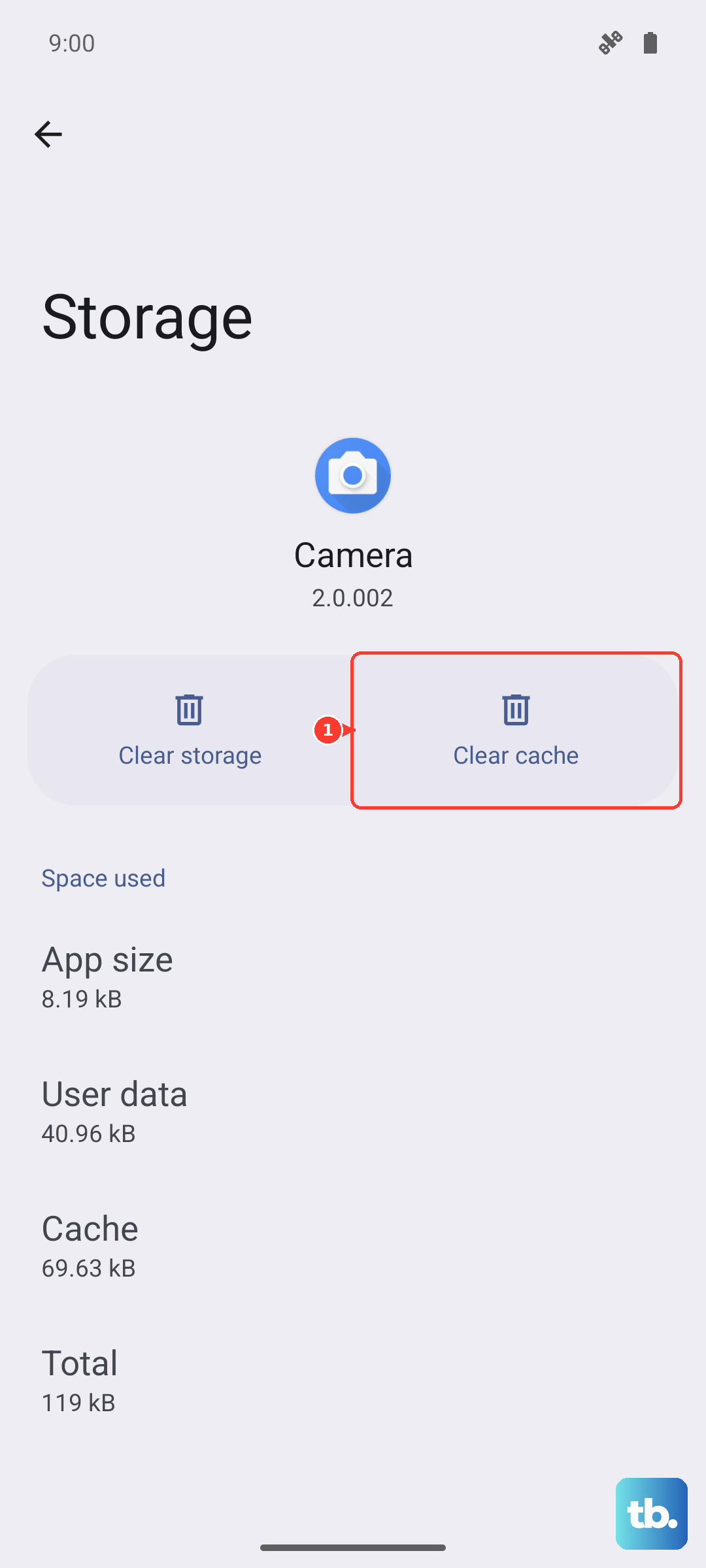
Over time, an app's temporary cache files can become corrupted. Clearing them is a safe first step that won't delete your login info or saved data. Go back to the app's info page in Settings (Settings > Apps > App management).
Tap Storage usage. Here, you'll see the Clear cache button. Tap it. If the app is still misbehaving, you can try Clear data next, but be aware this will reset the app to its freshly installed state, removing your settings and accounts within it.
Free Up Storage Space on Your Nord 4
Your phone needs breathing room to operate smoothly. If your storage is nearly full, apps can struggle to function. The Nord 4's metal unibody is great for heat dissipation, but it can't help with a clogged storage drive.
Check your space in Settings > About device > Storage. Look for large files you don't need, old downloads, or unused apps. The "Clean up storage" tool here can help identify junk files. I've seen phones start acting strangely when they dip below 10% free space.
Reinstall the Problematic App
When one specific app is the consistent troublemaker, a clean reinstall often does the trick. This gives you a fresh copy of all the app's files. Long-press the app's icon on your home screen and tap Uninstall.
Then, head to the Google Play Store to download it again. This process eliminates any corrupted installation files that clearing the cache might not reach. It's a very reliable fix for a single app that won't cooperate.
Restart Your OnePlus Nord 4
If multiple apps are crashing or the issue feels system-wide, a full phone restart is your best bet. Just press and hold the power button for about 10 seconds until you feel a vibration and see the OnePlus logo.
This force restart is slightly more thorough than a standard shutdown and reboot. It clears the phone's active memory (RAM) and stops all background processes, which can resolve conflicts causing apps to fail.
Review App Permissions and Battery Optimization
Sometimes, an app crashes because it's being restricted. Go to the app's info page in Settings and tap Permissions. Ensure it has the permissions it needs to function, like location for a maps app or storage for a photo editor.
Also, check Battery optimization for that app. If it's set to "Optimize," try changing it to "Don't optimize." This prevents OxygenOS from aggressively putting the app to sleep in the background, which can sometimes cause issues when you open it.
Boot into Safe Mode
This is a great way to check if a third-party app you installed is causing the chaos. Safe mode temporarily disables all apps you downloaded. To enter it, press and hold the power button until the power menu appears.
Then, long-press the "Power off" option on your screen. Tap "OK" when prompted to reboot to Safe Mode. If your apps work fine here, you know one of your installed apps is the culprit. You'll need to restart your phone normally to exit Safe Mode.
Reset All App Preferences
This is a broader reset that doesn't delete any personal data. It reverts all your app permissions, notification settings, and default apps back to their original state. It's useful if a system setting got tangled.
Go to Settings > Apps > App management. Tap the three-dot menu in the top right and select Reset app preferences. Confirm your choice. You'll just need to re-grant permissions to apps the next time you use them.