
When your OnePlus 13 gets stuck on an update, it's a common roadblock, especially with early builds of OxygenOS 15. You might see a download that won't start, an error message, or an installation that fails and reboots the phone. The good news is there are several straightforward ways to get past this.
Free Up Storage Space First
OxygenOS updates need a significant amount of free space to download and unpack. I'd start by checking this. Go to Settings > About device > Storage to see how much room you have. For a major update, you'll want at least 8-10 GB free.
If you're low, the built-in Clean Storage tool can help. You can also manually delete old downloads, clear app caches, or move photos and videos to cloud storage. Making space is often the quickest fix.
Check Your Wi-Fi Connection
A stable, strong Wi-Fi connection is mandatory for downloading updates over the air. Make sure you're not on mobile data. Test your connection by loading a webpage or video.
If it's slow, try restarting your router. Public networks or corporate Wi-Fi sometimes block large downloads, so switching to a trusted home network is best. This step solves a lot of "Download pending" issues.
Force Restart Your Phone
A simple reboot can clear out temporary glitches that are blocking the update process. For the OnePlus 13, press and hold the Volume Down button and the Power button together for about 10 seconds until you feel a vibration and see the OnePlus logo.
Once it boots back up, go straight to Settings > About device > OxygenOS version and tap "Check for updates" again. It's a basic step, but it works surprisingly often.
Clear the Update Package Cache
If a previous update download was interrupted or corrupted, it can cause future attempts to fail. You need to clear the cache for the system updater service. Go to Settings > Apps > See all apps.
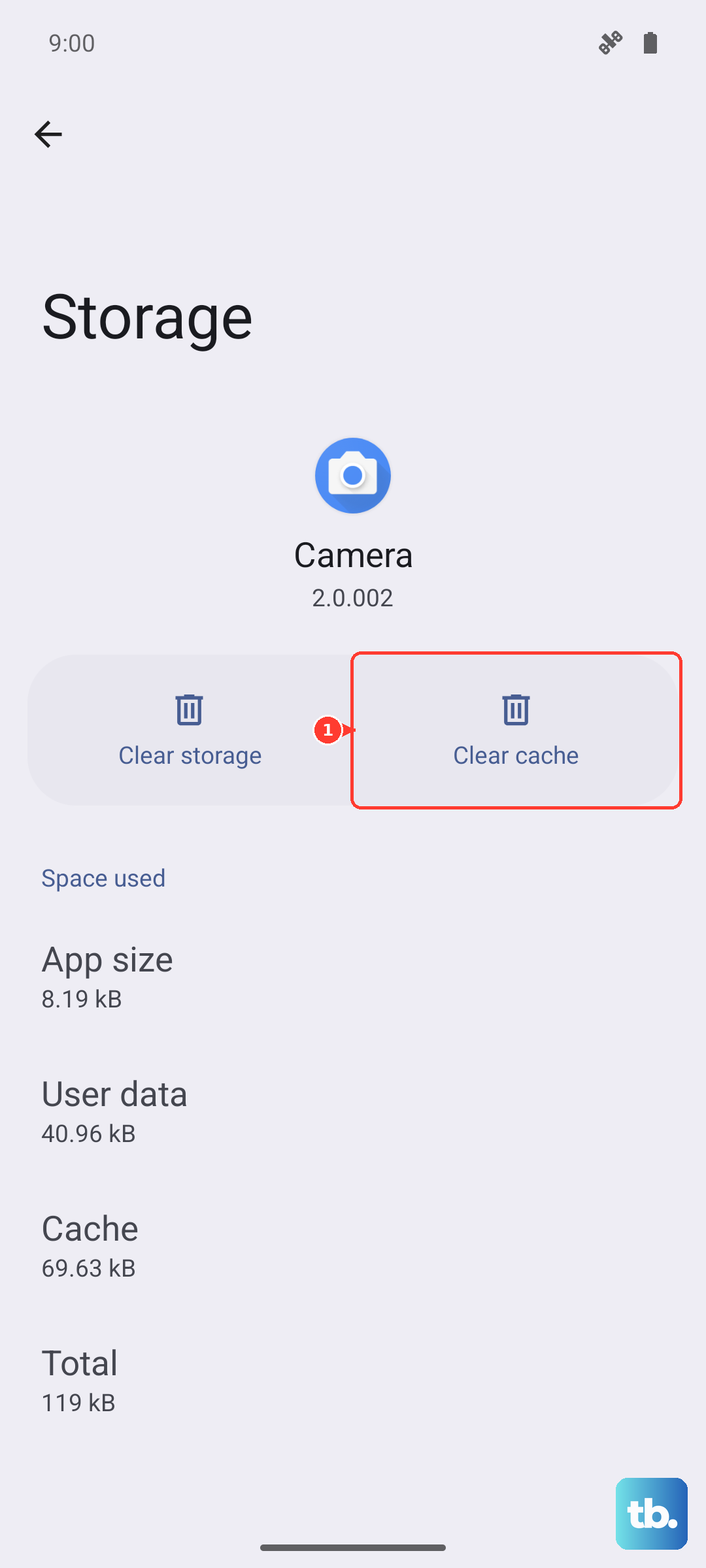
Tap the three-dot menu in the top right and select Show system. Find and tap on Software Update. Go into Storage & cache and tap Clear cache. Then, go back and try checking for the update once more.
Reset Your Network Settings
This clears all your saved Wi-Fi networks, Bluetooth pairings, and mobile data settings, which can resolve deeper connection issues. Go to Settings > Additional settings > Backup & reset > Reset phone > Reset network settings.
You'll need to re-enter your Wi-Fi password afterward. Once you're reconnected, attempt the update again. It takes about 30 seconds and is a reliable fix for persistent download errors.
Use OxygenOS Updater or Local Install
If the standard update path is broken, you can try a more direct method. First, ensure you have the official OxygenOS Updater app from the Google Play Store. It sometimes works when the built-in checker fails.
For a full manual install, you can download the correct update package (a .OZIP file) for your exact OnePlus 13 model from the official OnePlus community website. Place the file in the root of your phone's internal storage, then use the built-in Local Install option from the system update screen.
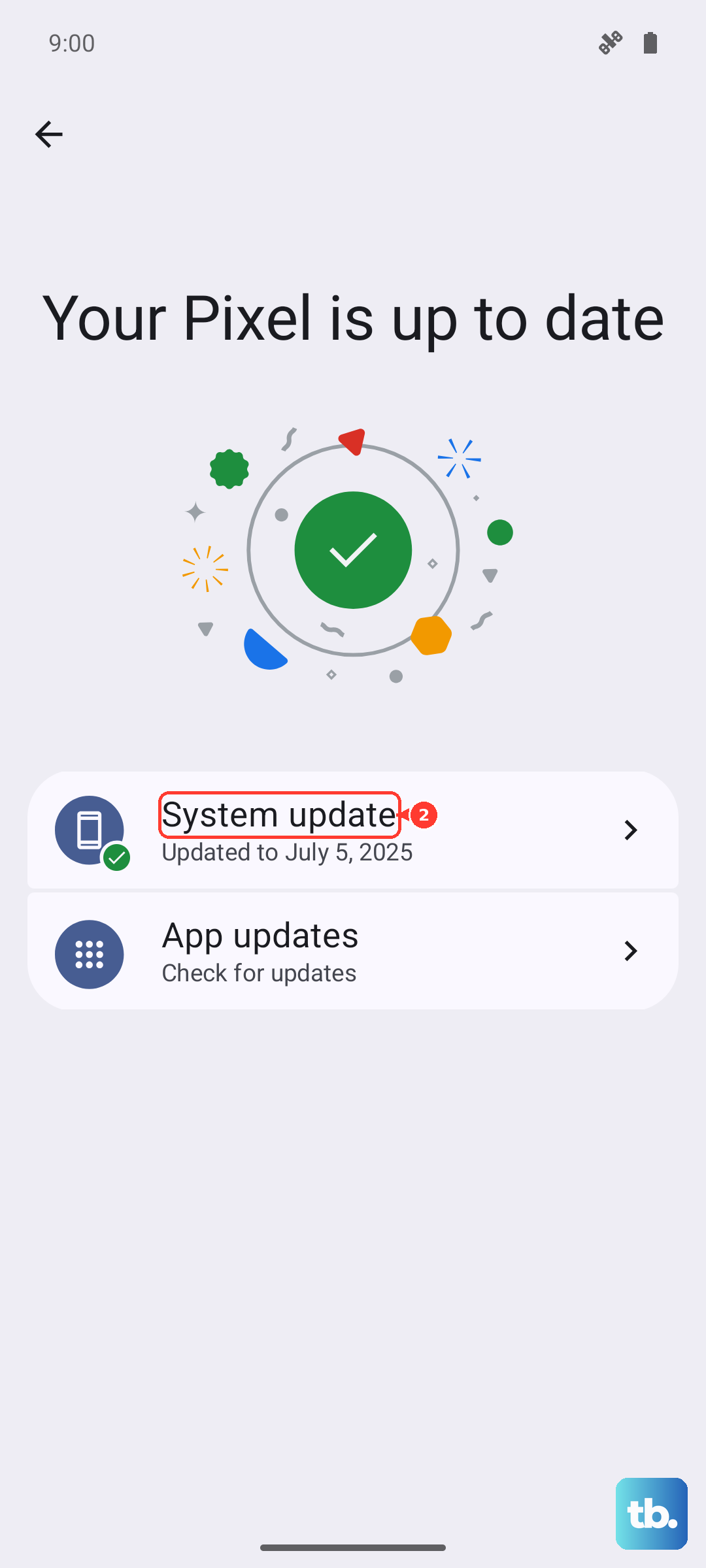
Check for Server-Side Issues
Sometimes the problem isn't on your end. When OnePlus rolls out a major OxygenOS update, their servers can get overwhelmed, causing downloads to time out or fail. It's worth checking the OnePlus Community forums or official social media channels.
If many users are reporting the same update failure at the same time, it's likely a server issue. Your best bet is to wait a few hours or try again early the next morning when traffic is lower.
Ensure Your Phone is Compatible and Charged
This sounds obvious, but it's critical. Your phone must be charged to at least 50% (or plugged into its original 100W charger) to begin an update. Also, make sure the update you're seeing is actually for your specific model variant (global, EU, India, etc.), as installing the wrong file can cause serious problems.
If you've recently unlocked the bootloader or rooted your device, the standard over-the-air updates will be blocked. You'll need to follow specific manual flashing procedures instead, which is a more involved process.