
You're staring at your brand new OnePlus 13, and that Wi-Fi icon just won't light up. It's incredibly frustrating, especially on a phone that's supposed to be so fast. The good news is, this is almost always a software hiccup you can fix yourself in a few minutes.
Toggle Wi-Fi and Restart Your OnePlus 13
Let's start with the simplest fix. Swipe down from the top of your screen to open the Quick Settings panel. Tap the Wi-Fi icon to turn it off, wait a solid five seconds, and then tap it again to turn it back on. This forces the phone to drop the connection and search for networks fresh, which often does the trick.
If that doesn't work, give your phone a full restart. Press and hold the power button until the power menu appears, then tap "Restart." I've found that a simple reboot clears out most of the temporary glitches that can plague wireless connections on OxygenOS 15.
Use Airplane Mode to Reset Radios
This is a classic for a reason. Turning on Airplane mode shuts down all wireless communication, including Wi-Fi, cellular, and Bluetooth. Swipe down your Quick Settings and tap the airplane icon, leave it on for about 15 seconds, and then turn it off. This forces every radio to re-establish a clean connection from scratch.
Forget the Problem Network
Your phone might be holding onto old or corrupted information for that specific Wi-Fi network. To clear it, go to Settings > Wi-Fi. Tap on the name of the network you're trying to join, then select Forget.
Now, go back to the list of available networks, tap on it again, and re-enter the password. This is crucial if you've recently changed your Wi-Fi password or gotten a new router, as your OnePlus 13 will keep trying the old credentials.
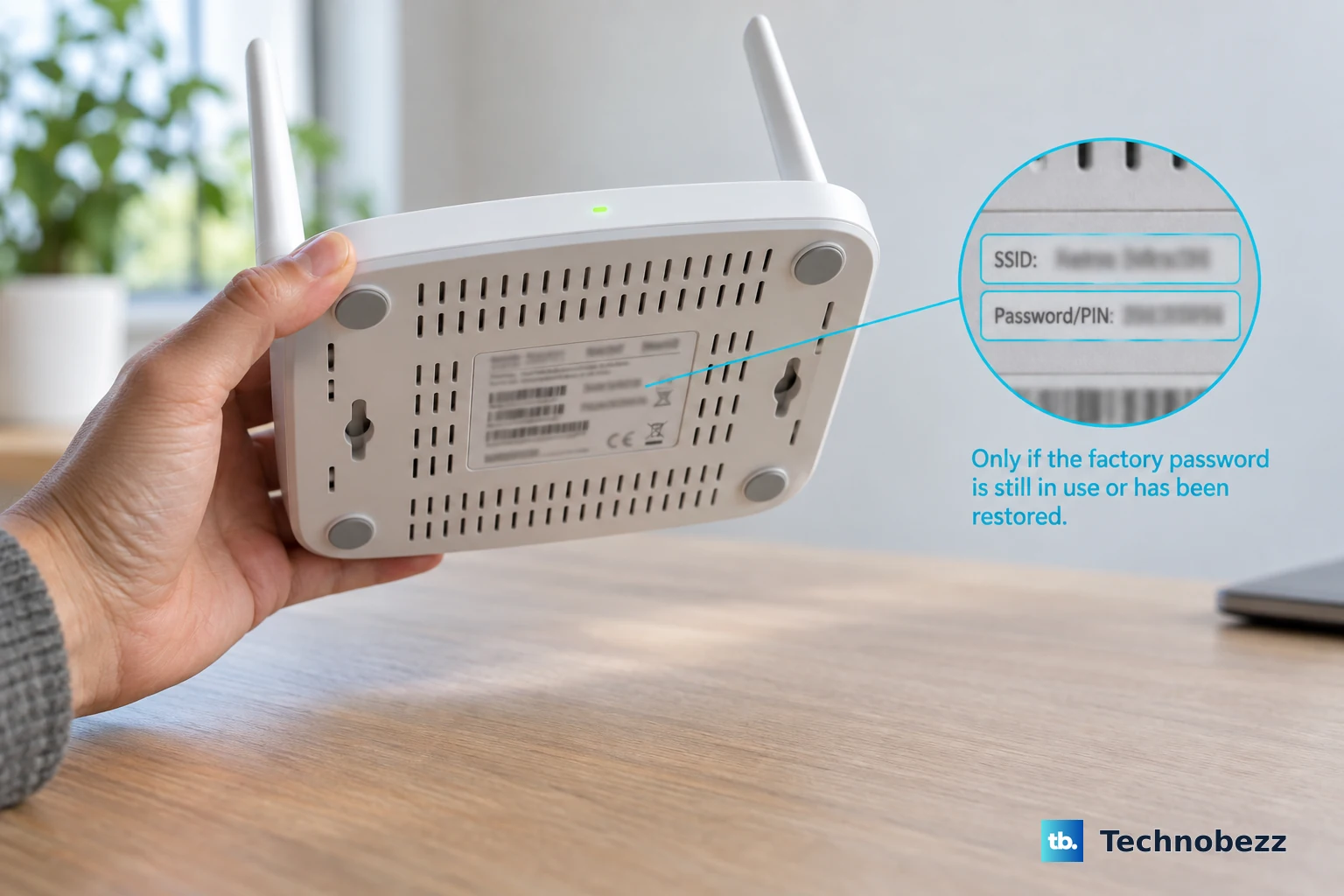
Check for Simple Mistakes
It sounds obvious, but it's worth a double-check. Make sure you're selecting the correct network name from the list, especially if you have a lot of neighboring networks. When typing the password, remember it's case-sensitive, so check that caps lock isn't accidentally on.
Disable Bluetooth Temporarily
Bluetooth and Wi-Fi can sometimes interfere with each other on the 2.4GHz band. Try swiping down and turning off Bluetooth completely, then see if your Wi-Fi connects. If it does, you've found a simple workaround, though you may want to investigate further if you need both on constantly.
Turn Off Smart 5G/Wi-Fi Switching
OnePlus includes a feature designed to save battery by switching between networks. It can sometimes be a little too aggressive. Go to Settings > Wi-Fi & network > Intelligent connectivity.
Look for an option called "Smart 5G/Wi-Fi switching" or something similar about auto-switching networks. Try turning this feature off to see if it stops your phone from jumping off the Wi-Fi connection prematurely.
Check Battery Optimization and Modes
Power-saving modes can limit background network activity. Go to Settings > Battery. If you have Power saving mode or Super power saving mode enabled, turn it off. Also, tap on More battery settings and ensure any aggressive battery optimization for apps isn't hindering connectivity.
Keeping your software updated is one of the best tips for the OnePlus 13, as early OxygenOS builds can have bugs. Updates often include stability patches for connectivity.
Update Your OxygenOS Software
An outdated system can be the root of many problems. OnePlus is typically quick to push fixes. Go to Settings > About device > OxygenOS version and tap on the icon to check for updates. Install any available update, as it may contain crucial fixes for Wi-Fi drivers or system stability.
Verify Date and Time Settings
This is a sneaky one that people often overlook. If your phone's clock is wrong, it can break the security certificate handshake with modern Wi-Fi networks. Go to Settings > System settings > Date & time.
Make sure both "Set time automatically" and "Set time zone automatically" are switched on. This lets your phone sync with network time servers and keeps everything in sync.
Reset Your Network Settings
If you're still stuck, resetting network settings is a strong step. This will erase all saved Wi-Fi networks, Bluetooth pairings, and mobile data preferences, so you'll have to reconnect to everything afterward. Go to Settings > System settings > Reset options.
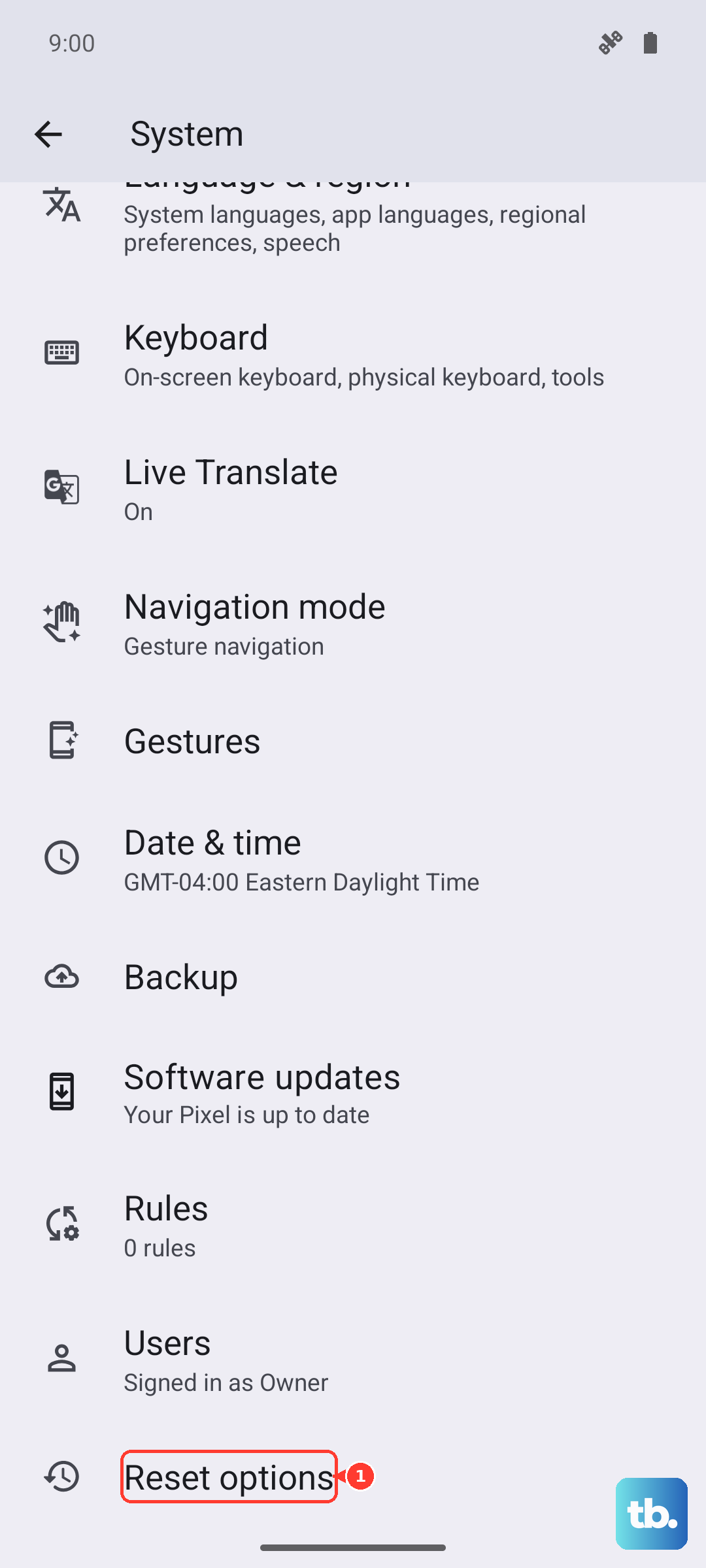
Tap on Reset Wi-Fi, mobile & Bluetooth. Confirm the action, and your phone will reboot. After it starts back up, try connecting to your Wi-Fi again as if it were a brand new network.
Don't Forget the Router
The issue might not be your OnePlus 13 at all. If other devices are also struggling, your router is the likely culprit. Unplug your router and modem from power for a full minute. This gives them time to clear their memory caches. Plug them back in and wait for them to fully boot up before trying to connect again.
While you're at it, it's a good idea to check if your router has a firmware update available through its admin page or app. An old router firmware can have compatibility issues with newer phones.
Boot Into Safe Mode
A third-party app could be causing interference. Common culprits are VPNs, ad blockers, or certain "cleaner" apps. To test this, you need to boot into Safe Mode. Press and hold the power button until the power menu appears, then tap and hold the "Power off" option on your screen.
You should see a prompt to reboot to Safe Mode. Tap it. If your Wi-Fi works perfectly in Safe Mode, a recently installed app is likely the problem. You'll need to uninstall apps one by one to find the offender.
Perform a Factory Reset
Consider this your absolute last resort. A factory reset will wipe your OnePlus 13 back to its original out-of-the-box state. You must back up everything important first, photos, messages, app logins, everything. To do it, go to Settings > System settings > Reset options > Erase all data (factory reset).
Follow the on-screen instructions. Only use this step if every other fix on this list has failed. If Wi-Fi still doesn't function after a factory reset, the issue may be hardware-related.











