
If your OnePlus 13 is loading websites at a crawl or buffering videos constantly, it's a real drag. The good news is that OxygenOS 15 has several built-in tools to help you get back up to speed.
I'd start with the quickest fixes first, as they often clear up temporary glitches that can slow things down.
Restart Your Phone and Router
It sounds simple, but a restart clears out temporary system glitches and memory that can bog down your connection. Press and hold the Volume Down button and the Power button together for about 10 seconds until the phone vibrates and reboots.
Don't forget your WiFi router, too. Unplug it for 30 seconds and plug it back in. This gives both ends of your connection a fresh start, which can work wonders.
Check Your Current Network Signal
First, figure out if the problem is with your mobile data or your WiFi. Swipe down from the top of your screen twice to open the Quick Settings panel and look at the icons.
If you're on mobile data, you should see "5G" or "4G" for a fast connection. "3G" or "H+" will be much slower. For WiFi, the more bars filled in on the WiFi symbol, the stronger your signal is to the router.
Toggle Airplane Mode On and Off
This is a quick trick to force your OnePlus 13 to reconnect to the cellular network from scratch. Swipe down to open Quick Settings and tap the Airplane Mode icon to turn it on.
Wait about 10 seconds, then tap it again to turn it off. Your phone will search for the strongest available signal, which can sometimes bump you onto a faster tower or band.
Clear Your Browser's Cache and Data
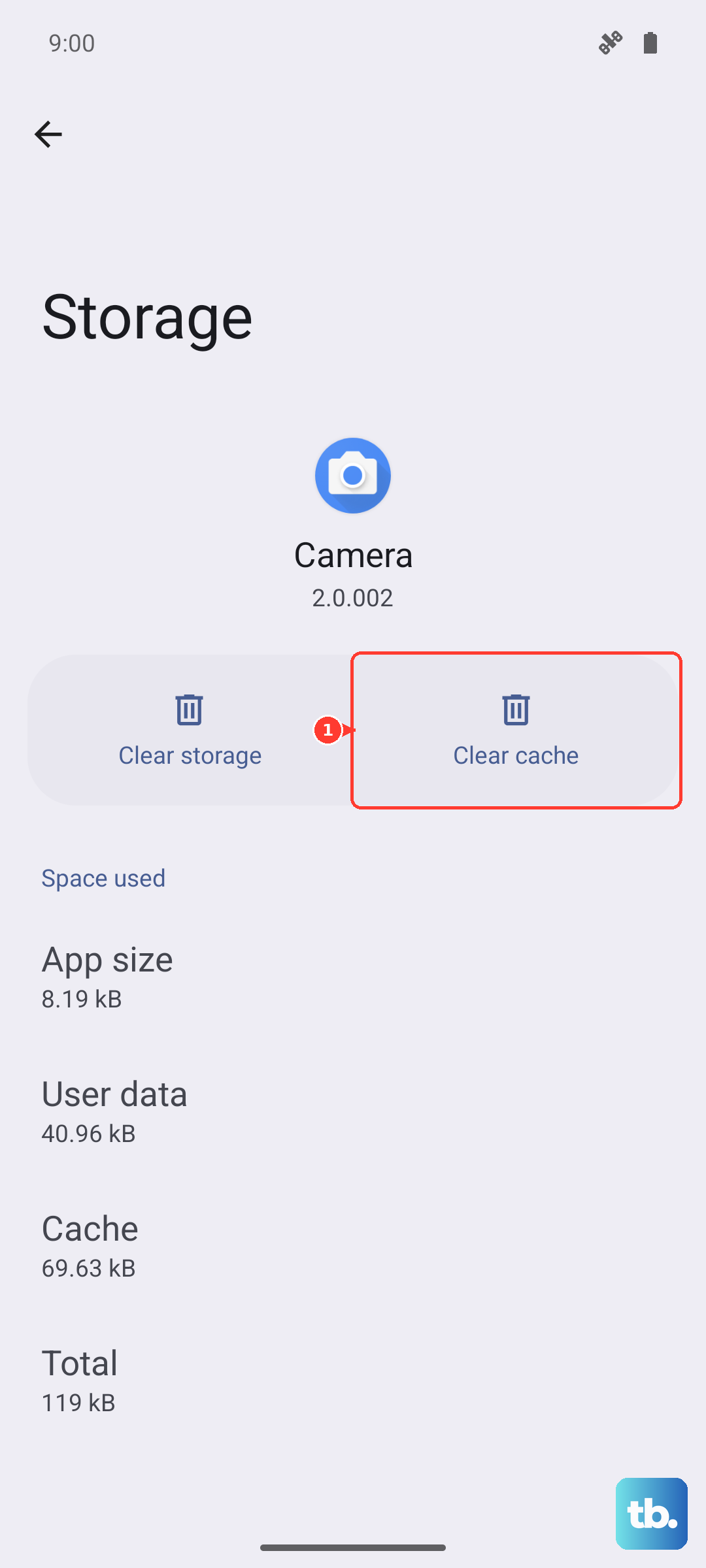
Over weeks of browsing, your browser stores tons of temporary files. While this is meant to speed things up, a corrupted cache can have the opposite effect, especially on a new phone like the OnePlus 13 that's still settling in.
If you use Chrome, open the app and tap the three dots in the top right. Go to History > Clear browsing data. Select Cached images and files and Cookies and site data, then tap "Clear data." For other browsers, look for a similar "Clear cache" option in their settings menu.
Enable OxygenOS's Smart 5G Feature
Your OnePlus 13 has an intelligent network feature that balances speed and battery life. If it's set to save power, you might not be getting the fastest possible 5G speeds. Go to Settings > Mobile network.
Tap on "Smart 5G" and make sure it's turned on. This allows your phone to dynamically use the fastest available 5G signal when needed for tasks like streaming, while switching down to save power when you're just checking messages.
Manage Background Data for Apps
Apps running in the background can silently eat up your bandwidth, slowing down the app you're actively trying to use. OxygenOS lets you control this on an app-by-app basis. Head to Settings > Apps > App management.
Find an app that's known to be a data hog, like a social media or video app. Tap on it, then go to Mobile data & WiFi. Here, you can toggle off "Allow background data usage" for that specific app to keep it from updating when you're not using it.
Use the Built-in Data Saver
For a more blanket approach to stopping background data, turn on Data Saver. This feature restricts background data for all apps except the ones you explicitly allow. Open Settings > Mobile network > Data Saver and toggle it on.
You can then tap on "Unrestricted data" to choose apps, like your messaging service, that are allowed to use data in the background even when Data Saver is active.
Reset Your Network Settings
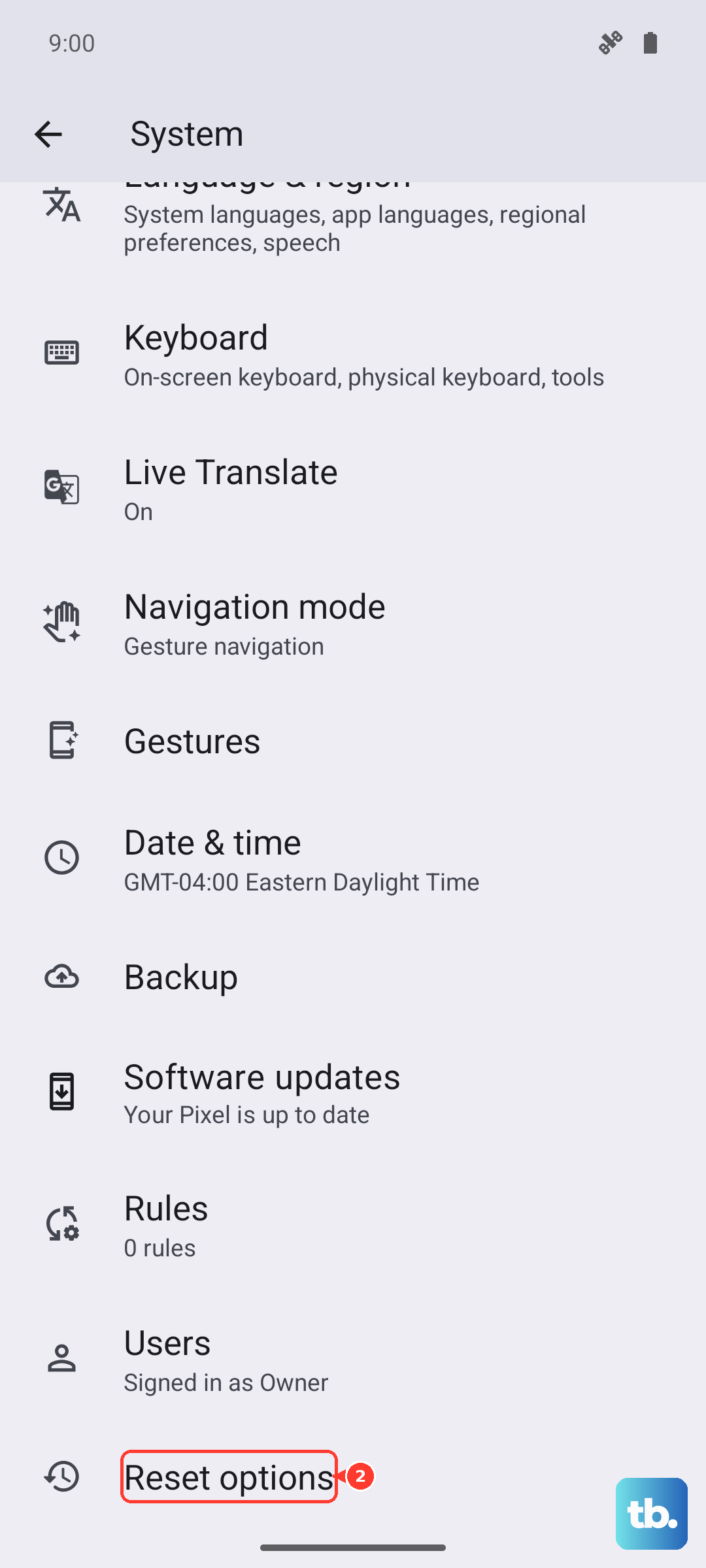
If you're still having issues, this step will reset all your WiFi, mobile data, and Bluetooth connections back to factory defaults. You'll need to re-enter WiFi passwords and re-pair Bluetooth devices, so it's a bit more involved.
To do it, go to Settings > System > Reset options. Tap on "Reset WiFi, mobile & Bluetooth" and confirm. This clears out any incorrect network configurations that might be causing the slowdown.
Check for a Software Update
Since the OnePlus 13 is a new device running OxygenOS 15, early software builds can sometimes have bugs that affect network performance. OnePlus regularly releases updates to fix these issues.
Go to Settings > About device > OxygenOS version and tap on the icon at the top to check for an update. If one is available, install it. I've seen updates specifically target connectivity improvements and thermal management, which can help if the phone is overheating and throttling performance.
Test Your Speed and Contact Your Carrier
Finally, use a speed test app from the Play Store to get a baseline. Run the test on both mobile data and WiFi. If your mobile data is consistently slow in multiple locations, the issue might be with your carrier's network coverage or your data plan.
Contact your carrier to ensure your plan is active and that there are no outages or throttling on your line. Sometimes, simply asking them to refresh your connection on their end can resolve persistent speed issues.