
When your OnePlus 13 Pro starts acting up with apps that close unexpectedly or freeze, it pulls you right out of whatever you were doing. This is usually a software hiccup, not a sign of a broken phone. I'd start with a quick restart, as it clears out temporary glitches that can build up in the system memory.
For the OnePlus 13 Pro, you can restart it normally through the power menu. If the screen is unresponsive, use the force restart method instead. Press and hold the Volume Down button and the Power button together for about ten seconds. You'll feel a vibration, and the phone will reboot.
Update Everything
Running outdated software is one of the most common reasons for app instability. You need to check two places. First, open the Google Play Store, tap your profile icon, and go to Manage apps & devices. Install any pending app updates from there.
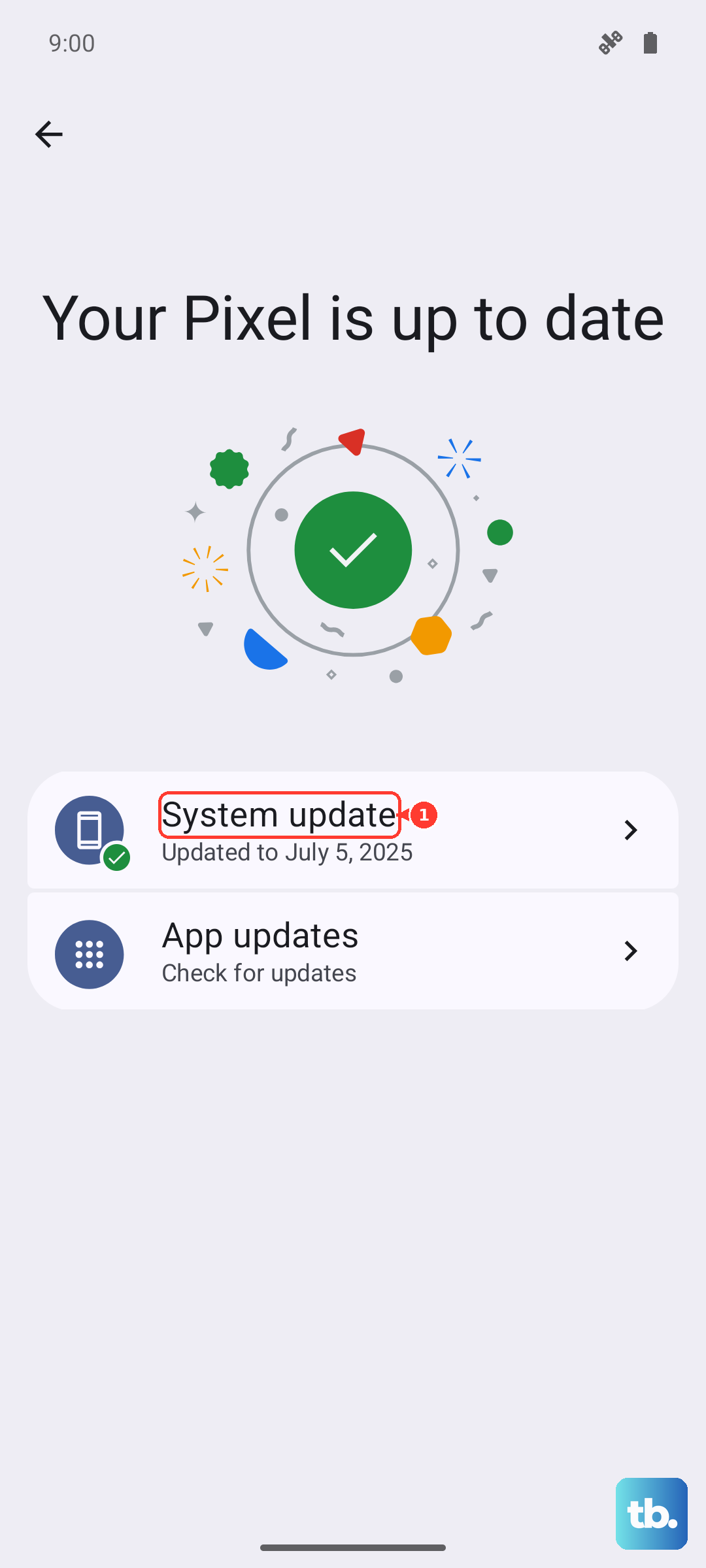
Second, check for a system update. OxygenOS 15 receives regular updates that fix bugs and improve compatibility. Go to Settings > About device > OxygenOS version and tap on the check for update button. If an update is available, install it while your phone is connected to Wi-Fi and charging.
Free Up RAM and Storage
Your OnePlus 13 Pro has plenty of memory, but having too many apps running in the background can still cause conflicts. Swipe up from the bottom and hold to enter the recent apps view, then swipe away apps you're not using. For a deeper clean, you can go into Settings > Apps > Manage apps, select the problematic app, and tap Force stop.
Low storage space can also cause apps to misbehave. They need room to create temporary files and cache. Head to Settings > Storage to see what's taking up space. Clear out old downloads, offload photos to the cloud, and consider uninstalling apps you haven't used in months.
Clear the App's Cache and Data
This is a very effective fix for a single misbehaving app. The cache is temporary data that helps apps load faster, but it can become corrupted over time. Clearing it is safe and won't delete your login info or saved files.
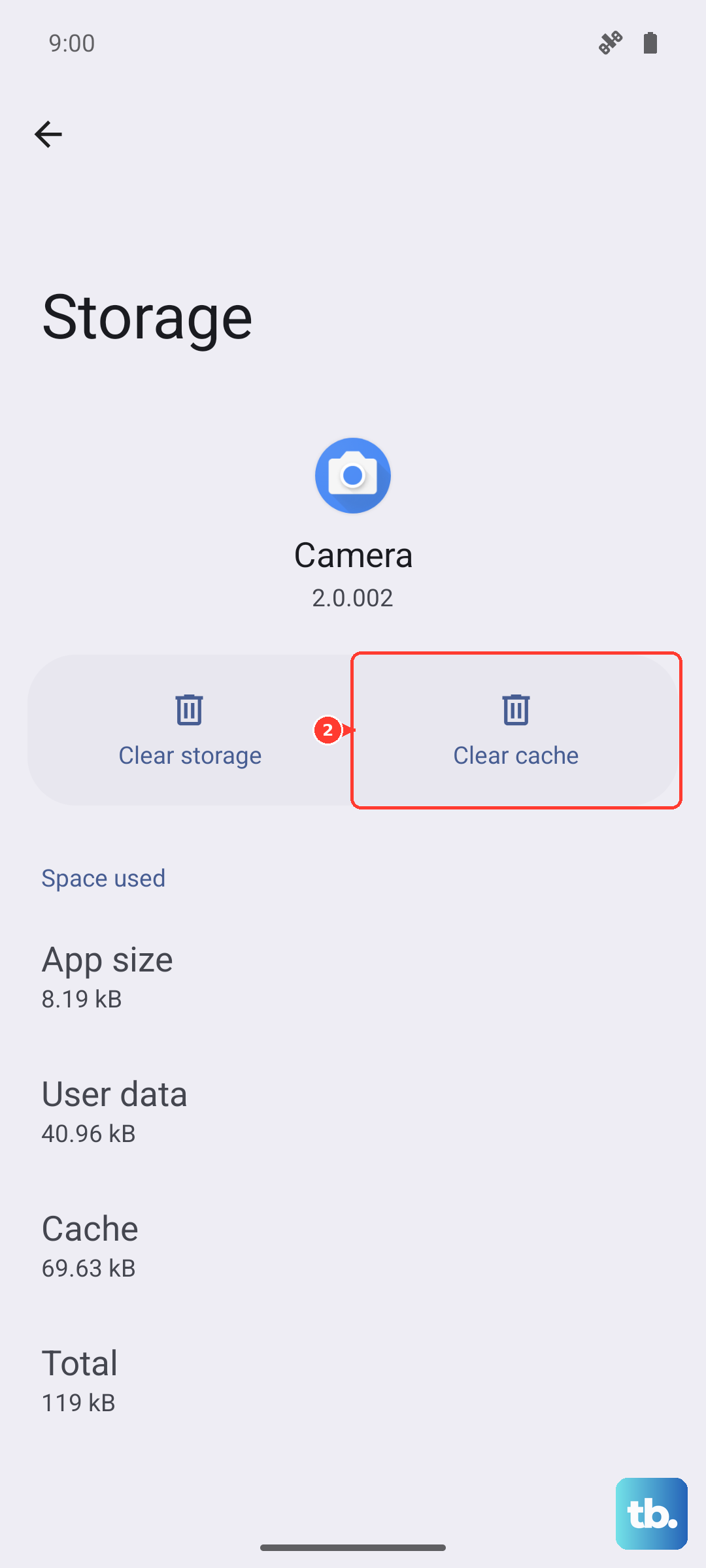
Go to Settings > Apps > Manage apps and find the app that's crashing. Tap on it, then select Storage usage. You'll see options to Clear cache and Clear data. Try clearing the cache first. If the app still crashes, you can try clearing the data, but be aware this will reset the app to its freshly installed state, so you'll need to log in again.
Check Your Network Connection
Apps that rely heavily on an internet connection, like social media or streaming services, can crash or freeze if the connection is unstable. Toggle your Wi-Fi off and on, or try switching to mobile data for a moment to see if the problem persists.
If you're using a VPN or a custom DNS (like in Settings > Wi-Fi & network > Private DNS), try disabling it temporarily. Sometimes these services can interfere with how an app communicates with its servers.
Reinstall the Problem App
If the crashing is isolated to one specific app, the installation files might have become damaged. Uninstalling and reinstalling gives you a clean slate. Long-press the app icon on your home screen and tap Uninstall, then download it again from the Google Play Store.
This process ensures you have the latest version directly from the developer, with all its core files intact. It often resolves conflicts that other troubleshooting steps can't fix.
Review App Permissions and Battery Settings
OxygenOS includes aggressive battery optimization features to extend battery life. Sometimes, these can restrict background activity too much for certain apps. Go to Settings > Apps > Manage apps, select the app, and tap Battery usage.
Try changing the setting from Optimize to Intelligent control or Don't optimize. Also, verify the app has the necessary permissions in Settings > Apps > [App name] > Permissions. An app missing a key permission, like location or storage, might crash when it tries to access that feature.
Boot into Safe Mode
This is a great way to figure out if a third-party app you installed is causing the problem. Safe mode temporarily disables all apps you downloaded. Press and hold the power button until the power menu appears, then long-press the "Power off" option. Tap OK when prompted to reboot to Safe Mode.
If your apps work fine in Safe Mode, then something you installed is likely the culprit. Start by removing recently downloaded apps one by one until the stability returns. You can exit Safe Mode by simply restarting your phone normally.