
You pick up your OnePlus 13, expecting to see a stream of alerts, but the screen stays blank. Messages, emails, app updates, they're all arriving in silence. It's a common hiccup with new software like OxygenOS 15, but it's usually something you can fix yourself without much fuss.
I'd start with the simplest step first. Give your phone a quick restart by pressing and holding the Volume Down button and the Power button together for about ten seconds. Wait until you feel the device vibrate and the OnePlus logo appears. This clears out any temporary glitches in the system that might be blocking notifications.
Check Your Focus and Battery Settings
OxygenOS has several features designed to minimize distractions and save power, and they can sometimes be a little too effective. Swipe down from the top of your screen twice to open the Quick Settings panel and make sure the Zen Mode or Do Not Disturb icon isn't active.
Next, head into Settings > Battery. Look for a power-saving mode like Power Saving Mode or Super Power Saving Mode. These modes often restrict background data and can silence notifications to extend battery life. Turn them off to see if your alerts come back.
Review App-Specific Notification Permissions
This is where the issue most often lies. Each app on your OnePlus 13 needs explicit permission to send you alerts. Go to Settings > Notifications & Status Bar > App Notifications. You'll see a list of all your installed apps.
Tap on the app that's not notifying you, like Gmail or WhatsApp. Make sure the toggle at the top for "Allow Notifications" is switched on. Then, check the categories below, like "Primary" or "Conversations", and ensure those are also enabled and set to make a sound or vibrate.
Disable Adaptive Notifications and Battery Optimization
OnePlus includes intelligent features that learn your habits. Settings > Notifications & Status Bar > Manage Notifications > Adaptive Notifications can sometimes suppress alerts it thinks you don't want. Try turning this off temporarily.
Battery optimization is another common culprit. Go to Settings > Battery > Battery Optimization. Find the problematic app in the list, tap it, and select Don't Optimize. This tells the system to let that app run freely in the background, which is essential for timely notifications.
Clear the Cache for the Problem App
Corrupted temporary data can break an app's notification function. Go to Settings > Apps > See All Apps. Find and select the app that's having issues. Tap Storage & Cache and then hit Clear Cache.
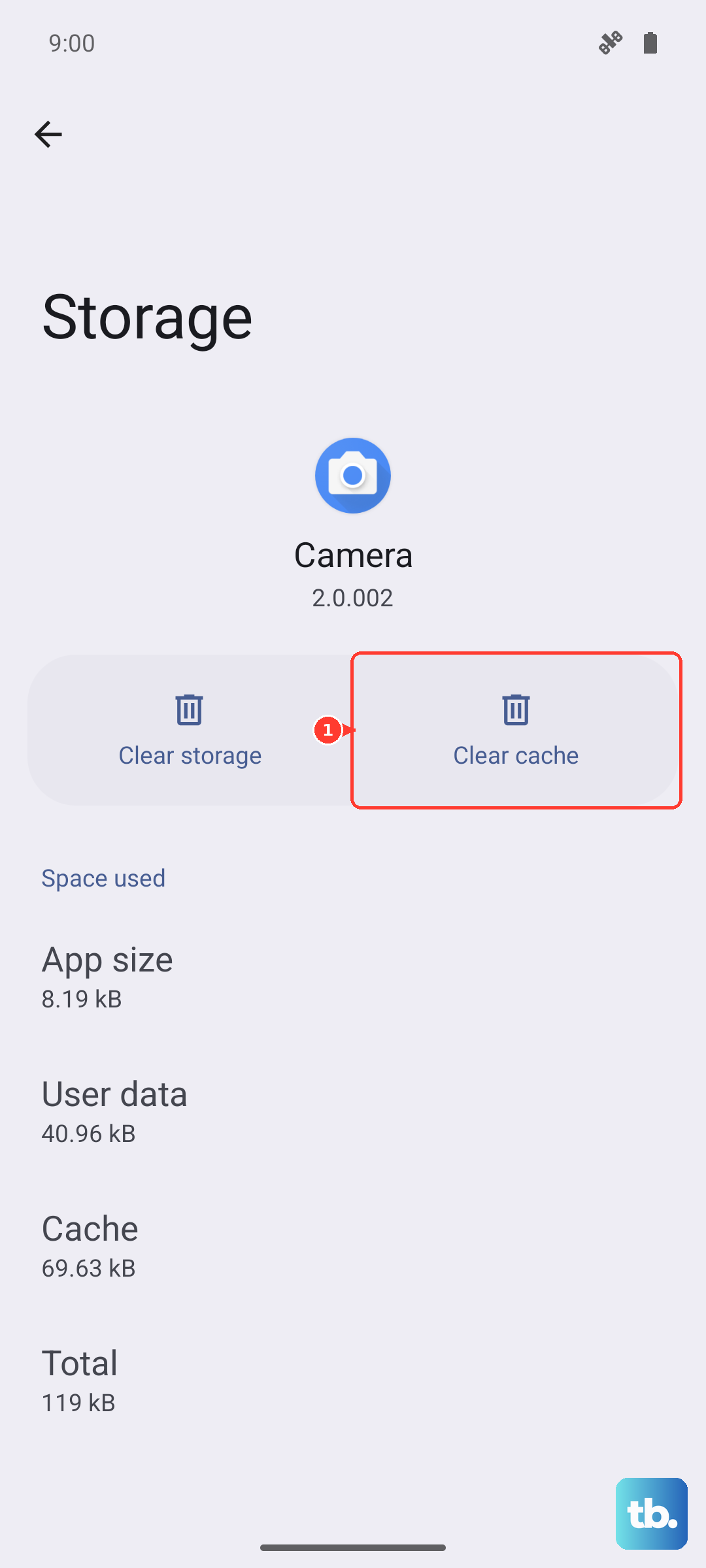
This doesn't delete any of your personal data, like messages or login info. It just cleans out the temporary files that might have become buggy, especially after a recent app update.
Check Background Data Restrictions
If an app can't use data in the background, it can't fetch new messages to notify you about. Open Settings > Apps > See All Apps and select the app. Tap Mobile Data & Wi-Fi.
Here, ensure that both Allow Background Data Usage and Allow Data Usage in Background (for Wi-Fi) are enabled. This gives the app the network access it needs to work properly when you're not actively using it.
Update Your Apps and OxygenOS
An outdated app version might have a known bug that breaks notifications. Open the Google Play Store, tap your profile icon, and go to Manage Apps & Device > Updates Available. Install all pending updates.
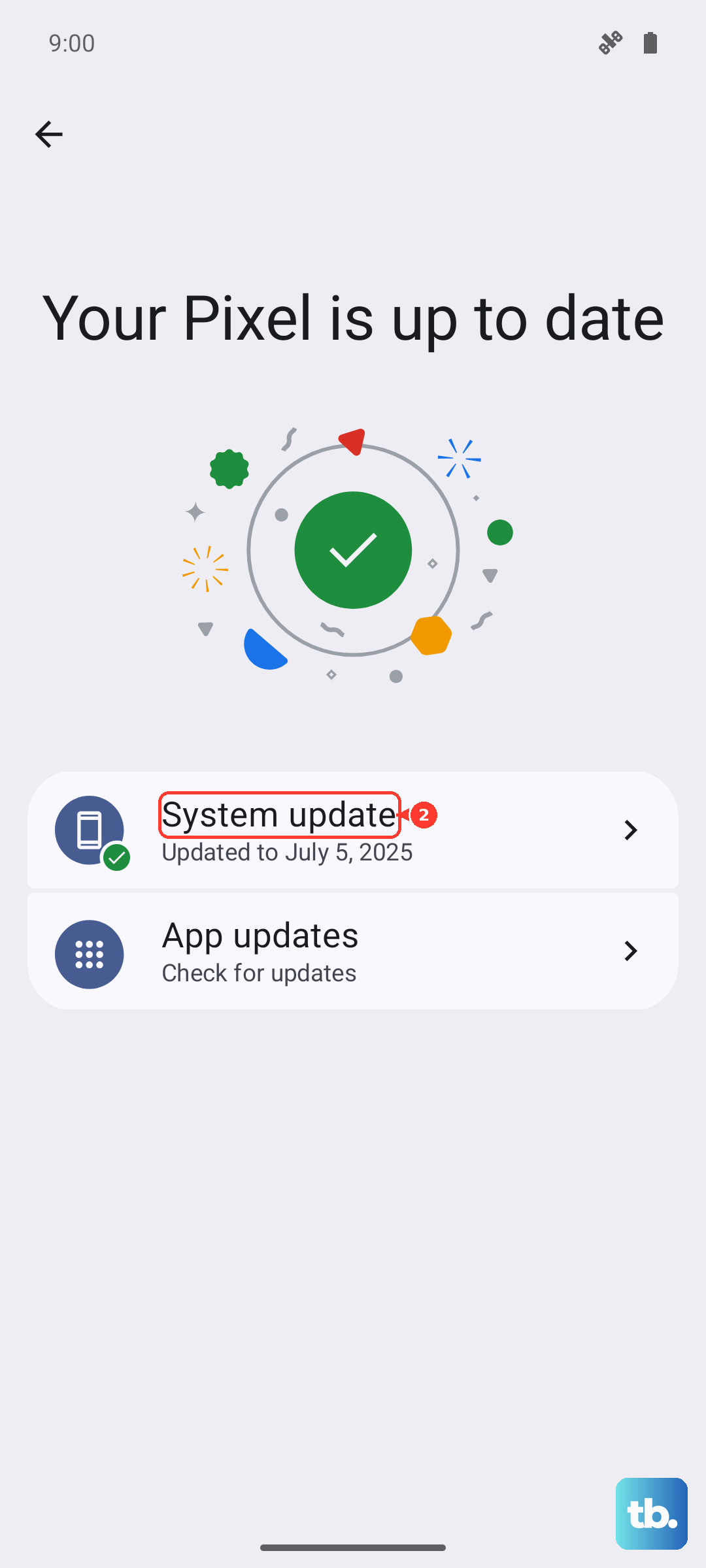
More importantly, check for a system update. Early builds of OxygenOS 15 can have quirks that are patched later. Go to Settings > About Device > OxygenOS Version and tap on the icon to check for updates. Installing the latest software can resolve a host of notification issues.
Reset App Preferences
This is a broader fix that won't erase your data. It resets all your app permissions, notification settings, and default app assignments back to their factory state. You'll just need to re-allow notifications for your key apps afterward.
To do this, navigate to Settings > Apps > See All Apps. Tap the three-dot menu in the top right and select Reset App Preferences. Confirm your choice and restart your phone. After rebooting, you'll need to revisit the notification settings for apps like Messages or Slack to re-enable them.
Examine Notification Channels and Sounds
Sometimes the notification is arriving but silently. For a specific app, go to its notification settings as described earlier. Tap into each notification category (like "Messages" or "Alerts").
Ensure the sound is set to something other than "Silent." Also, check that Vibrate is turned on if you want it. On the main notification settings page, you can also tap More Settings to verify that "Lock Screen Notifications" are enabled so you can see them without unlocking your phone.
Boot Into Safe Mode
If notifications are completely dead, a third-party app you installed could be interfering. Booting into Safe Mode temporarily disables all downloaded apps. Press and hold the Power button until the power menu appears.
Then, tap and hold the Power Off option on your screen. A prompt to reboot to Safe Mode will appear; tap it. If notifications work normally in Safe Mode, you know a downloaded app is the cause. You'll need to restart normally and uninstall recent apps one by one to find the offender.
As a Last Resort, Reset Network Settings
This step clears all your Wi-Fi passwords, Bluetooth pairings, and mobile network settings. It can help if there's a deeper system conflict affecting how apps communicate. Go to Settings > Additional Settings > Backup & Reset > Reset Phone.
Choose Reset Wi-Fi, Mobile & Bluetooth. Confirm the reset and your phone will reboot. You'll need to reconnect to your Wi-Fi networks and re-pair Bluetooth devices, but it can clear up persistent notification delivery problems.











