
That "No SIM card detected" message on your OnePlus 13 is a real roadblock. It cuts you off from calls, texts, and mobile data right when you need them most. The good news is this is usually a simple glitch you can fix yourself, often in just a few minutes.
Start With a Force Restart
I'd start with this one. A force restart clears temporary software bugs that can confuse the SIM reader. Press and hold the Volume Down button and the Power button together for about 10 seconds.
Keep holding until you feel the phone vibrate and the OnePlus logo appears on the screen. This is different from a normal restart and often knocks loose the exact kind of system hiccup that causes SIM detection issues.
Check the SIM Card Tray and Contacts
Power the phone off completely. Grab the SIM ejector tool from the box and gently push it into the small hole on the frame to pop out the tray. Carefully remove the SIM card and take a close look at the gold contacts.
If you see any dust, lint, or a faint white corrosion, that's likely the culprit. Gently wipe the contacts with a clean, dry microfiber cloth. You can also use a cotton swab with a tiny bit of isopropyl alcohol, but let it dry completely before reinserting.
Make sure the SIM is seated correctly in the tray, with the notched corner aligned. Push the tray back in until it clicks firmly into place. A loose or misaligned tray is a common reason for intermittent detection.
Toggle Airplane Mode and Verify SIM Status
Swipe down from the top of your screen twice to open the full Quick Settings panel. Tap the Airplane Mode icon to turn it on, wait about 10 seconds, then tap it again to turn it off. This forces your phone's modem to re-establish a fresh connection to the network.
Next, go into your settings to make sure the SIM is actually enabled. Open Settings > Mobile Network. You should see your SIM listed here. Tap on it and ensure the switch at the top is toggled on. Sometimes an update or glitch can accidentally disable it.
Test the SIM in Another Phone
This is the best way to figure out if the problem is with your SIM card or the phone itself. If you have access to another unlocked phone, power it off, insert your OnePlus 13's SIM, and turn it back on.
If the other phone also fails to detect the SIM, the card itself is probably faulty or deactivated. You'll need to contact your carrier for a replacement. If the SIM works perfectly in the other device, then the issue is with your OnePlus 13's software or hardware.
Update Your OxygenOS Software
Since the OnePlus 13 is new, early software builds can have bugs that affect connectivity. Keeping your phone updated is crucial. Go to Settings > About device > OxygenOS version.
Tap on the icon at the top to check for updates. If an update is available, download and install it. The phone will restart. I've seen updates specifically target "improved network stability," which often includes fixes for SIM recognition problems.
Reset Your Network Settings
This clears out all your saved Wi-Fi passwords, Bluetooth pairings, and mobile network configurations, which can sometimes get corrupted. It doesn't touch your personal photos, messages, or apps.
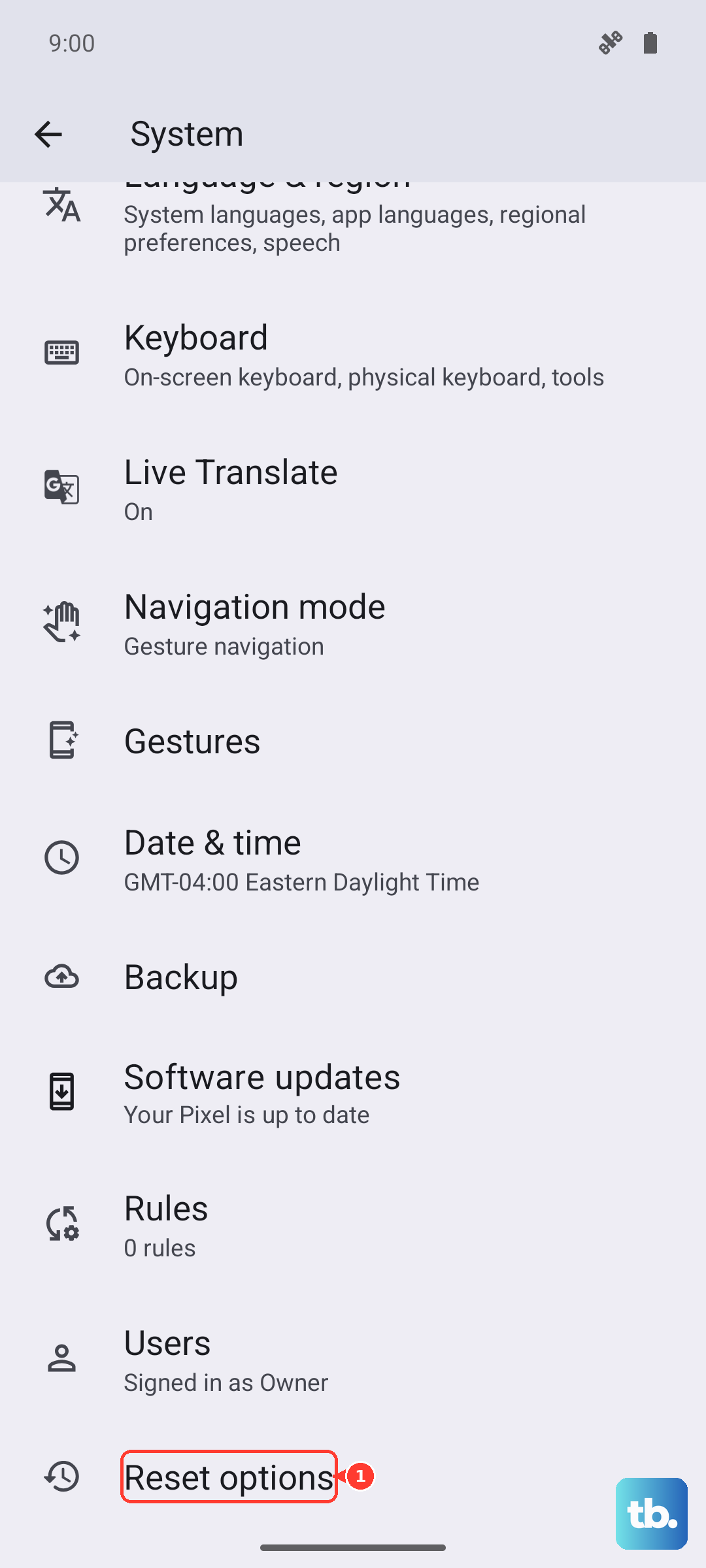
To do this, navigate to Settings > System settings > Reset options. Tap on Reset Wi-Fi, mobile & Bluetooth and confirm. After the reset, you'll need to reconnect to Wi-Fi networks and re-pair Bluetooth devices, but it often resolves persistent SIM issues.
Configure Your APN Settings
Incorrect Access Point Name (APN) settings can prevent your phone from registering on your carrier's network, making it seem like there's no SIM. Go to Settings > Mobile Network > tap your SIM > Access Point Names.
If there are existing settings, tap the three-dot menu in the top right and select Reset to default. If your carrier requires specific APN details (like for an MVNO), you may need to enter them manually. Your carrier's website or support team can provide the correct information.
Try Manual Network Selection
Letting your phone automatically choose a network can sometimes fail. You can manually select your carrier to force a connection. Go to Settings > Mobile Network > tap your SIM > Network operators.
Turn off the "Select automatically" option. The phone will search for available networks. When the list populates, choose your specific carrier's name from it. Wait a minute to see if the signal bars appear.
Clear the SIM Toolkit Cache
Background system apps that manage the SIM can accumulate corrupted cache data. Open Settings > Apps, then tap App management (labeled Manage apps on Xiaomi and POCO phones). Tap the three-line menu icon and select Show system apps.
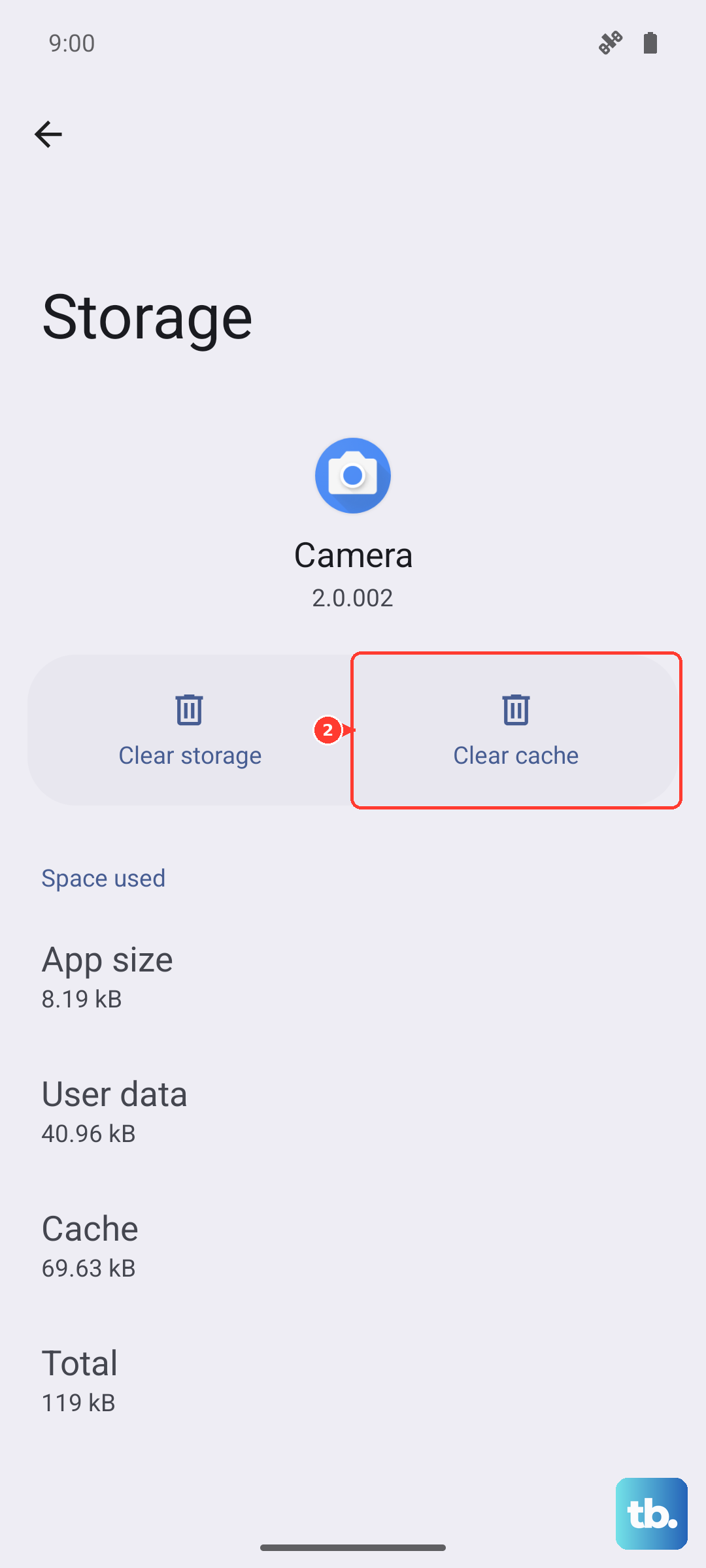
Scroll through the list and look for apps like "SIM Toolkit" or "STK." Tap on it, then go to Storage usage. Tap Clear cache. Do this for any SIM-related system app you find. This is a harmless step that can clear up software conflicts.
Consider an eSIM as a Last Resort
The OnePlus 13 supports eSIM technology. If your physical SIM card slot seems to have a persistent hardware issue, or if you keep having problems with physical SIMs, switching to an eSIM is a solid permanent solution.
Contact your carrier to see if they support eSIM activation for your plan. They can guide you through converting your physical SIM to a digital profile, which you download directly to your phone, bypassing the physical tray and reader entirely.