
When your OnePlus 13 microphone stops picking up your voice, it can turn simple phone calls, video chats, or voice commands into a frustrating experience. The issue might be with the phone's main mic, the earpiece speaker that doubles as a call mic, or even the noise-canceling microphones. Let's start by figuring out which one is acting up.
A fast way to narrow this down is a browser based online mic test. If the meter responds when you talk, the mic itself is fine and the problem sits in software or settings.
Test Your OnePlus 13 Microphone
Open the Voice Recorder app that comes pre-installed on your phone. Tap the red record button and speak at a normal volume for about 10 seconds. Play it back to see if your voice is clear or if it sounds muffled, distorted, or completely silent.
Next, make a quick call to your voicemail or a friend. Ask them if they can hear you clearly. Try the call first on speakerphone, then with the phone held to your ear. This helps narrow down whether the issue is with the bottom primary microphone or the top earpiece microphone.
Finally, test with the Google Assistant. Press and hold the power button to activate it, or say "Hey Google." Ask a simple question like, "What's the weather?" If it doesn't respond or consistently mishears you, there's likely a broader microphone problem.
Check for Physical Blockages
The OnePlus 13 has several small microphone ports. The main one is a tiny pinhole next to the USB-C charging port at the bottom. There's also one integrated into the top earpiece grill.
Take a close look at these openings under a bright light. It's common for pocket lint, dust, or even a small bit of debris to get lodged in there. I've seen this be the sole cause of muffled audio more times than I can count.
You can gently clean these ports with a soft, dry toothbrush or a can of compressed air held upright. Avoid using anything metallic like a paperclip, as you could easily damage the sensitive microphone diaphragm inside.
Disconnect Bluetooth and Accessories
If you have any Bluetooth headphones, earbuds like the OnePlus Buds, or a smartwatch paired, your phone might be routing all audio through them. Swipe down from the top of your screen to open the Quick Settings panel and tap the Bluetooth icon to turn it off temporarily.
Also, remove your phone case. Some cases, especially rugged or poorly designed ones, can partially cover the microphone holes. Test your microphone again with the case off to rule this out.
Restart Your OnePlus 13
A simple reboot clears out temporary system glitches that can affect hardware like the microphone. Just press and hold the power button, then tap 'Restart' on the screen.
If the phone is unresponsive, you can force a restart. Press and hold the Volume Down button and the Power button together for about 10 seconds until you feel a vibration and see the OnePlus logo appear.
Review App Permissions
In OxygenOS, each app needs explicit permission to use the microphone. If you're having trouble in a specific app like WhatsApp, Zoom, or Instagram, its permission might have been accidentally revoked.
Go to Settings > Privacy & security > Permission manager > Microphone. Here you'll see a list of all apps. Tap on the app that's having issues and make sure 'Allow only while using the app' or 'Ask every time' is selected.
Check for Software Updates
Since the OnePlus 13 runs OxygenOS 15 based on Android 15, early software builds can sometimes have bugs that affect hardware performance. OnePlus is typically quick to release updates addressing these kinds of issues.
Head to Settings > About device > OxygenOS version and tap on the top banner to check for an update. If an update is available, install it. It's a good practice to keep your software updated to benefit from stability improvements.
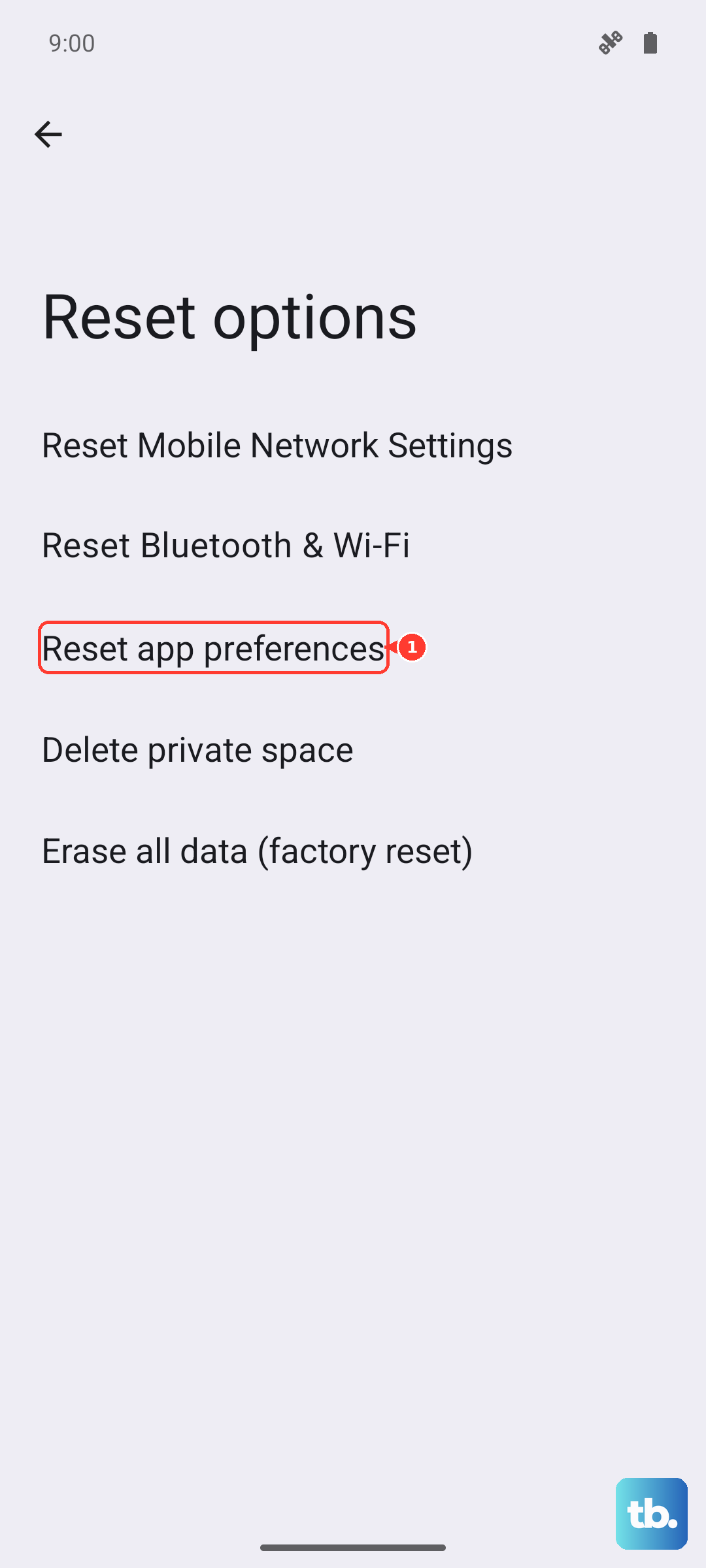
Reset App Preferences
This is a useful step that resets permissions, background restrictions, and default app assignments without deleting any of your personal data or app accounts. It can resolve conflicts that cause the microphone to malfunction in certain scenarios.
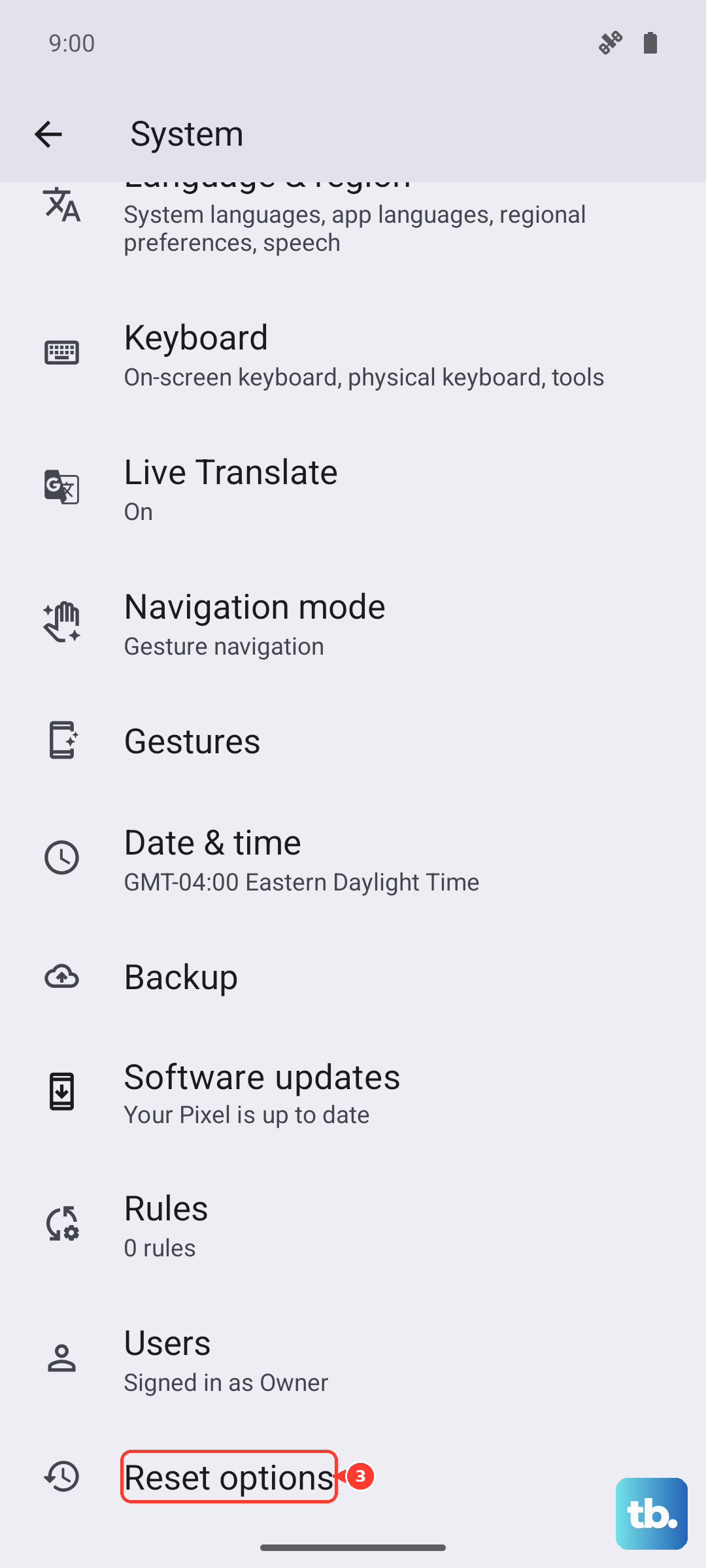
Navigate to Settings > System > Reset options > Reset app preferences. Tap 'Reset' and confirm. You'll then need to re-grant permissions the next time you use apps, but it often clears up odd behavior.
Boot into Safe Mode
Safe Mode temporarily disables all third-party apps you've downloaded. If the microphone works perfectly in Safe Mode, then a recently installed app is likely causing the conflict.
To enter Safe Mode, press and hold the power button until the power menu appears. Then, press and hold the 'Power off' option on your screen. A prompt will ask if you want to reboot to Safe Mode. Tap 'OK'. Test your microphone here. To exit, just restart your phone normally.
Clear Cache for Key Apps
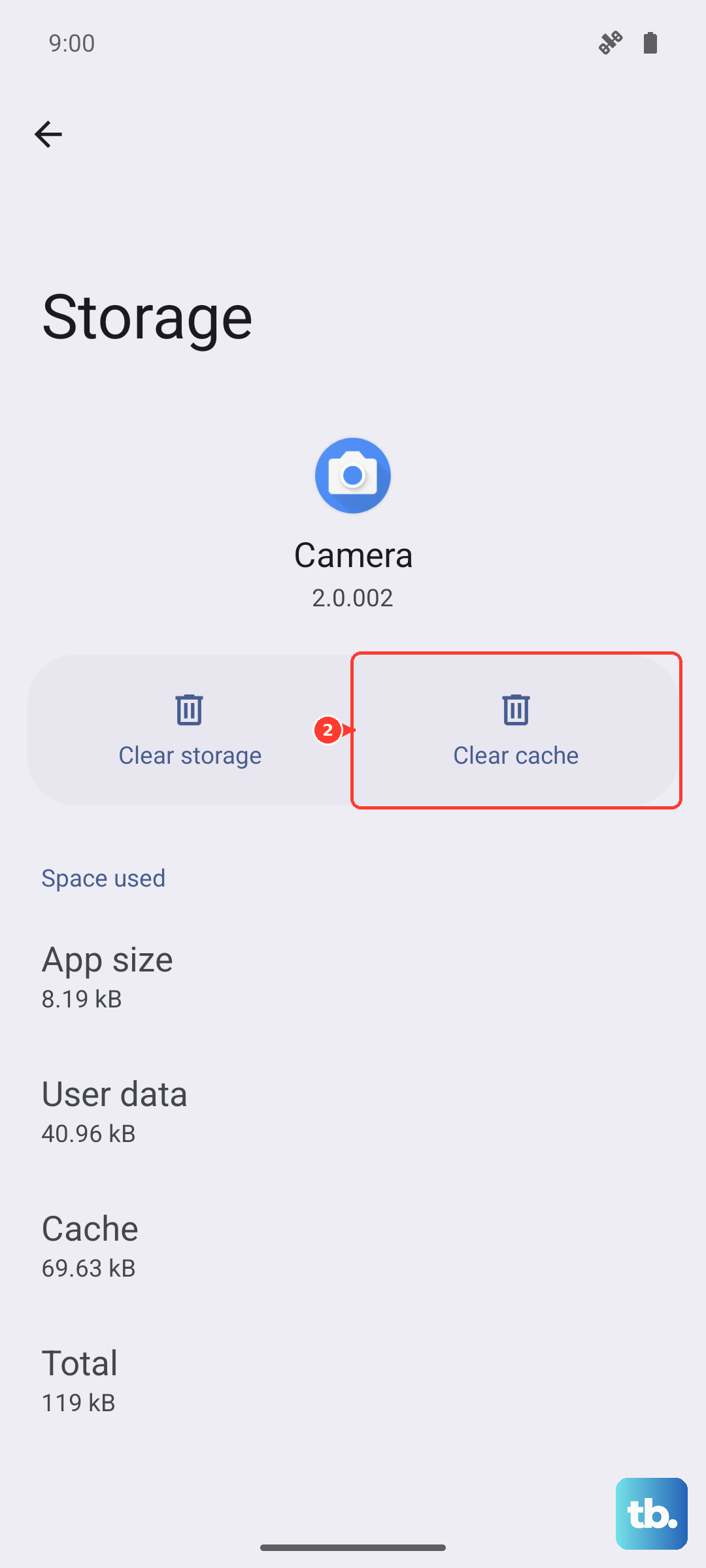
If the problem is isolated to one app, try clearing that app's cache. This removes temporary data that might be corrupted. Go to Settings > Apps > See all apps, find the problematic app, and tap on it.
Select Storage & cache > Clear cache. Do not select 'Clear storage' or 'Clear data' unless you're prepared to log back into the app, as that removes your account information.
Perform a Network Settings Reset
This can help if the microphone issue is specifically related to cellular or Wi-Fi calling. It resets your Bluetooth, Wi-Fi, and mobile data settings. You'll need to reconnect to Wi-Fi networks and re-pair Bluetooth devices afterward.
Go to Settings > System > Reset options > Reset Wi-Fi, mobile & Bluetooth and confirm the reset.
Reset All System Settings
If you're still having trouble, this more comprehensive reset will revert all your system settings (like ringtones, notifications, and display settings) back to factory defaults. Your photos, messages, and apps will remain untouched.
Go to Settings > System > Reset options > Reset all settings. Enter your PIN if prompted and confirm. After the phone reboots, you'll need to reconfigure your preferences, but it can eliminate a deeper software configuration problem.