
When your OnePlus 13 starts restarting on its own, it's more than just annoying. It can interrupt calls, stop downloads, and make you feel like you can't rely on your phone. This kind of problem is often tied to software, especially with a new device like the 13 running the latest OxygenOS 15.
I'd start with the simplest fix first. Before you try anything else, make sure you have a recent backup. You can use Google One or the local backup option in your settings to save your data, just in case.
Perform a Force Restart
A force restart clears the phone's temporary memory and can stop a minor software glitch in its tracks. For the OnePlus 13, the method is straightforward. Press and hold the Volume Down button and the Power button at the same time.
Keep holding them for about 10 seconds. You'll feel the device vibrate and see the OnePlus logo appear as it boots back up. This doesn't delete any of your personal files or settings.
Check for Rogue Apps
A misbehaving app is one of the most common reasons for random restarts. Start by checking which apps you've installed or updated recently. Try booting your phone into Safe Mode to see if the restarts stop.
To enter Safe Mode on the OnePlus 13, press and hold the power button until the power menu appears. Then, tap and hold the "Power off" option on your screen. It will ask if you want to reboot to Safe Mode. Tap OK.
If the phone is stable in Safe Mode, a third-party app is likely the culprit. You'll need to restart normally and begin uninstalling recent apps one by one to find the offender.
Update Everything
Outdated software is a prime suspect, especially with early builds of OxygenOS 15 that might have bugs. First, check for a system update. Go to Settings > About device > OxygenOS version and tap on "Check for update."
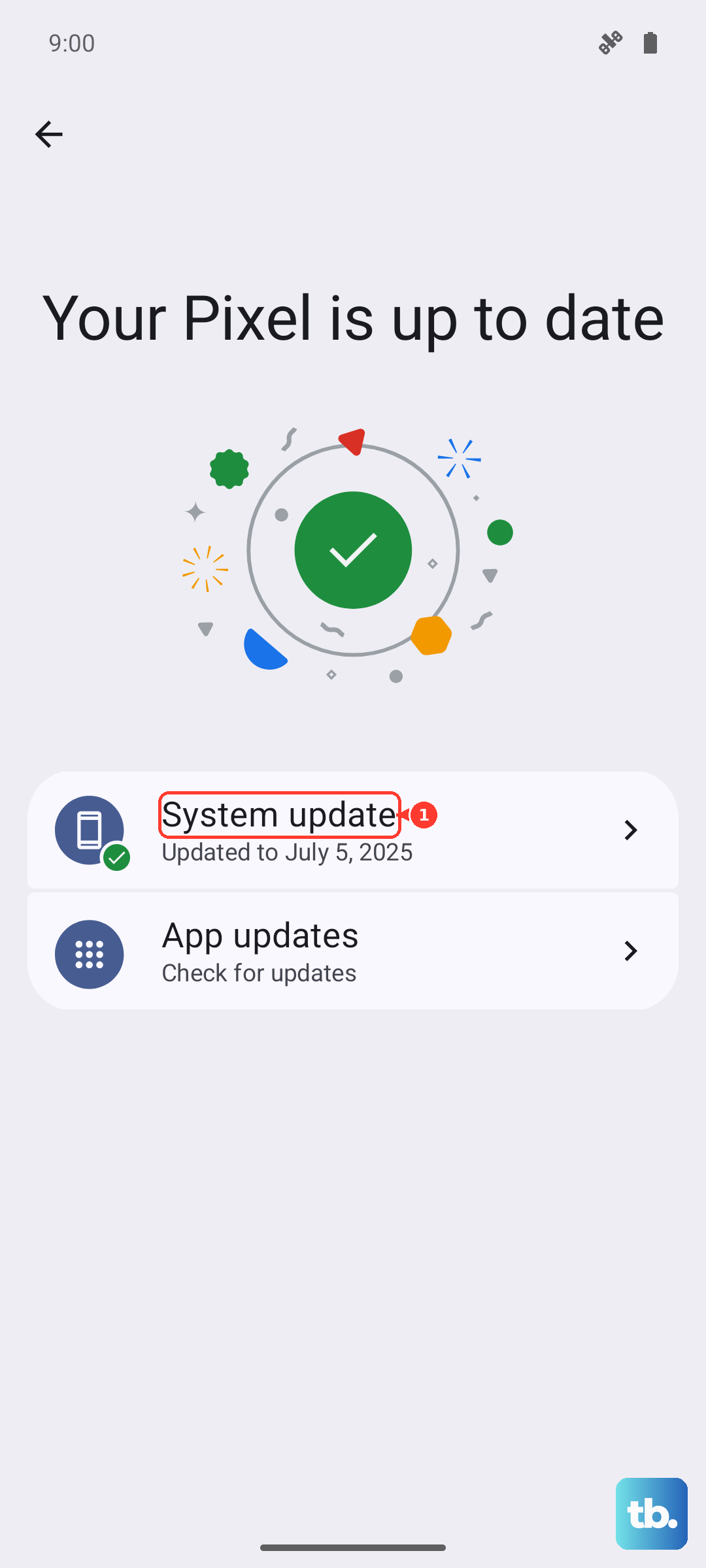
Install any available update, as these often include stability patches. Next, head to the Google Play Store. Tap your profile icon and go to Manage apps & device > Updates available.
Update all your apps. Sometimes a single app's compatibility issue with Android 15 can cause system-wide instability.
Review Battery and Thermal Settings
The OnePlus 13 is powerful, and early reports mention it can get warm during intensive tasks. Overheating is a classic trigger for protective restarts. Check your battery health in Settings > Battery > Battery health.
While you're there, enable any battery optimization features. Also, be mindful of your charging habits. Using the original 100W OnePlus charger is best, as third-party chargers might not manage heat as effectively.
If you're gaming or using the camera for a long time and the phone feels hot, give it a break. Let it cool down to see if the random restarts subside.
Free Up Storage Space
When your phone's storage is critically full, the operating system doesn't have room to work properly, which can lead to crashes. Check your available space by going to Settings > Storage.
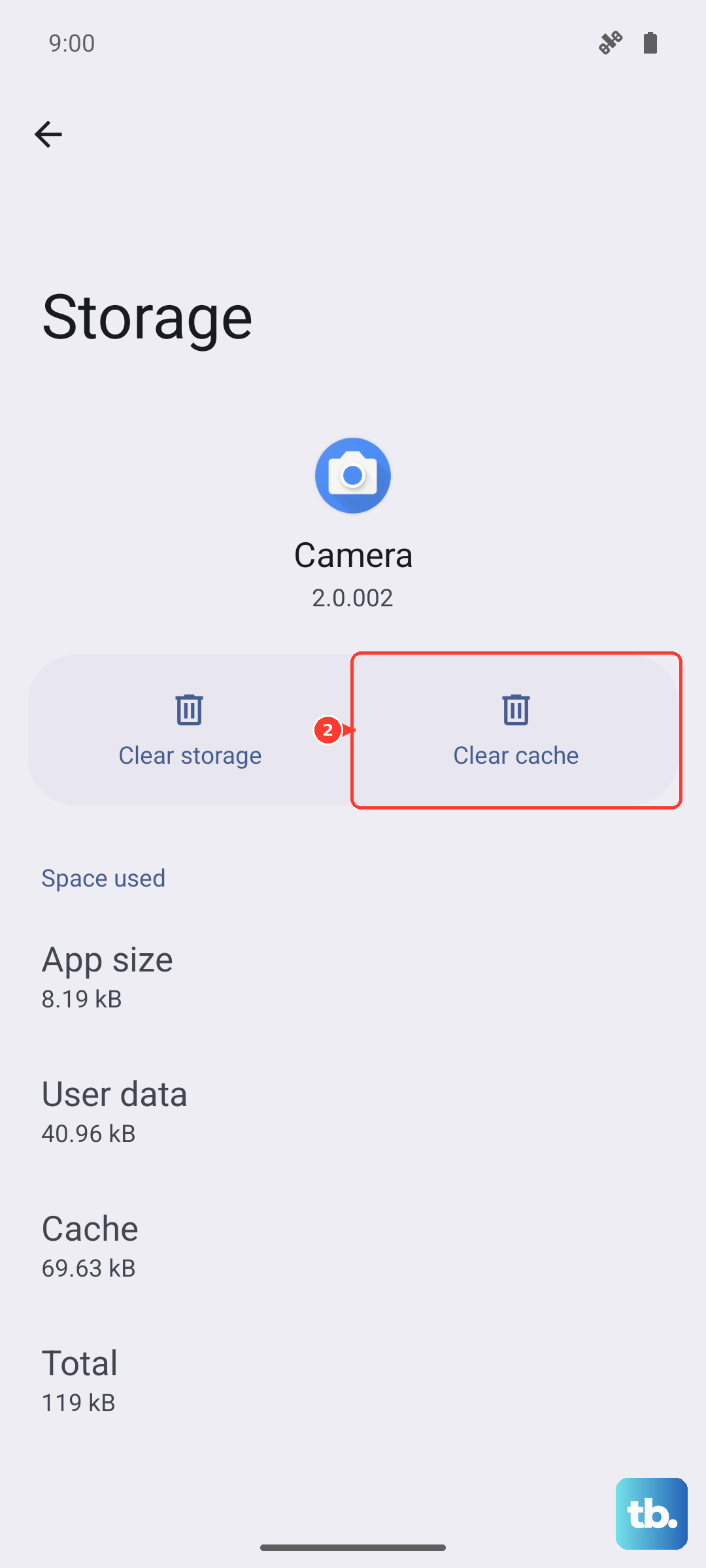
If you're below 10% free space, it's time to clean up. The storage menu will give you recommendations. You can offload unused apps, clear cached data from individual apps, or move photos and videos to Google Photos or another cloud service.
Clear the System Cache
Corrupted cache files can cause all sorts of strange behavior. Clearing the system cache is a safe, non-destructive step that often helps. You'll need to boot into Recovery Mode to do this.
First, power off your OnePlus 13 completely. Then, press and hold the Volume Down and Power buttons together until you see the Recovery Mode menu. Use the volume buttons to navigate to "Wipe data and cache" and select it with the power button.
Choose "Wipe cache" and confirm. Once it's done, select "Reboot" to start your phone normally. Your personal data remains untouched.
Reset All Settings
If a specific setting is causing conflict, resetting them all can be a big help. This will revert your Wi-Fi passwords, Bluetooth pairings, and display settings back to default, but it won't touch your apps or personal files.
Go to Settings > Additional settings > Back up and reset > Reset phone. On this menu, select "Reset all settings." You'll need to enter your lock screen PIN or password to confirm.
After the reset, you'll have to reconnect to Wi-Fi and re-pair Bluetooth devices, but it's a good middle step before a full factory reset.
Perform a Factory Reset
This is the most comprehensive software fix. A factory reset will wipe your OnePlus 13 back to its original out-of-the-box state. This is why that backup from the first step is so important.
You can initiate this from within the settings. Go to Settings > Additional settings > Back up and reset > Reset phone > Erase all data (factory reset). Follow the prompts to confirm.
After the reset, set up the phone as new initially to see if the restarting issue is gone. If it is, you can then restore your data from the backup you made, though be cautious and restore items in small batches to see if the problem returns.
Check for Physical Issues
While less common, hardware can be a factor. Start with the SIM card. Use the ejector tool to remove the SIM tray and take out the card. Inspect the gold contacts for any dirt or damage.
Gently clean them with a soft, dry cloth and reinsert the card firmly. Also, inspect your USB-C port for any lint or debris that could be causing a short. Use a can of compressed air or a soft plastic toothpick to carefully clean it out.
If the phone has suffered any physical damage, like being dropped or exposed to moisture, that could also explain the instability. In that case, the steps above are still worth trying, but a hardware inspection might be necessary if the problem continues through all of them.