
When your OnePlus 13's GPS stops locking on, it can leave you stranded in more ways than one. This is usually a quick software hiccup in OxygenOS, but it's worth running through a few checks to get your navigation back on track. I'd start with the simple refresh methods first, as they solve the majority of these glitches.
Refresh Your GPS Connection
The fastest way to kickstart a stalled GPS is to toggle it off and on. Swipe down from the top of your screen to open the Quick Settings panel and tap the Location icon to disable it. Wait about ten seconds, then tap it again to turn it back on. This forces the location services to reinitialize, which often clears up a temporary hang.
If that doesn't do it, try a full device restart. Press and hold the Volume Down button and the Power button together for about ten seconds until you feel the phone vibrate and the OnePlus logo appears. This force restart is a bit more thorough than a standard reboot and can clear out deeper system glitches that might be affecting the GPS radio.
Check Your Location Settings and Permissions
Sometimes the issue isn't with the GPS itself, but with how apps are allowed to use it. Open your Settings and go to Location. First, make sure the main toggle at the top is switched on. Then, tap on Location services to check your mode.
For the best possible accuracy, especially for turn-by-turn navigation, select High accuracy. This mode uses GPS, Wi-Fi, Bluetooth, and mobile networks together to pin down your location. The other modes can limit functionality to save battery.
Next, verify app permissions. Go to Settings > Apps, select your navigation app (like Google Maps or Waze), then tap Permissions. Ensure the Location permission is set to "Allow all the time" or "Allow only while using the app," depending on what the app needs to function properly in the background.
Disable Battery Optimization and Power Saving
OxygenOS's battery optimization features are great for longevity, but they can sometimes be a bit too aggressive with background processes like GPS. If you're using a battery saver mode, try turning it off temporarily. You can usually find this by going to Settings > Battery and toggling off any power saving modes.
For a more targeted approach, you can exclude your navigation app from battery optimization. Go to Settings > Apps, select your maps app, tap Battery, and choose "Don't optimize." This tells the system not to restrict the app's background activity, which can help maintain a stable GPS connection.
Update Your Software and Apps
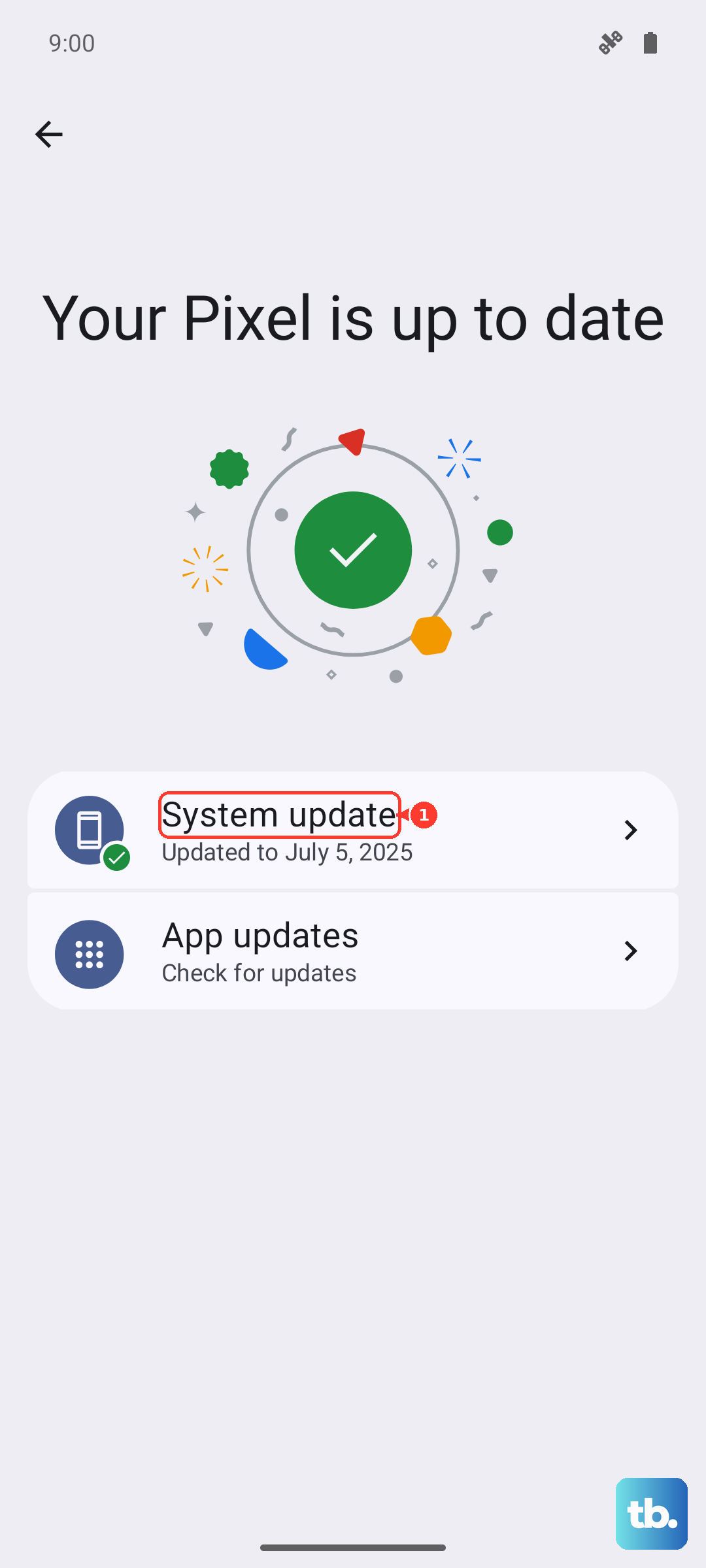
Since the OnePlus 13 launched with OxygenOS 15, early software builds can have bugs that affect various functions, including location services. It's always a good idea to check for updates. Go to Settings > About device > OxygenOS version and tap on the icon to check for updates.
Install any available system updates, as they often contain stability patches. Also, head to the Google Play Store and make sure your navigation apps are updated to their latest versions. Compatibility issues between an old app version and a new OS can sometimes cause problems.
Clear the App Cache and Data
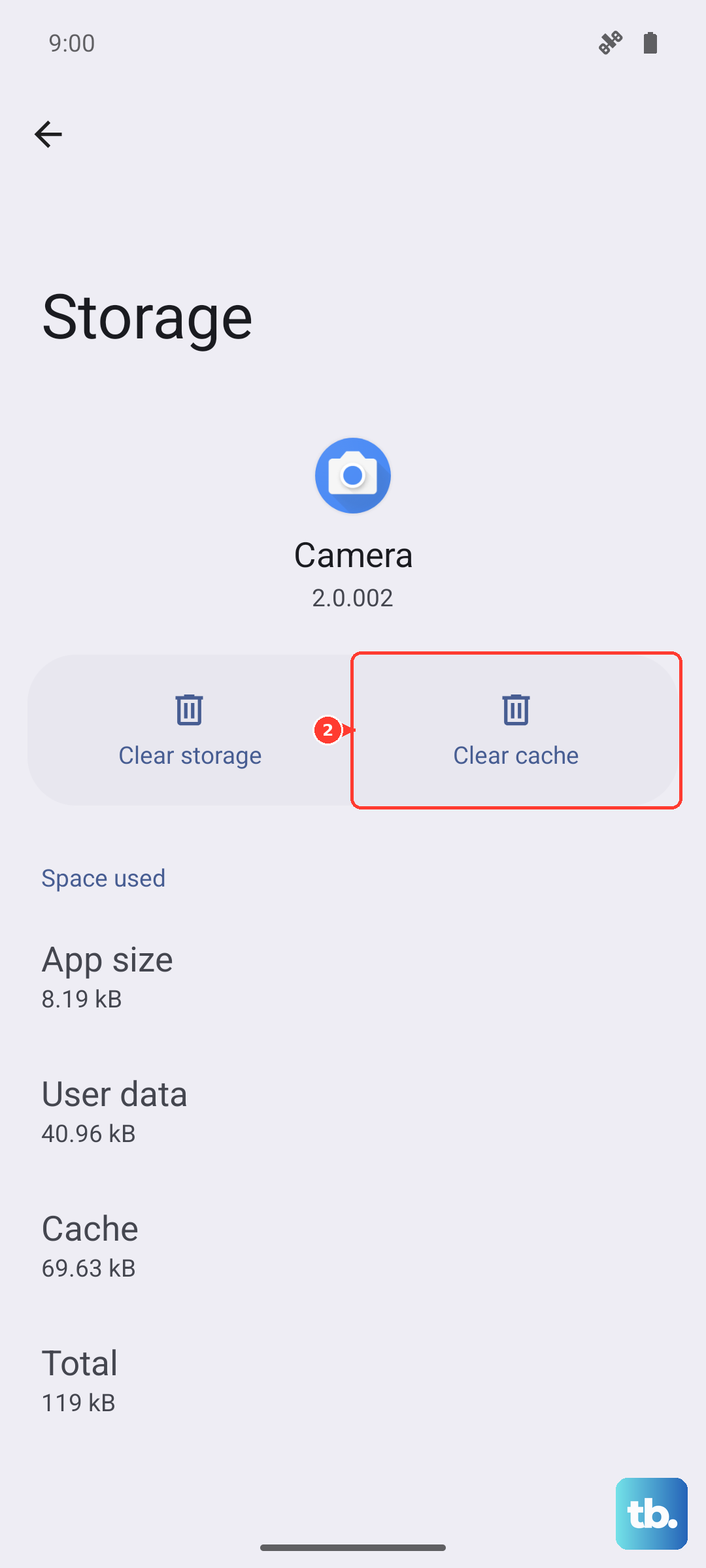
Corrupted temporary files in your mapping app can lead to odd behavior, including GPS failures. This fix won't delete your saved places, but it will reset app preferences. Go to Settings > Apps, find your navigation app, and tap on it.
Select Storage & cache and tap "Clear cache" first. This is safe and only removes temporary files. If the GPS issue persists, you can go back and tap "Clear storage" or "Clear data." Just be aware this will sign you out and reset the app to its default settings, so you'll need to log back in.
Reset Your Network Connections
A quick network reset can sometimes resolve conflicts with the assisted GPS data that comes from Wi-Fi and mobile networks. Swipe down for the Quick Settings panel and tap the Airplane mode icon to enable it. Wait for 15-20 seconds to let all radios fully disconnect, then tap the icon again to turn Airplane mode off.
Your phone will reconnect to cellular and Wi-Fi networks, which also refreshes the data used to help get a faster GPS lock. This is a simple step that takes less than a minute but can make a noticeable difference.
Test in Safe Mode
If you're still having trouble, a third-party app you installed might be interfering with location services. Booting into Safe Mode temporarily disables all downloaded apps. Press and hold the Power button until the power menu appears.
Then, tap and hold the "Power off" option on your screen. You should see a prompt to reboot to Safe Mode. Tap it to confirm. Once the phone restarts, you'll see "Safe Mode" in the bottom corner. Try using your GPS app now. If it works perfectly in Safe Mode, a recently installed app is likely the culprit, and you can start uninstalling apps one by one to find the offender.
Check for Physical and Environmental Factors
GPS signals are line-of-sight and can be blocked by all sorts of things. Thick metal phone cases, especially some MagSafe-compatible ones, can potentially interfere with the antenna. Try removing your case temporarily to see if the signal improves.
Your environment plays a huge role, too. Being inside a building, in a basement, or in a dense urban area with tall buildings (the "urban canyon" effect) will weaken or block satellite signals. For the best test, move to an open outdoor area with a clear view of the sky and try again.
Use a GPS Diagnostic Tool
To rule out a hardware issue, you can use a free app like "GPS Test" or "GPS Status & Toolbox" from the Play Store. Open the app and look for a screen that shows satellites. If your OnePlus 13 can see and connect to multiple satellites (the icons will typically turn green) but your navigation app still fails, the problem is almost certainly software-related.
If the diagnostic app shows zero satellites, even after a long wait in an open area, there could be a deeper problem. Before assuming the worst, try the nuclear option for software glitches, clearing the system cache partition.
Clear the System Cache Partition
This step clears temporary system files that can become corrupted without touching your personal data. First, power off your OnePlus 13 completely. Once it's off, press and hold the Volume Up and Power buttons together until the OnePlus logo appears, then release.
You'll enter recovery mode. Use the volume buttons to navigate to "Wipe data and cache" and press the power button to select it. Then, choose "Wipe cache" and confirm. Once it's done, select "Reboot" to restart your phone normally. This can resolve persistent system-level bugs affecting the GPS.