
When your OnePlus 13 suddenly stops sending or receiving emails, it can throw your whole day off. Whether you're missing a crucial work message or can't reply to a friend, the silence from your inbox is a problem you need fixed now. The good news is that most email issues on OxygenOS 15 have a simple cause and an even simpler fix.
Before we get into the specific steps, let's cover a few universal basics. Always make sure you have a solid internet connection, either via Wi-Fi or your mobile data. It's also worth a quick check to see if your email provider, like Gmail or Outlook, is having a widespread service outage. Finally, double-check that you're using the correct email address and password.
Restart the Email App
This is almost always my first move. A quick restart of the app can clear out any temporary glitch that's causing the hang-up. Swipe up from the bottom of your screen and hold to enter the recent apps view. Find your email app, whether it's Gmail or the built-in OnePlus Email app, and swipe it up to close it. Wait a couple of seconds, then tap the app icon to open it fresh.
Check Your Sync and Fetch Settings
Your phone's sync settings control how often it checks for new mail. If these are set incorrectly, emails might not appear automatically. Head into Settings > Accounts & sync. Find your email account and tap on it. Make sure the toggle for syncing that account is turned on. For more granular control, open your email app directly and look in its settings for options like "Sync frequency" or "Data usage" to ensure it's set to sync automatically.
Toggle Airplane Mode
This classic trick resets all your radio connections in one go. Swipe down from the top of your screen twice to open the full Quick Settings panel. Tap the Airplane mode icon to turn it on. Wait for about 30 seconds, then tap it again to turn it off. This forces your OnePlus 13 to reconnect to both cellular and Wi-Fi networks, which can often clear up a stubborn connection issue blocking your email.
Switch Between Wi-Fi and Mobile Data
Sometimes the problem is with one specific type of connection. If you're on Wi-Fi and emails aren't coming through, try turning Wi-Fi off to force the phone to use your mobile data. You can do this from the Quick Settings panel. If the emails start working on mobile data, you know the issue is with your Wi-Fi network, perhaps a router setting or weak signal. The reverse is also true for troubleshooting mobile data issues.
Verify Your Email Login Credentials
Passwords expire or get changed, especially for work accounts. The simplest test is to try logging into your email account through a web browser on a computer. If you can't log in there, then the problem is with your account credentials, not your phone. You'll need to reset your password through your email provider's website, then update it on your OnePlus 13.
Check for App Updates
If you're using a dedicated app like Gmail, Outlook, or Yahoo Mail, an outdated version could be the culprit. Open the Google Play Store, tap your profile icon in the top right, and go to Manage apps & device > Updates available. See if your email app is listed and update it. Google and other developers frequently push updates that fix bugs related to sending and receiving.
Review Your Notification Settings
This fix is for when emails are arriving but you're not being alerted. Go to Settings > Notifications & status bar > App notifications. Find your email app in the list and tap on it. Make sure "Allow notifications" is enabled. You can also check the categories within the app to ensure things like "New mail" or "Primary inbox" are set to alert you.
Clear the App's Cache and Data
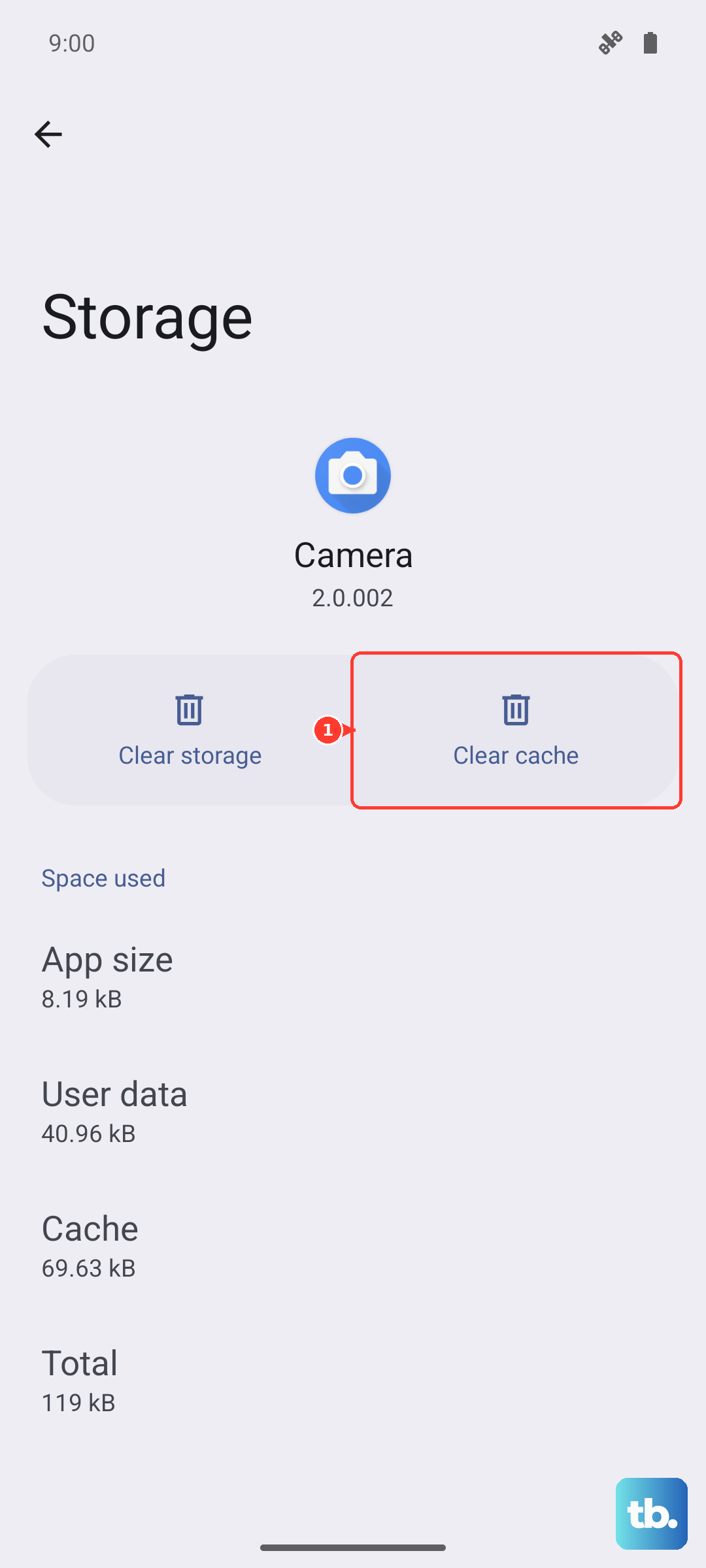
Over time, an app's cached files can become corrupted. Clearing them is safe and won't delete your emails or account. Go to Settings > Apps > See all apps. Find your email app and tap on it. Select Storage & cache. Tap "Clear cache" first and test the app. If the problem persists, you can tap "Clear storage" or "Manage storage." Be aware that this will remove the app's data from your phone, so you'll need to sign back into the app afterward.
Ensure Background Data is Unrestricted
Android's battery optimization can sometimes be too aggressive. To make sure your email app can sync in the background, go to Settings > Apps > See all apps. Select your email app, then tap Battery. Choose "Unrestricted" from the options. This tells OxygenOS not to restrict the app's background activity, allowing it to check for new messages regularly.
Remove and Re-add Your Email Account
This is a more thorough reset for a problematic account. Open your email app's settings and find the option to manage accounts. Select the account giving you trouble and choose "Remove account" or "Delete account." Confirm the action. Don't worry, this just removes it from your phone. Immediately go through the process of adding the account again from scratch. This fresh setup often resolves configuration errors that have built up over time.
Check Date and Time Settings
Incorrect date and time can break secure connections to email servers. Go to Settings > Additional settings > Date & time. Make sure "Use network-provided time" and "Use network-provided time zone" are both enabled. This ensures your OnePlus 13 is synchronized perfectly with network time, which is crucial for authentication.
Disable Any Active VPN
A VPN is great for privacy, but it can sometimes interfere with the specific ports or protocols your email uses. If you have a VPN app running, open it and disconnect. You can also check Settings > Network & internet > VPN to see if a system-level VPN profile is active and turn it off. Try sending or receiving an email without the VPN to see if that was the barrier.
Perform a Soft Reset on Your OnePlus 13
A full restart of the phone can clear out system-level software hiccups. Press and hold the Volume Down button and the Power button simultaneously for about 10 seconds. You'll feel the device vibrate and see the OnePlus logo as it restarts. This is different from just turning the screen off and on, as it fully reboots the operating system.
Update OxygenOS
Since the OnePlus 13 is new, early software builds can have bugs that affect core functions like email. OnePlus is typically quick to release fixes. Go to Settings > About device > OxygenOS version and tap on the top banner to check for updates. If an update is available, install it. I'd recommend doing this while connected to Wi-Fi and with your phone plugged into its original 100W charger to ensure it completes smoothly.