
If your OnePlus 13 is refusing to connect to your wireless earbuds, car, or smartwatch, it can be incredibly frustrating. I've found that Bluetooth issues on new phones like the OnePlus 13 are often tied to early software builds, but the fixes are usually straightforward. Let's get your wireless connections working again.
Check the Simple Stuff First
Before we dig into settings, run through this quick checklist. It sounds basic, but these are the most common oversights.
Make sure both your OnePlus 13 and the device you're pairing to have enough battery. For the best chance, keep them both above 20%. Pull down the quick settings shade from the top of your screen and confirm the Bluetooth icon is blue and active.
Keep the devices within a few feet of each other when pairing. Also, double-check that the accessory itself is actually in pairing mode, which is often indicated by a flashing light. Some devices, especially newer earbuds, might require their own companion app from the Play Store for initial setup.
Toggle Bluetooth and Restart
The digital equivalent of "turn it off and on again" works more often than you'd think. Swipe down twice from the top of your OnePlus 13's screen to open the full quick settings panel.
Tap the Bluetooth icon to turn it off, wait a solid 10 seconds, then tap it again to turn it back on. Immediately try pairing your device again. If that doesn't do it, a full restart is the logical next step.
Press and hold the power button until the power menu appears, then tap restart. Give the phone a minute to fully boot up, and restart the Bluetooth accessory as well. This clears out any temporary glitches in memory.
Forget and Re-Pair the Device
If the connection is spotty or keeps dropping, the pairing data itself might be corrupted. The fix is to remove the device from your phone's memory and start fresh.
Go to Settings > Bluetooth & device connection. Tap the settings gear icon next to the problematic device's name. Select Forget or Unpair.
Now, put your accessory back into pairing mode. With your OnePlus 13's Bluetooth list open and scanning, it should appear. Tap on its name to initiate a new, clean pairing.
Clear the Bluetooth System Cache
This is a powerful step for a OnePlus phone running OxygenOS. Corrupted system cache files can cause all sorts of erratic behavior, including Bluetooth failures.
Head to Settings > Apps. You might need to tap "See all apps" first. In the app list, tap the three-dot menu in the top right and select Show system.
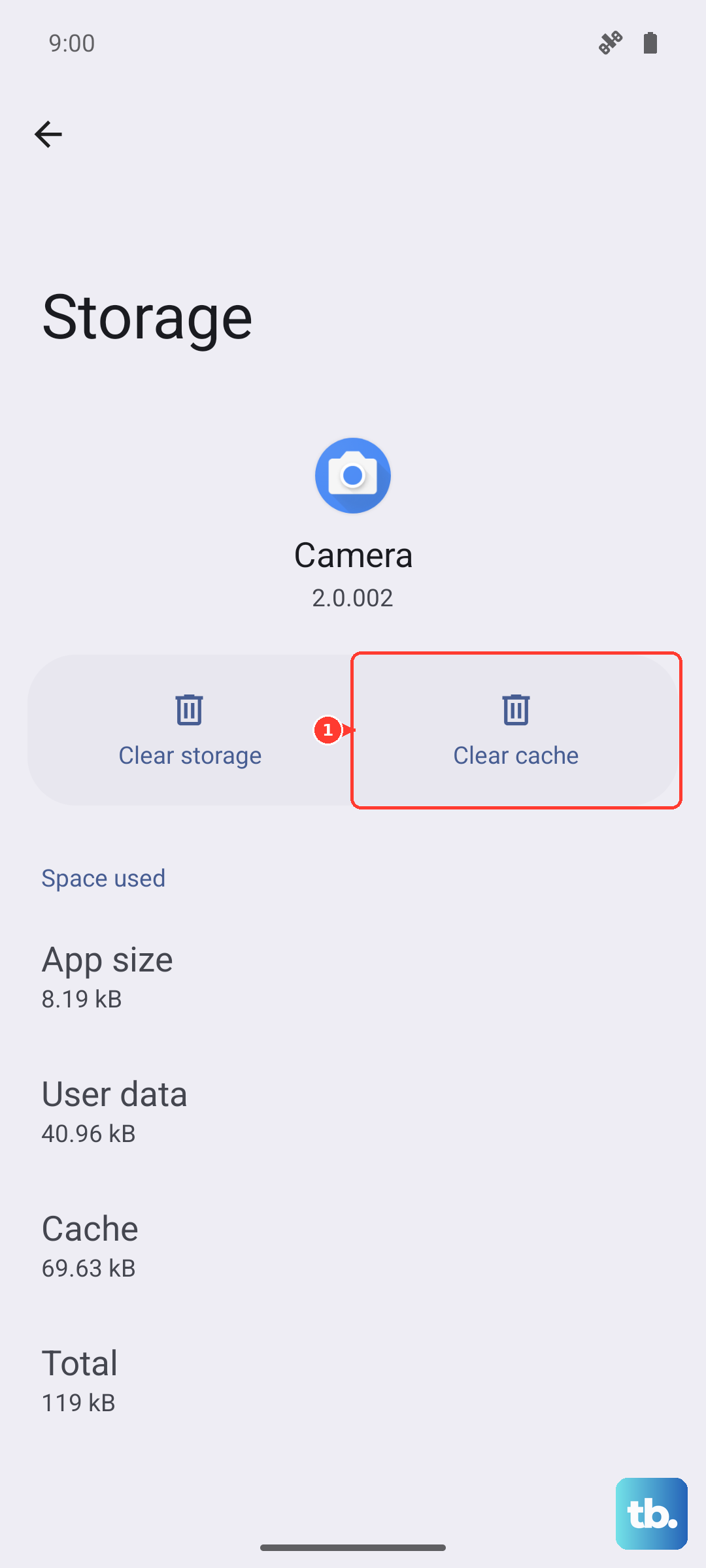
Scroll down and find "Bluetooth" in the list. Tap on it, then go to Storage & cache. Tap Clear cache. This doesn't delete any of your paired devices, it just cleans out temporary junk data.
Update Your OnePlus 13's Software
Since the OnePlus 13 is a new device, software updates are critical. OnePlus frequently releases OxygenOS updates to squash bugs, and early builds can have connectivity issues.
Open Settings and go to About device > OxygenOS version. Your phone will check for updates. If one is available, download and install it over Wi-Fi.
Also, check if your Bluetooth accessory has a firmware update available through its own dedicated app. Compatibility between devices often improves with these updates.
Reset Network Settings
This will wipe all network-related configurations back to factory defaults. That includes Wi-Fi networks and passwords, paired Bluetooth devices, and mobile data settings.
Because it's a bit more nuclear, make sure you know your Wi-Fi passwords before proceeding. To do it, navigate to Settings > Additional settings > Back up and reset.
Tap on Reset phone, then select Reset Wi-Fi, mobile & Bluetooth. Confirm your lock screen PIN or pattern, and let the phone reset. After it reboots, you'll need to re-pair all your Bluetooth devices from scratch.
Boot Into Safe Mode
If a recently downloaded third-party app is causing a conflict, Safe Mode will tell you. It temporarily disables all apps you've installed from the Play Store.
Press and hold the power button until the power menu appears; if that opens your voice assistant instead, press and hold the power button and Volume up together (power and Volume down on Samsung phones). Now, tap and hold the "Power off" text on your screen until you see a prompt to reboot to Safe Mode. Tap OK.
Once booted, you'll see "Safe Mode" in the bottom corner. Try using Bluetooth now. If it works perfectly in Safe Mode, a third-party app is the culprit. Restart normally and try uninstalling recent apps one by one to find the offender.
Address Specific Connection Problems
For car Bluetooth, the process is similar but sometimes requires patience. Delete your OnePlus 13 from your car's stereo system memory first, then forget the car on your phone. With the car in pairing mode, try again. Some older car systems struggle with newer Bluetooth standards.
If Bluetooth simply won't turn on at all, even after a restart, try the cache clearing step from the system apps menu. If that fails, the network settings reset is your best bet before considering more serious steps.
For accessories that use special features like multipoint connection or high-quality audio codecs, ensure those features are enabled in the Bluetooth settings for that specific device after it's paired. Sometimes they're turned off by default.