
When your OnePlus 13 gets stuck on "Downloading..." or "Pending" in the Play Store, it can bring your whole workflow to a halt. This is a common hiccup, especially with new devices running early software builds like OxygenOS 15. The good news is you can almost always fix it yourself without needing a trip to a service center.
Let's get your app downloads moving again. I'd start with the quick fixes first, as they resolve the majority of these issues.
Check Your Internet Connection First
This might seem obvious, but it's the most common culprit. The Play Store needs a stable, active connection. Pull down your notification shade and make sure your Wi-Fi or mobile data icon is lit up and connected.
If you're on Wi-Fi, try toggling it off and switching to your mobile data for a moment to test. Some public or corporate Wi-Fi networks can block the specific ports the Play Store uses. If the download starts on mobile data, you know the issue is with your Wi-Fi network.
Restart Your OnePlus 13
A simple restart clears out temporary glitches in the system cache and can kick-start stalled processes. Just press and hold the power button, then tap "Restart."
If the phone is completely unresponsive, you can perform a force restart. Press and hold the Volume Down button and the Power button together for about 10 seconds until you feel the device vibrate and see the OnePlus logo.
Clear the Google Play Store Cache and Data
Corrupted local data in the Play Store app itself is a frequent cause of download hangs. Clearing this is safe and won't delete your apps or account.
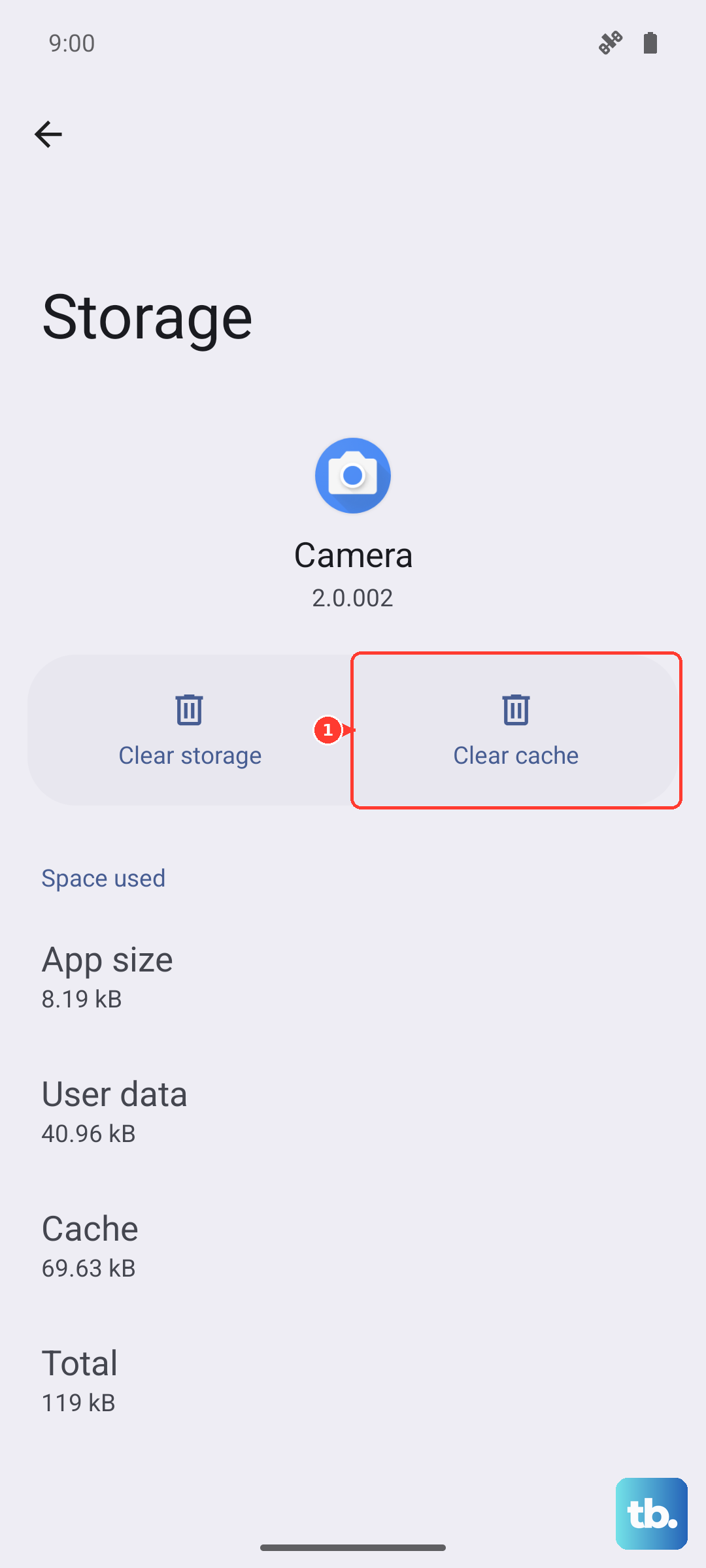
Go to Settings > Apps > See all apps. Find and tap "Google Play Store." Tap Storage & cache, then hit "Clear cache." Try your download again. If it's still stuck, come back here and tap "Clear storage" (or "Clear data"). This will reset the Play Store to its default state, so you may need to re-accept its terms.
Update Google Play Services and the Play Store
Outdated core Google components can cause conflicts with new apps or newer versions of OxygenOS. The Play Store often updates itself, but it's worth checking manually.
Open the Play Store, tap your profile icon in the top right, and go to Settings > About > Play Store version. It will check for updates. For Google Play Services, you need to go to Settings > Apps > See all apps, find "Google Play Services," and check the version at the bottom. Updates are typically delivered automatically, but ensuring you're on the latest version is a good step.
Verify Your Date and Time Settings
Google's servers use your device's time for security certificates. If your clock is off, it can silently break downloads. Go to Settings > Additional settings > Date & time.
Make sure "Use network-provided time" is switched on. If it's already on and you're having issues, try turning it off, manually setting the correct date and time, and then turning the automatic setting back on.
Check for OxygenOS System Updates
OnePlus frequently releases OTA updates to fix bugs in OxygenOS, especially for a new model like the 13. An early software bug could be interfering with package installation.
Go to Settings > About device > OxygenOS version and tap on the icon to check for updates. If an update is available, install it. Your phone will restart, and it's a good idea to try your download again after the update completes.
Review Your Storage Space
The OnePlus 13 has plenty of storage, but if you're near capacity, the system may struggle to allocate space for new apps. Go to Settings > Storage to see how much space is free.
If you're running low, consider offloading photos and videos to Google Photos or deleting old downloaded files. You can also clear app caches for individual apps from the storage menu to free up a surprising amount of space quickly.
Remove and Re-add Your Google Account
This refreshes the connection between your phone and Google's servers. Go to Settings > Passwords & accounts. Tap on your Google account, then tap "Remove account." Don't worry, this doesn't delete your Google data from the cloud.
After removing it, go back and tap "Add account" to sign back in. You'll need to enter your password. Once it's re-added, open the Play Store and try your download again.
Disable Any Active VPN or Proxy
VPNs are great for privacy, but they can sometimes interfere with the direct connection the Play Store needs to Google's download servers. If you have a VPN app running, try disabling it temporarily.
Also, check if you've configured a manual proxy in your Wi-Fi settings. Go to your Wi-Fi network's settings, tap the gear icon, and see if "Proxy" is set to "None."
Reset App Preferences (A Safe Alternative)
This is a useful step before considering a factory reset. It resets all your app permissions, default apps, and background restrictions back to their original defaults, but it won't delete any personal data.
Go to Settings > Apps > See all apps. Tap the three-dot menu in the top right and select "Reset app preferences." Confirm the action. Afterward, you'll need to re-grant permissions to apps as you use them, but it can clear up conflicts that are stalling downloads.
If you encounter a specific error code, that can point you to the right fix. An "Error 495" often means clearing the Play Store cache and data will work. The "DF-BPA-09" error usually points to Google Play Services, which you can find in your app list to clear its cache and data as well.
Stuck downloads are almost always a software or connection issue. Working through these steps methodically will almost certainly get your OnePlus 13 back to installing apps without a hitch.