
When your OnePlus 13 apps keep closing unexpectedly, it pulls you right out of whatever you were doing. It's a common hiccup, especially with new devices running early software builds like OxygenOS 15. The good news is you can almost always fix it yourself without much hassle.
I'd start with a simple restart. Just press and hold the Volume Down button and the Power button together for about 10 seconds until you feel the phone vibrate and the screen goes black. This force restart clears out any temporary glitches in the system memory that might be tripping up your apps.
Update Everything
Since the OnePlus 13 is a new device, software updates are crucial. Developers are constantly patching bugs in their apps, and OnePlus is refining OxygenOS. Head to the Google Play Store, tap your profile icon, and go to Manage apps & devices to update all your apps.
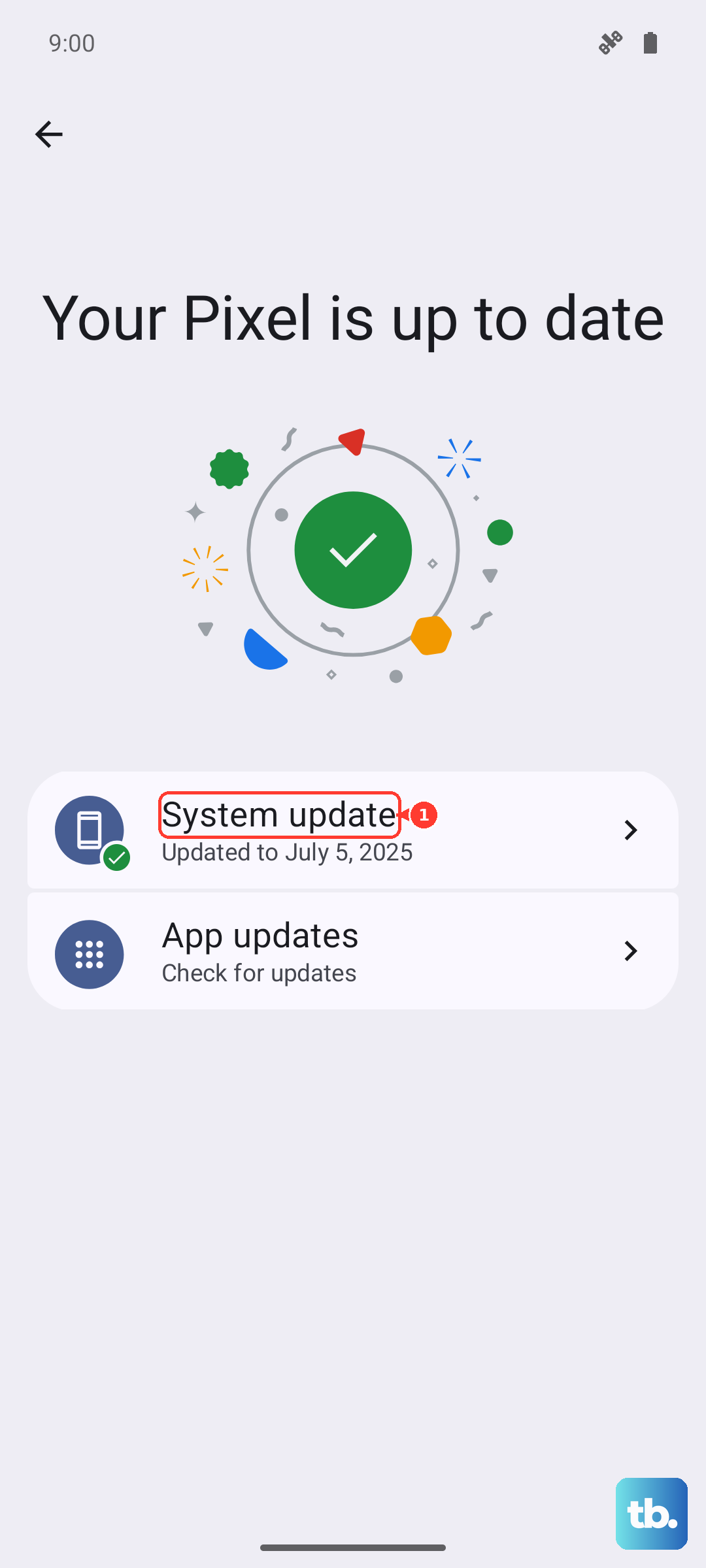
Next, check for a system update. Go to Settings > About device > OxygenOS version. If an update is waiting, install it. Early builds can have stability issues that updates directly address.
Manage App Storage and Cache
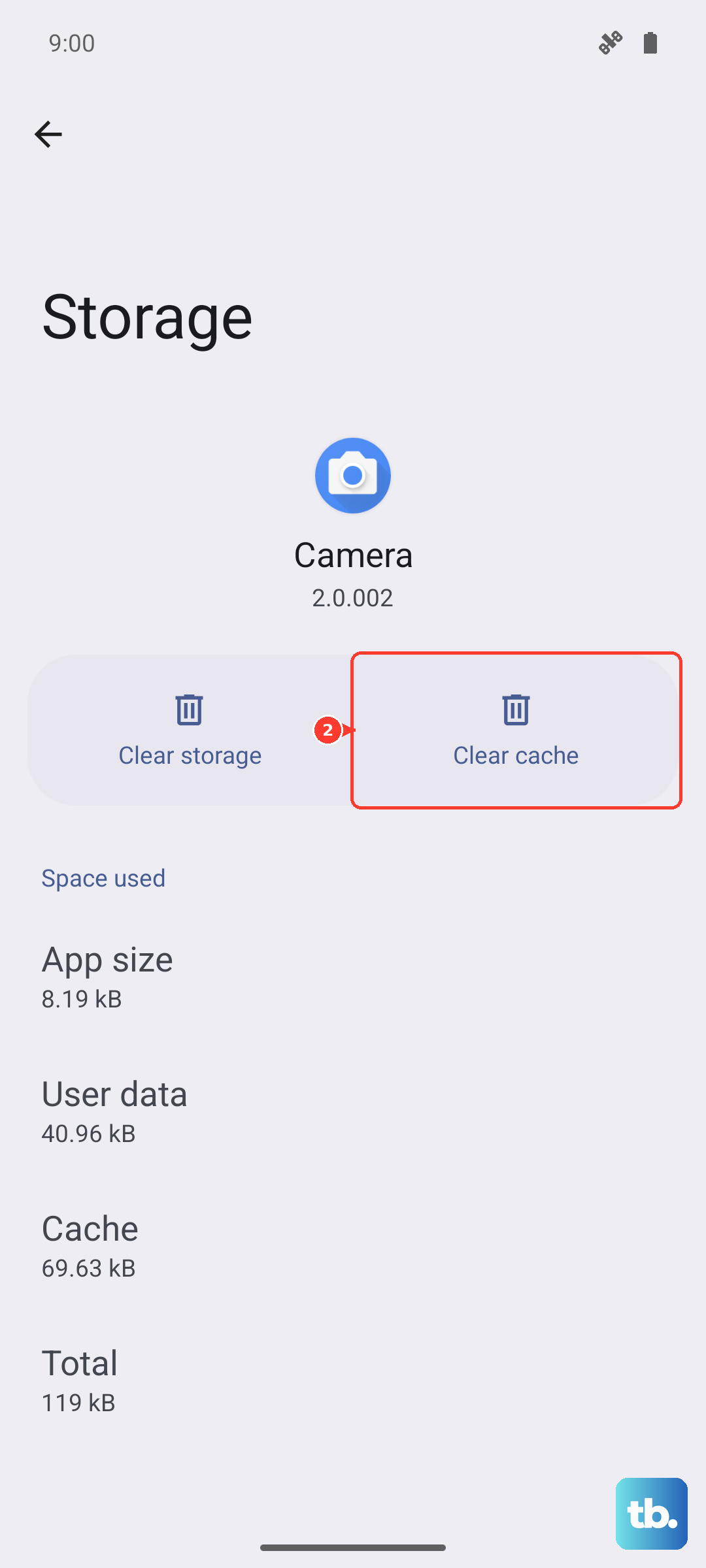
If a specific app is the troublemaker, you need to look at its storage. Go to Settings > Apps and select the problematic app. Tap on Storage & cache.
Here, tap Clear cache first. This deletes temporary files that might have become corrupted. If the app still crashes, you can try Clear storage (this is labeled "Clear data" on some Androids). Be warned, this will reset the app to its freshly installed state, so you'll lose any saved logins or settings within that app.
Check for Overheating and Performance Settings
The OnePlus 13 is powerful, but intensive gaming or using the 100W fast charging can sometimes lead to overheating. When the phone gets too hot, it will throttle performance or close apps to cool down.
If your apps are closing during a long gaming session, give the phone a break. Also, check your performance mode. Go to Settings > Battery > Performance mode. Try switching from a high-performance mode to "Balanced" to see if it improves app stability.
Free Up RAM and Storage Space
Even with plenty of memory, having too many apps running can cause conflicts. Swipe up from the bottom and hold to enter the recent apps view, then swipe away apps you aren't using. For a deeper clean, you can go to Settings > Apps > Special app access > Battery optimization to manage how aggressively apps run in the background.
Also, make sure you have enough free storage. Go to Settings > Storage. If you're below 10% free space, apps can struggle to function. Delete old downloads, offload photos to the cloud, or uninstall apps you no longer use.
Reinstall the Problem App
When one app is consistently failing, a fresh install often works. Press and hold the app icon on your home screen and tap Uninstall. Then, head back to the Play Store and download it again. This ensures you have a clean, uncorrupted version of the app files.
Review App Permissions and Special Access
Sometimes an app crashes because it's being restricted. Go to Settings > Apps, select the app, and tap Permissions. Make sure it has the permissions it needs to run properly.
Also, check its battery optimization status. In the same app info screen, go to Battery. If it's set to "Optimize," try changing it to "Don't optimize" to see if that stops the app from being closed by the system to save power.
Boot into Safe Mode
This is a great way to see if a third-party app you installed is causing the problem. Safe mode temporarily disables all apps you downloaded. Press and hold the power button until the power menu appears, then long-press the "Power off" option until you see a prompt to reboot to safe mode.
If your apps run fine in safe mode, then something you installed is likely the culprit. You'll need to restart your phone to exit safe mode, and then start uninstalling recently downloaded apps one by one to find the offender.