
When your OnePlus 12 feels sluggish online, it's usually a quick setting or two that needs adjusting. I'd start by checking your network preferences and clearing some cached data, as those are the most common culprits.
Reset Your Network Settings
This is often the fastest fix for persistent browsing issues. It clears all your saved WiFi networks, Bluetooth pairings, and mobile data preferences, which can resolve conflicts causing slowdowns.
Go to Settings > Additional settings > Backup & reset > Reset phone > Reset Wi-Fi, mobile & Bluetooth. Confirm the action. You'll need to reconnect to your WiFi and re-pair Bluetooth devices afterward, but it only takes a minute.
Clear Your Browser's Cache and Data
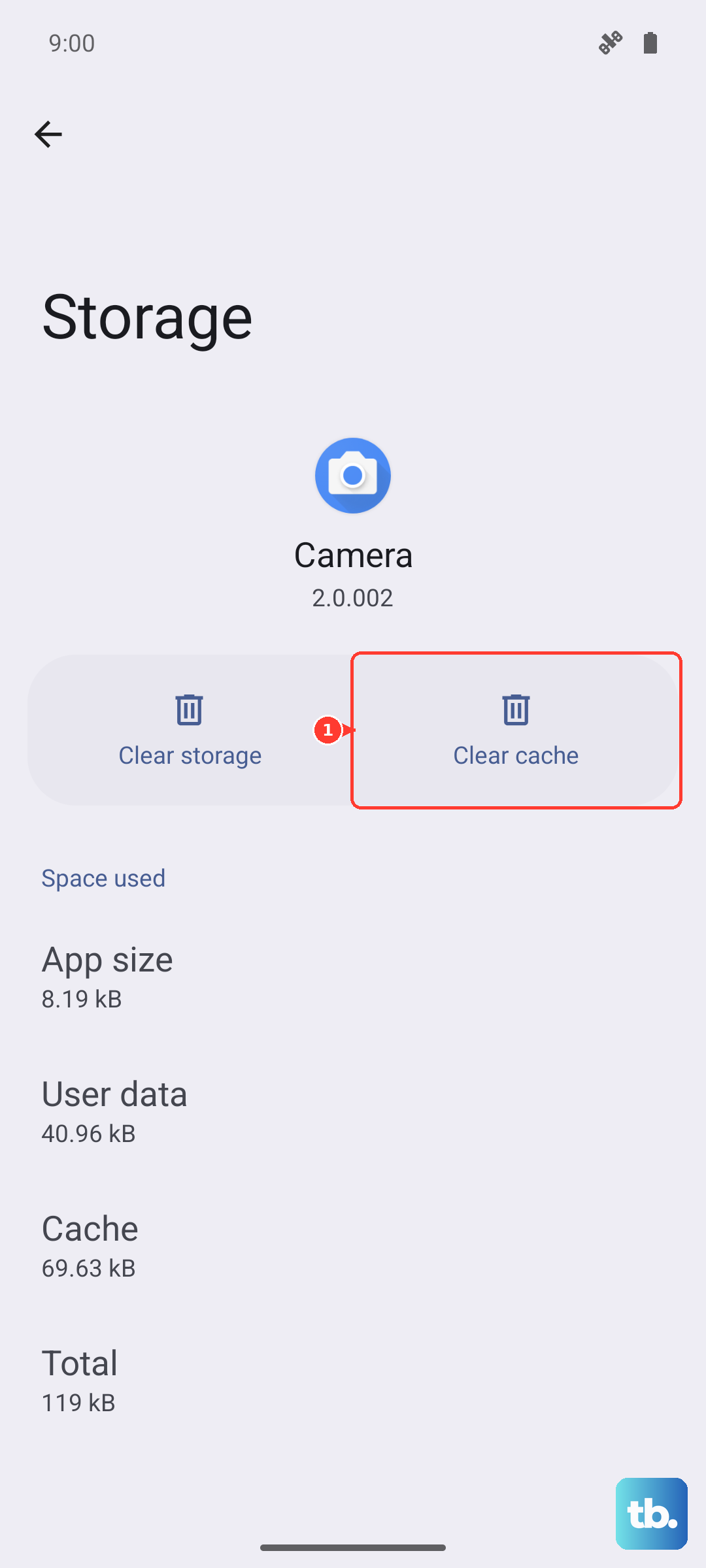
Over time, your browser stores temporary files that can become corrupted and slow things down. Clearing this data gives you a fresh start.
If you use Chrome, open the app and tap the three-dot menu. Go to History > Clear browsing data. Select Cached images and files and Cookies and site data, then tap "Clear data". For other browsers, look for a similar "Clear cache" option in their settings menu.
Manage Your Mobile Data Mode
Your OnePlus 12 has different network modes that balance speed and battery life. If you're in an area with strong 5G, make sure you're set up to use it.
Go to Settings > Mobile network > SIM & network settings. Tap on your SIM card and look for "Preferred network type". Select 5G/4G/3G/2G (auto) for the fastest available speeds. If you're having connection drops, you can try switching to "4G/3G/2G (auto)" to see if it stabilizes.
Enable Data Saver and Restrict Background Data
OxygenOS includes tools to stop apps from using data in the background without your permission. This can free up bandwidth for the app you're actively using.
Head to Settings > Mobile network > Data usage > Data saver and toggle it on. For more control, go to Settings > Apps, select a specific app, tap Mobile data & Wi-Fi, and toggle off "Allow background data usage".
Check for System and Carrier Updates
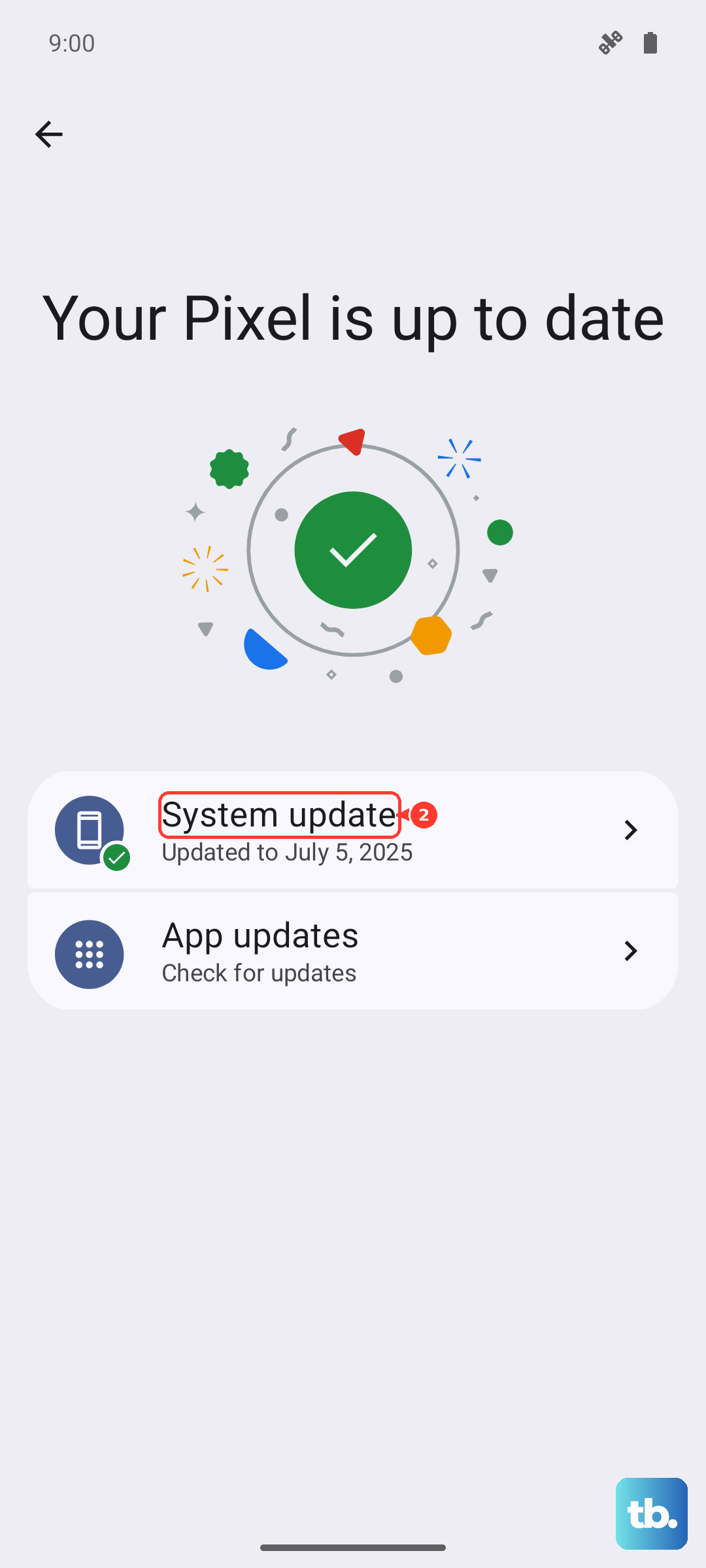
OnePlus regularly releases OxygenOS updates that include performance optimizations and bug fixes. Your carrier might also push updates that improve network compatibility.
Go to Settings > About device > OxygenOS version to check for system updates. For carrier settings, go to Settings > Additional settings > System updates and check for any available downloads there.
Perform a Soft Reset
A simple restart can clear out temporary software glitches affecting your network connection. Press and hold the Power button for about 10-15 seconds until you feel a vibration and the OnePlus logo appears on screen.
This forces the phone to reboot without deleting any of your personal data or settings. It's a good first step if pages are taking too long to load.
Disable VPN or Proxy Connections
If you have a VPN app running or a proxy configured, it can significantly slow down your internet speed as your traffic is routed through another server. Try temporarily disabling any VPN apps from their notification shade toggle or within the app itself.
To check for a configured proxy, go to Settings > WLAN & internet > Wi-Fi. Tap the gear icon next to your connected network, then tap "Proxy". Make sure it is set to "None".
Optimize Your WiFi Connection
If the slowdown is only on WiFi, your router might be broadcasting on a congested channel. Your OnePlus 12 can help you connect to the best available band.
Go to Settings > WLAN & internet > Wi-Fi. Tap the three-dot menu, select "Intelligent Wi-Fi", and make sure Auto-switch to mobile data and Auto-connect to high-quality networks are enabled. This helps your phone maintain a stable connection.
Close Unused Apps Running in the Background
While OxygenOS is good at managing memory, having many apps open can still consume system resources. Swipe up from the bottom of the screen and hold to enter the recent apps view, then swipe away any apps you aren't currently using.
For a more thorough cleanup, you can go to Settings > Apps, select an app, and tap "Force stop". Be careful not to force stop essential system services.
Check Your Date and Time Settings
Incorrect time settings can sometimes cause issues with secure websites (HTTPS), making them load slowly or fail. Go to Settings > Additional settings > Date & time.
Make sure both "Use network-provided time" and "Use network-provided time zone" are toggled on. This ensures your phone's clock is always synchronized correctly.