
If your OnePlus 12 feels unusually warm to the touch, you're not alone. Modern smartphones pack a lot of power into a slim body, and some heat is normal during intensive tasks or fast charging. But if it's getting uncomfortably hot during everyday use, there are several things you can check and adjust to cool it down.
I'd start with the simplest fix first. A lot of the time, a rogue app running in the background is the culprit. Swipe up from the bottom and hold to enter the recent apps view, then swipe away everything. Next, go to Settings > Battery > Battery usage to see if a specific app is consuming an abnormal amount of power. If you spot one, force stop it from that menu or consider uninstalling it.
Check Your Charging Setup
The OnePlus 12's 100W SUPERVOOC charging is incredibly fast, and that process naturally generates more heat than slower charging. This is usually managed well by the phone's systems. However, using the wrong charger can cause issues.
That 100W speed only works with the official OnePlus SUPERVOOC charger and cable that came in the box. If you're using a standard USB-C PD charger, you'll be limited to around 15-18W, and some generic chargers can cause inefficient power delivery that leads to excess heat. Always try switching back to the included charger and cable first.
Also, take a look at your charging environment. Are you charging on a soft surface like a bed or couch, or with a thick case on? These can trap heat. Try charging on a hard, flat surface and consider removing the case while you plug in, especially if you're using the 50W AIRVOOC wireless charger, as cases can interfere with heat dissipation.
Adjust Your Settings and Usage
Sometimes, the way we use the phone pushes it harder than necessary. If you're gaming, using the camera for extended recording, or streaming high-quality video for a long time, expect some warmth. For general use, a few settings tweaks can make a big difference.
Head to Settings > Battery and enable High performance mode only when you really need it, like for gaming. For daily use, leaving it off helps manage heat. Also, check Settings > Display & brightness. The screen is a major heat source. Try reducing the brightness manually and consider setting a shorter screen timeout.
If your phone is heating up while you're not even using it, background processes are likely the cause. Go to Settings > Apps > Manage apps, tap the three-dot menu, and select Show system apps. Look for apps like "Google Play services" or "Android System" and clear their cache. This can stop problematic background activity without deleting your data.
Update Your Software and Manage Connectivity
Outdated software can sometimes have bugs that cause poor thermal management. OnePlus regularly releases updates that include optimizations. Go to Settings > About device > OxygenOS version and tap on the icon to check for an update. Installing the latest version is a quick fix that often resolves heating issues.
Your radios generate heat when they're struggling for a signal. If you're in an area with poor cellular reception, your phone will boost its antenna power, which creates heat. The same goes for Wi-Fi, Bluetooth, and GPS. When you don't need them, toggle them off from the quick settings panel.
For GPS, instead of using "High accuracy" mode all the time (which uses Wi-Fi and mobile networks to help), you can switch to "Device only" mode in Settings > Location when you just need it for basic navigation. This reduces the workload.
Perform a Deeper Reset
If the phone is hot and completely unresponsive, you'll need to force a restart. Just press and hold the Power button for 10 to 15 seconds until you feel a vibration and see the OnePlus logo appear. This is like pulling the plug on any stuck processes causing the heat.
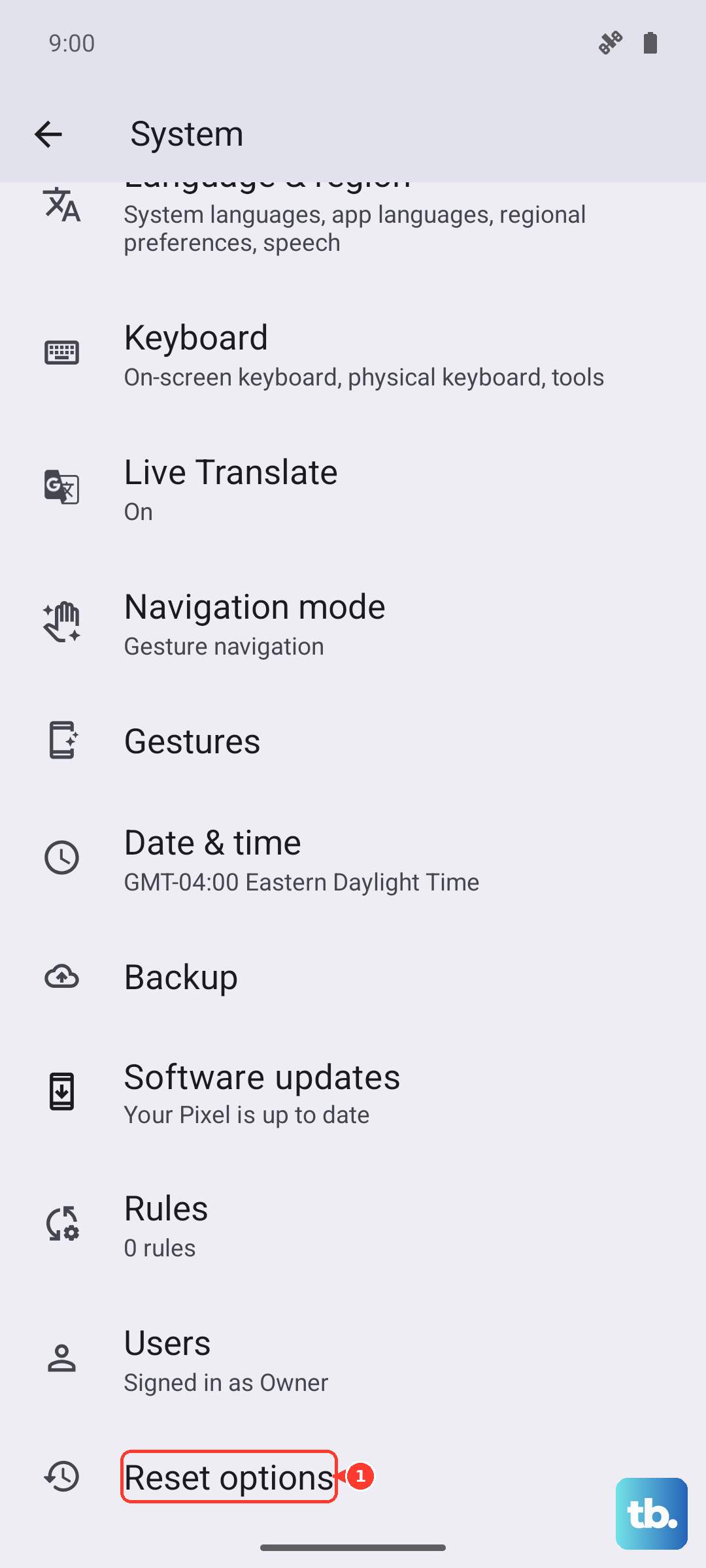
When simpler steps don't work, a reset of network settings can help, especially if the heating seems tied to calling or mobile data. This will erase your Wi-Fi passwords and paired Bluetooth devices, so be prepared for that. You can find this option at Settings > System > Reset options > Reset Wi-Fi, mobile & Bluetooth.
As a last resort before considering a factory reset, try booting the phone in Safe Mode. This disables all third-party apps. Turn off the phone, then press and hold the Power button until you see the logo. Immediately press and hold the Volume Down button until you see "Safe Mode" in the bottom corner. If the phone runs cool in Safe Mode, you know a downloaded app is the problem, and you can start uninstalling them one by one to find the offender.