
Missing important calls because your OnePlus 12 stays silent is a real headache. You check your screen and see a missed call notification, but you never heard a thing. The good news is this is almost always a simple setting or a minor software hiccup. Let's get your phone ringing again.
Check the Alert Slider First
Your OnePlus 12 has a physical Alert Slider on the right side, above the power button. This is the most common culprit. Slide it down to the bottom position, which is the ring mode (it usually has a bell icon). If it's in the middle or top position, your phone is set to vibrate or silent.
When you move the slider, a quick settings panel should pop up on screen confirming the change. Give it a quick test by having someone call you right after switching it to ring.
Turn Off Zen Mode and Do Not Disturb
OnePlus's Zen Mode and the standard Android Do Not Disturb can silence calls. Swipe down from the top of your screen twice to open the full Quick Settings panel. Look for tiles labeled "Zen Mode" or "Do Not Disturb." If either is highlighted or active, tap it to turn it off.
You can also check the schedules. Go to Settings > Sound & vibration > Do Not Disturb. Here, make sure the main toggle is off and review any automated schedules that might be turning it on without you realizing.
Increase Your Ringtone Volume
Your media volume and ringtone volume are separate. Even if your videos are loud, your ringer might be turned down. Unlock your phone and press the volume up button on the side. A volume bar will appear on screen. Tap the settings gear icon next to it, or tap the three-dot menu, to see individual sliders.
Make sure the "Ringtone" or "Notification" volume slider is all the way up. You can also go directly through Settings > Sound & vibration > Volume to adjust all levels from one menu.
Change or Reassign Your Ringtone
Sometimes a specific ringtone file can get corrupted. Try switching to a different one to see if that's the issue. Go to Settings > Sound & vibration > Phone ringtone (on OnePlus phones, the option is labeled Ringtone). Pick a new tone from the list and tap "OK" to set it.
If you're using a custom ringtone for a specific contact, that file might be the problem. Open your Phone app, go to your Contacts, select a person, and tap "Edit." Look for the ringtone option and set it back to default to test.
Disconnect Bluetooth Accessories
If your phone is connected to a Bluetooth speaker, headphones, or your car, incoming call audio might be routing there instead of playing through the phone's speaker. The quickest fix is to turn Bluetooth off temporarily.
Swipe down to open Quick Settings and tap the Bluetooth icon to disable it. You can also go to Settings > Connected devices > Connection preferences > Bluetooth and toggle it off. Try a test call with Bluetooth disabled to see if the ringtone plays normally.
Check for Blocked Numbers and Call Settings
It's worth verifying you haven't accidentally blocked the person trying to call you. Open your Phone app and tap the three-dot menu in the top right. Go to Settings > Blocked numbers to see your list.
Also, check your call forwarding settings. In the Phone app settings, look for "Call forwarding" or "Additional settings." Make sure call forwarding is not active, as it would send calls directly to another number without your phone ever ringing.
Review App-Specific Sound Settings
OxygenOS and Android give you fine-grained control over notifications. The Phone app itself might have its notifications silenced. Go to Settings > Apps > See all apps.
Find and tap on "Phone" in the list. Then, go to Notifications. Ensure notifications are enabled for the app. Tap on "Incoming calls" or similar categories and make sure the sound setting is not set to "Silent."
Restart Your OnePlus 12
A simple reboot clears out temporary glitches that can affect system sounds. Press and hold the power button until the power menu appears, then tap "Restart." If your phone is unresponsive, you can force restart it by pressing and holding the power button for 10 to 15 seconds until you feel it vibrate and see the OnePlus logo.
Update OxygenOS
Software bugs that affect calling can be patched in updates. Connect to Wi-Fi and go to Settings > About device > OxygenOS version. Tap on the top banner where it says "Check for update."
If an update is available, download and install it. I'd recommend doing this before trying any major resets, as it often resolves these kinds of issues without you losing any data.
Reset App Preferences or Network Settings
If the problem seems linked to the Phone or Contacts app, resetting app preferences can help. This won't delete your app data. Go to Settings > Apps > See all apps > Menu (three dots) > Reset app preferences.
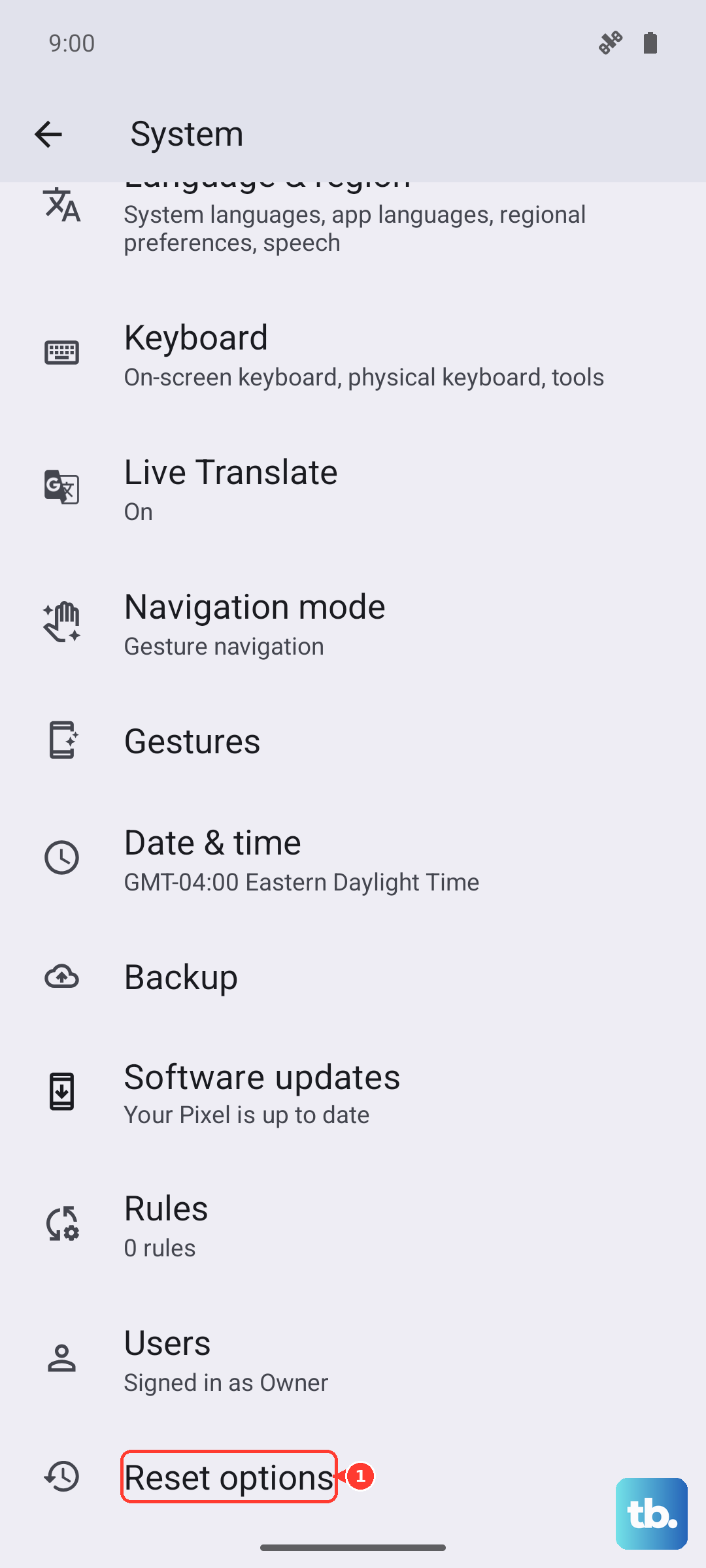
For issues that might be network-related, like calls going straight to voicemail, you can reset network settings. Go to Settings > System > Reset options > Reset Wi-Fi, mobile & Bluetooth. You'll need to reconnect to Wi-Fi and re-pair Bluetooth devices afterward.
Check for Focus Mode or Gaming Mode
OnePlus has features like Gaming Mode that can automatically suppress notifications and calls during certain activities. Open your game space or check Settings > Special features for any gaming or performance modes.
Make sure these modes aren't configured to block all interruptions. There's usually an option within these settings to allow calls or notifications even when the mode is active.