
When your OnePlus 12 sends every call directly to voicemail, it can feel like you're suddenly disconnected from everyone. This is a common hiccup that can stem from a simple toggle you accidentally switched or a deeper network setting that needs a refresh. The good news is you can almost always fix it yourself with a few minutes of troubleshooting.
Check Do Not Disturb and Silent Mode First
This is the most common culprit. OxygenOS has several ways to silence calls that are easy to activate by mistake. Swipe down from the top of your screen twice to open the full Quick Settings panel. Look for the Do Not Disturb icon (a circle with a line through it) and the Silent mode icon (a bell with a slash). If either is highlighted, tap it to turn it off.
You should also check the detailed settings. Go to Settings > Sound & vibration > Do Not Disturb. Make sure it's toggled off, and scroll down to review any schedules or rules that might be active.
Verify Your Network Connection
Poor signal or a temporary network glitch can cause calls to fail. Start by checking the signal bars in the top-right corner of your screen. If they're low or showing an "X," you might be in a dead zone.
A quick network refresh often does the trick. Toggle Airplane mode on for about 10 seconds, then turn it off again. You can do this from the Quick Settings panel or in Settings > Network & internet > Airplane mode. This forces your phone to re-register with the cellular network.
Review Call Blocking and Spam Settings
The OnePlus Phone app has built-in spam protection that might be a bit too aggressive. Open your Phone app and tap the three-dot menu in the top-right corner, then go to Settings > Block & filter.
Here, you'll see a "Blocked numbers" list. Make sure no important contacts are accidentally listed. You can also check the settings for "Harassment filter" or "Smart call block" to see if they're filtering unknown callers too strictly.
Disable Any Active Call Forwarding
If call forwarding is enabled, your calls are being redirected before your phone even rings. To check, open the Phone app, tap the three-dot menu, and select Settings > Call settings > SIM & network > Call forwarding.
You'll see options for different forwarding types (like when busy or unanswered). Tap on each one and ensure they are all set to "Disable" or that the forwarding number is blank. This setting is sometimes changed accidentally or by a carrier update.
Reset Your Network Settings
If the basic steps haven't worked, a network settings reset can clear out any corrupted configuration data. This will erase all saved Wi-Fi networks, Bluetooth pairings, and mobile data settings, so be prepared to re-enter Wi-Fi passwords.
Go to Settings > Additional settings > Back up and reset > Reset phone > Reset network settings. Tap to confirm. After your phone reboots, you'll need to reconnect to Wi-Fi and pair Bluetooth devices again, but this often resolves persistent calling issues.
Check for a SIM Card Issue
A loose or faulty SIM card can cause intermittent service problems. Power off your OnePlus 12 completely. Use the SIM ejector tool that came in the box to open the tray on the bottom edge of the phone.
Carefully remove the SIM card, inspect the gold contacts for any dirt or damage, and then firmly re-seat it in the tray. Push the tray back in until it clicks. Power your phone back on and wait a minute for it to reconnect to the network.
Update Your Phone's Software
Outdated software can contain bugs that affect calling functionality. OnePlus regularly releases updates with fixes for these kinds of issues. Connect to a Wi-Fi network and go to Settings > About device > OxygenOS version.
Tap on the icon at the top right (it looks like three dots or a download arrow) and select "Download now." If an update is available, follow the prompts to install it. I've seen minor point updates specifically address network and calling stability.
Clear the Phone App's Cache and Data
The Phone app can accumulate temporary files that sometimes cause odd behavior. Clearing this data is safe and won't delete your contacts or call history. Go to Settings > Apps > See all apps and find "Phone" in the list.
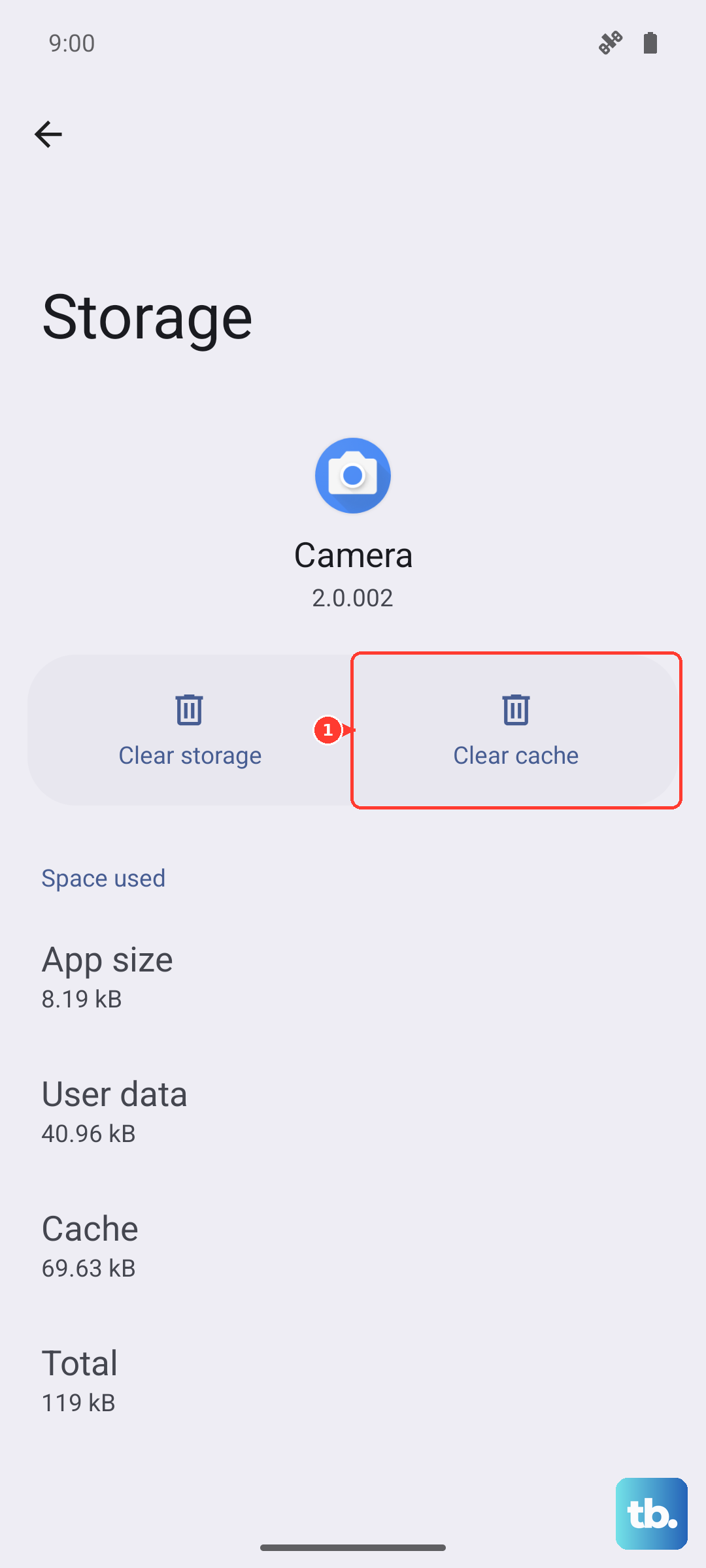
Tap on it, then select Storage & cache. Tap "Clear cache" first. If the problem persists, you can go back and tap "Clear storage" or "Manage storage > Clear all data." This will reset the app to its default settings.
Check with Your Mobile Carrier
The issue might not be with your phone at all. There could be a service outage in your area, a problem with your account, or a feature on your line that needs adjusting. Call your carrier's customer support from another phone or use their online chat.
Ask them to verify your account status and check for any outages. You can also have them reprovision your line, which is a quick refresh they do on their end. It's also worth asking if any call blocking features (like "Scam Block") are active on your account.
Perform a Factory Reset
This is your last resort if nothing else has worked, as it will erase everything on your phone. Before you start, make absolutely sure you have a complete backup. You can use the built-in backup in Settings > Additional settings > Back up and reset.
Once backed up, go to the same menu and select Erase all data (factory reset). Follow the prompts to confirm. After the reset, set up your phone as new initially to see if the calling issue is resolved before restoring your backup, as the backup could potentially restore the problematic setting.