
If you're trying to send a photo or video from your OnePlus 12 and it's just stuck on "Sending," it's a common but annoying problem. MMS issues on OxygenOS usually come down to a few specific settings or a temporary network hiccup. Let's walk through the fixes that usually get things moving again.
Toggle Mobile Data On and Off
This is the quickest thing to try. MMS requires an active mobile data connection, even if you're on WiFi. Swipe down from the top of your screen twice to open the full Quick Settings panel. Tap the mobile data icon to turn it off, wait a few seconds, then tap it again to turn it back on.
Sometimes the connection just needs a quick refresh. After you've toggled it, try sending the MMS again.
Check Your OnePlus Messages Settings
The built-in Messages app has a few options that can block MMS. Open the Messages app and tap the three-dot menu in the top right, then go to Settings.
Look for the Multimedia messages section. Make sure Auto-download MMS is enabled. If you're in a group chat, also ensure Group messaging is set to "Send an MMS for all replies."
Verify Your APN Configuration
Incorrect Access Point Name (APN) settings are a very common culprit. These tell your phone exactly how to connect to your carrier's MMS service. Go to Settings > Mobile network > select your SIM > Access Point Names.
Tap the APN that's currently active (it will have a filled-in circle next to it). You need to check two specific fields: MMSC and APN type. The MMSC should be a URL from your carrier (like http://mmsc.mobile.att.net for AT&T). The APN type must include mms in the list, usually looking like default,supl,mms.
If anything looks off or is blank, you'll need to get the correct settings directly from your carrier's support site or by contacting them.
Clear the Cache for the Messages App
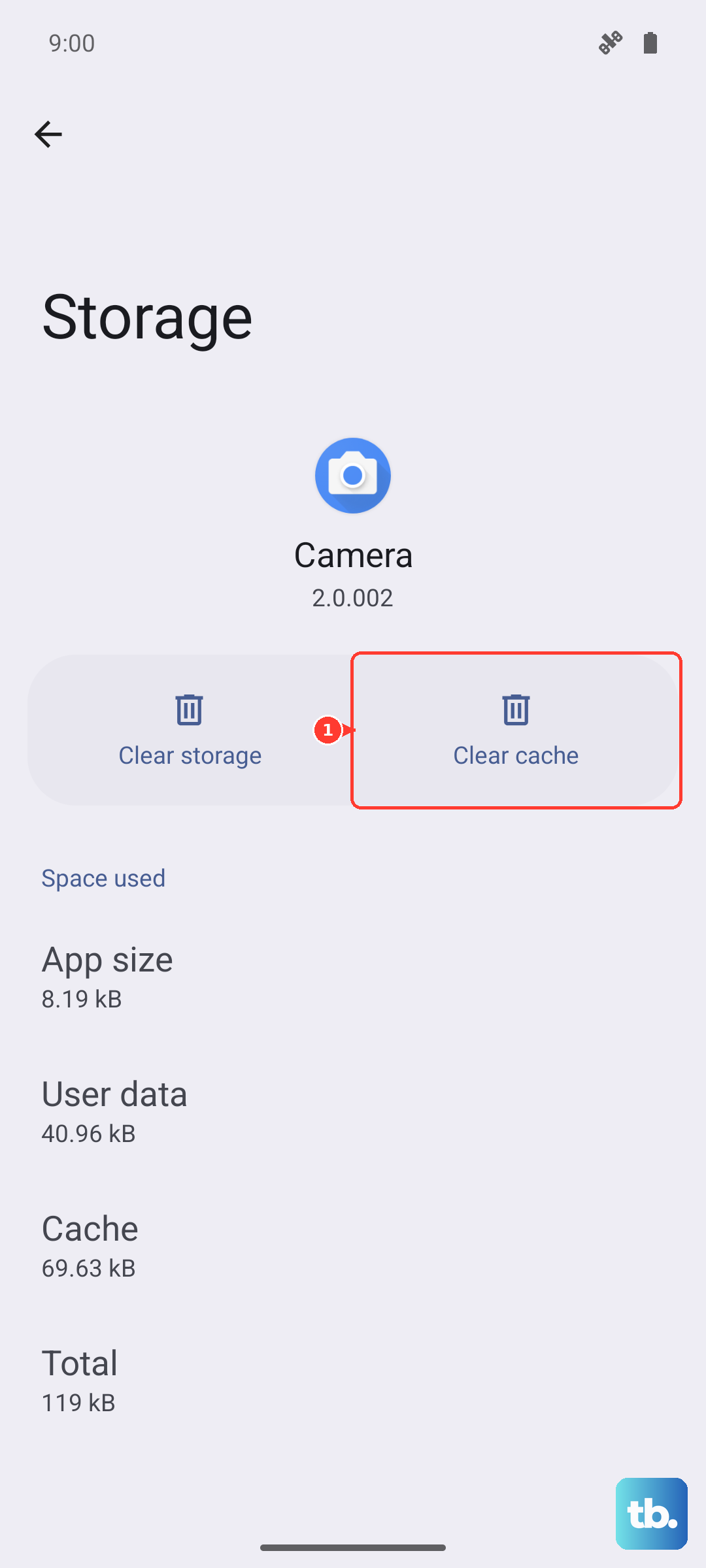
Corrupted temporary files can cause sending failures. Go to Settings > Apps > Messages. Tap on Storage usage.
First, tap Clear cache. This won't delete any of your actual messages. If the problem persists, you can try Clear data, but be warned this will erase your entire message history within the app, so only do this if you're okay with that loss.
Force Restart Your OnePlus 12
A simple reboot can clear out a minor software glitch. Press and hold the Power button for about 10 to 15 seconds. You'll feel a vibration and see the screen go black as the phone forces a restart.
Wait for it to boot back up completely, then check if you can send the MMS. I'd start with this before moving to more involved network resets.
Check for a System Update
An outdated version of OxygenOS might have a bug affecting MMS. Go to Settings > About device > tap on OxygenOS version. Your phone will check for updates.
If an update is available, download and install it. It's a good idea to be on WiFi and have your phone charged above 50% before starting.
Reset Your Network Settings
This is a more comprehensive step if the APN check didn't help. It will wipe all your saved WiFi networks, Bluetooth pairings, and mobile network settings back to default. Go to Settings > Additional settings > Back up and reset > Reset phone.
Here, select Reset Wi-Fi, mobile & Bluetooth. Confirm the reset. Your phone will reboot, and you'll need to reconnect to your WiFi and re-pair Bluetooth devices, but it often resolves stubborn MMS issues.
Ensure You Have Enough Storage
Your phone needs a bit of free space to process and send multimedia messages. Open the Files app and check your available storage. If you're critically low, try deleting some old downloaded files or clearing app caches.
Freeing up even a few hundred megabytes can sometimes be enough to let the MMS go through.
Disable Any VPN or Data Saver
If you're using a VPN, it might be routing your MMS traffic through a server that blocks it. Turn the VPN off temporarily and try sending. Similarly, go to Settings > Mobile network and make sure Data saving is switched off, as this feature can restrict background data for messaging.
Try Google Messages as a Test
To rule out an issue with the OnePlus Messages app itself, install Google Messages from the Play Store. Open it and set it as your default app when prompted.
Try sending your photo or video. If it works immediately, the problem is likely with your original app's configuration or data. You can stick with Google Messages or use its success as a clue to dig deeper into the OnePlus app settings.