
When your OnePlus 12 microphone stops picking up your voice, it can turn simple tasks like making a call, sending a voice message, or using Google Assistant into a frustrating experience. The first thing I'd do is figure out which microphone is acting up, as your phone has several for different purposes.
Before changing any settings, it helps to know whether the microphone registers anything at all. Run a quick quick mic test in your browser, speak normally, and watch the level meter. If it moves, the hardware works and the fixes below will take care of the rest.
Test Your OnePlus 12 Microphone
Open the Voice Recorder app that came with your phone. Tap the red record button and speak normally for about 10 seconds. Play it back to see if your voice is clear or muffled. You can also try making a quick video with the Camera app to test the audio quality there.
For a more specific test, try using Google Assistant. Press and hold the power button for a second or say "Hey Google." Ask it a simple question. If it doesn't respond or consistently mishears you, that's a good sign there's a microphone issue.
Check for Physical Blockages
Your OnePlus 12 has microphone ports in a few key spots. The main one is a tiny pinhole at the bottom edge of the phone, next to the USB-C port. There's also one at the top of the frame and another on the back near the camera module.
Take a close look at these openings. Dust, pocket lint, or even a small piece of debris from a case can easily get lodged inside and muffle the sound. Gently brush the areas with a soft, dry toothbrush or use a can of compressed air to blow out any obstructions.
Remove Your Phone Case
This is a quick and easy step that often gets overlooked. Some cases, especially rugged or ill-fitting ones, can partially cover the microphone holes. Take the case off completely and test your microphone again with a voice recording or a call.
If the microphone works fine without the case, you've found the culprit. You might need a different case that has proper cutouts aligned with the OnePlus 12's microphone positions.
Restart Your OnePlus 12
A simple reboot can clear out temporary software glitches that might be affecting the audio system. Just press and hold the power button until the power menu appears, then tap "Restart."
If your phone is completely unresponsive, you can perform a force restart. Press and hold the power button for 10 to 15 seconds until you feel a vibration and see the OnePlus logo appear on the screen.
Disconnect Bluetooth Accessories
If you have wireless earbuds, a headset, or a car audio system connected, your phone might be trying to use that device's microphone instead of its own. Swipe down from the top of your screen to open the Quick Settings panel and tap the Bluetooth icon to turn it off temporarily.
Now try your microphone again. If it works, you know the issue was with the audio routing. You can go into your Bluetooth settings later and forget the problematic device, then re-pair it.
Check App Permissions
In OxygenOS, each app needs explicit permission to use your microphone. If you're having trouble in a specific app like WhatsApp, Telegram, or Zoom, this is the first place to check.
Go to Settings > Privacy > Permission manager > Microphone. Here you'll see a list of all your apps. Find the app that's having issues and make sure it's set to "Allow" only while using the app or "Ask every time."
Close and Reopen Problematic Apps
Sometimes an app just gets stuck. If the microphone works in some apps but not others, force closing the problematic app can help. Swipe up from the bottom and hold to enter the recent apps view.
Find the app card and swipe it all the way up to close it. Wait a few seconds, then tap the app icon to launch it fresh. This clears the app's temporary data from your phone's memory and often resolves minor bugs.
Update Your Phone's Software
OnePlus regularly releases OxygenOS updates that include bug fixes and performance improvements. A microphone issue could be related to a software bug that's already been patched.
Go to Settings > About device > OxygenOS version and tap on the top banner to check for updates. If an update is available, make sure your phone is charged above 50% and connected to Wi-Fi before installing it.
Clear the Cache for Camera and Voice Recorder Apps
Corrupted cache data for system apps can sometimes cause odd behavior. Go to Settings > Apps > See all apps. Find and tap on "Camera." Go to Storage usage > Clear cache.
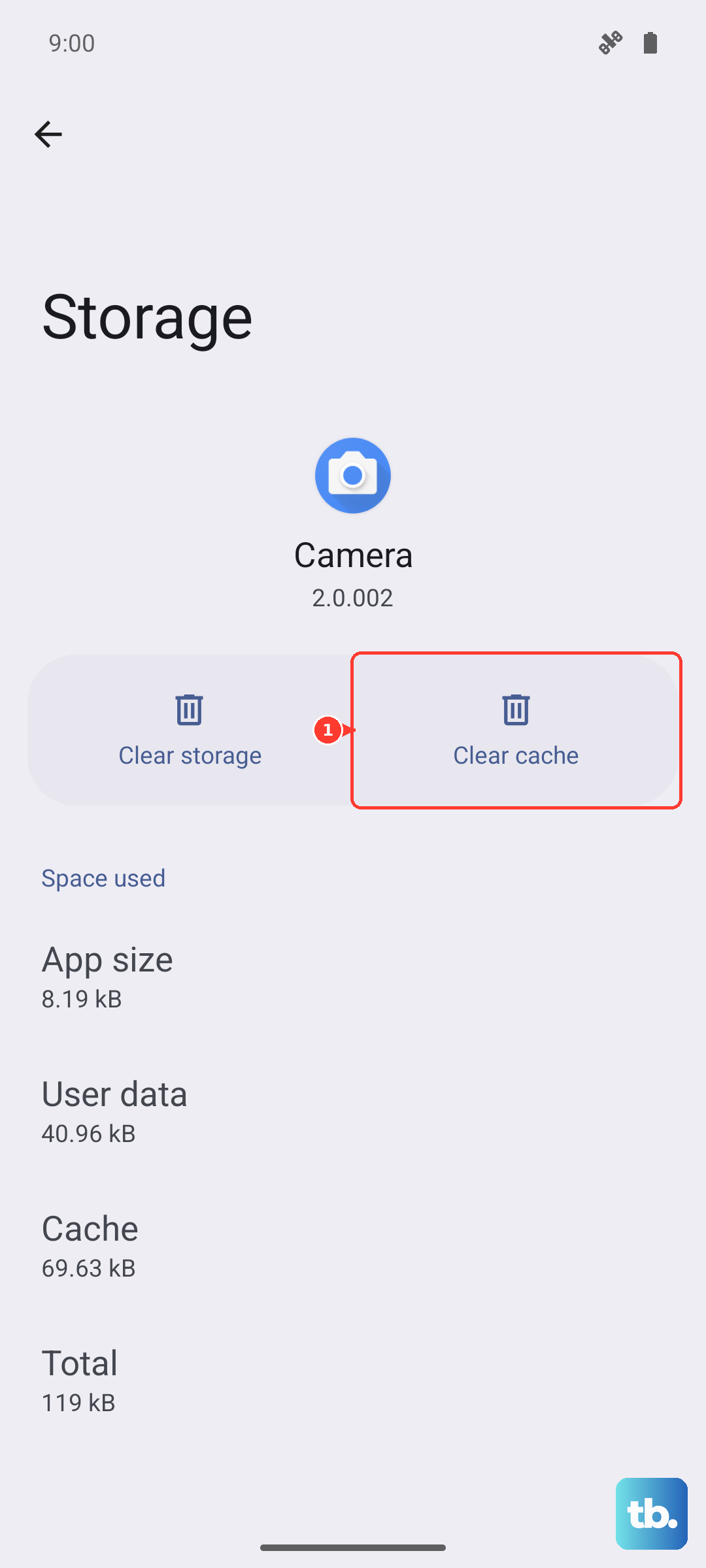
Do the same for the "Voice Recorder" app. This doesn't delete any of your photos, videos, or recordings, it just removes temporary files that might be causing conflicts.
Reset All Settings
If you're still having issues, you can try resetting your phone's settings back to their defaults. This won't delete any of your personal data like photos or messages, but it will reset Wi-Fi passwords, Bluetooth pairings, and custom display settings.
Go to Settings > Additional settings > Back up and reset > Reset phone > Reset all settings. Confirm your choice and let the phone restart. After it boots up, you'll need to reconfigure some preferences, but it can eliminate a settings-related software conflict.
Check for Hardware Damage
Consider if your phone has had any recent exposure to moisture or a physical impact. Even a small amount of liquid damage or a drop can affect the internal microphone components. While the OnePlus 12 has an IP65 rating for dust and water resistance, it's not completely waterproof.
If you suspect physical damage, and you've exhausted all the software fixes, the internal microphone or its connection to the mainboard may need professional inspection. The issue could be isolated to one microphone, which is why testing with different apps is so important for diagnosis.