
When your OnePlus 12's mobile hotspot stops working, it leaves your laptop or tablet stranded without internet. Whether other devices can't see the network, fail to connect, or get dropped, you can usually get your personal Wi-Fi back online with a few checks.
Toggle the Hotspot Off and On
Head into Settings > Connections & sharing > Portable hotspot. Tap the toggle to turn it off, wait about 10 seconds, and then turn it back on. This quick reset clears any temporary glitch in the hotspot service and is often all you need to do.
Restart Your OnePlus 12
Press and hold the Power button for about 10 to 15 seconds until you feel a vibration and see the phone restart. This force reboot clears out cached processes for both the cellular modem and Wi-Fi, which can resolve a surprising number of connectivity hiccups.
Verify Your Mobile Data Connection
The hotspot pulls directly from your cellular data. First, make sure you have a strong signal. Try opening a webpage in your phone's browser to confirm data is flowing. Also, double-check with your carrier that your specific plan includes mobile hotspot or tethering, as some budget plans restrict this feature.
Check the Hotspot Configuration
Go to Settings > Connections & sharing > Portable hotspot > Set up Portable hotspot. Look at the network name (SSID) and password. If the password is very simple or contains special characters, try changing it to something more complex using only letters and numbers. This can help with authentication issues on connecting devices.
Reset Your Network Settings
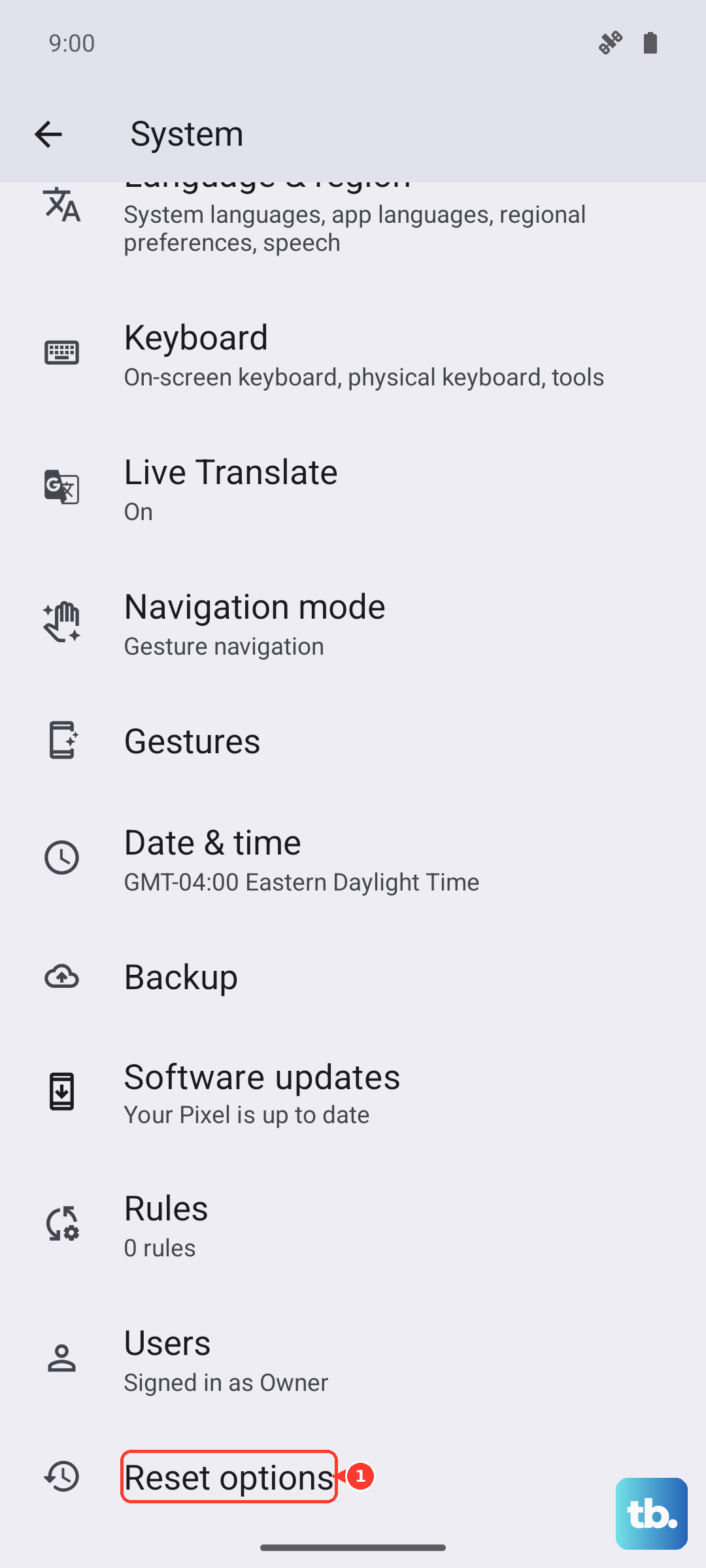
This is a more thorough step that wipes all network-related data. Navigate to Settings > System > Reset options > Reset Wi-Fi, mobile & Bluetooth. Confirm the reset. Your phone will reboot, and you'll need to reconnect to all your Wi-Fi networks and re-pair Bluetooth devices, but it often solves persistent hotspot problems.
Forget the Network on the Connecting Device
The issue might be with the laptop or tablet trying to connect. On that device, go into its Wi-Fi settings and find your OnePlus 12's hotspot name. Choose to forget or remove that network. Then, scan for Wi-Fi networks again, select your hotspot, and enter the password fresh. A corrupted saved profile on the client device is a common culprit.
Try USB Tethering Instead
If the Wi-Fi hotspot is being stubborn, a wired connection is a great workaround. Connect your OnePlus 12 to your computer with a USB-C cable. Then on your phone, go to Settings > Connections & sharing > Portable hotspot and enable USB tethering. Your computer should recognize it as a new network adapter almost instantly.
Update Your Software
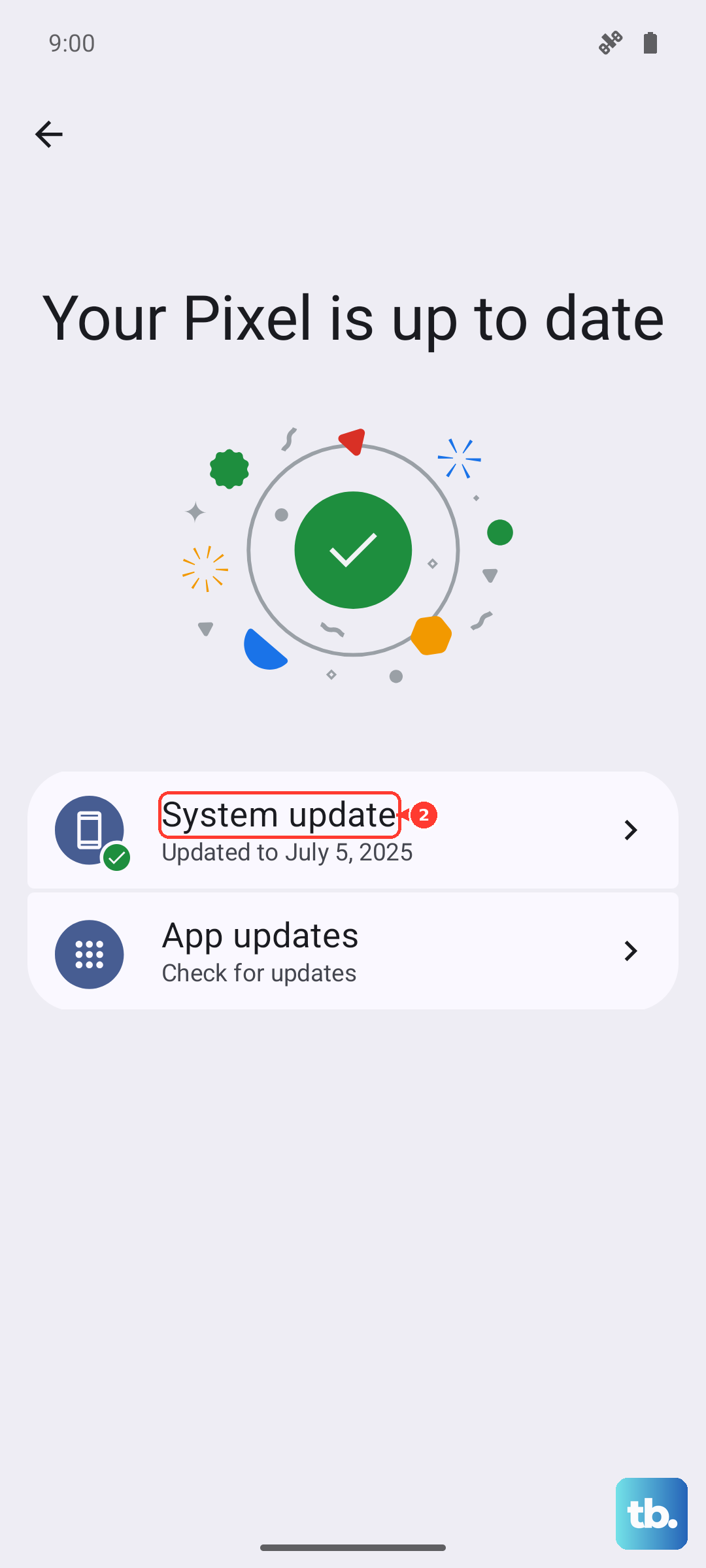
System updates frequently patch bugs that affect connectivity. Go to Settings > About device > OxygenOS version and tap on the icon to check for updates. If an update is available, install it. I've seen updates specifically address issues with network sharing on past OnePlus models.
Check for App Interference
A VPN app or a third-party firewall can sometimes block the hotspot function. Try temporarily disabling any VPN you have active. If you have any network management or security apps installed, check their settings to ensure they aren't blocking the hotspot feature, or disable them briefly as a test.
Contact Your Mobile Carrier
If you've tried everything else, the block might be on your carrier's side. Your line might need a provisioning refresh for tethering, or there could be a temporary network issue in your area. A quick call to their support can confirm your hotspot feature is active and troubleshoot from their end.