
If your OnePlus 12 is having trouble connecting to your wireless earbuds, car, or smartwatch, it can be incredibly frustrating. Bluetooth issues on Android, including OxygenOS, are usually caused by software glitches rather than hardware failure. I'd start with the most common fixes first, as they often resolve the problem in just a few minutes.
Toggle Bluetooth and Restart Your Phone
Begin by pulling down the notification shade twice to open the full Quick Settings panel. Tap the Bluetooth icon to turn it off, wait about 10 seconds, and then tap it again to turn it back on. This simple refresh can clear up minor connection hiccups.
If that doesn't work, the next step is a full restart. Press and hold the Power button for about 10-15 seconds until you feel a vibration and see the OnePlus logo appear. This force restart is more thorough than a standard shutdown and can clear temporary system errors that might be blocking Bluetooth.
Forget and Re-Pair the Problem Device
Go to Settings > Bluetooth & device connection. Tap on the device that's giving you trouble, then select Forget or the trash can icon. This removes the old, potentially corrupted pairing data.
Put your accessory back into its pairing mode. On your OnePlus 12, make sure Bluetooth is on and tap Pair new device. Select your accessory from the list and follow any on-screen prompts. This fresh start often solves persistent connection drops.
Clear the Bluetooth System Cache
Corrupted cache data for the Bluetooth service is a frequent culprit. To clear it, open Settings and go to Apps. Tap the three-dot menu in the top right and select Show system apps.
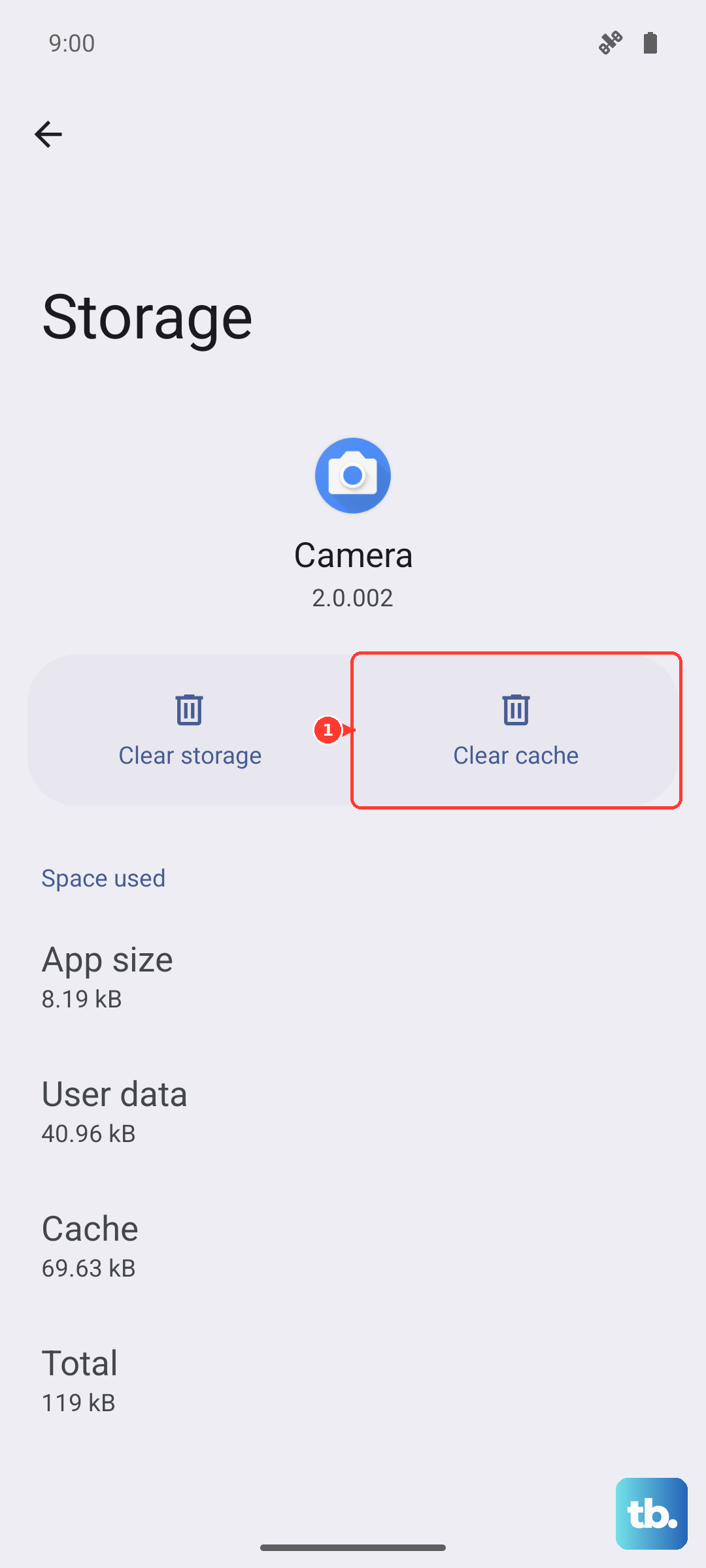
Scroll down and find Bluetooth in the list (it might be listed as "Bluetooth" or "Bluetooth MIDI Service"). Tap on it, then go to Storage & cache. Tap Clear cache. This doesn't delete any of your paired devices, it just removes temporary files.
Check for System Updates
OnePlus regularly releases OxygenOS updates that include bug fixes and improvements for connectivity. An outdated system can have compatibility issues with newer Bluetooth accessories.
Go to Settings > About device > OxygenOS version. Your phone will check for updates. If one is available, I'd recommend installing it while connected to Wi-Fi. Also, check if your Bluetooth accessory has a companion app that might need a firmware update.
Reset Your Network Settings
This step resets all network-related configurations, including Wi-Fi, mobile data, and Bluetooth, back to their factory defaults. You will need to re-enter Wi-Fi passwords and re-pair all Bluetooth devices afterward.
To do this, navigate to Settings > Additional settings > Back up and reset. Tap on Reset phone, then select Reset Wi-Fi, mobile & Bluetooth. Confirm the action and let your phone restart. This is a very effective step for deep-seated connection problems.
Boot Into Safe Mode
Safe Mode temporarily disables all third-party apps you've installed. If Bluetooth works perfectly in Safe Mode, it means one of your downloaded apps is causing a conflict.
To enter Safe Mode, press and hold the Power button until the power menu appears. Then, tap and hold the Power off option on your screen. You'll get a prompt to reboot to Safe Mode. Tap it. If Bluetooth works here, restart your phone normally and try uninstalling recent apps one by one to find the culprit.
Address Specific Connection Scenarios
For car Bluetooth issues, the process is similar but sometimes requires patience. After forgetting the pairing on both your phone and your car's stereo, try pairing with the car's engine running (not just in accessory mode). Some infotainment systems have a limit on stored devices, so you may need to delete other phones from the car's memory first.
If your Bluetooth won't turn on at all, even after a force restart, try the cache clearing step again. If it still refuses, the more comprehensive network reset described earlier is your best next step before considering more serious measures.