You hit play on a video, join a call, or queue up a playlist, and your Windows PC stays completely silent. No chime, no notification ping, nothing. The good news is that most no-sound problems trace back to a handful of fixable causes, and you can work through them in minutes without opening your computer or buying anything. The fixes below start with the quickest, safest checks and only move toward driver work if the simple steps come up empty. They apply to both Windows 11 and Windows 10, with the separate menu paths called out wherever the two differ.
To separate hardware from software, open a quick sound test and play the channel tones. What you hear, or do not hear, tells you which fixes below matter most.
Confirm Windows Is Sending Sound to the Right Place
Before assuming something is broken, make sure Windows is actually routing audio to the speakers or headphones you expect, and that the volume is not muted. PCs often switch output when you plug in a monitor, dock, or headset, leaving sound playing to a device you cannot hear.
- 1.Select the Speakers icon on the taskbar.
- 2.Select the arrow to the right of the speaker volume slider to open the list of connected audio devices.
- 3.Confirm the device you want is selected.
To set the output more permanently, go to Start > Settings > System > Sound and, under Output, select the correct audio device. While you are there, make sure the volume is not muted and the slider is turned up.
This single step resolves a surprising number of "no sound" reports.
Let the Built-in Audio Troubleshooter Do the Work
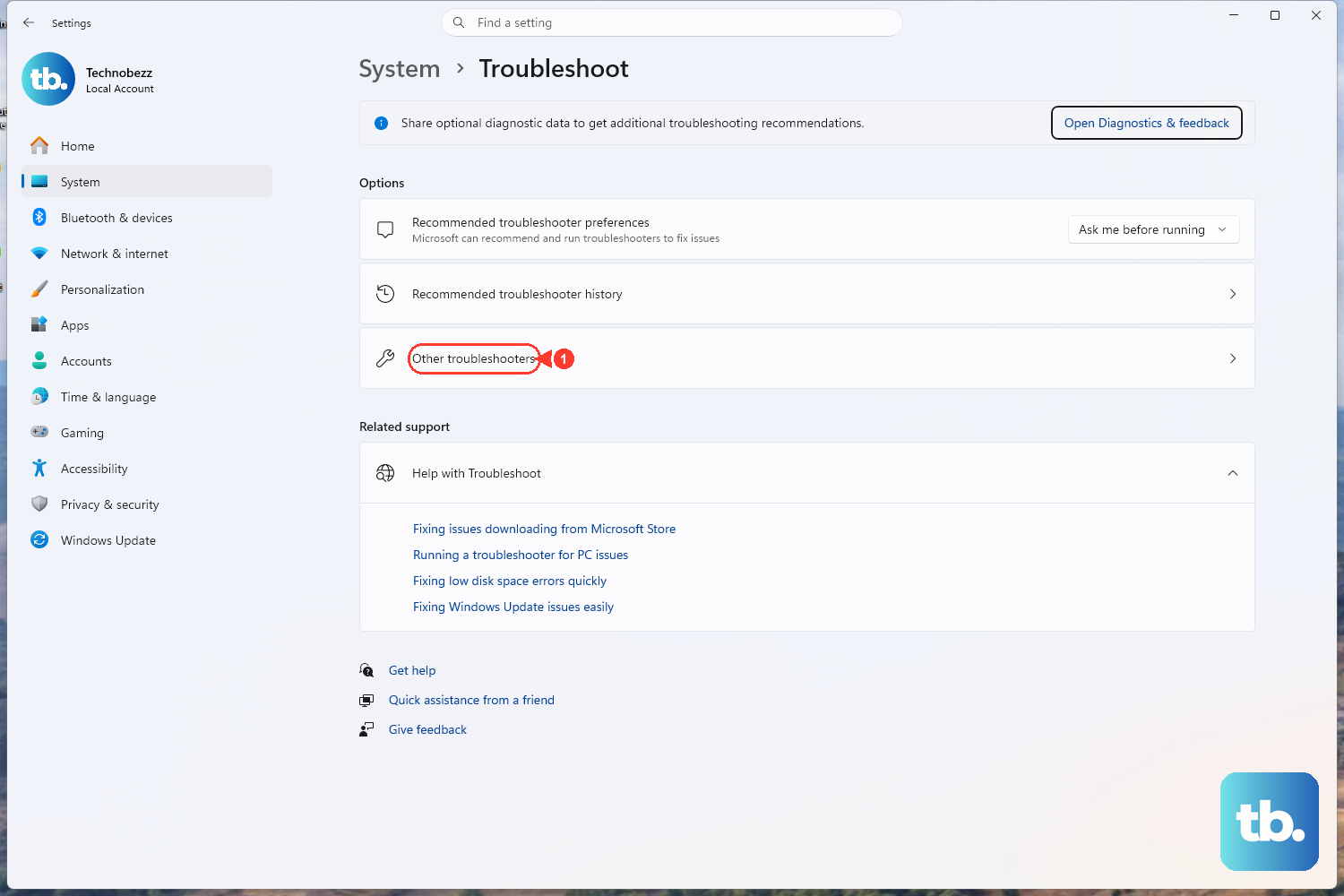
Windows includes an automated troubleshooter that detects and fixes common audio faults for you. It is the fastest hands-off option, so it is worth running before you dig into anything manual.
On Windows 11, open the Get Help app and run the Audio troubleshooter, or go to Start > Settings > System > Troubleshoot > Other troubleshooters, find the Audio entry, and select Run.
On Windows 10, go to Start > Settings > Update & Security > Troubleshoot, then under Find and fix problems select Playing audio and choose Run the troubleshooter.
Follow whatever the wizard recommends and test your sound when it finishes.
Restart the Windows Audio Services
If sound is glitchy or silent, the background services that handle audio may have stalled. Restarting them often clears the problem without a full reboot.
In the taskbar search box, type services (or type services.msc and press Enter), then open the Services app.
Right-click Windows Audio and select Restart.
Right-click Windows Audio Endpoint Builder and select Restart.
If prompted, select Yes.
Test your audio afterward. Both services run quietly in the background, so restarting them stops and starts the audio processes without touching your devices or settings.
Get a Missing Output Device to Reappear
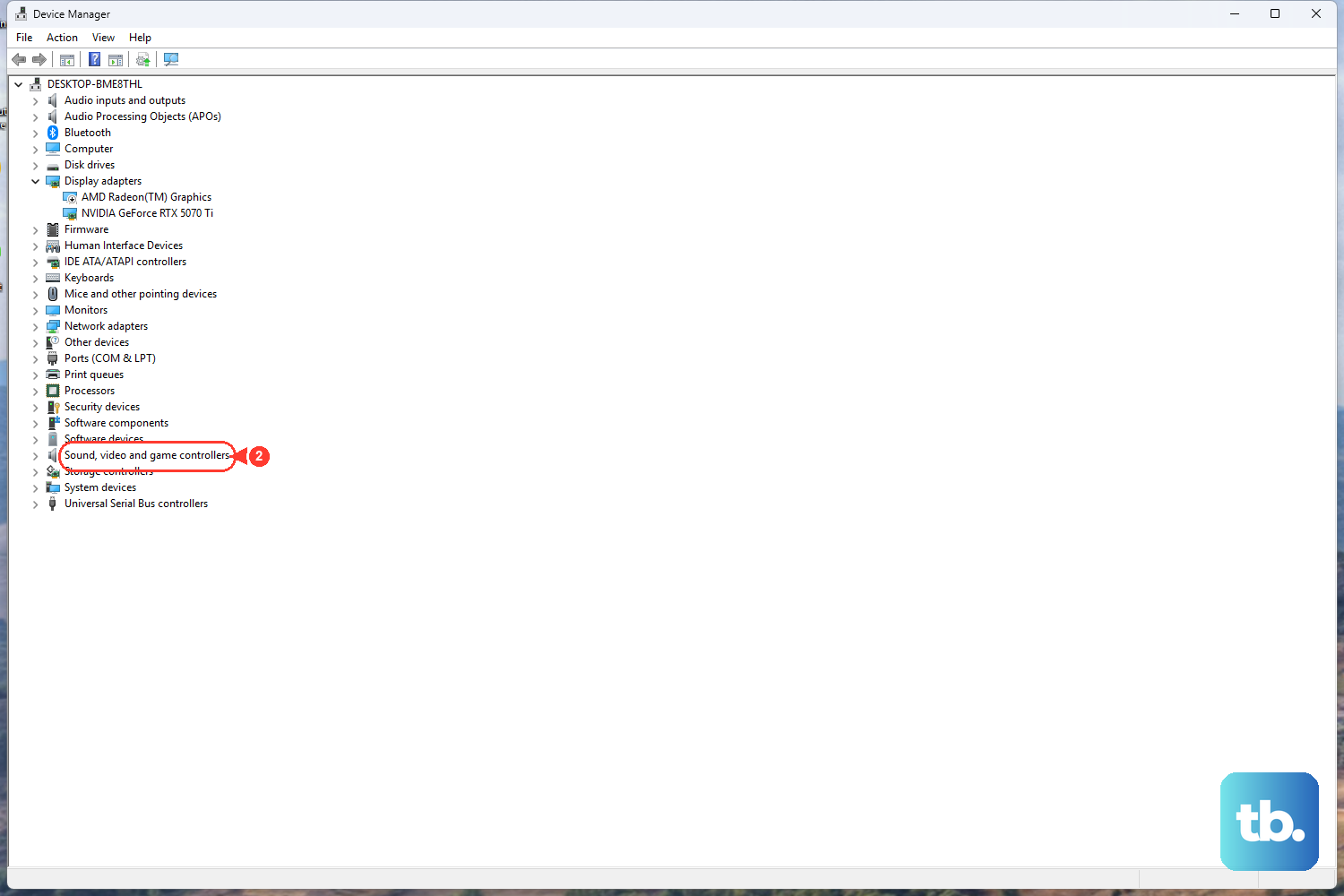
If no output device shows up in Sound settings at all, Windows may have lost track of the hardware. Device Manager can re-detect it or re-enable a device that was switched off.
Type device manager in the taskbar search box and open it.
Expand Sound, video and game controllers.
If your device is listed but disabled, press and hold (or right-click) it and select Enable device if that option is available.
To make Windows look for the hardware again, select Action > Scan for hardware changes.
If you still do not see your audio device, select View > Show hidden devices to reveal a hidden audio device, then repeat the steps above.
Update the Audio Driver
An outdated driver is one of the most common reasons sound stops working, and updating it is straightforward. Windows can search for a newer driver automatically.
Open Device Manager and expand Sound, video and game controllers.
Right-click your audio device and select Update driver.
Choose Search automatically for drivers and follow the on-screen instructions.
Restart your PC after the update completes.
Even if Windows reports the best driver is already installed, completing this step rules the driver out as the culprit before you move on.
Roll Back the Driver If Sound Broke After an Update
If audio worked fine until a recent driver or Windows update, the newest driver may be the problem. Rolling back returns you to the version that worked.
Open Device Manager and expand Sound, video and game controllers.
Right-click your audio device and select Properties.
Open the Driver tab and select Roll Back Driver.
Restart your device.
Keep in mind that Roll Back Driver is available only if a previous driver version is still stored on the PC. If the button is greyed out, there is no earlier version to return to, so move on to reinstalling.
Reinstall the Audio Driver from Scratch
When updating does not help, removing the driver and letting Windows put it back can clear a corrupted installation. Windows reinstalls a working audio driver automatically on the next startup, so you should not be left without sound after the restart.
Open Device Manager and expand Sound, video and game controllers.
Right-click your audio device and select Uninstall device.
On Windows 11, you can select the Attempt to remove the driver for this device check box, then select Uninstall (or confirm if prompted).
Restart your PC.
After the restart, Windows reinstalls the audio driver on its own.
Give it a moment to finish, then test your sound again.
Turn Off Audio Enhancements
Audio enhancements are processing effects that can sometimes cause sound and quality problems, including silence on certain devices. Switching them off is a safe, reversible test.
Go to Start > Settings > System > Sound, under Output select your audio device, open Audio enhancements, and turn enhancements off.
Test your sound again afterward; if audio returns, you can leave enhancements off or experiment with them one at a time.
Frequently Asked Questions
Do these fixes work on both Windows 10 and Windows 11?
Yes. Every step above applies to both Windows 10 and Windows 11. Where the menus differ, the separate paths are called out, such as the audio troubleshooter living under Start > Settings > System > Troubleshoot > Other troubleshooters on Windows 11 and under Start > Settings > Update & Security > Troubleshoot on Windows 10.
My audio device does not appear in Sound settings at all. What now?
Open Device Manager, expand Sound, video and game controllers, and use Action > Scan for hardware changes to re-detect it. If it still does not show, select View > Show hidden devices to reveal a hidden audio device, and enable it if the option is available.
Why is the Roll Back Driver button greyed out?
Roll Back Driver is available only if a previous driver version is still stored on your PC. If there is no earlier version saved, the button stays unavailable, and you should reinstall the driver instead by uninstalling the device and restarting so Windows reinstalls it.
What is the fastest thing to try first?
Check that Windows is sending sound to the correct output device and that the volume is not muted. Select the Speakers icon on the taskbar, open the device list with the arrow next to the volume slider, and confirm the right device is selected. This resolves many cases in seconds.
Will restarting the audio services delete any of my settings?
No. Restarting Windows Audio and Windows Audio Endpoint Builder in the Services app simply stops and starts the background processes that handle sound. It does not remove devices, drivers, or your volume preferences, so it is a safe step to try.