You installed the latest Windows 11 update, restarted, and now the connection is gone. Maybe the Wi-Fi icon shows a globe instead of bars, or Ethernet says you are connected but nothing loads. This is a common situation after a feature or cumulative update reshuffles network components, and the good news is that it is almost always fixable from the PC itself. Work through the fixes below in order, because they are arranged from the safest, no-risk options first to the heavier reset that should only come last.
Start With Microsoft's Own Network Diagnostics
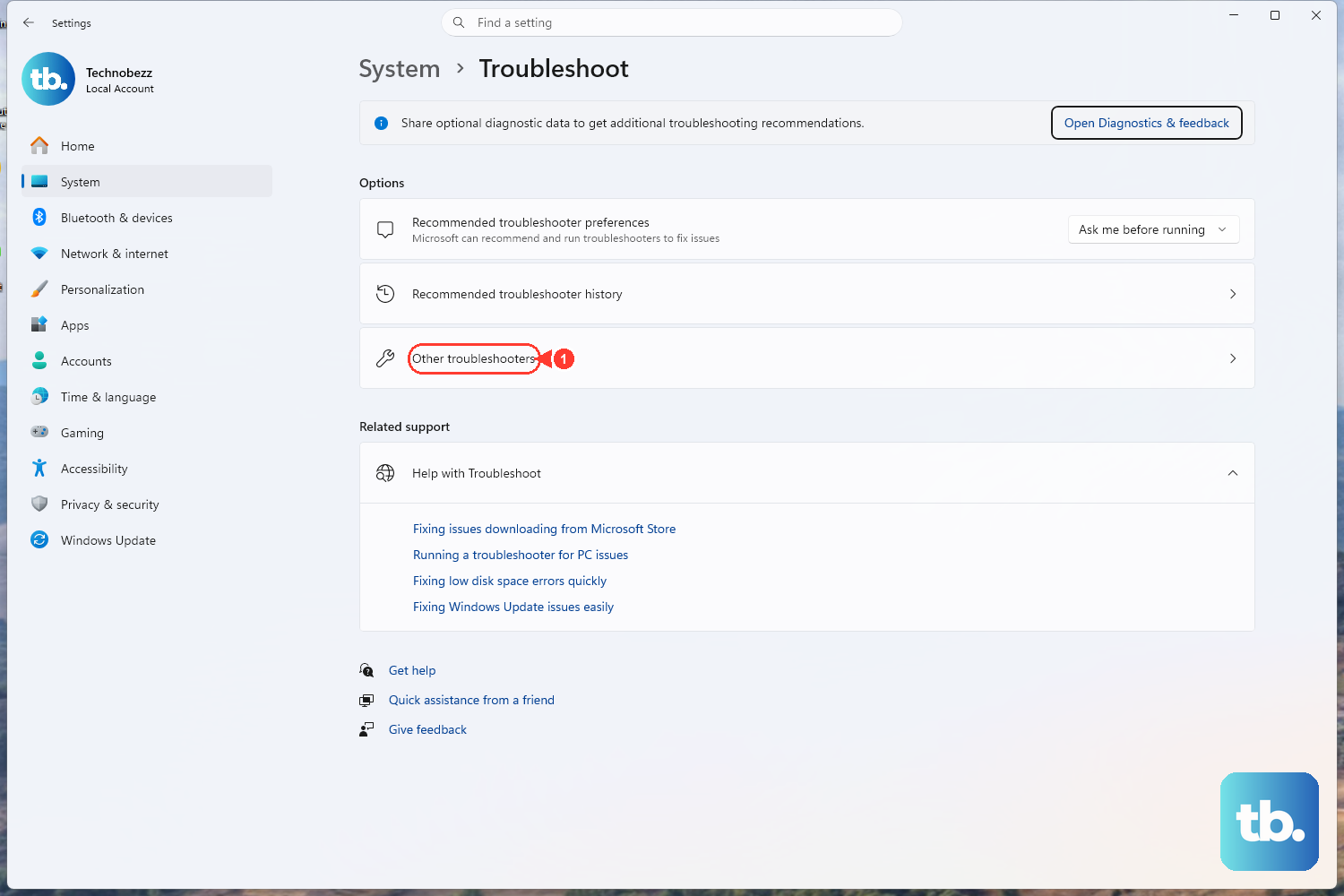
The fastest first move is the built-in troubleshooter, since it changes nothing destructively and is Microsoft's recommended starting point. It runs automated diagnostics and attempts to fix most problems on its own.
On Windows 11, open the Get Help app.
Type connect to network and internet in the Search bar.
Select Run network diagnostics and let it finish.
If you are on Windows 10, the path is different. Go to Start > Settings > Network & Internet > Status > Network troubleshooter and follow the prompts. Either way, give the tool a chance to apply any fixes it finds before moving on.
Restart Everything and Confirm the Basics
A clean restart after an update often re-initializes the network adapter without any further changes, so do not skip this even if it feels too simple. Restart your PC, and while you are at it, restart your modem and router by powering them off, waiting a moment, and powering them back on.
Then confirm the obvious connection settings. For Wi-Fi, make sure Wi-Fi is turned on and Airplane mode is off.
On a laptop, also check that the physical Wi-Fi switch (if your model has one) is in the on position. These checks take seconds and rule out the most common cause of a sudden drop.
Renew Your IP Address and Clear the DNS Cache
A frequent symptom after an update is the "connected but no internet" state, where the PC links to the router but cannot reach websites. Refreshing the IP address from your router and clearing stale DNS entries commonly resolves this.
First, open Command Prompt as administrator.
Select Search on the taskbar, type command prompt, then to the right of the Command Prompt result select Run as administrator > Yes.
- 1.Run ipconfig /release and press Enter.
- 2.Run ipconfig /renew and press Enter.
- 3.Run ipconfig /flushdns and press Enter.
The first two commands release and then request a fresh IP address from your router, and the third clears out cached DNS records that may have gone stale during the update. Check your connection again after the last command completes.
Reset Winsock and the TCP/IP Stack
If the connection still will not come back, the next step rebuilds the underlying networking components.
Stay in the same administrator Command Prompt window for this.
Run netsh winsock reset and press Enter to reset the Winsock catalog to a clean state.
Run netsh int ip reset and press Enter.
Restart your PC.
The command netsh int ip reset rewrites the TCP/IP registry keys and has the same effect as removing and reinstalling TCP/IP, which is exactly the kind of repair an update can require. Microsoft also documents a manual form that writes a log of the changes; you can use netsh int ip reset c:\resetlog.txt to save that log to the C drive, or netsh int ip reset resetlog.txt if you do not want to specify a directory path. The restart at the end is important, so do not skip it.
Reinstall the Network Adapter Driver
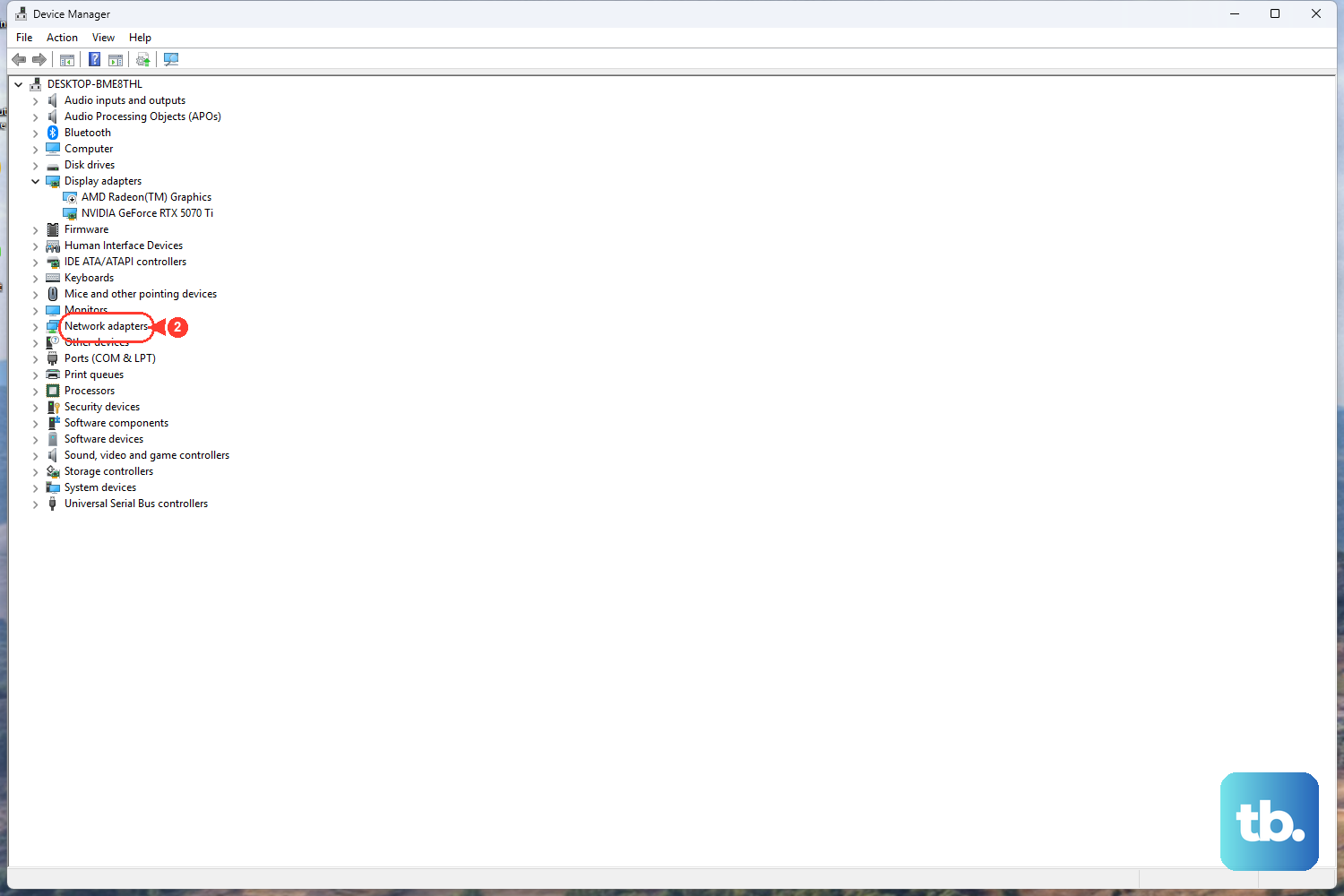
A Windows update can leave behind a mismatched network driver, and the cleanest fix is to remove it and let Windows reinstall a fresh copy on reboot.
Select Search on the taskbar, type device manager, and open Device Manager.
Expand the Network adapters category and locate your adapter.
Right-click it (or press and hold) and select Uninstall device.
If you are offered the option to also remove the device's driver software, select it, then confirm the uninstall.
Select Start > Power > Restart.
When the PC comes back up, Windows reinstalls the driver automatically. One important note: if the PC cannot connect to the internet at all, download the correct driver on a different PC first and save it to a USB flash drive, so you have it ready in case the automatic reinstall does not pull a working version.
Switch to a Different DNS Server
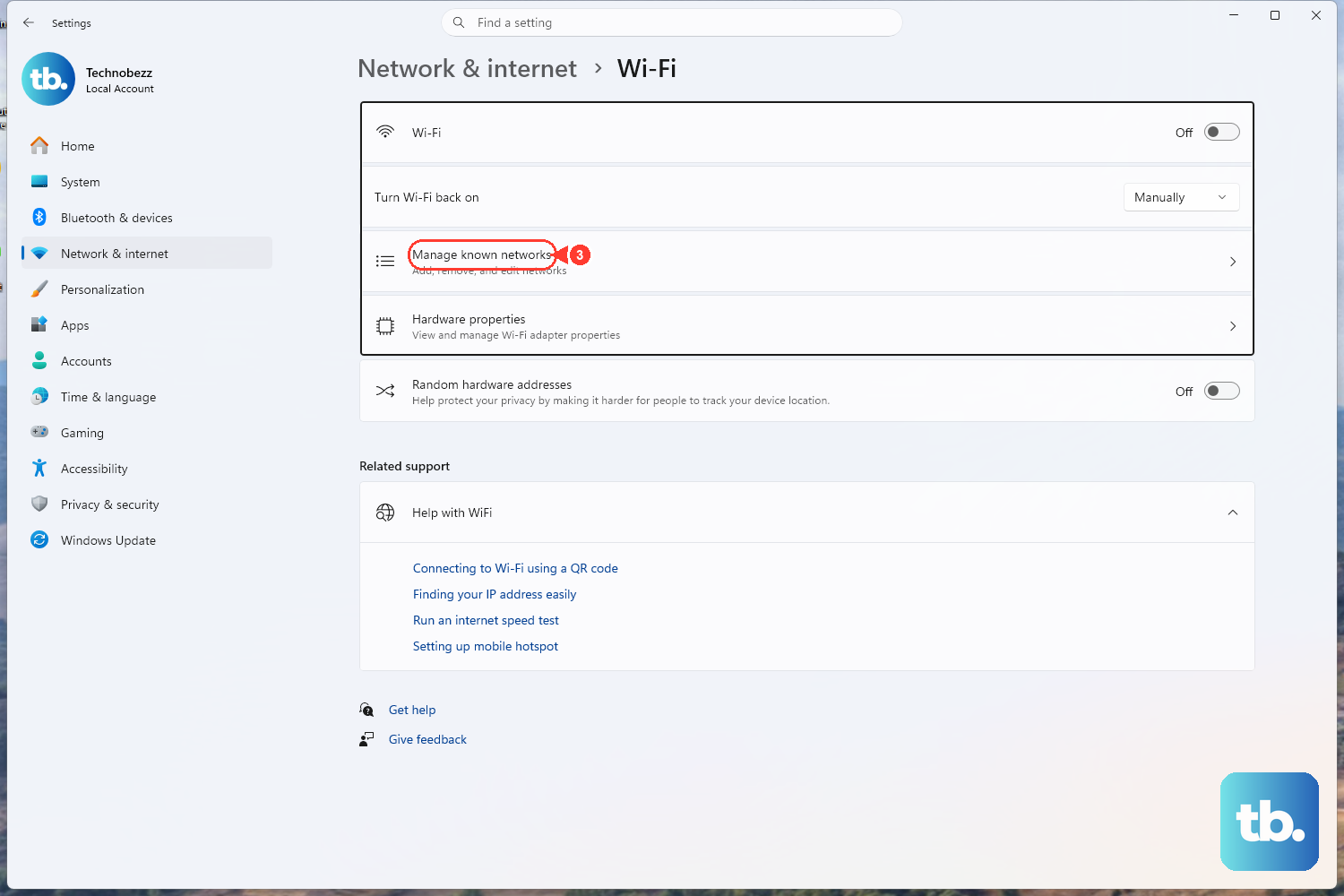
If pages load slowly or intermittently, or you suspect the issue is name resolution rather than the connection itself, try pointing the PC at a different DNS server.
Open Network & internet settings (Start > Settings > Network & internet, or right-click the Network/Wi-Fi taskbar icon and choose Network and internet settings).
For Wi-Fi, go to Wi-Fi > Manage known networks > select your network.
For a wired connection, go to Ethernet > select the connected network.
Next to IP assignment, select Edit.
Choose Manual.
Turn on the IPv4 toggle.
Type your DNS addresses in the Preferred DNS and Alternate DNS boxes.
Select Save.
On Windows 11 you can also set DNS over HTTPS in this same panel for an encrypted lookup, though that option is not available on Windows 10. If the new DNS server does not help, you can return to the same screen and switch IP assignment back to automatic.
When Nothing Else Works, Use Network Reset
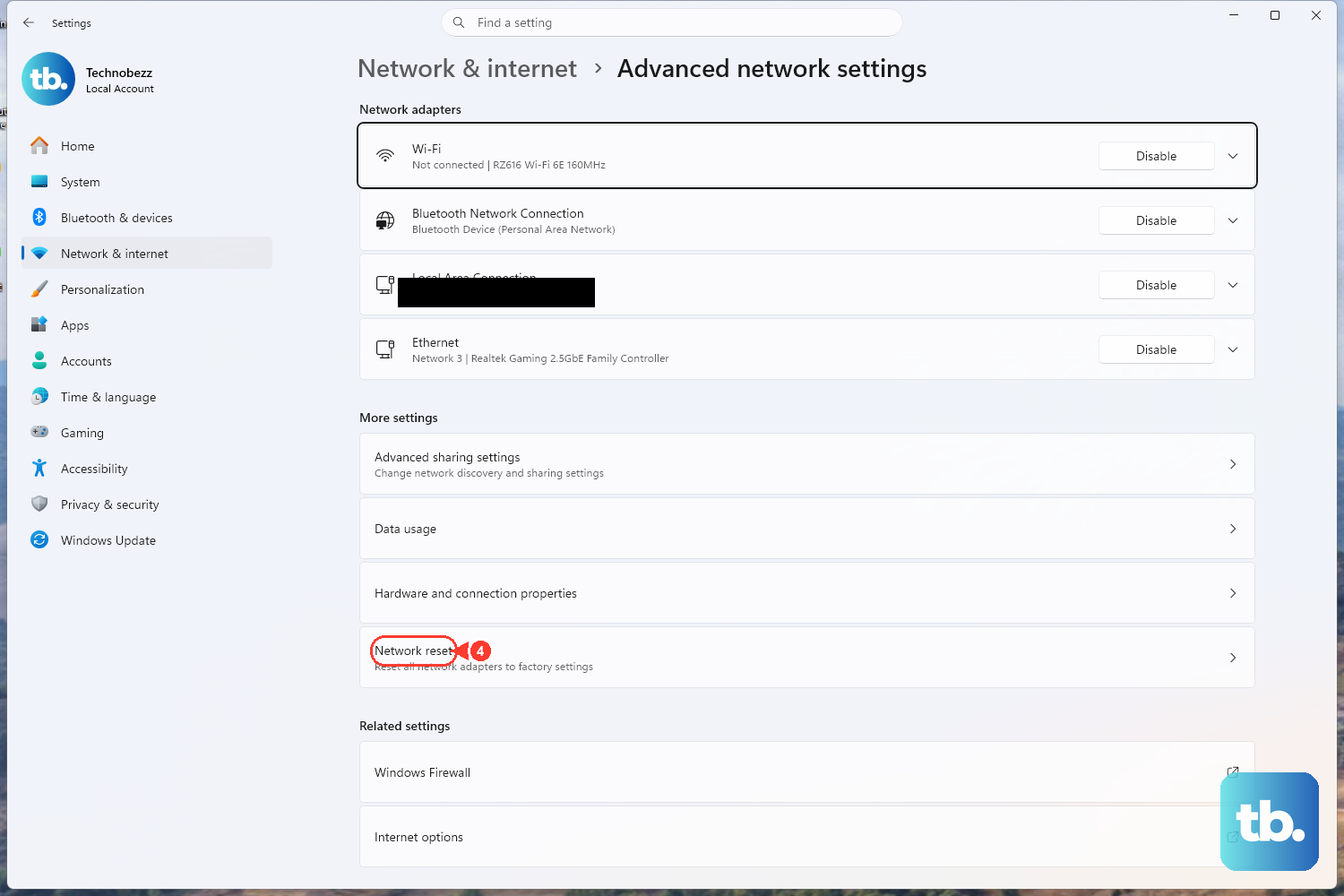
Microsoft is explicit that Network reset should be the last step you try, because it removes and reinstalls all your network adapters and sets their settings back to defaults. Use it only after the steps above have failed.
On Windows 11, go to Start > Settings > Network & internet > Advanced network settings > Network reset, then select Reset now > Yes.
On Windows 10, the path is Start > Settings > Network & Internet > Status > Network reset.
Before you do this, know what it changes. Because it wipes every adapter back to defaults, you may need to reinstall other networking software afterward, such as VPN client software or Hyper-V virtual switches. Make sure you have any login details or installers for that software on hand before you reset, so you can rebuild those connections once the PC restarts.
Frequently Asked Questions
Why did my internet stop working right after a Windows 11 update?
Updates can reshuffle or replace networking components and drivers, which sometimes leaves the connection in a broken or mismatched state. Working through the fixes above, starting with the built-in network diagnostics and a full restart, resolves most of these cases without anything destructive.
Which fix should I try first?
Start with the official Network and Internet troubleshooter, because it is the safest option and changes nothing on its own. On Windows 11 you reach it through the Get Help app by searching connect to network and internet and selecting Run network diagnostics; on Windows 10 it is at Start > Settings > Network & Internet > Status > Network troubleshooter.
Is it safe to run the netsh and ipconfig commands?
Yes. Commands like ipconfig /flushdns, ipconfig /renew, netsh winsock reset, and netsh int ip reset are Microsoft's documented repair steps for connection problems. Run them in a Command Prompt opened as administrator, and restart the PC after the netsh commands.
Will Network reset delete my files or other settings?
Network reset only affects networking. It removes and reinstalls all your network adapters and returns their settings to defaults, so afterward you may need to reinstall networking software such as a VPN client or Hyper-V virtual switches. It is meant to be the last resort, used only after the earlier fixes fail.
Do these steps work on Windows 10 too?
Yes. The same commands and most paths apply to both Windows 10 and Windows 11. The main differences are that the automated troubleshooter lives in the Get Help app on Windows 11 but in Settings on Windows 10, the Network reset location differs between the two, and DNS over HTTPS is available only on Windows 11.











