Your iPhone should not die before your day does. If you are constantly hunting for chargers or living in Low Power Mode, you are not alone. The good news is that fast battery drain is almost always fixable, and most fixes take seconds. From quick toggles to deeper iOS 26 settings, these changes can add real hours back to your runtime starting today.
This guide is current for iOS 26 and uses Apple's latest battery features and menu names. Work through the quick fixes first, then keep going down the list for the deeper wins.
Read more - Why Your iPhone Is Lagging and How to Fix It Fast
Quick Fixes to Try First
If your battery is dropping fast right now, start here. These five steps fix the most common causes in under two minutes.
- 1.Turn on Low Power Mode at Settings > Battery > Power Mode
- 2.Lower your screen brightness from Control Center
- 3.Check Settings > Battery for the app eating the most power
- 4.Close and update any app that is misbehaving
- 5.Restart your iPhone to clear stuck background tasks
If those help but the problem returns, the rest of this guide pins down exactly what is draining your battery and how to stop it.
What Drains iPhone Battery Most
Not every setting drains your battery equally. This quick-reference table ranks the biggest culprits so you know where to focus.
| Battery drain | Best fix | Time to apply |
|---|---|---|
| Screen brightness too high | Lower brightness, enable Auto-Brightness | 10 seconds |
| Background app refresh | Turn off per app | 30 seconds |
| Location tracking | Set apps to While Using or Never | 1 minute |
| Recent iOS update indexing | Wait 24 to 48 hours | Automatic |
| Aging battery below 80% | Replace the battery | Service visit |
| Always-On Display | Turn off on supported models | 10 seconds |
| Poor cellular signal | Use Wi-Fi or Airplane Mode | 10 seconds |
Check Your Battery Health and Usage First
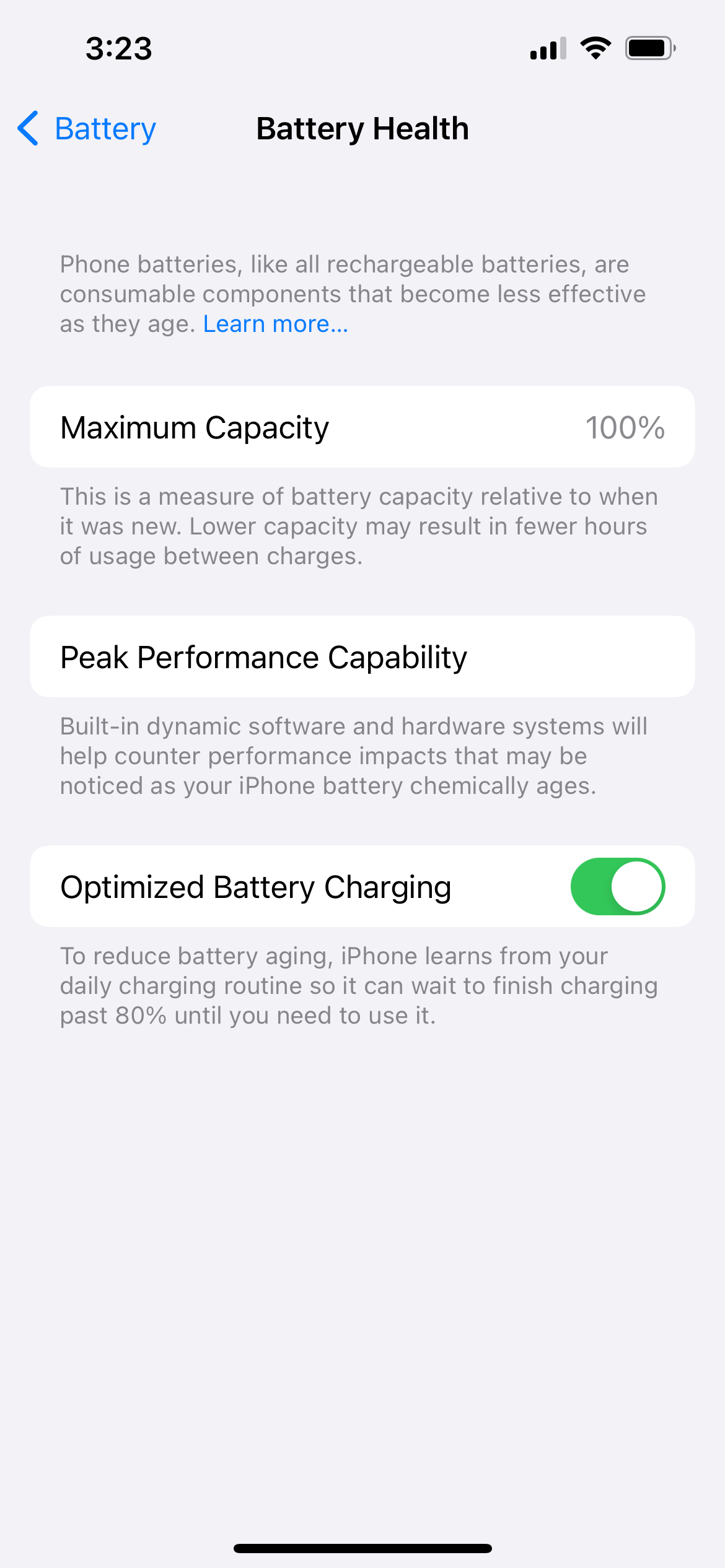
Before changing settings, see what you are actually dealing with. Go to Settings > Battery, tap Battery Health and Charging, and check Maximum Capacity. If it is below 80 percent, your battery is worn and a replacement will help more than any setting.
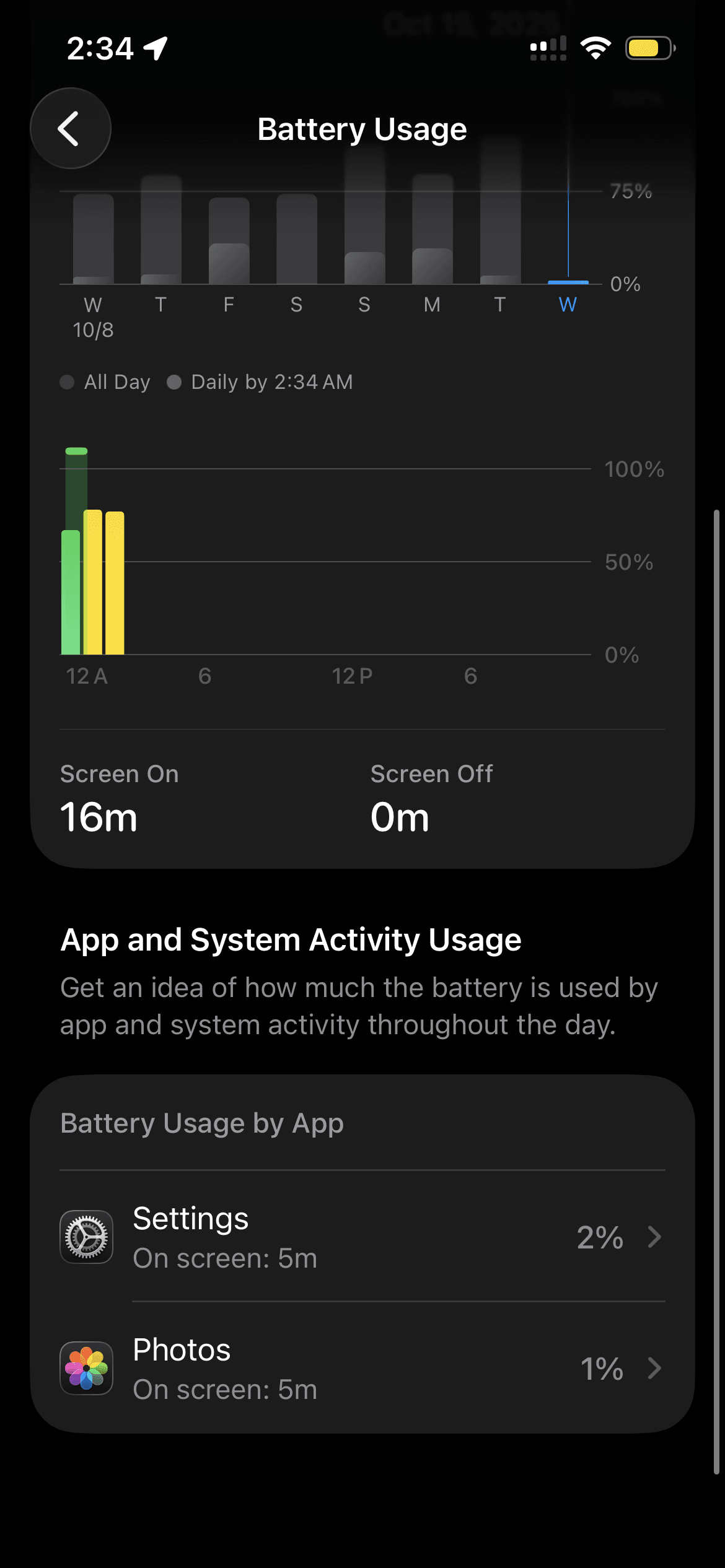
On the main Settings > Battery screen, iOS 26 shows a redesigned Daily Usage chart that compares today against your last seven days. Scroll down to see which apps used the most power, split into on-screen and background minutes, so you can spot a single app that is doing the damage.
Why iOS 26 Drains Battery After Updating
If drain spiked right after you installed iOS 26 or a point update, that is usually normal and temporary. Major updates trigger background work like re-indexing files, finishing app updates, and downloading content.
These tasks typically settle within 24 to 48 hours, sometimes a few days on a busy device. Keep your iPhone charged and connected to Wi-Fi during this window, then re-check the Battery screen. If drain is still abnormal after several days, work through the fixes below.
Turn On Adaptive Power
Adaptive Power is the headline battery feature in iOS 26. It uses on-device intelligence to predict heavy-usage days and make small adjustments, like easing brightness and limiting background activity, and it can switch on Low Power Mode automatically when your battery reaches 20 percent.
Go to Settings > Battery > Power Mode and turn on Adaptive Power. It is available on Apple Intelligence devices, meaning iPhone 15 Pro and later running iOS 26, and it is on by default on the iPhone 17 lineup and iPhone Air.
Give it at least seven days. Adaptive Power needs about a week to learn your charging habits before it starts making meaningful adjustments.
Turn On Low Power Mode
Low Power Mode is the fastest way to stretch a dying battery. It reduces or pauses Mail fetch, background activity, and some visual effects until you charge up.
Go to Settings > Battery > Power Mode and turn on Low Power Mode. It switches off automatically once your iPhone charges above 80 percent, so you can leave it as a daily habit when you are low.
Lower Your Screen Brightness
The display is usually the single biggest battery drain on an iPhone. Dropping brightness even a little pays off all day.
Open Settings > Display & Brightness and pull the slider to the lowest comfortable level. To turn on Auto-Brightness so your screen dims automatically in low light, go to Settings > Accessibility > Display & Text Size and switch it on there.
Switch to Dark Mode
On the OLED screens in modern iPhones, dark pixels use less power, so Dark Mode genuinely helps. The savings are largest with darker wallpapers and apps.
Go to Settings > Display & Brightness and set Appearance to Dark. You can also set Appearance to Automatic so it switches on at sunset on its own.
Set a Shorter Auto-Lock
A screen that stays on after you stop using it wastes power. A shorter Auto-Lock turns the display off sooner.
Open Settings > Display & Brightness > Auto-Lock and set it to 30 seconds, or the shortest time you can live with. This is one of the easiest wins on the list.
Manage Location Services
Apps that track your location constantly use GPS and data in the background, which adds up fast. You rarely need every app watching where you are.
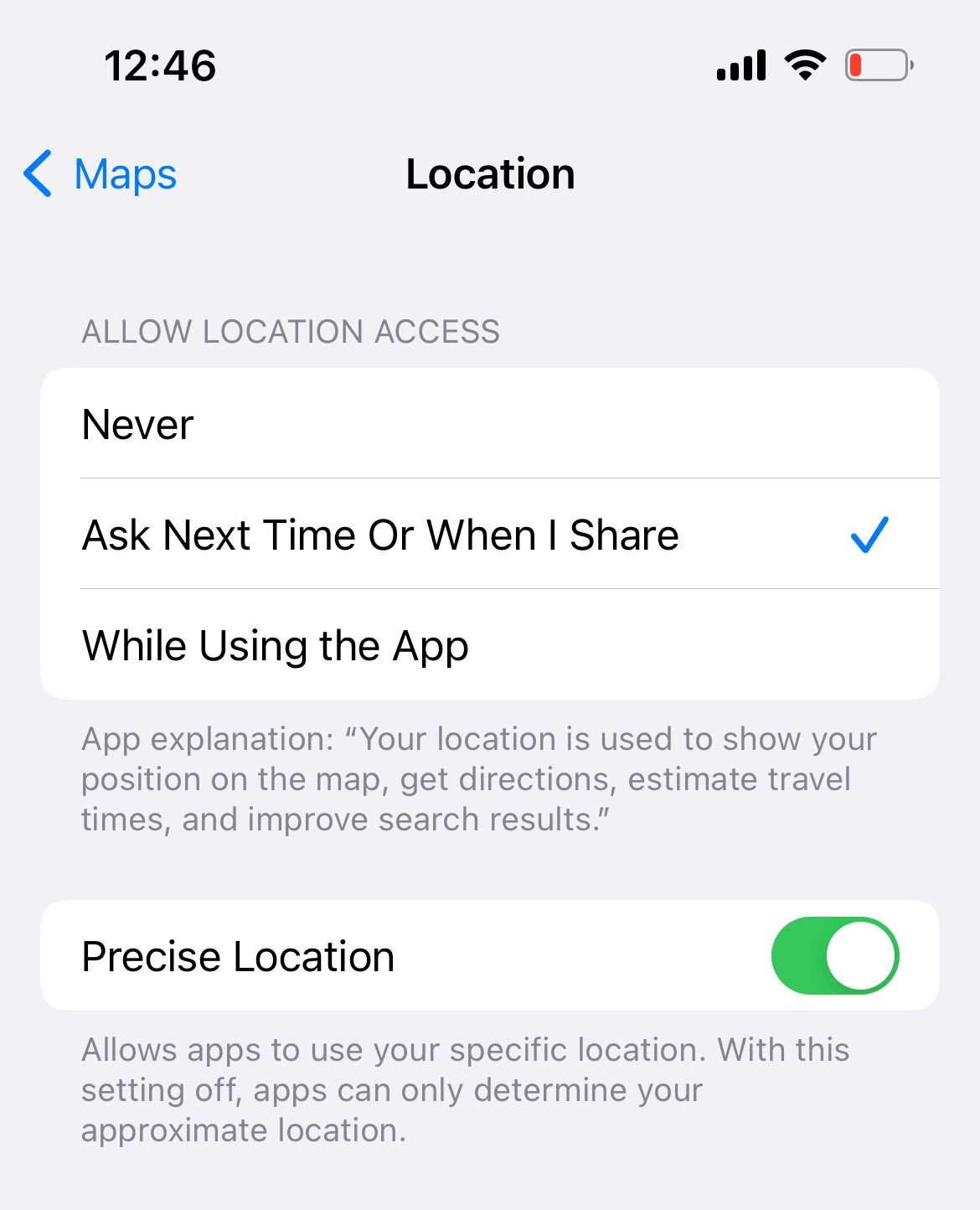
Go to Settings > Privacy & Security > Location Services and review each app. Set anything that does not need constant access to While Using the App or Never, and leave it on only for maps and navigation you actually rely on.
Turn Off Background App Refresh
Background App Refresh lets apps update content when you are not using them, which keeps them busy and draining power. Most apps do not need it.
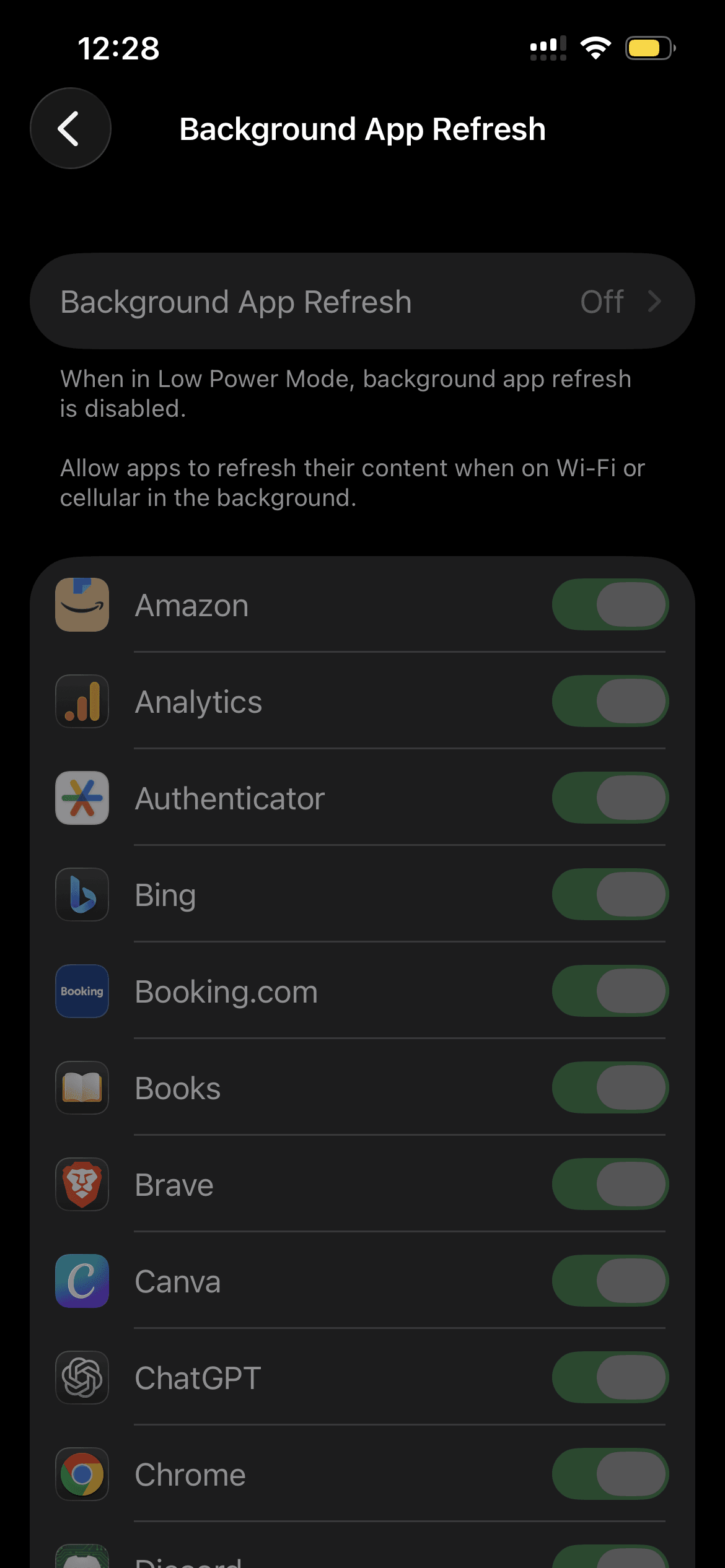
Open Settings > General > Background App Refresh. Turn it off entirely, set it to Wi-Fi only, or disable it for individual apps that do not need fresh data in the background.
Find the App That Is Draining Your Battery
One misbehaving app can quietly eat a large share of your battery. The Battery screen tells you exactly which one.
Go to Settings > Battery and scroll to the app list. Watch for any app using a large slice of power, especially VPNs, social apps, or anything with heavy background minutes. Update or delete the worst offender.
Update Your Apps
Old app versions often carry battery bugs that newer releases fix. Keeping apps current is an easy maintenance win.
Open the App Store, tap your profile icon, and update anything with an update available. If one app keeps draining battery even after updating, consider removing it.
Remove Unused Apps and Widgets
Apps and widgets you never open can still run in the background and ping for updates. Clearing them reduces hidden drain.
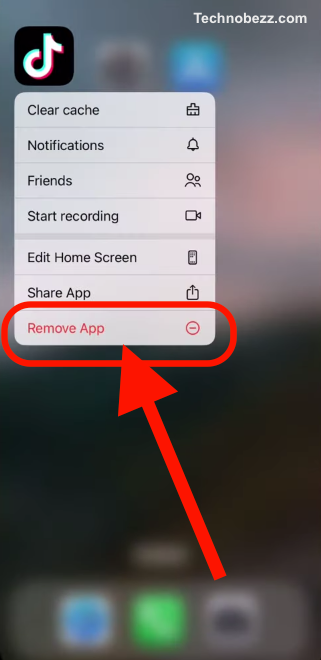
Press and hold an app icon, then tap Remove App to delete it. For widgets, long-press the widget on the Home Screen and tap Remove Widget. Reinstall anything you miss later.
Turn Off Always-On Display
The Always-On Display on iPhone 14 Pro and later keeps the screen dimly lit at all times, which uses real power over a day. If you rarely glance at the lock screen, turning it off helps.
Go to Settings > Display & Brightness and turn off Always-On Display. You will still see the screen the moment you pick the phone up.
Limit the ProMotion Refresh Rate
ProMotion displays run at up to 120Hz, which looks smooth but costs battery. Capping the refresh rate trims that cost.
Go to Settings > Accessibility > Motion and turn on Limit Frame Rate, which caps the display at 60Hz. Adaptive Power may also ease the refresh rate on its own when battery is tight.
Reduce Motion and Animations
The animated effects across iOS use the graphics system and add small but constant battery cost. Reducing them helps on any model.
Go to Settings > Accessibility > Motion and turn on Reduce Motion. The interface still works exactly the same, just with simpler transitions.
Tame Mail Fetch and Push
Email that pushes or fetches constantly keeps your iPhone waking up all day. Fetching less often saves power without missing anything important.
Go to Settings > Apps > Mail > Mail Accounts > Fetch New Data. Turn Push off, then set Fetch to a less frequent interval or to Manually for the biggest savings.
Trim Siri and Spotlight Suggestions
Siri and Spotlight index your apps and surface suggestions, which runs in the background. Cutting back reduces that work.
Go to Settings > Apple Intelligence & Siri > Apps and turn off suggestions for apps you do not need them in. You can also reduce how often Siri listens if you rarely use voice activation.
Turn Off Radios You Are Not Using
Bluetooth, AirDrop, Personal Hotspot, and Wi-Fi all sip power when active. Switching off the ones you are not using right now reduces idle drain.
Toggle Bluetooth and Wi-Fi from Control Center when you do not need them. Turn off Personal Hotspot at Settings > Personal Hotspot, and set AirDrop to Receiving Off at Settings > General > AirDrop when you are not sharing files.
Use Airplane Mode in Weak Signal Areas
When signal is poor, your iPhone works harder to stay connected, which drains battery quickly. Airplane Mode stops that hunt for signal.
Swipe down from the top-right corner to open Control Center and tap the Airplane Mode icon when you are somewhere with little or no coverage. Turn it back off when you have a good signal again.
Update to the Latest iOS
Apple regularly ships point updates that patch battery drain bugs, so staying current matters. The fix for your drain may already exist in a newer build.
Connect to power and Wi-Fi, then go to Settings > General > Software Update and install anything available. After updating, give the phone a day or two to settle before judging battery life.
Reset Network Settings
Strange radio behavior, like a Wi-Fi or cellular connection that keeps dropping, can cause heavy drain. Resetting network settings often clears it.
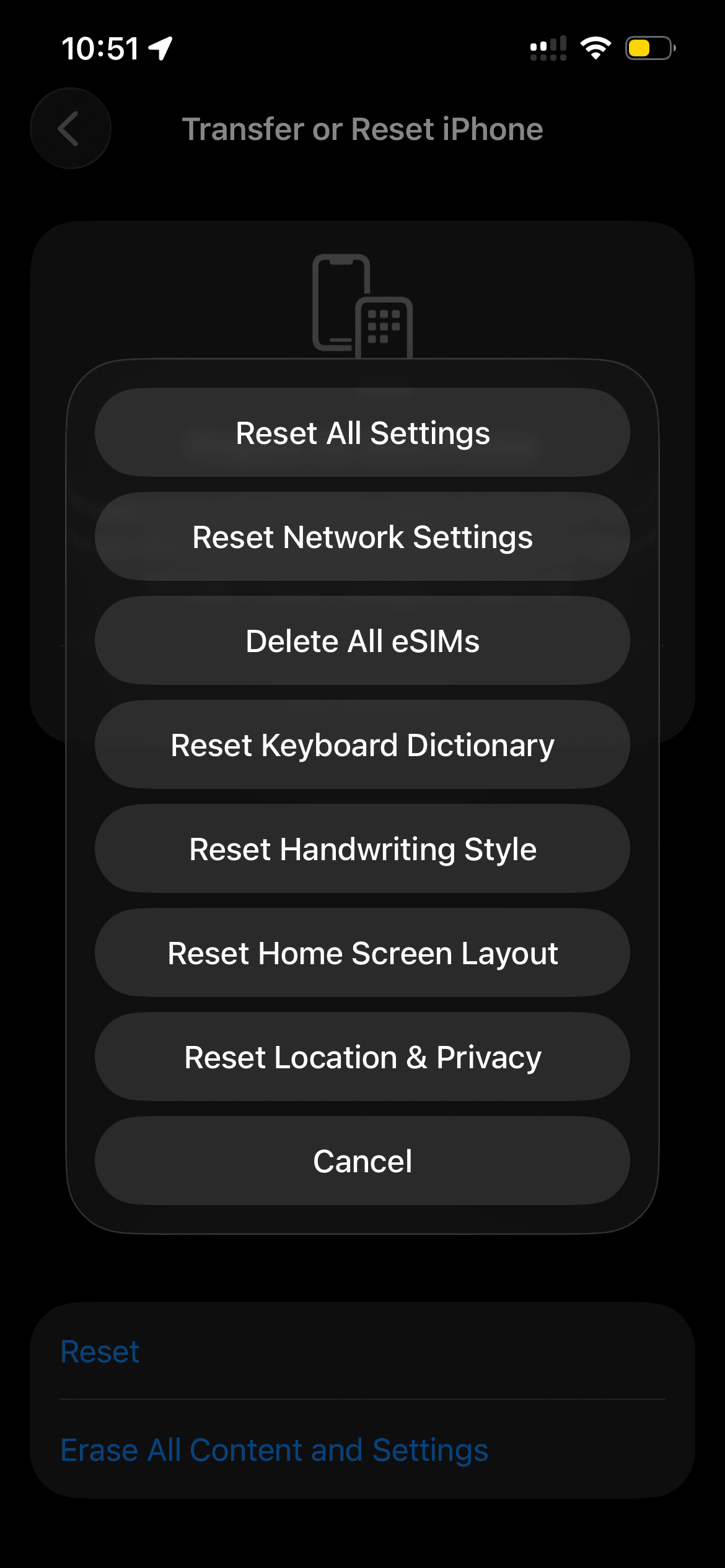
Go to Settings > General > Transfer or Reset iPhone > Reset > Reset Network Settings. You will need to rejoin Wi-Fi networks afterward, so have your passwords ready.
Charge Smart to Protect Battery Health
How you charge affects how fast your battery ages, which in turn affects daily runtime. A few habits keep it healthy longer.
Turn on Optimized Battery Charging at Settings > Battery > Charging so the phone learns your routine and avoids sitting at 100 percent. Avoid charging in extreme heat or cold, use trusted cables and adapters, and remove thick cases if your phone gets hot while charging.
Frequently Asked Questions
Why does my iPhone battery drain overnight?
Overnight drain usually comes from background activity like email push, Background App Refresh, and location updates while you sleep. Check Settings > Battery for apps with high background minutes, and turn on Optimized Battery Charging so the phone is not constantly topping off at 100 percent.
Does Low Power Mode hurt battery health?
No. Low Power Mode only reduces background activity and some visual effects to save power, and it does not damage the battery. It switches off on its own once your iPhone charges above 80 percent.
What battery fixes does iOS 26 add?
iOS 26 adds Adaptive Power, which predicts heavy-usage days and makes small adjustments automatically, plus a redesigned Battery screen with a Daily Usage chart and on-screen versus background breakdowns. Adaptive Power needs Apple Intelligence, so it works on iPhone 15 Pro and later.
When should I replace my iPhone battery?
Go to Settings > Battery and tap Battery Health and Charging. If Maximum Capacity is below 80 percent, or you see unexpected shutdowns and rapid drain, it is time for a replacement. A worn battery cannot be fixed with settings alone.
Why is my battery draining fast after updating to iOS 26?
Right after a major update, your iPhone re-indexes files and finishes background tasks, which temporarily increases drain. This usually settles within 24 to 48 hours, so keep it charged and re-check the Battery screen after a couple of days.
Does Dark Mode actually save battery?
Yes, on iPhones with OLED screens, which includes all recent models. Dark pixels use less power, so Dark Mode and darker wallpapers reduce display drain, especially at higher brightness.
First published October 17, 2025. Last updated June 4, 2026.