
When your MSI Stealth 16 won't connect to WiFi, it can feel like you're stuck. The issue might be that it won't find any networks, it connects but has no internet, or the signal keeps dropping. The good news is that most of these problems have straightforward fixes you can do yourself.
Let's start with the quickest solution. Click the WiFi icon in your taskbar and toggle the WiFi switch off. Wait about ten seconds, then turn it back on. This simple action refreshes your laptop's wireless adapter and can clear up a lot of temporary glitches. If that doesn't work, try turning Airplane mode on and off from the same menu for a more comprehensive reset.
Run the Windows Network Troubleshooter
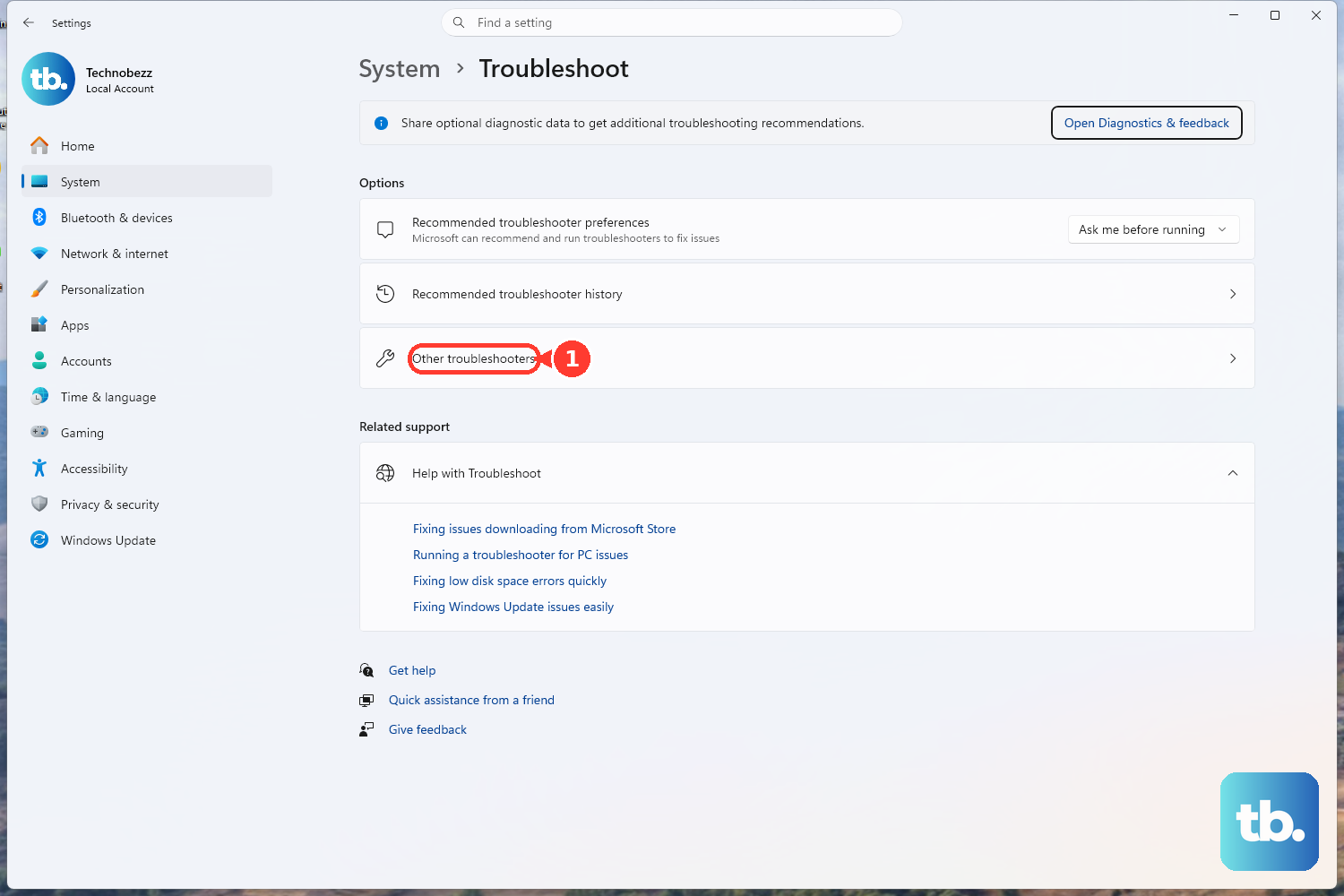
Windows has a built-in tool that can automatically find and fix common connection problems. Right-click the WiFi icon in your taskbar and select Troubleshoot network problems. Let it run through its checks and apply any fixes it recommends. You can also find it by going to Settings > System > Troubleshoot > Other troubleshooters and running the Network and Internet troubleshooter from there.
Forget and Reconnect to Your Network
Sometimes the saved profile for your WiFi network gets corrupted. To fix this, go to Settings > Network & internet > Wi-Fi > Manage known networks. Click on your home network and select Forget. After that, click the WiFi icon in the taskbar again, find your network in the list, and reconnect by entering your password fresh.
Update Your Wireless Driver
Outdated or buggy drivers are a common culprit. Press the Windows key + X and choose Device Manager. Expand the Network adapters section, right-click on your Intel or Killer WiFi adapter, and select Update driver > Search automatically for drivers. If Windows says you have the best one already, I'd recommend visiting the official MSI support page for the Stealth 16 to download and install the latest driver manually, as MSI Center software updates are frequently required for optimal performance.
Perform a Full Restart
Don't just put your laptop to sleep. A full restart clears out the network stack and reloads all drivers from scratch. Click Start > Power > Restart. This is different from shutting down and turning it back on, especially with modern Windows Fast Startup, and it often resolves stubborn connection states that simpler toggles won't fix.
Reset Your Network Settings
If you're still having trouble, a network reset can be a powerful fix. Go to Settings > Network & internet > Advanced network settings > Network reset. Click Reset now. Be aware this will remove all WiFi networks, VPN connections, and Ethernet settings, so you'll need to re-enter all your WiFi passwords afterward. It's a clean slate for your networking components.
Check the MSI Center and User Scenario
Your MSI Stealth 16 has performance profiles that can affect system behavior. Open the MSI Center software and check your current User Scenario. If it's set to Extreme Performance or a custom mode with aggressive power settings, try switching to Balanced. In some cases, a profile might be interfering with power management for the WiFi card. You can also use MSI Center to check for any system or driver updates that might include connectivity fixes.
Use Command Prompt to Reset Network Stack
For deeper issues, you can reset the core networking components via Command Prompt. Search for "cmd" in the Start menu, right-click on Command Prompt, and select Run as administrator. Type the following commands one at a time, pressing Enter after each:
netsh winsock reset
netsh int ip reset
ipconfig /flushdns
ipconfig /release
ipconfig /renew
After running all commands, restart your laptop for the changes to take full effect.
Check for Windows Updates
Microsoft regularly releases updates that include fixes for hardware compatibility and networking. Go to Settings > Windows Update and click Check for updates. Install any available feature or quality updates. There have been instances where specific Windows builds introduced WiFi problems that were later patched, so staying current is important.
Test Your Router and Environment
If other devices in your home are also struggling to connect, the problem is likely with your router or internet service. Try restarting your router by unplugging it from power for 30 seconds. To isolate the issue, try connecting your Stealth 16 to a different network, like a mobile phone hotspot. If it connects fine there, you know the laptop's hardware is working and the issue is with your home network setup.











