
When your Motorola Razr Plus (2024) stops listening to "Hey Google" or responding to your voice commands, it can feel like a step backward. That hands-free convenience is a big part of the experience, especially with a foldable phone. Let's get it working again.
Start With a Quick Restart
Before diving into settings, give your phone a fresh start. Press and hold the power button for about 10 to 15 seconds until you see the Motorola logo appear and the phone restarts. This clears out any temporary software glitches that might be blocking the microphone or the Google Assistant service.
Verify Google Assistant is Enabled
First, make sure the voice assistant is actually turned on and set to listen. Open the Google app on your phone and tap your profile picture in the top right corner. Go to Settings > Google Assistant.
In the Assistant settings, tap on the "Hey Google & Voice Match" option. Here, you need to ensure "Hey Google" is toggled on. If it's off, turn it on and you'll be prompted to retrain the voice model.
Retrain Your Voice Model
If Assistant is enabled but still not responding, retraining it to recognize your voice can fix the issue. This is often the most effective step. Go back to Google app > Settings > Google Assistant > Hey Google & Voice Match.
Tap on "Voice Model" and then select "Retrain voice model". Follow the on-screen prompts, saying "Hey Google" and "Ok Google" a few times clearly. This helps the phone adapt to your specific voice and accent.
Check for App and Microphone Permissions
The Google app needs permission to use your microphone. Go to your phone's Settings and tap on Apps. Find and select the "Google" app from the list, then tap Permissions.
Make sure "Microphone" is set to "Allow" or "Allowed only while in use". While you're here, also check that the app's battery optimization isn't too aggressive. Tap on Battery and set it to "Unrestricted" to ensure it can run in the background.
Update Your Apps and System
An outdated Google app or Android system can cause compatibility issues with voice features. Open the Play Store, tap your profile icon, and go to Manage apps & device. Tap "Update all" or specifically check for updates to the Google app.
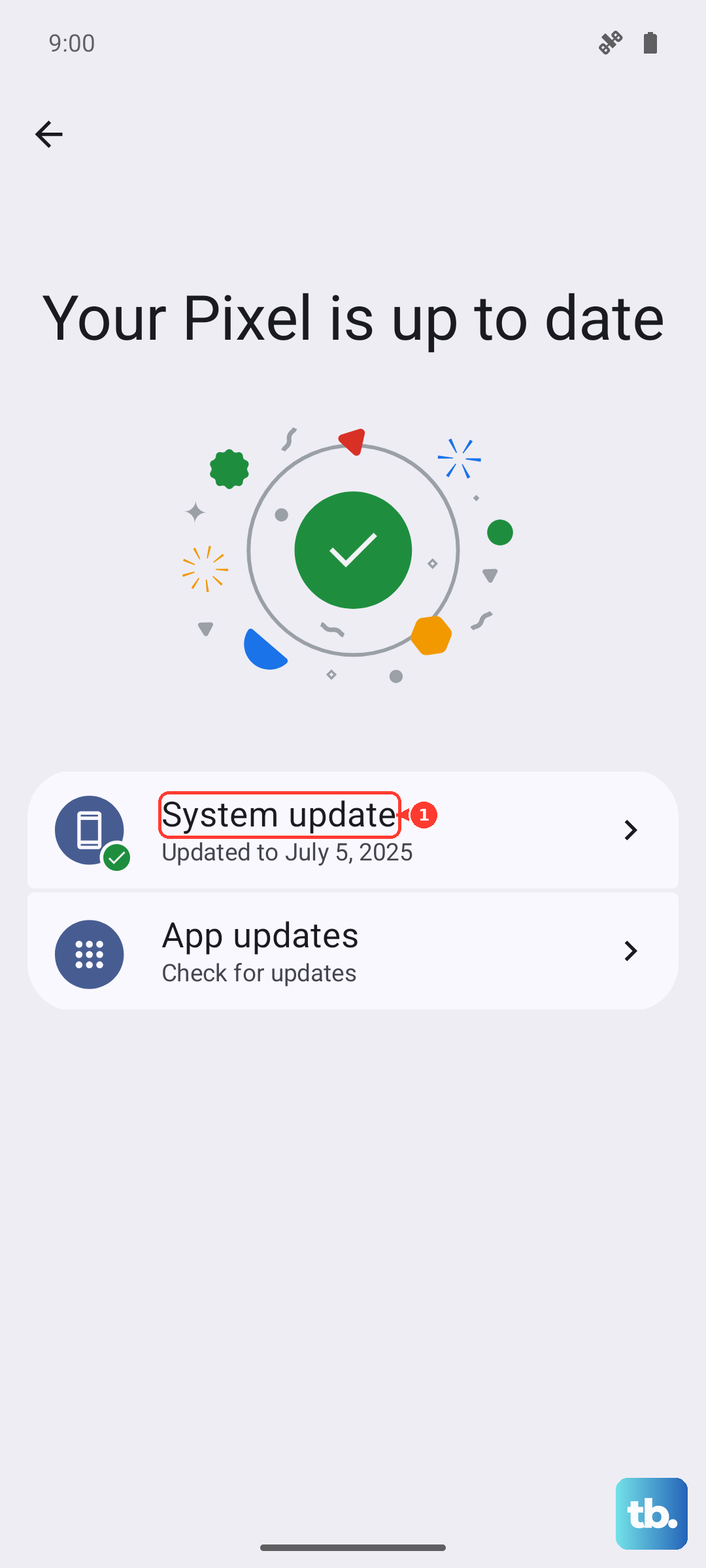
For system updates, which are crucial for a 2024 device like the Razr Plus, go to Settings > System > System updates. Download and install any available updates, as these often contain bug fixes for the microphone and AI services.
Inspect the Physical Microphones
The Razr Plus has multiple microphones for noise cancellation and voice pickup. Dirt, lint, or a case can block them. Check the primary microphone at the bottom of the phone next to the USB-C port and the secondary microphone near the camera module.
Gently clean these areas with a soft, dry brush or a blast of compressed air. Be very careful not to push debris further in. Also, try removing your phone case temporarily, as some cases can muffle or obstruct the microphone ports.
Disable Battery Saver and Adaptive Features
Battery Saver mode can limit background processes, including the constant listening for "Hey Google". Swipe down from the top of your screen to check the Quick Settings panel and make sure the Battery Saver icon is not active.
Also, check for any adaptive battery settings that might be interfering. Go to Settings > Battery > Battery Saver and look at the settings to see if any adaptive features are limiting background activity for the Google app.
Clear the Google App Cache and Data
Corrupted temporary files can break voice commands. Go to Settings > Apps > Google. Tap on Storage & cache. First, tap "Clear cache". This is safe and won't delete your data.
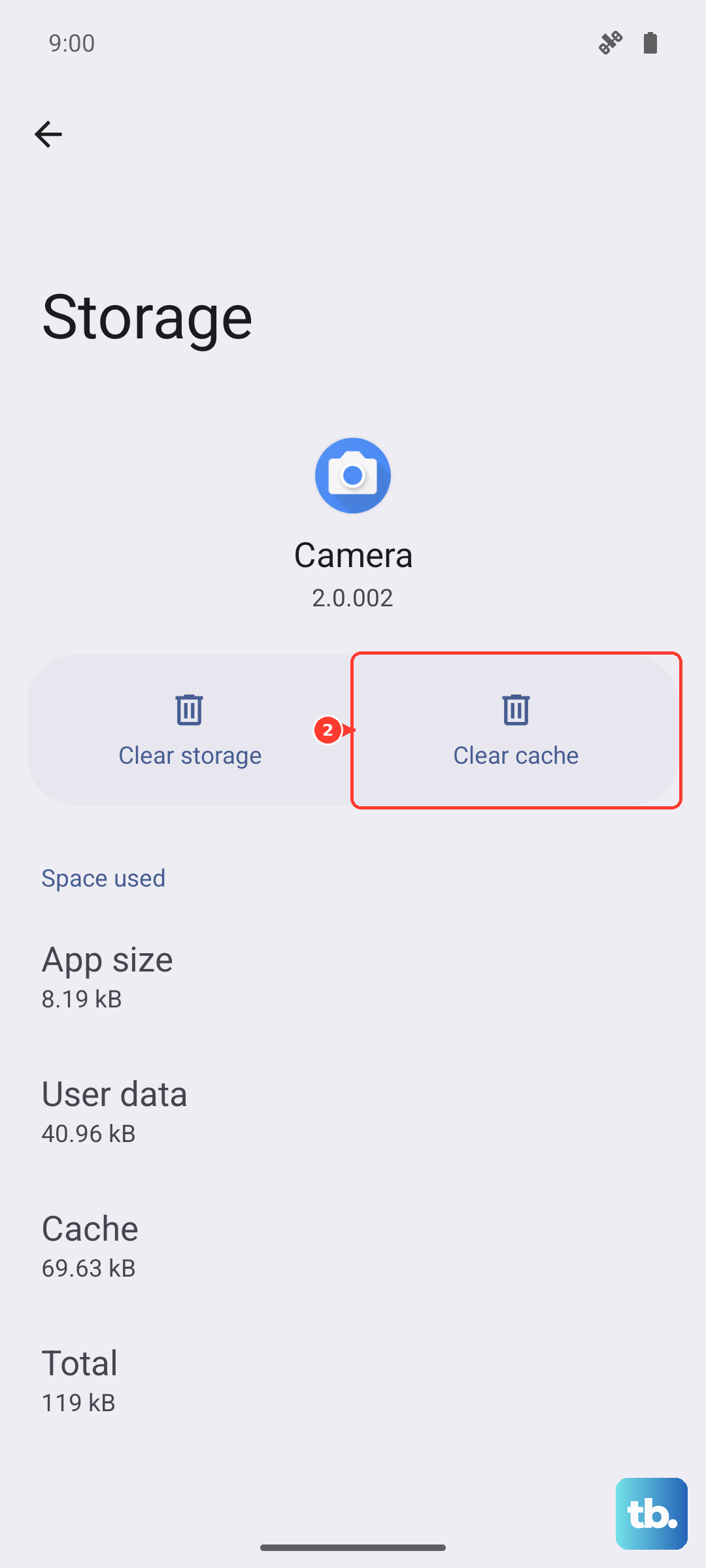
If the problem persists, you can tap "Clear storage" or "Manage space" > "Clear all data". Warning: this will reset the Google app, so you'll need to sign back in and retrain your voice model afterward.
Check for Conflicting Accessibility Settings
Certain accessibility features, like Sound Notifications or other audio monitoring services, can sometimes take exclusive control of the microphone. Go to Settings > Accessibility.
Look through the audio and hearing-related settings. If you have features like "Sound Notifications" (which listens for alarms or doorbells) turned on, try disabling them temporarily to test if Google Assistant starts working again.
Reset App Preferences or Network Settings
If you've installed other voice assistant apps, they might be conflicting. You can reset all app preferences without losing personal data. Go to Settings > System > Reset options and tap "Reset app preferences".
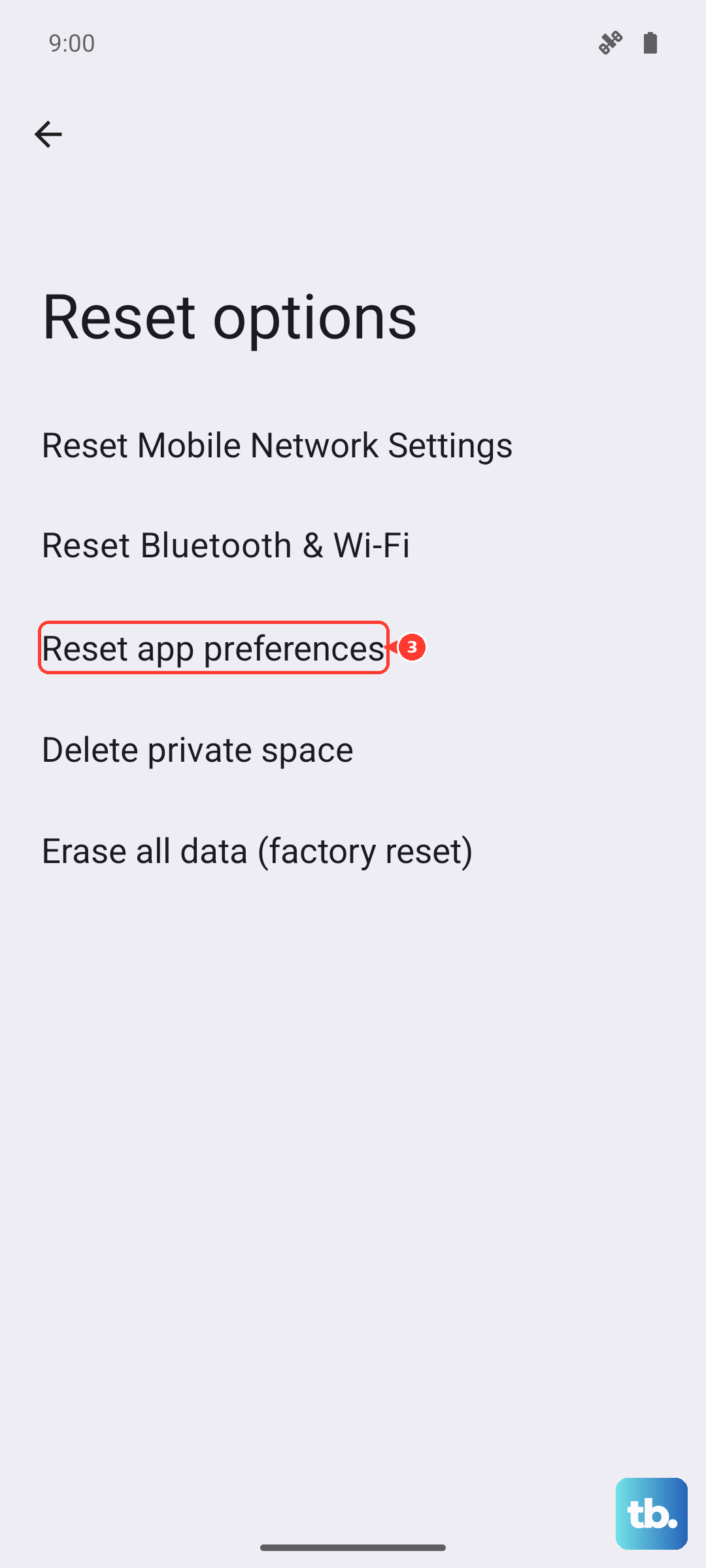
Since many Assistant features require an internet connection, a network glitch could be the culprit. In the same Reset menu, you can try "Reset Wi-Fi, mobile & Bluetooth". Just remember, this will erase all your saved networks and Bluetooth pairings, so you'll have to reconnect to everything.