
Getting a "Download Failed" error when someone sends you a picture or video on your Motorola Razr Plus (2024) is a common hiccup. It usually boils down to a network setting that's off, a temporary app glitch, or a system quirk that needs a quick reset.
Let's walk through the fixes, starting with the simplest ones you can try in about thirty seconds.
Restart Your Razr Plus
It sounds too easy, but a restart clears out temporary software bugs that can block MMS downloads. Just press and hold the Power button for 10-15 seconds until you feel it vibrate and the Motorola logo appears.
This is the equivalent of taking a quick breath for your phone, and it often does the trick.
Check Your Mobile Data Connection
MMS doesn't download over Wi-Fi alone, it needs an active mobile data connection. Swipe down from the top of your cover or main screen and make sure the mobile data icon is lit up.
If you're in a spot with weak signal, try moving to a different area. I've seen this be the issue more often than not, especially if you've recently been toggling between Wi-Fi and cellular networks.
Force Stop and Relaunch Messages
Sometimes the Messages app just gets stuck. Go to Settings > Apps > See all apps. Find and tap on Messages, then tap Force stop.
Open the app again and check if the stubborn MMS will now download. This gives the app a clean slate without affecting your conversations.
Enable MMS Auto-Retrieve
Your phone might be waiting for permission to download multimedia automatically. Open the Messages app, tap the three-dot menu in the top right, and go to Settings.
Tap on Advanced, then look for Auto-download MMS or a similar option. Make sure this toggle is switched on. Without this enabled, you might have to manually tap "Download" for every picture sent to you.
Verify Your APN Settings
Incorrect Access Point Name (APN) settings are a prime culprit for MMS failures. These settings tell your phone how to connect to your carrier's multimedia service.
Go to Settings > Network & internet > Mobile network > Advanced > Access Point Names. You should see a list, with one selected (usually your carrier's name).
If this list is empty or looks wrong, you'll need the correct settings from your carrier. A quick visit to their website's support page or a call to customer service will get you the right info to enter here.
Clear the Messages App Cache
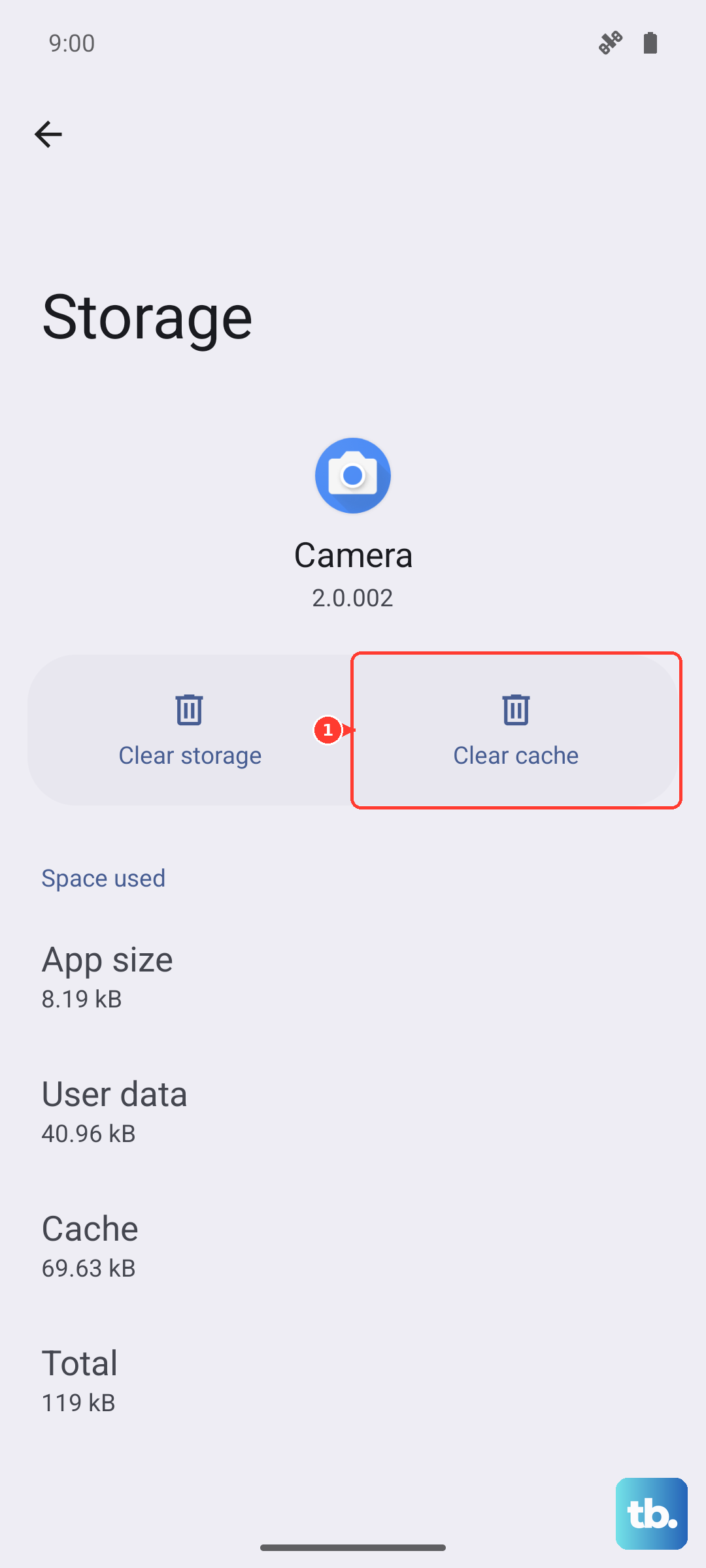
Corrupted temporary files can cause download errors. Clearing the cache cleans these out without touching your texts. Head back to Settings > Apps > See all apps and select Messages.
Tap Storage & cache, then tap Clear cache. This is a safe, quick step that resolves a lot of odd app behavior on Android 14.
Reset Your Network Settings
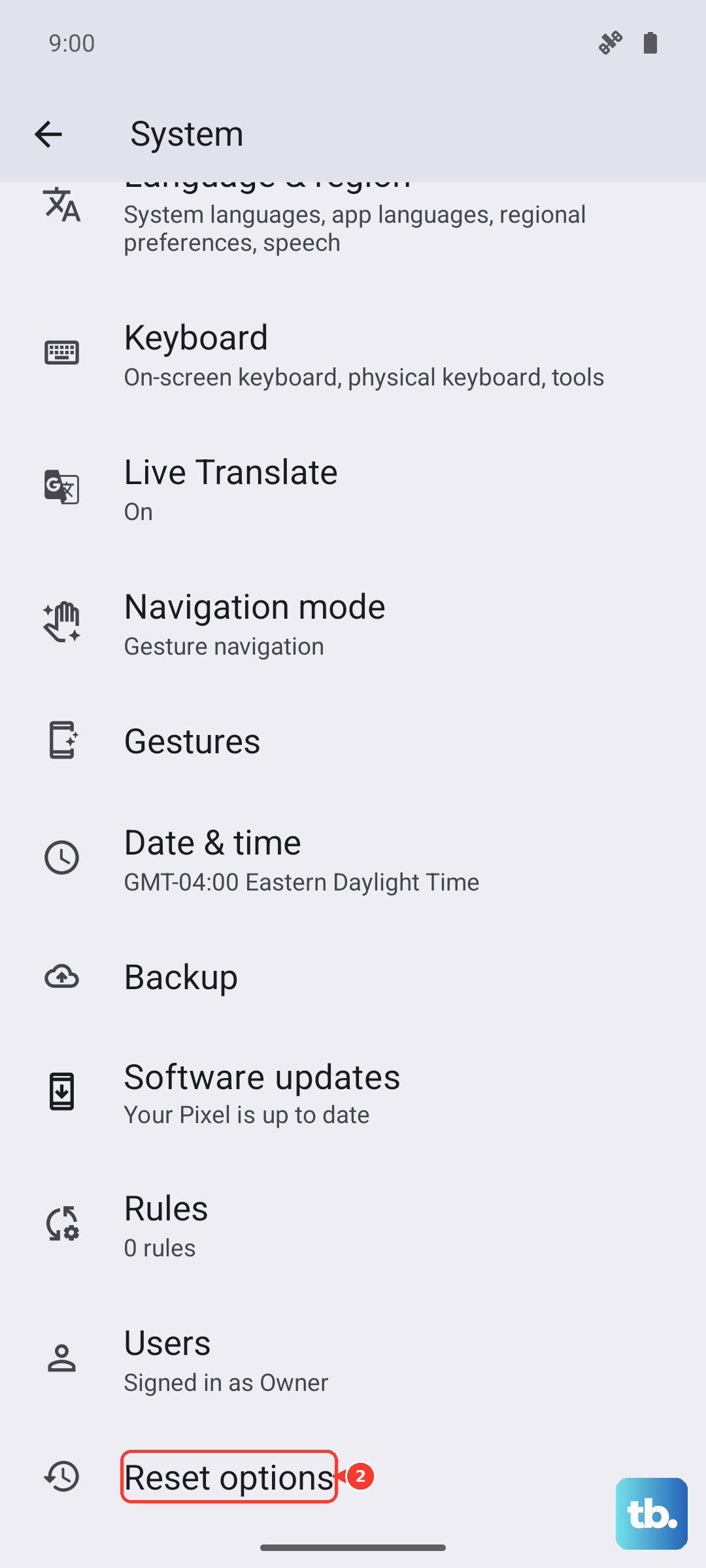
This is a more comprehensive step that resets all Wi-Fi, mobile data, and Bluetooth connections to factory defaults. It won't delete your personal files, but you will have to reconnect to Wi-Fi networks and re-pair Bluetooth devices.
On your Razr Plus, go to Settings > System > Reset options. Tap on Reset Wi-Fi, mobile & Bluetooth and confirm. After the phone reboots, test your MMS again.
Check for a Software Update
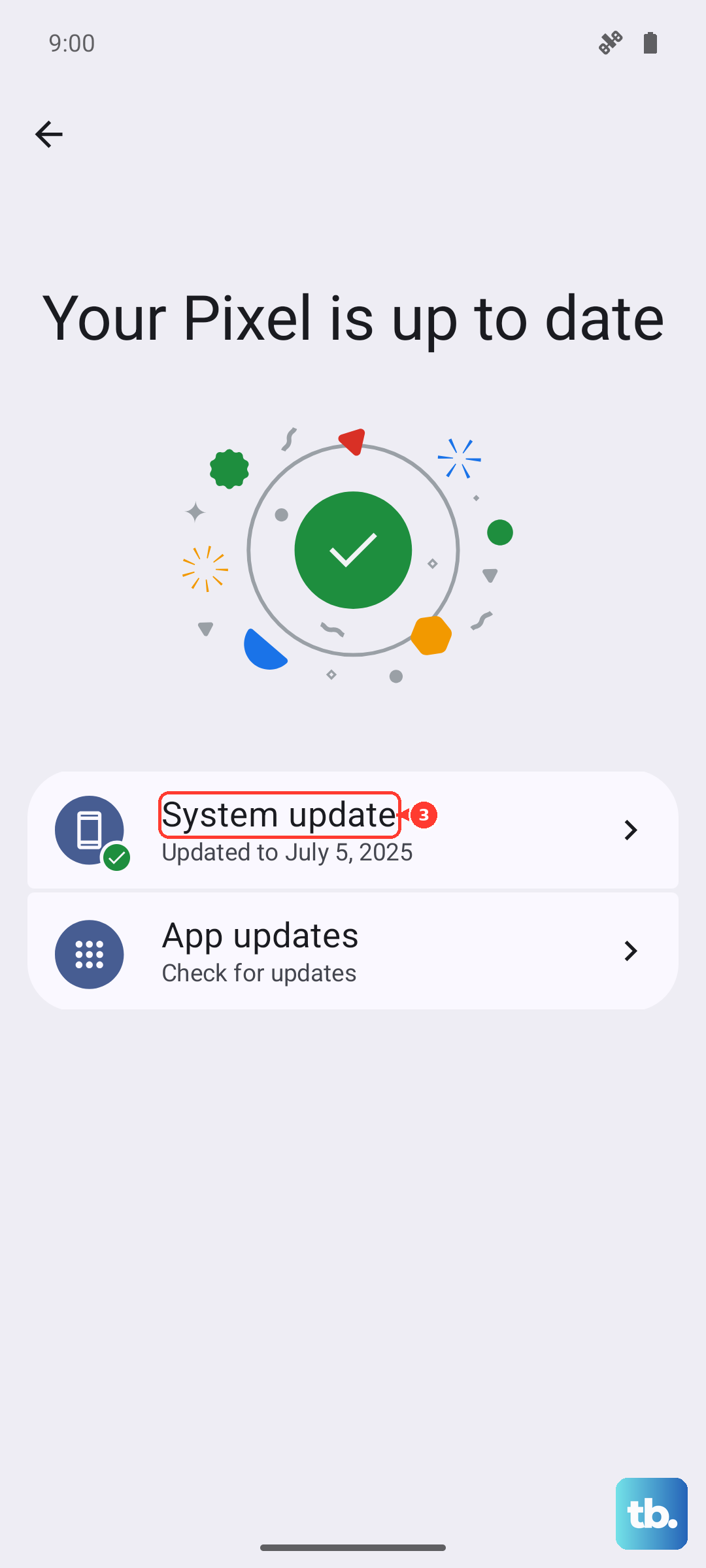
Motorola periodically releases updates that fix bugs, including ones related to messaging. Make sure your Razr Plus is running the latest software.
Go to Settings > System > System updates and tap Check for update. If an update is available, install it. It's a good idea to plug your phone into a charger, like your 45W TurboPower brick, and keep it unfolded during the update process to ensure it completes smoothly.
Try a Different Messaging App
If the problem persists only in the default Messages app, it's worth testing with an alternative like Google Messages. Download it from the Play Store, set it as your default, and see if MMS downloads work.
If they do, the issue is isolated to the stock app. You can either stick with the new app or use this as confirmation to dig deeper into the stock app's settings or data.
Review Your Storage Space
While it's less common, if your phone's internal storage is completely full, it may not have room to save new MMS files. Go to Settings > Storage to see how much space is free.
Consider offloading some photos or videos to free up room. The compact form factor of the Razr Plus means managing storage is a bit more critical than on a standard phone.