When people can't hear you on your Motorola Razr Plus, it turns a quick call into a frustrating game of charades. The issue could be anything from a simple app permission to a bit of pocket lint, but the good news is you can usually fix it yourself in a few minutes.
Let's start with the most common and easiest solutions first.
Check for Physical Blockages
Your Razr Plus has several microphone openings. The main one is a tiny pinhole on the bottom edge, next to the USB-C port. There are also microphones near the top of the inner screen and on the rear camera module.
Take a close look at these spots. Dust, lint, or even a small piece of debris from your pocket can easily get lodged in there and muffle your voice. I'd start by giving the bottom microphone a gentle blast of compressed air or carefully using a dry, soft-bristled brush to clear it out.
Remove Your Phone Case
Some cases, especially rugged or poorly designed ones, can partially cover the microphone ports. Simply take the case off and make a quick test call to see if your voice comes through clearly.
This is a surprisingly common fix, and it only takes a few seconds to check.
Disconnect Bluetooth Accessories
If your phone is connected to wireless earbuds, a car stereo, or a smartwatch, the audio might be routing through that device's microphone instead of your phone's. Swipe down from the top of your screen to open the Quick Settings panel and tap the Bluetooth icon to turn it off temporarily.
Make your test call with Bluetooth disabled. If the other person can hear you now, you know the issue is with the connected accessory, not your phone.
Restart Your Razr Plus
A simple reboot clears out temporary software glitches that can affect the microphone. Just press and hold the power button until you see the power menu, then tap "Restart."
If your phone is unresponsive, you can force a restart by pressing and holding the power button for 10 to 15 seconds until the screen goes black and the Motorola logo reappears.
Check App Microphone Permissions
If the problem only happens in specific apps like WhatsApp, Facebook Messenger, or Zoom, those apps might not have permission to use your mic. Go to Settings > Apps.
Find the app giving you trouble, tap on it, and select Permissions. Make sure the Microphone permission is toggled on. You can also manage all permissions from Settings > Privacy > Permission manager > Microphone.
Close and Reopen the Problem App
Sometimes an app just gets stuck. Swipe up from the bottom of the screen and hold to enter the recent apps view. Find the app you were using for the call, swipe it all the way up to close it completely, then relaunch it and try again.
Test Your Microphone with a Voice Recorder
To confirm it's a system-wide issue, use a built-in app to test. Open the Voice Recorder app (you can search for it if you don't see it on your home screen). Tap the record button, speak for a few seconds, and then play it back.
If the recording is clear, the problem is likely isolated to your phone app or a specific service. If the recording is muffled or silent, the issue is with the phone's hardware or system audio settings.
Check for Software Updates
Motorola regularly releases updates that fix bugs, including audio issues. Make sure you're running the latest version of Android. Go to Settings > System > System updates and tap "Check for update."
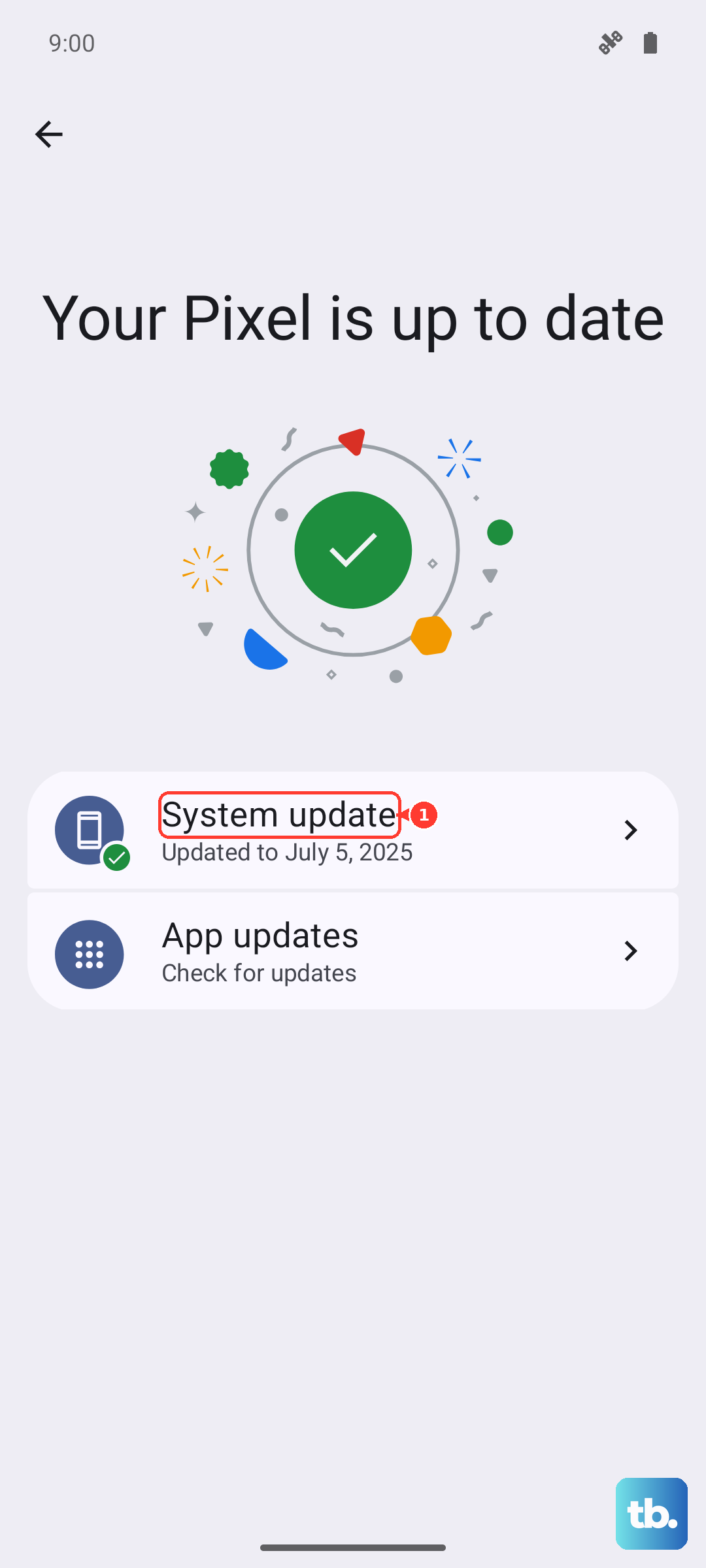
If an update is available, install it. It's a good idea to plug your phone into a charger using your 45W TurboPower adapter before starting the update process.
Reset App Preferences
This is a useful middle step that resets all your app permissions and default apps without deleting any personal data. Go to Settings > System > Reset options.
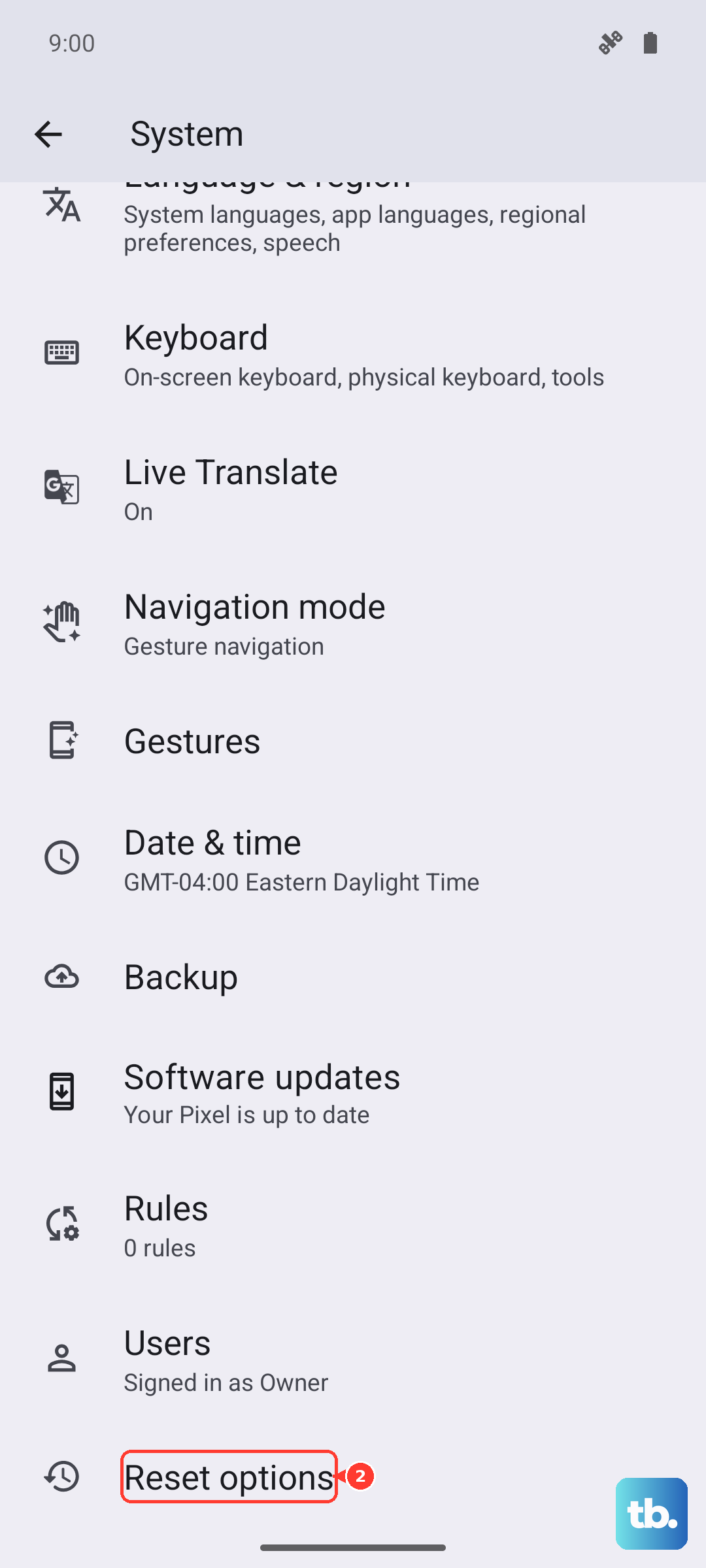
Tap Reset app preferences and confirm. You'll need to re-grant permissions like microphone access the next time you use each app, but it can clear up conflicts causing the mic to fail.
Perform a Network Settings Reset
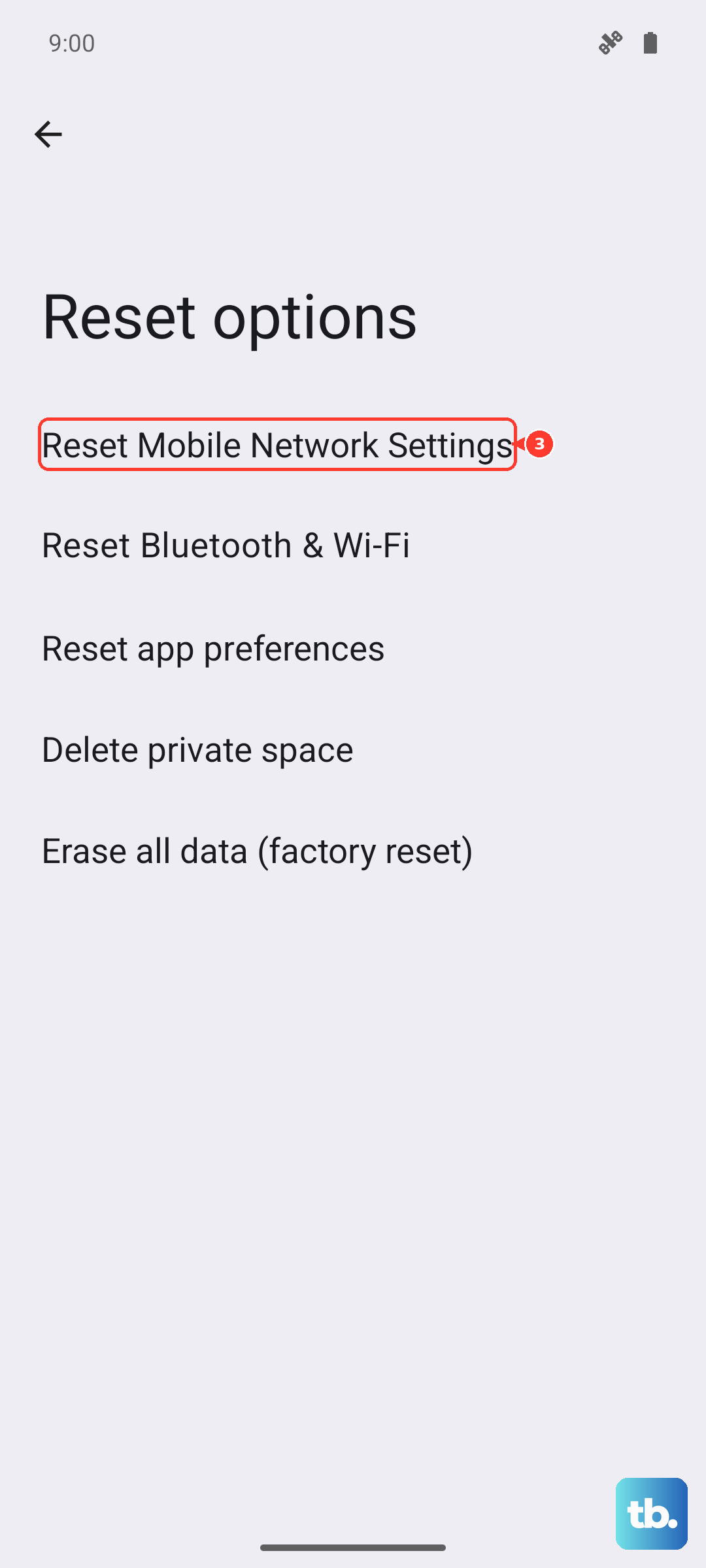
Since call audio relies on your cellular network, corrupted network settings can sometimes be the culprit. This reset will clear your Wi-Fi passwords and Bluetooth pairings, so be prepared to reconnect to those.
Go to Settings > System > Reset options > Reset mobile network settings, then Reset Bluetooth & Wi-Fi. After the reset, test your microphone with a regular phone call.