When your headphones stop working with your Motorola Razr Plus, it can ruin your music, calls, or videos. The issue might be with wired headphones plugged into the USB-C port, or with Bluetooth headphones that won't connect or play sound. Here are the steps to get your audio back on track.
A browser based quick headphone test makes this easy to confirm. If both sides play test tones correctly there, the headphones are fine and the problem is in the device or app.
Restart Your Razr Plus
Press and hold the Power button for 10 to 15 seconds until you feel a vibration and see the Motorola logo. This force restart is the quickest way to clear out a temporary software glitch that might be blocking audio to your headphones. I'd start with this one, as it solves a lot of odd audio problems immediately.
Check the Physical Connection
For wired headphones, make sure the USB-C plug is fully inserted into the port. Due to the folding design, a cable can get slightly crimped if the phone was closed while plugged in. Unfold the phone and ensure the connection is clean and straight. For Bluetooth models, check that your headphones are charged and in pairing mode.
Clean the USB-C Port
Lint and pocket debris are a major culprit for wired headphone issues. Gently clean the USB-C port on your Razr Plus using a dry, soft-bristled brush or a wooden toothpick. Avoid using metal objects. A clean port ensures a solid connection for both audio and charging.
Toggle Bluetooth Off and On
Swipe down from the top of your screen to open the Quick Settings panel and tap the Bluetooth icon to turn it off. Wait about 10 seconds, then tap it again to turn it back on. This simple refresh of the Bluetooth radio can often re-establish a stable connection with your wireless headphones.
Forget and Re-Pair Your Headphones
Go to Settings > Connected devices > Previously connected devices. Find your headphones in the list and tap the settings gear icon next to them. Tap Forget. Then, put your headphones back into pairing mode and select them from the "Pair new device" list to reconnect from scratch.
Check the Audio Output Selection
While media is playing, pull down the notification shade and expand the media player widget. Tap the device name or icon at the bottom of the player. A menu will pop up showing available audio outputs. Make sure your headphones are selected here, not the phone's speaker or another Bluetooth device.
Adjust the Volume and Sound Settings
Press the volume up button on the side of the phone to ensure sound isn't muted or set too low. Also, check for any special audio modes. Go to Settings > Sound & vibration and look for options like "Audio effects" or "Dolby Atmos." Try disabling these features temporarily to see if they are interfering with headphone playback.
Update Your Phone's Software
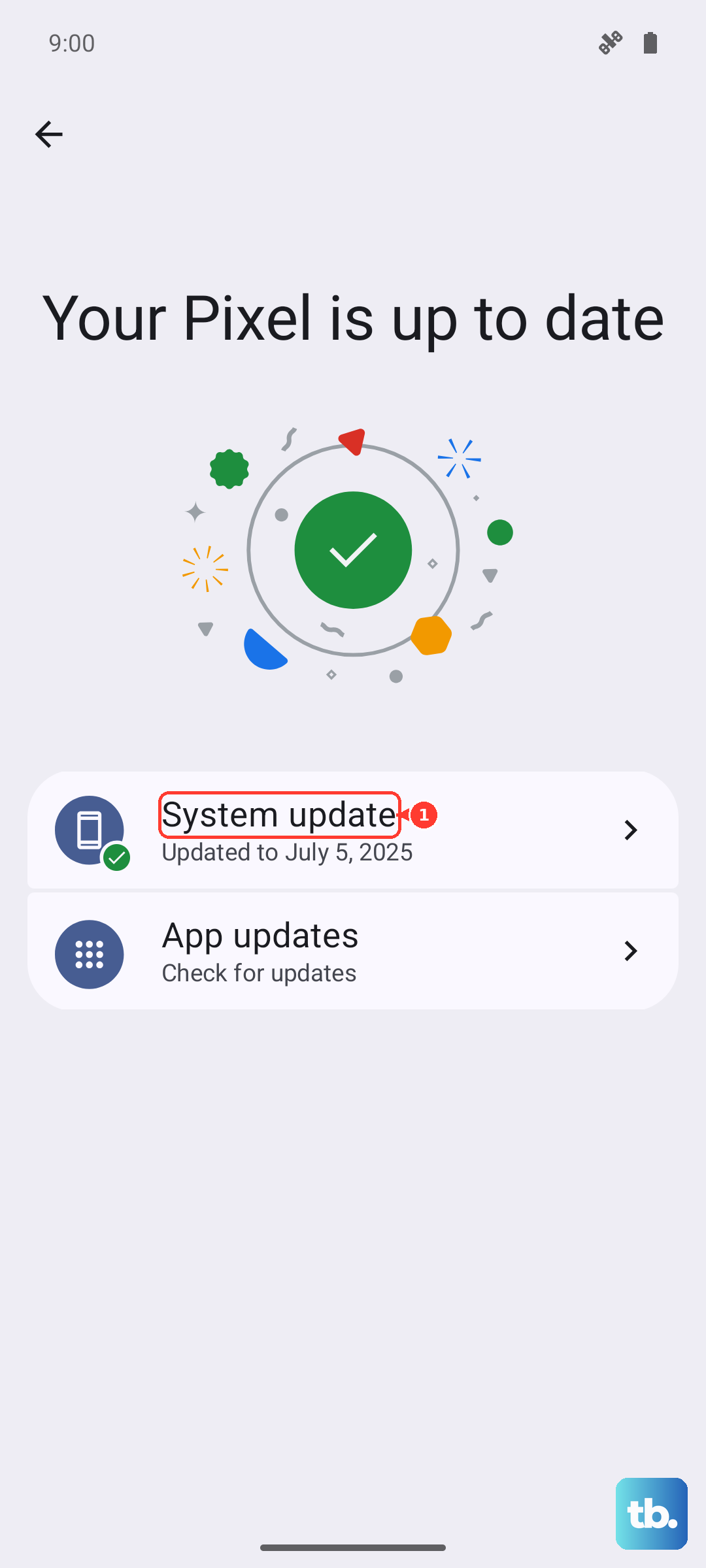
Head to Settings > System > System updates and tap "Check for update." Audio and Bluetooth drivers are frequently improved in Android updates. Installing the latest software can resolve compatibility bugs that might be affecting your specific headphone model.
Check for App-Specific Issues
If the problem only happens in one app, like Spotify or YouTube, the issue may be with that app. Try playing audio from a different app or a video from your gallery. If it works elsewhere, try clearing the cache for the problematic app through Settings > Apps, or check for an update in the Google Play Store.
Reset All Network Settings
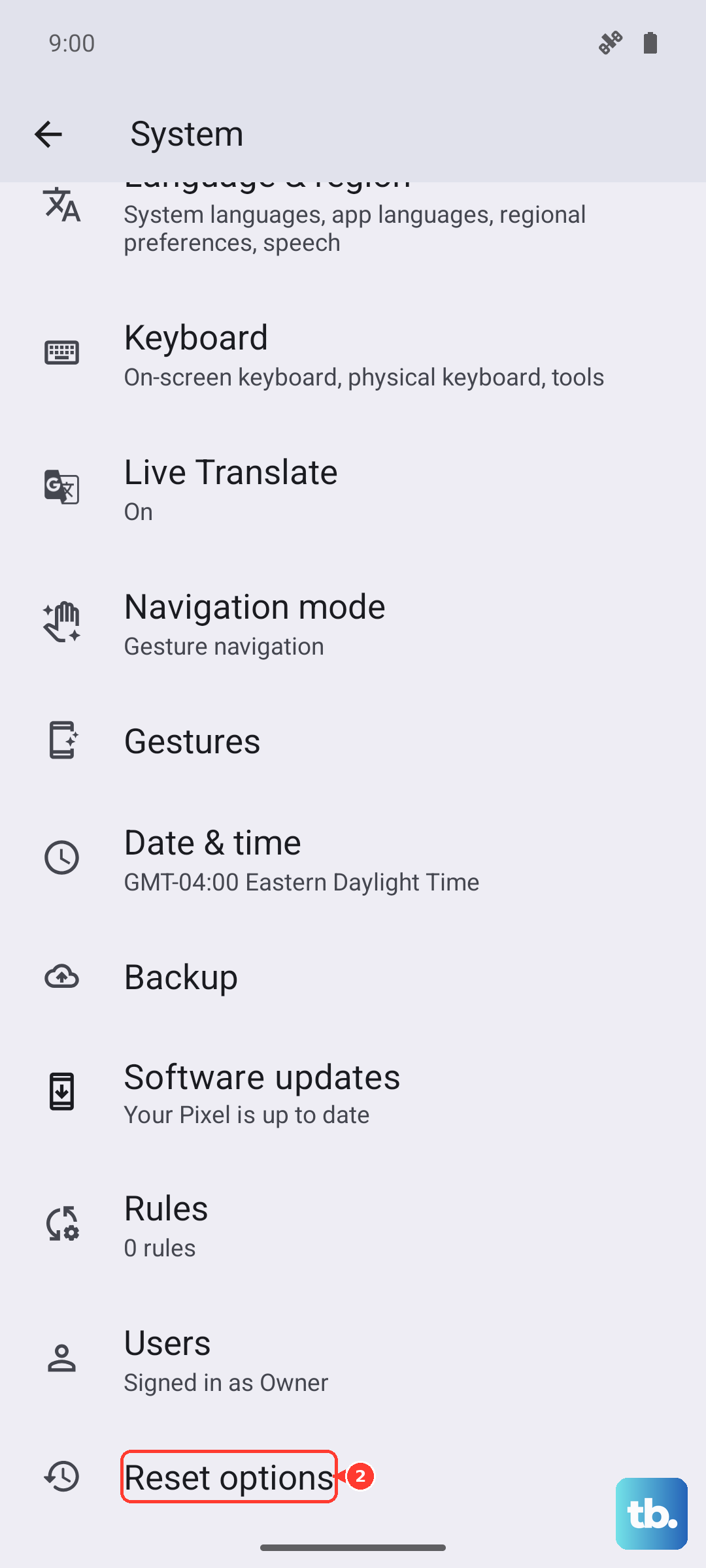
This will clear all your Bluetooth pairings and network configurations. Go to Settings > System > Reset options. Tap Reset Wi-Fi, mobile & Bluetooth and confirm. You'll need to re-pair your headphones and reconnect to Wi-Fi networks afterward, but it can eliminate deep-seated connectivity problems.