
If your Motorola Razr Plus (2024) keeps dropping its Bluetooth connection to your headphones, car, or smartwatch, it can be incredibly annoying. The good news is that this is almost always a software glitch you can fix yourself. I'd start with the quick toggle and restart, as that resolves the issue for most people right away.
Toggle Bluetooth and Restart Your Phone
Swipe down from the top of your screen to open the Quick Settings panel. Tap the Bluetooth icon to turn it off, wait about ten seconds, and then tap it again to turn it back on. Try reconnecting to your device. If that doesn't stick, a full restart is the next logical step.
For the Razr Plus, press and hold the Power button for 10 to 15 seconds until you feel a vibration and see the Motorola logo. This force restart clears out any temporary system bugs that might be interfering with the wireless radio. Don't forget to restart the Bluetooth speaker or headphones you're trying to connect to as well.
Forget and Re-Pair the Problem Device
Sometimes the pairing data between your phone and the accessory gets corrupted. The fix is to remove that device completely and set it up again like it's brand new. Open the Settings app and go to Connected devices > Previously connected devices.
Find the troublesome device in the list and tap the settings gear icon next to it. Select Forget or Unpair. Once it's removed, put your headphones or speaker back into pairing mode. On your Razr, go back to Settings > Connected devices and tap Pair new device to find it and connect from scratch.
Clear the Bluetooth System Cache
Android stores temporary data for Bluetooth in a cache to help it run faster. If this cache gets corrupted, it can cause constant disconnections. Clearing it is safe and won't delete your paired devices. Go to Settings > Apps > See all apps.
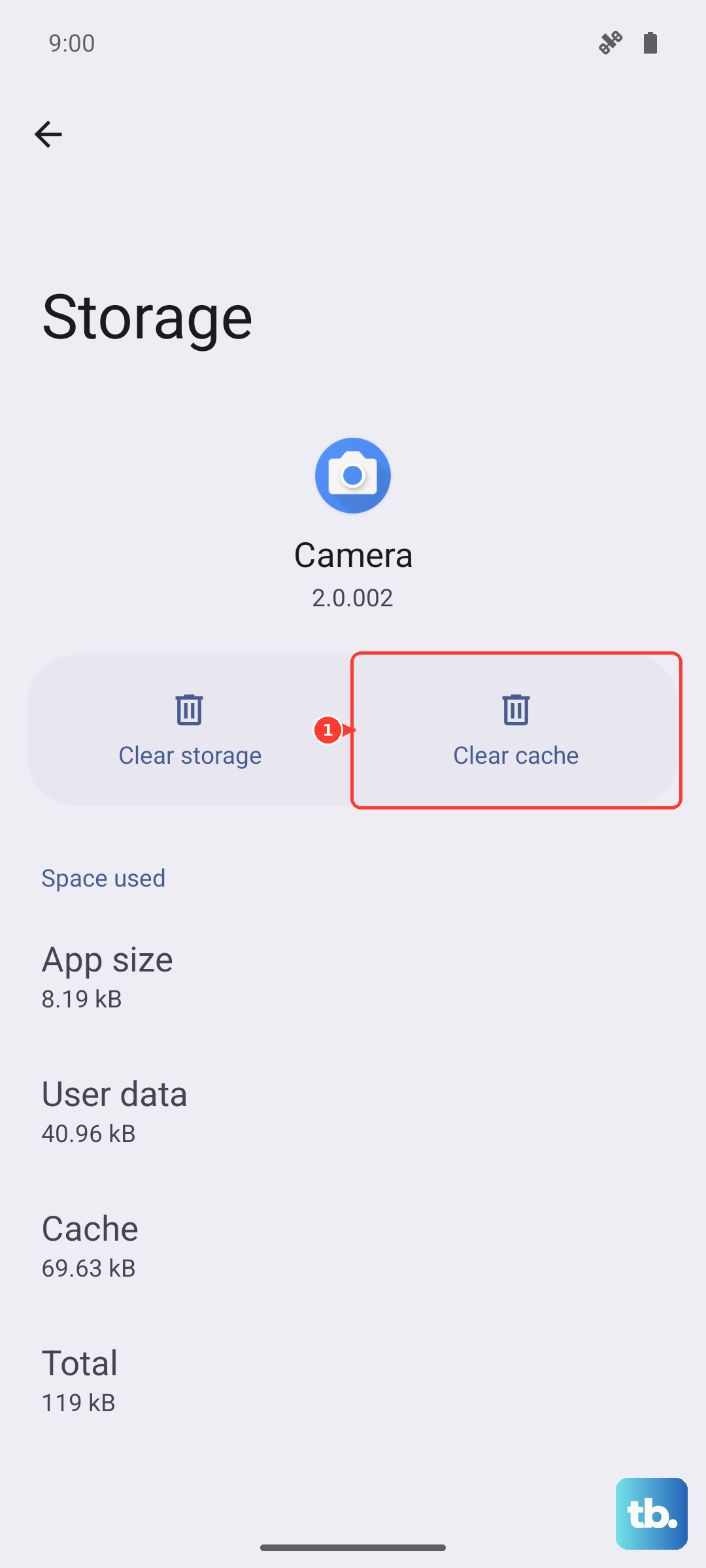
Tap the three-dot menu in the top right and select Show system. Scroll down and find the Bluetooth app in the list. Tap on it, then select Storage & cache. Tap Clear cache. After doing this, restart your phone and test the connection again.
Check for Software Updates
Motorola frequently releases updates that fix bugs, including ones related to Bluetooth stability. Running an old version of Android or the device's software could be the root of your disconnection problem. To check, open Settings and go to System > System updates.
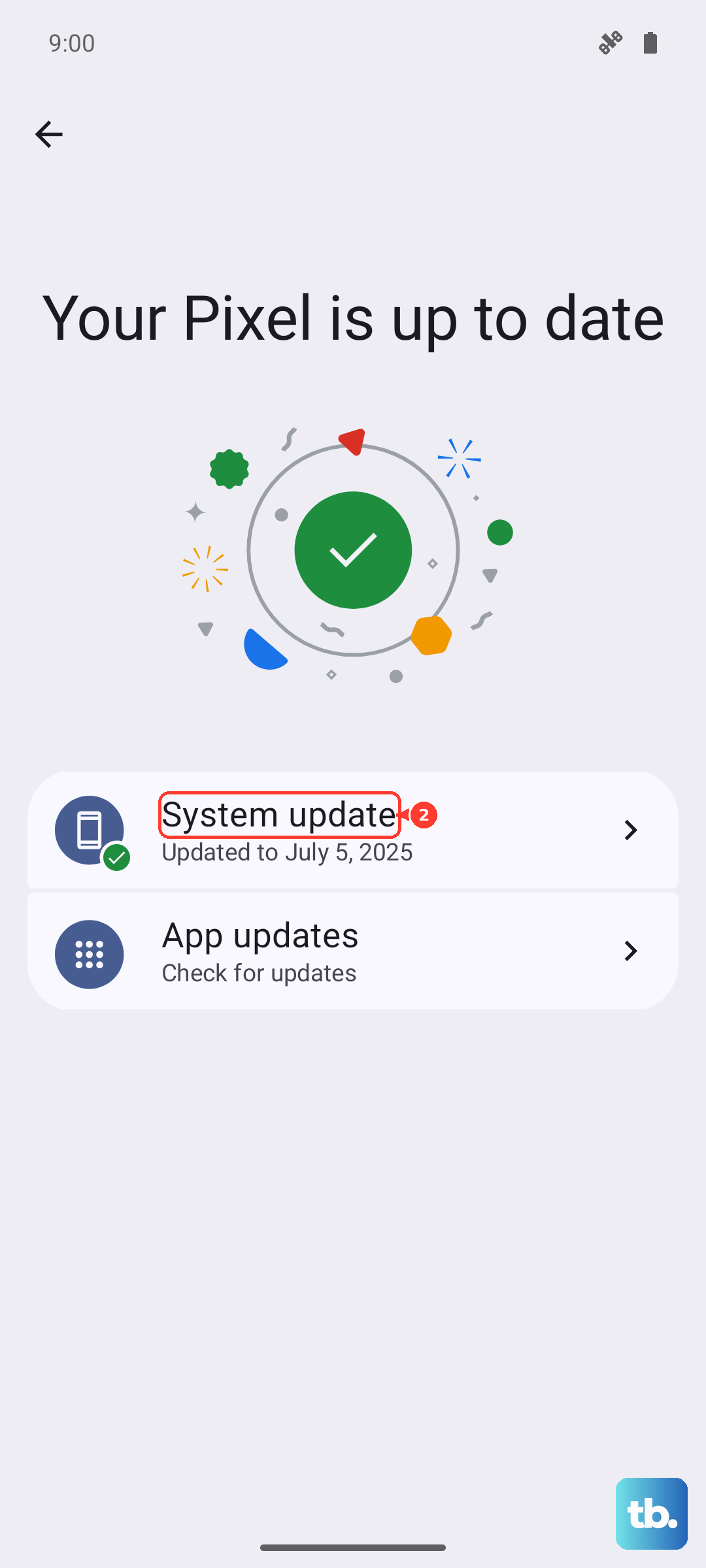
Tap Check for update. If an update is available, make sure your phone is charged above 50% and connected to Wi-Fi before you download and install it. It's also a good idea to check if the Bluetooth device itself has a firmware update available through its own companion app.
Reset Your Network Settings
This is a more thorough step that resets all wireless communications back to their default state, including Wi-Fi, mobile data, and Bluetooth. You'll need to re-enter Wi-Fi passwords afterward, but it often resolves persistent radio issues. Open Settings and navigate to System > Reset options.
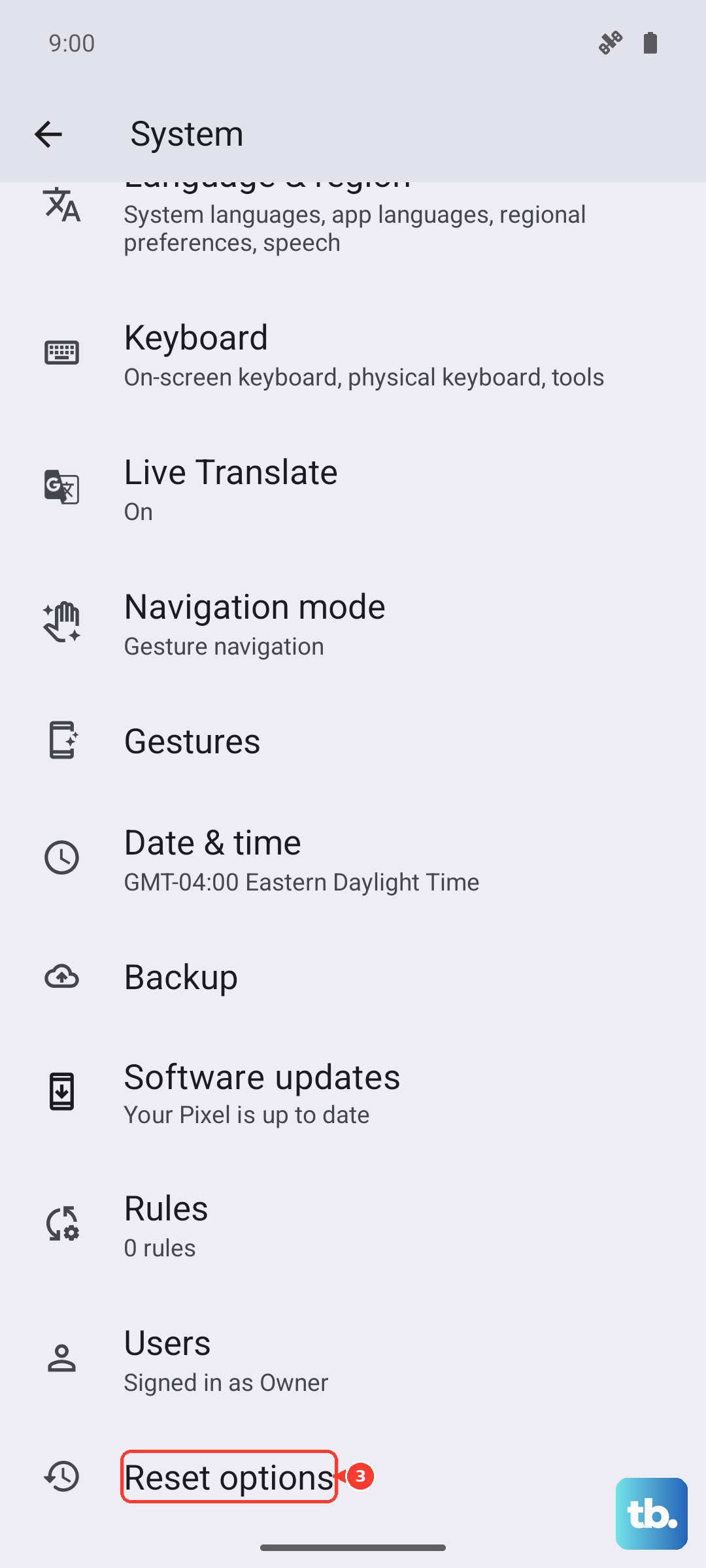
Tap on Reset Wi-Fi, mobile & Bluetooth. You'll be asked to confirm and may need to enter your phone's PIN or pattern. Once the reset is complete, your phone will reboot. You can then go back into Bluetooth settings and re-pair your devices.
Boot Into Safe Mode to Find a Bad App
A third-party app you installed could be causing interference. Safe Mode temporarily disables all downloaded apps, letting you see if the problem goes away. To enter Safe Mode on the Razr Plus, press and hold the Power button until the power menu appears.
Then, tap and hold your finger on the Power off option. A prompt will appear asking if you want to reboot into Safe Mode. Tap OK. If your Bluetooth connection is stable in Safe Mode, a recently installed app is likely the culprit. Restart normally and try uninstalling apps one by one, starting with the most recent.
Review Battery Optimization Settings
Android's battery optimization can sometimes be too aggressive, shutting down Bluetooth services in the background to save power. You can exclude Bluetooth from this optimization. Go to Settings > Apps > See all apps and show system apps again.
Find and select Bluetooth, then tap Battery. Here, set the battery optimization to Unrestricted. This tells your phone not to restrict the Bluetooth app's activity, which can help maintain a steady connection, especially with devices like fitness trackers that sync data constantly.
Check for Physical and Environmental Interference
The Razr Plus's unique folding design means the internal antenna placement is critical. Avoid covering the bottom half of the phone where antennas are often located. Also, keep in mind that Bluetooth uses the 2.4 GHz radio band, which is crowded.
Microwave ovens, baby monitors, and other Wi-Fi networks can cause interference. Try moving to a different room or turning off other wireless devices temporarily to see if the connection improves. Metal surfaces and your own body can also block the signal, so try keeping your phone in a different pocket or orientation.
Consider a Factory Reset
If you've tried everything else and the disconnections are making your phone difficult to use, a factory reset is the final software step. This will erase all data from your phone, so it is absolutely crucial to back up everything important first using Google Drive or Motorola's backup tool.
Once backed up, go to Settings > System > Reset options > Erase all data (factory reset). Follow the prompts to complete the reset. After the phone reboots, set it up as new and test Bluetooth before restoring all your apps, as a corrupted app backup could reintroduce the problem.