
When your Motorola Moto G Stylus 5G (2025) gets stuck on an update, it's a common roadblock. You might see an error message, a download that won't start, or an installation that fails and reboots. The good news is, a few straightforward steps usually get things moving again.
Free Up Storage Space on Your Phone
Android updates need enough free internal storage to download and install. Start by checking Settings > Storage. Motorola's guide does not give a fixed GB threshold, so treat the update's onscreen storage warning or an almost-full internal storage bar as the cue to clear space.
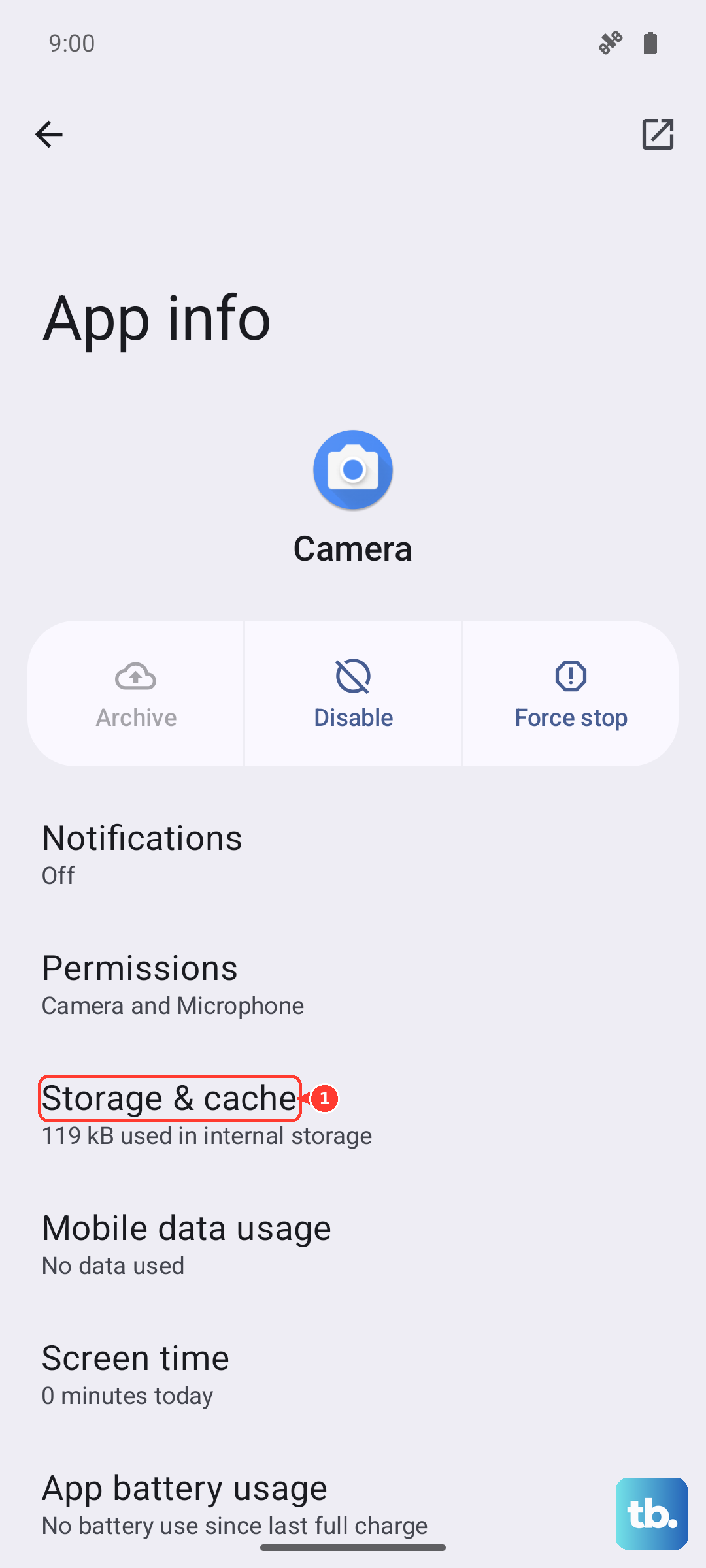
Open the Files app and tap Clean to review suggestions, or go to Settings > Storage and use the phone's Free up space option. You can also clear an individual app's cache from its Storage & cache screen or delete old downloads from the Downloads category in Files.
Check Your Connection
Use Wi-Fi for software updates when you can, since Motorola recommends it to save mobile data. If Wi-Fi is unavailable, security updates may still download over the mobile network after a few days, and carrier data charges can apply.
If the update download stalls, test the connection in Chrome, restart the router if your Wi-Fi is slow, or switch to another trusted Wi-Fi network or a strong carrier data connection before checking again.
Force Restart Your Moto G Stylus
A simple reboot can clear out temporary glitches that are blocking the update process. If your moto g stylus - 2025 is frozen, Motorola says to reboot it by pressing and holding the Power button for 7-10 seconds.
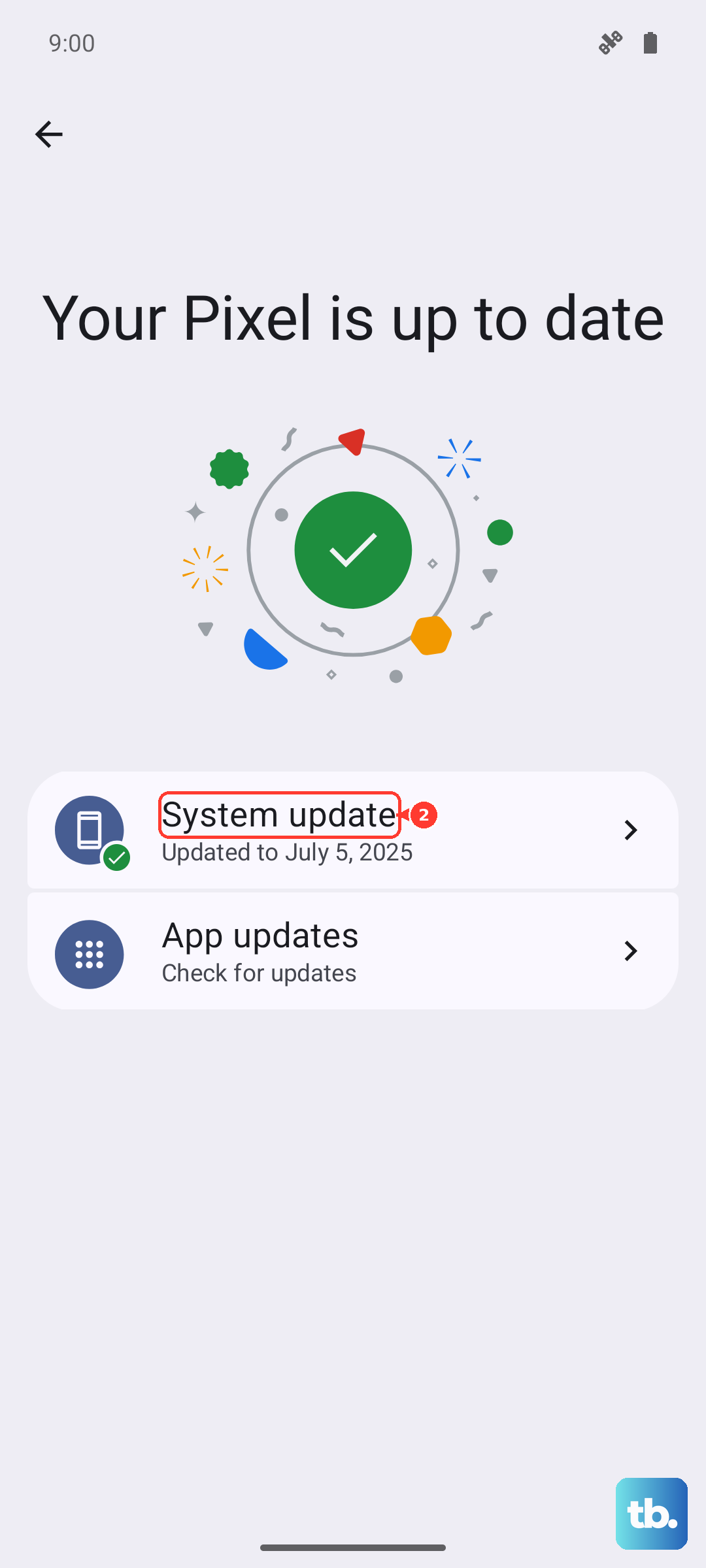
Wait for the phone to fully restart, then go to Settings > System updates > Check for updates and follow the onscreen instructions if an update is available.
Reset Device Settings for Cache or Storage Issues
If the update keeps failing and the phone reports storage or cache problems, use Motorola's built-in settings reset instead of trying to clear a hidden system updater app.
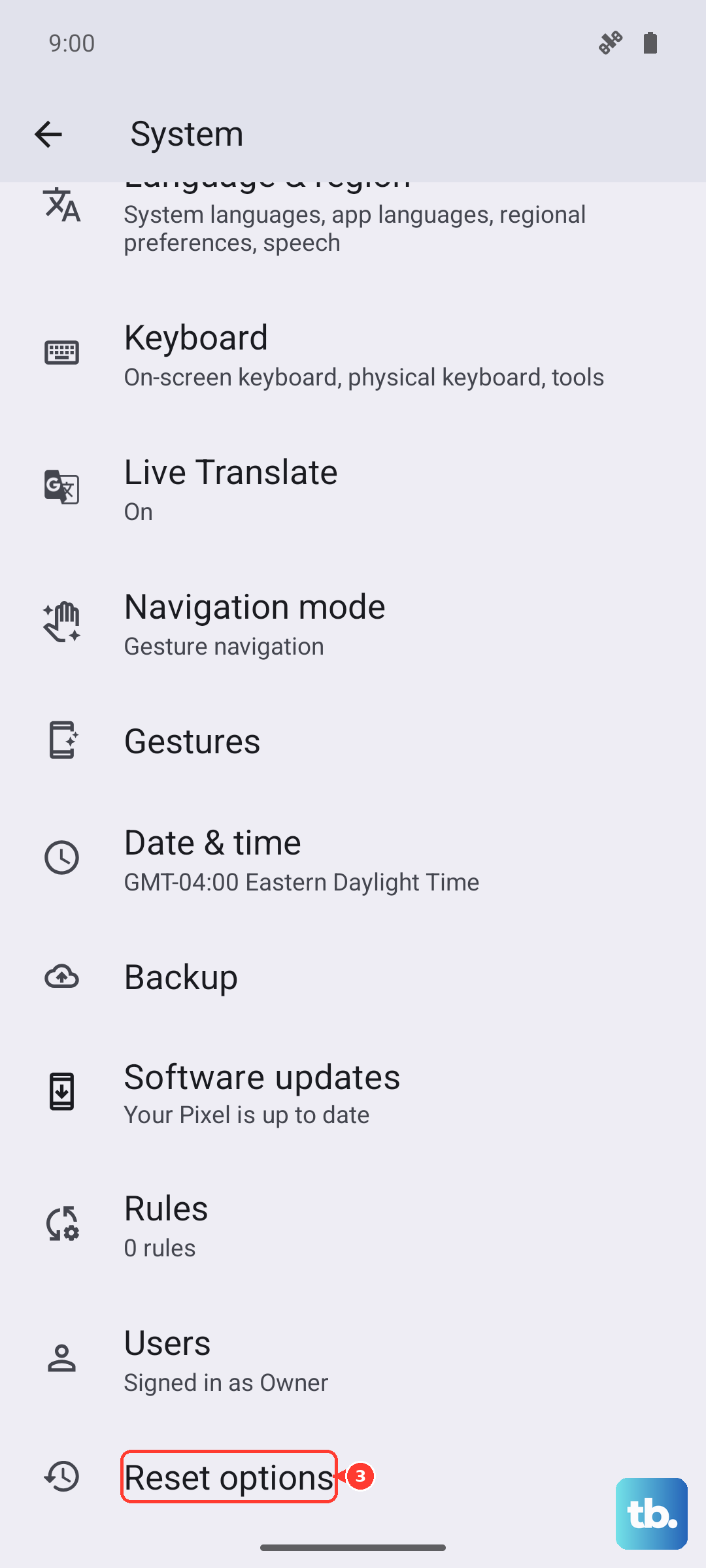
Go to Settings > System > Reset options, tap Reset device settings, unlock the phone, and confirm. This can remove unnecessary cached data or corrupted system files without deleting your personal data, but it will reset Battery, Display, and Storage settings, so check those settings afterward.
Reset Your Connection Settings
This step removes saved Wi-Fi networks and passwords, cellular/mobile settings, paired Bluetooth devices, and VPN configurations. Go to Settings > System > Reset options.
Tap Reset Mobile Network Settings for cellular settings, and tap Reset Bluetooth & Wi-Fi for Wi-Fi and Bluetooth. Afterward, reconnect to Wi-Fi or cellular data and try the system update again.
Try Updating at a Different Time
When Motorola releases a major Android update or a significant security patch, their servers can get overwhelmed with traffic. This is especially true in the first 24-48 hours after an announcement.
If you're getting server errors or the download keeps failing, wait a few hours or try early in the morning. The reduced load often makes the download process much smoother and more reliable.
Update or Reinstall Software Using a Windows PC
If over-the-air updates consistently fail, Motorola's official tool is Software Fix on a Windows PC. Motorola says a full software update may help resolve software issues and avoid a repair.
Download Software Fix from Motorola support, connect the phone with a USB-C cable, and follow the tool's instructions. Do not use Android Flash Tool for this Motorola phone, and do not rely on Motorola Device Manager as the updater; Motorola lists Software Fix as the PC update and repair tool.
Check for App Interference
In some cases, a third-party app can interfere with the system's ability to download or install an update. Apps like VPNs, ad blockers, or certain security tools are common culprits.
Try temporarily disabling any VPN apps and pausing ad blockers. Then, restart your phone and immediately check for the update before opening any other apps. If the update proceeds, you've found the interfering app.
Verify Your Device Is Eligible
The moto g stylus - 2025 launched with Android 15. Update availability can still vary by model, region, carrier, and software channel, and Motorola says carrier and partner certification can affect when different owners receive an OS update.
Check your model in Settings > About phone > Device details > Model > Model Number (SKU). Then use Motorola's software update site for your country, or your carrier's device support page, to confirm whether an OS or security update is available for that exact model.