
When your Moto G Stylus 5G stops listening to "Hey Google" or your stylus button commands, it can feel like a step backward. The voice assistant that's supposed to help you get things done quickly just isn't responding. Here are the most effective ways to get your phone's voice commands working again.
Verify Your Google Assistant Settings
First, let's make sure the basics are in order. Open the Google app on your phone and tap your profile picture in the top right corner. Go to Settings > Google Assistant.
In the Assistant settings, tap on "Hey Google & Voice Match." Ensure that "Hey Google" is toggled on. While you're here, you can also retrain the voice model by tapping "Voice Model" and following the prompts to teach it your voice again. This often fixes recognition problems after a software update.
Check for Stylus-Specific Interference
Since this is the Stylus model, there's a unique factor to consider. The stylus silo on the side of the phone houses the charging contacts for the pen. If the stylus isn't seated perfectly, it might not be making full contact.
Try removing the stylus completely and testing your voice commands. I've seen cases where a slightly misaligned pen can cause minor system hiccups. Store it somewhere safe for a minute, then try saying "Hey Google" again. If it works, re-insert the stylus carefully until you feel it click into place.
Review Your Sound and Accessibility Settings
Android has several features that can override or interfere with the microphone. Head to your phone's main Settings and tap on Sound & vibration. Make sure your media volume and ringtone volume are turned up, not muted.
Next, go to Settings > Accessibility. Look for a feature called "Sound Notifications" or "Live Transcribe." If either of these is enabled, they can sometimes take priority over the "Hey Google" hotword. Try turning them off temporarily to see if that's the culprit.
Examine Your Microphone and Audio Path
The Moto G Stylus 5G has multiple microphones for noise cancellation. If they're blocked, Google Assistant can't hear you. Check the small pinhole at the bottom of the phone (next to the USB-C port) and the one at the top.
Gently brush these areas with a soft, dry toothbrush to remove any pocket lint or dust. Also, if you're using a thick case or a screen protector that wraps over the edges, it might be covering a microphone. Try removing the case and testing the voice commands without it.
Force Stop and Clear the Google App Cache
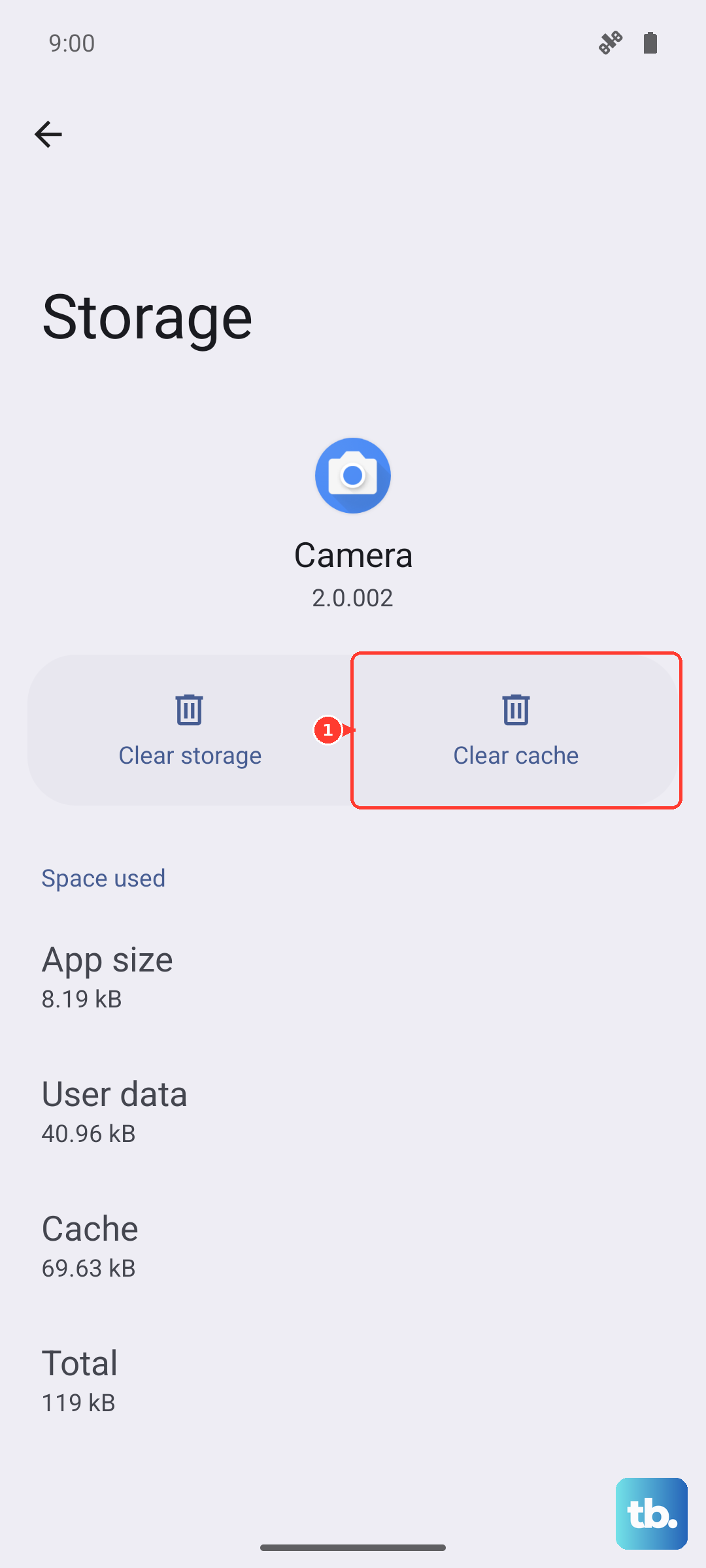
This is a very common fix for Android voice issues. Go to Settings > Apps > See all apps. Find and tap on "Google." On the app info page, tap Force Stop, then tap Storage & cache.
Tap "Clear cache." This deletes temporary files that might be corrupted without affecting your personal data. Don't clear storage unless you're prepared to sign back into your Google account. After clearing the cache, go back and open the Google app to see if "Hey Google" is responsive.
Disconnect Bluetooth Accessories
If you have wireless earbuds, a smartwatch, or a car stereo connected via Bluetooth, try disconnecting them. Sometimes, the phone tries to route the "Hey Google" listening function to an external microphone that isn't active or is of lower quality.
Go to Settings > Connected devices and tap the settings icon next to any connected audio device, then tap "Disconnect." Test your voice command with the phone's own speakers and mics. You can always reconnect your accessories afterward.
Perform a Simple Restart
It sounds obvious, but a restart clears out temporary glitches in the system memory. Press and hold the power button on the right side of your Moto G Stylus until the power menu appears, then tap "Restart."
If the phone is completely unresponsive to the power button, you can force a restart. Just press and hold the power button for about 10 seconds or more, until you feel it vibrate and see the Motorola logo appear. This is often more effective than a standard shutdown.
Check for a System Update
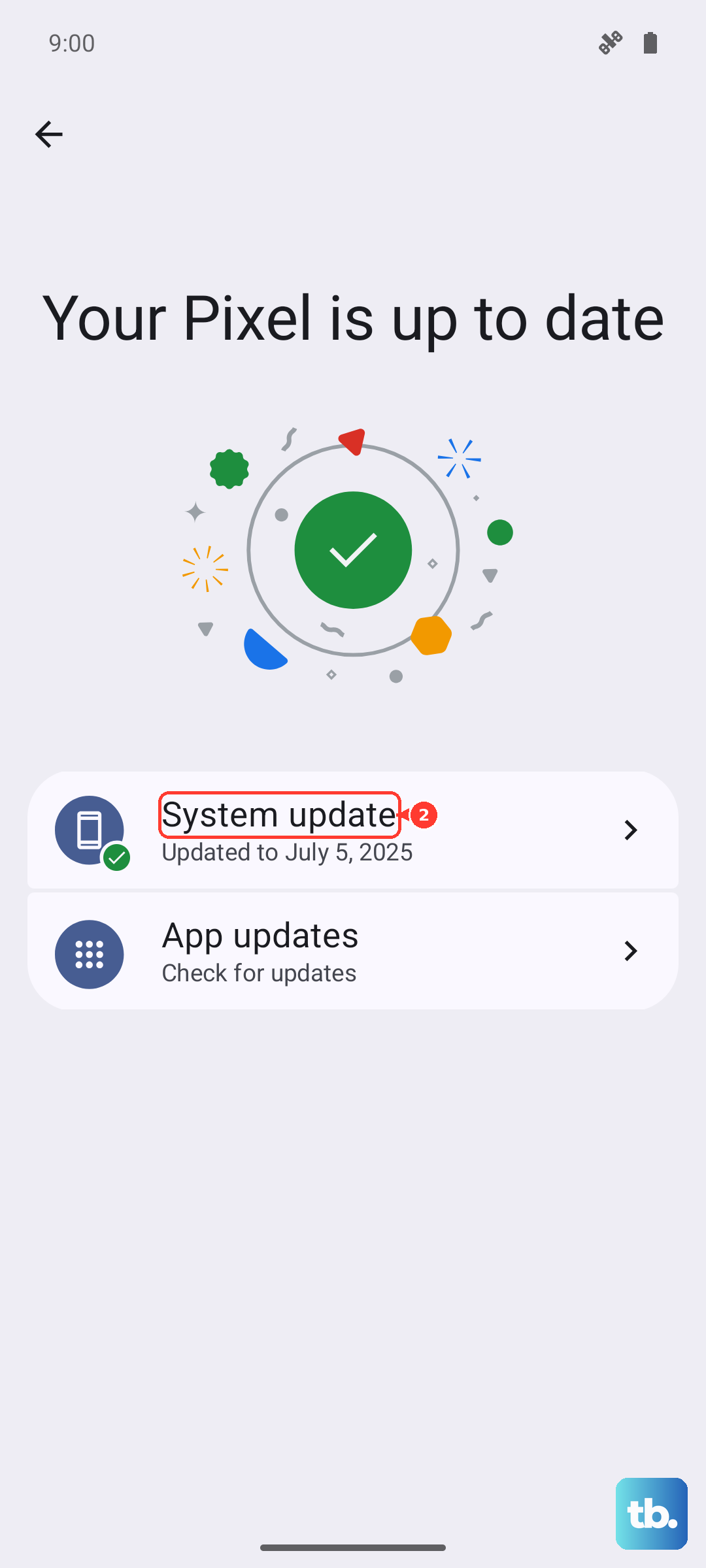
Motorola frequently releases updates that fix bugs, including ones related to audio and voice services. Since your phone runs Android 15, make sure you have the latest security patch and system improvement.
Go to Settings > System > System updates. Tap "Check for update." If an update is available, it's best to install it while connected to Wi-Fi and with your phone plugged into its 68W TurboPower charger. An update can resolve conflicts that appeared after the last installation.
Reset All App Preferences
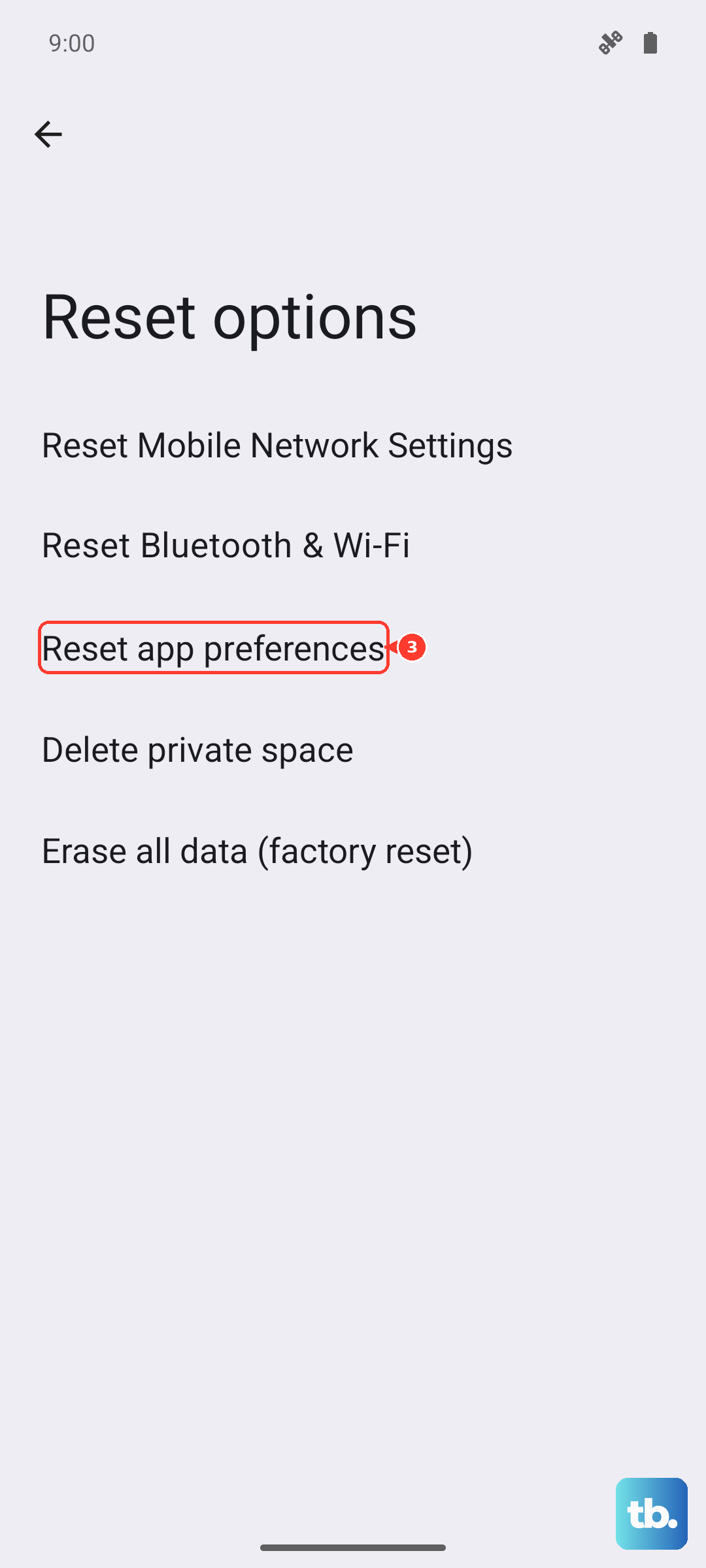
This is a less drastic step than a full factory reset. It resets permissions, background restrictions, and default app assignments without deleting any of your personal data like photos or messages.
Navigate to Settings > System > Reset options. Tap "Reset app preferences." You'll need to re-grant permissions when apps ask for them next time, but this can clear up a setting that inadvertently silenced the Google app.
Verify Your Network Connection
While many "Hey Google" commands are processed on the device itself, some still require a data connection for full functionality. If you're on a weak Wi-Fi signal or a slow mobile data connection, the assistant might seem sluggish or unresponsive.
Try toggling Airplane mode on and off from your quick settings panel. This resets your network radios. Alternatively, switch between Wi-Fi and mobile data to see if the problem is network-related. A simple internet speed test can confirm if your connection is the bottleneck.