
If your Motorola Moto G Stylus 5G (2025) is making videos look choppy or freeze up, it can ruin the experience. This is a common annoyance on Android phones, but the good news is you can usually fix it yourself without too much hassle.
Before assuming the panel is at fault, run a quick refresh rate test in your browser. It measures the refresh rate your screen is actually running at, which often is not what the spec sheet promises.
Check Your Internet Connection First
For any video you're streaming online, a weak connection is the most likely culprit. The phone might be struggling to download the video data fast enough, causing it to buffer or stutter. Try switching from Wi-Fi to your 5G data, or vice versa, to see if the problem goes away.
If you're on Wi-Fi, you can also try moving closer to your router. Sometimes a simple router reboot can clear up network congestion that's slowing things down.
Restart Your Moto G Stylus
This is the classic fix for a reason. A quick restart clears out any temporary software glitches or background processes that might be interfering with video playback. Just press and hold the power button for about 10 seconds until you feel a vibration and see the Motorola logo appear.
It's a simple step, but I've seen it resolve playback issues more times than I can count. Give it a shot before moving on to anything more involved.
Update Your Apps and Android
Outdated software is a prime suspect. The app you're using to play the video, whether it's YouTube, Netflix, or the built-in Gallery, might have a bug that's been fixed in a newer version. Head to the Google Play Store, tap your profile icon, and go to Manage apps & device to check for updates.
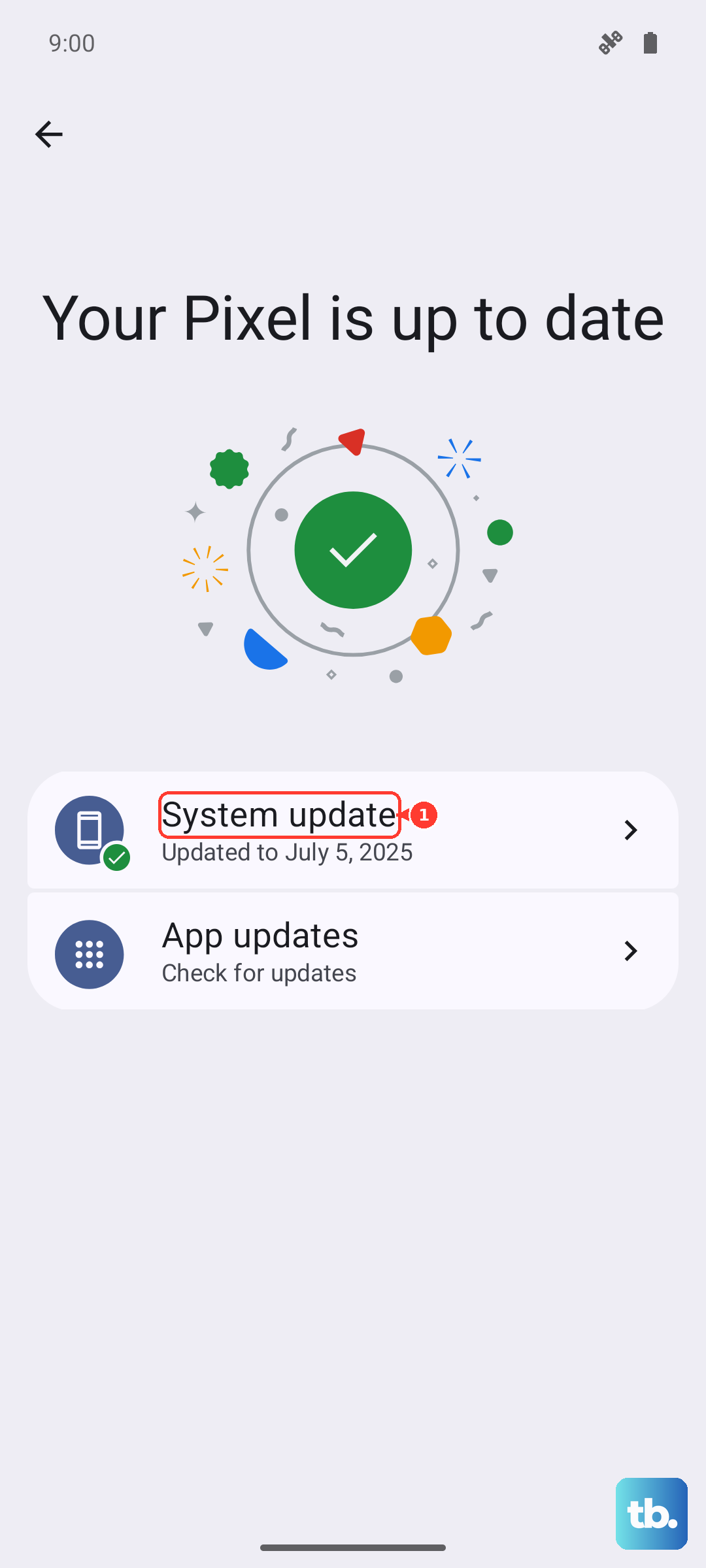
Also, make sure your phone's operating system is current. Go to Settings > System > System updates to see if Android 15 has any pending patches. Motorola often releases updates that improve performance and fix media playback issues.
Free Up Storage Space on Your Phone
When your phone's storage is nearly full, it doesn't have enough room to work efficiently. Video apps need space to cache data temporarily, and if that space is limited, playback can suffer. Go to Settings > Storage to see how much free space you have.
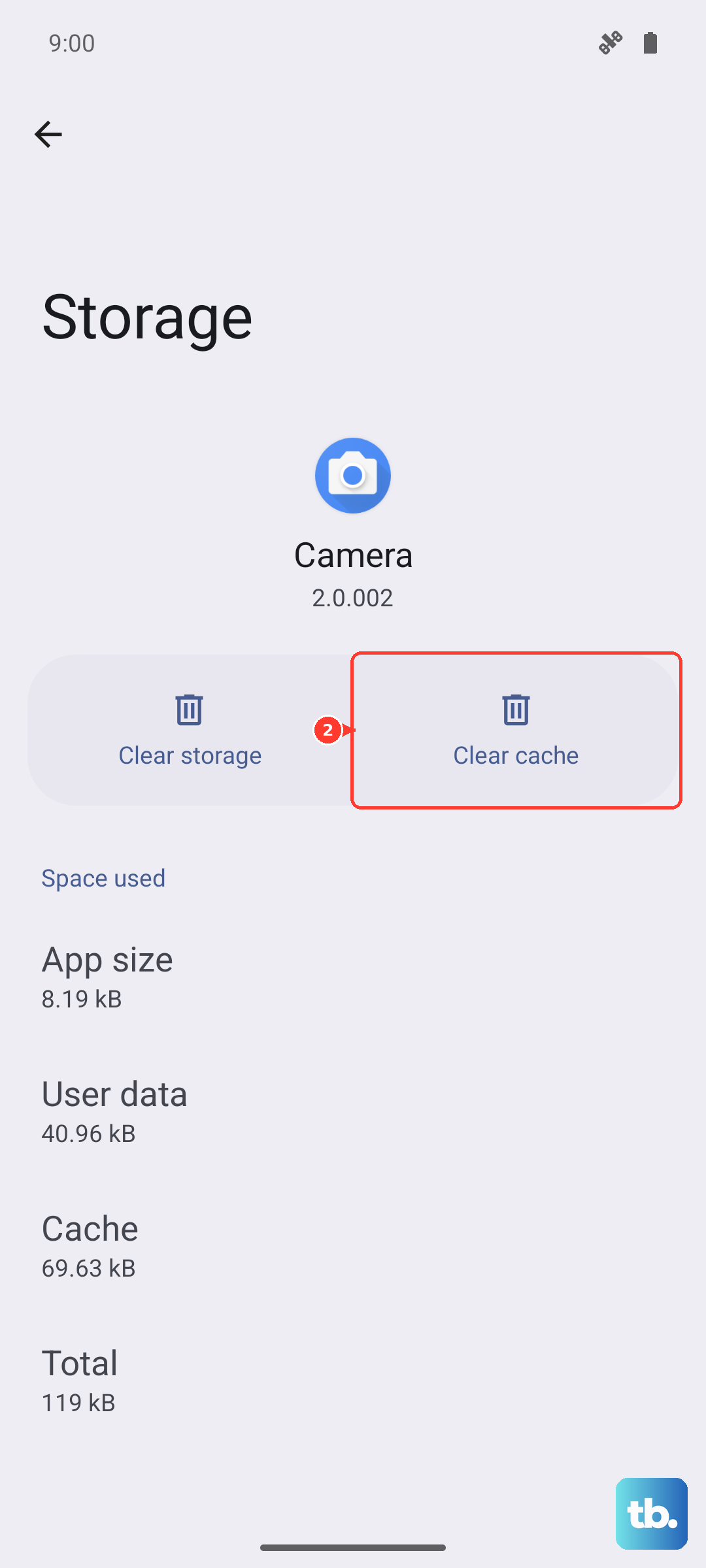
If you're running low, consider offloading some old photos and videos to Google Photos or another cloud service. You can also clear the cache for individual apps by going to Settings > Apps, selecting the video app, and tapping Storage & cache > Clear cache. This won't delete your personal data.
Check for Overheating
The Moto G Stylus 5G's processor can throttle its performance if the phone gets too hot, which can lead to stuttering video. This is more likely if you're charging the phone with the 68W TurboPower charger while watching, as fast charging generates heat.
If the back of the phone feels warm to the touch, take it out of any case, stop charging it for a bit, and let it cool down. Try playing the video again once the temperature has normalized.
Adjust Video Streaming Quality
If you're streaming, the app might be trying to play a video in a resolution higher than your connection can handle smoothly. In apps like YouTube or Netflix, look for a settings cog during playback and manually select a lower resolution, like 720p instead of 1080p or 4K.
This reduces the amount of data needed and can often eliminate stuttering on slower networks. You can always switch it back up later when you're on a stronger connection.
Try a Different Video Player App
The issue might be isolated to one specific app. If videos are stuttering in Google Photos but play fine in VLC, for example, then you know the problem is app-related. Try installing a reputable third-party player like VLC or MX Player from the Play Store and see if it handles the file better.
This can be especially helpful for playing video files you've downloaded that are in less common formats.
Disable Battery Optimization for the App
Android's battery saver features are great for longevity, but they can sometimes be too aggressive. They might limit background processes for an app like YouTube, which can affect playback. Go to Settings > Apps, select the problematic video app, and tap Battery.
Change the battery setting to Unrestricted. This tells Android not to restrict the app's activity, which can help with performance.
Reset App Preferences
This is a less drastic step than a full reset. It will revert all your app permissions, notifications, and default apps back to their original settings without deleting any of your personal data. It can clear up conflicts that cause odd behavior.
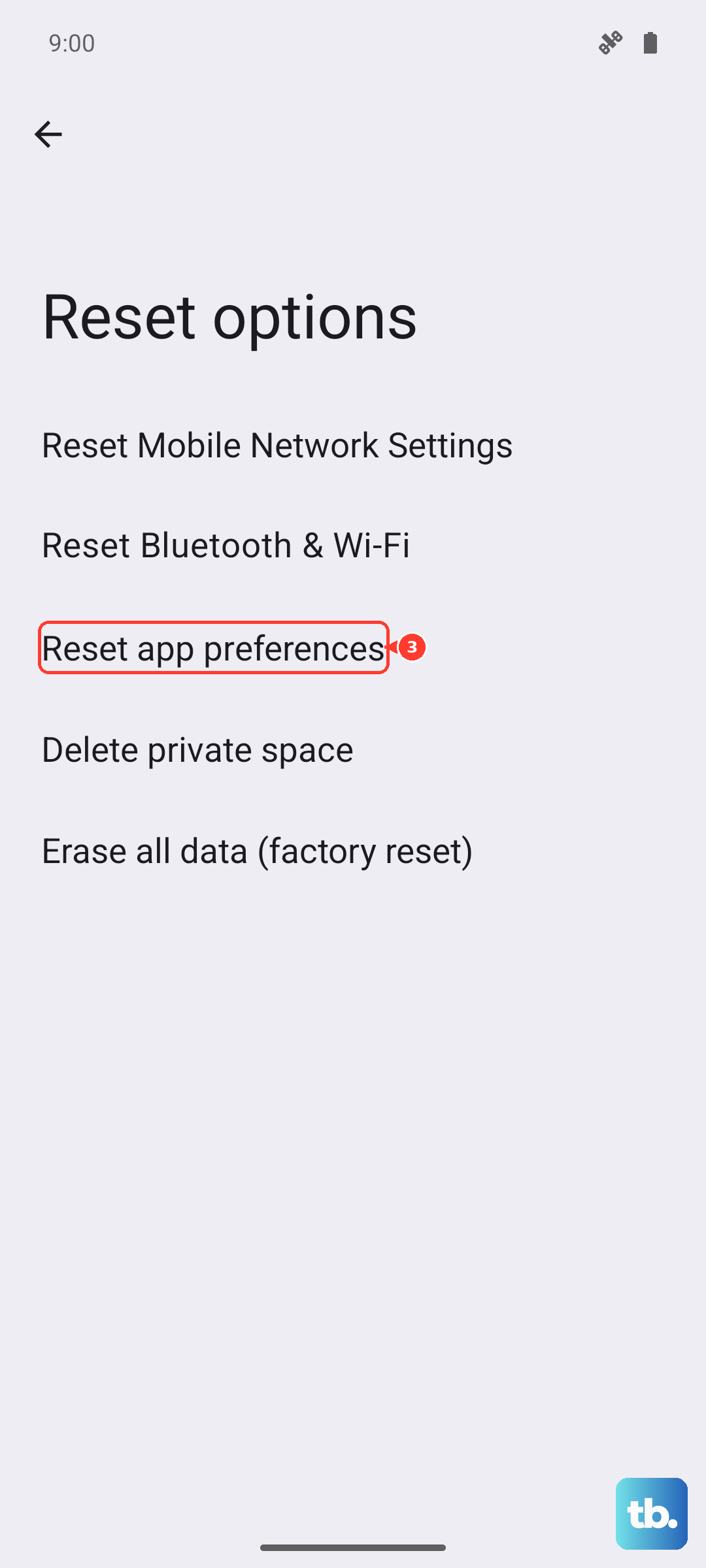
Go to Settings > System > Reset options. Tap on Reset app preferences and confirm. You'll just need to re-grant permissions to apps the next time you use them.
Perform a Factory Reset
If you've tried everything else and the stuttering persists across all apps, a factory reset is the final software step. This will wipe your phone back to its original out-of-the-box state, so it's crucial to back up everything important first using Google's backup service or by manually transferring files to a computer.
Once backed up, go to Settings > System > Reset options > Erase all data (factory reset). After the phone restarts, set it up as new and test video playback before restoring all your apps and data, to see if a rogue app was the cause.