When the speaker on your Motorola Moto G Stylus 5G (2025) goes quiet or sounds distorted, it can throw off your whole day. Whether you're missing calls, struggling to hear videos, or dealing with crackly audio, the issue is usually something you can fix yourself. I'd start with the simplest checks first, as they often solve the problem in under a minute.
It is worth confirming the basics with a quick online speaker test. If neither channel plays a tone, you are looking at a hardware or connection problem rather than a settings issue.
Check Your Volume and Sound Mode
First, make sure your phone isn't just set to silent. Press the volume up button on the side of the phone while you're trying to play something. If you see a bell icon with a line through it on the screen, your ringer is muted.
You can also check all your sound levels in one place. Open the Settings app and go to Sound & vibration. Here, you'll see sliders for Media, Call, Ring, and Notification volumes. Slide them all up to a comfortable level.
While you're there, look at the top for your Sound Mode. Make sure it's set to Sound or Vibrate, not Silent. The Moto G Stylus uses a clean version of Android 15, so these controls are usually straightforward.
Disconnect Bluetooth and Other Audio Routes
Your phone might be trying to send sound somewhere else. If you've used wireless headphones or a speaker recently, the audio could still be routed to them. Swipe down from the top of your screen to open the Quick Settings panel and look for the Bluetooth icon.
If it's highlighted, tap it to turn Bluetooth off completely. You can also go into Settings > Connected devices and review the list of paired devices. Sometimes disconnecting them individually is more reliable than just toggling Bluetooth off and on.
Also, pull out the stylus from its silo on the bottom of the phone. While the stylus on this model doesn't have Bluetooth features like a Samsung S Pen, it's still good to rule out any odd sensor interaction that might be affecting audio output.
Clean the Speaker Grills Carefully
The bottom-firing speaker on the Moto G Stylus can easily collect lint from pockets. This is one of the most common physical causes of muffled or quiet sound. Grab a small, soft-bristled brush like a clean makeup brush or a new toothbrush.
Gently brush across the long, thin speaker grill next to the USB-C port. You can use a flashlight to see if there's visible pocket lint packed in there. A can of compressed air held upright can help, but use very short bursts and don't hold the nozzle too close.
Avoid using anything sharp like a pin or the stylus tip itself. You could easily puncture the speaker mesh. The Gorilla Glass 3 on the front is also more prone to scratches, so be careful around the earpiece grill at the top of the screen.
Review Do Not Disturb and App-Specific Settings
Check if you've accidentally scheduled a Do Not Disturb mode. Go to Settings > Sound & vibration > Do Not Disturb. See if any schedules are active or if the mode is turned on manually. Make sure alarms and media are still allowed to play sound when DND is on.
Sometimes, the issue is with just one app. If YouTube is quiet but your ringtone is loud, the app's own volume might be down. Open the problematic app and press the volume buttons to adjust its specific media volume.
Also, check the app's notification settings. Go to Settings > Apps, select the app, and tap Notifications. Ensure the notification category you want is set to "Make sound" or has a sound selected.
Perform a Simple Restart
A quick reboot clears out temporary software glitches that can affect the audio system. Just press and hold the power button until the power menu appears, then tap Restart. Wait for the phone to cycle off and back on completely.
If the phone is unresponsive or the sound cut out during a glitch, you might need a force restart. For the Moto G Stylus 5G (2025), press and hold the power button for about 10 seconds or until you feel it vibrate and the Motorola logo appears. This doesn't erase any data.
Boot Into Safe Mode to Check for App Conflicts
If a recently downloaded app is causing trouble, Safe Mode will tell you. To enter Safe Mode, open the power menu by pressing the Power and Volume up buttons together (on Samsung phones, the Side and Volume down buttons) or by tapping the power icon in the quick settings panel, then touch and hold Power off and tap Safe Mode or OK. Then, tap and hold the "Power off" option on your screen.
A prompt will ask if you want to reboot to Safe Mode. Tap "OK". Your phone will restart, and you'll see "Safe mode" in the bottom corner. Try playing some audio now. If it works perfectly, a third-party app is the culprit.
To exit Safe Mode, just perform a normal restart. You'll then need to uninstall apps one by one, starting with the most recent downloads, to find the offender.
Clear the Cache Partition
Corrupted system cache files can cause all sorts of weird behavior, including audio problems. Clearing this cache is safe and won't delete your photos or apps. First, power your phone off completely.
Now, press and hold the Volume Down button and the Power button at the same time. Hold them until the Motorola logo appears, then let go. You'll see the Android Recovery screen.
Use the volume buttons to highlight Wipe cache partition and press the power button to select it. Confirm the action. Once it's done, select Reboot system now.
Check for a Software Update
Motorola frequently releases updates that fix bugs, including audio-related ones. Make sure your phone is running the latest available version of Android. Connect to Wi-Fi and go to Settings > System > System updates.
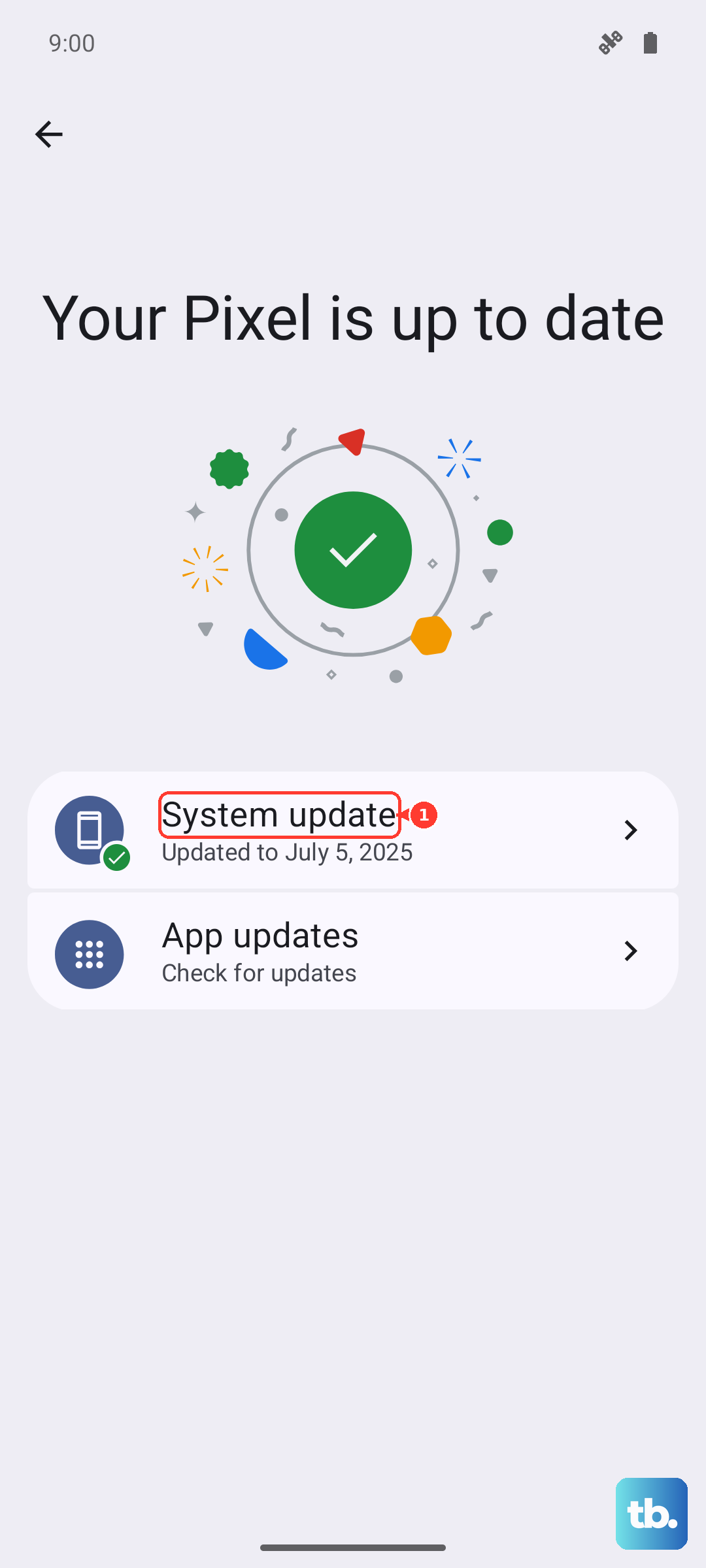
Tap Check for update. If an update is available, download and install it. It's a good idea to plug in your 68W TurboPower charger during this process, even though the update should be quick on this phone.
Reset All App Preferences (Not Your Data)
This is a useful middle step before considering a full reset. It resets permissions, background restrictions, and notification settings for all your apps back to default, which can fix misbehaving audio controls. Your personal data stays safe.
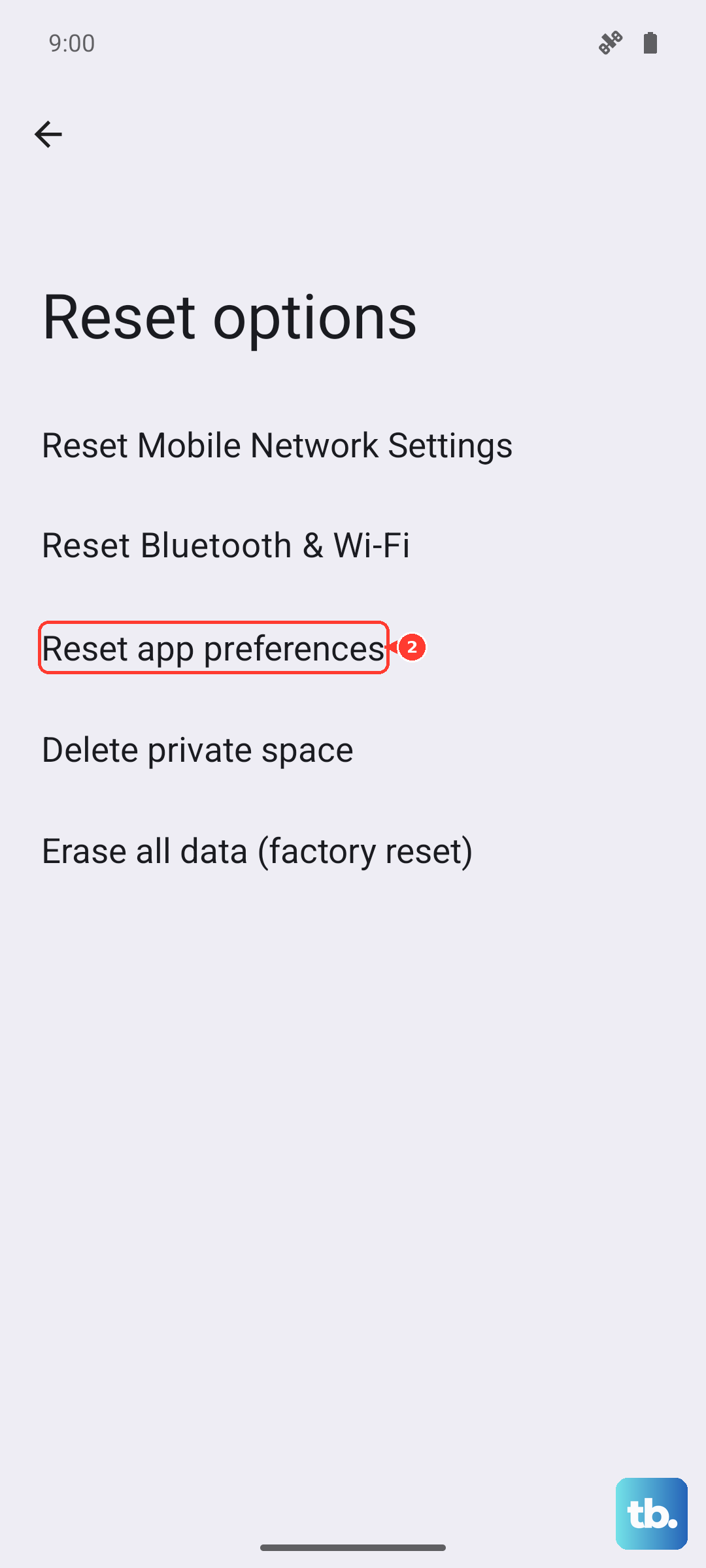
Go to Settings > System > Reset options. Tap on Reset app preferences and confirm. You'll need to re-grant permissions to apps when you use them next, but this often clears up conflicting settings that mute sound.